How To Create A Newspaper In Google Docs
Okay, picture this: You're sitting in a comfy chair, a steaming mug in hand, and the scent of fresh ink fills the air. (Okay, maybe not the ink part, unless you're really committed to the experience.) You've just created your very own newspaper! Sounds cool, right? And guess what? You can do it all from the comfort of your Google Docs.
Forget complicated publishing software and expensive design programs. We're talking about good ol' Google Docs, the trusty tool you probably already use for everything from writing essays to crafting grocery lists. Why not add "newspaper mogul" to that resume?
Why Google Docs Newspapers Are Surprisingly Awesome
So, why would you even want to create a newspaper in Google Docs? Well, let's think about it. Maybe you want to: * Start a neighborhood newsletter? * Document a family history in a unique way? * Create a quirky birthday gift for a friend? * Practice your writing and design skills in a low-stakes environment? The possibilities are endless! Plus, it's a fantastic way to get creative and share information in a tangible-feeling format, even if it's all digital.
Must Read
Think of it like this: it's like building a LEGO castle, but instead of bricks, you're using words, images, and formatting. Pretty neat, huh?
Getting Started: Your Google Docs Newsroom
Alright, let's dive in! Here's a simple guide to getting your Google Docs newspaper off the ground:
- Open a fresh Google Doc: This is your blank canvas. Let the creativity flow!
- Page Setup: Go to "File" then "Page Setup". Think about the size. Do you want a classic broadsheet feel? Or a more compact tabloid style? Play around with the margins, too.
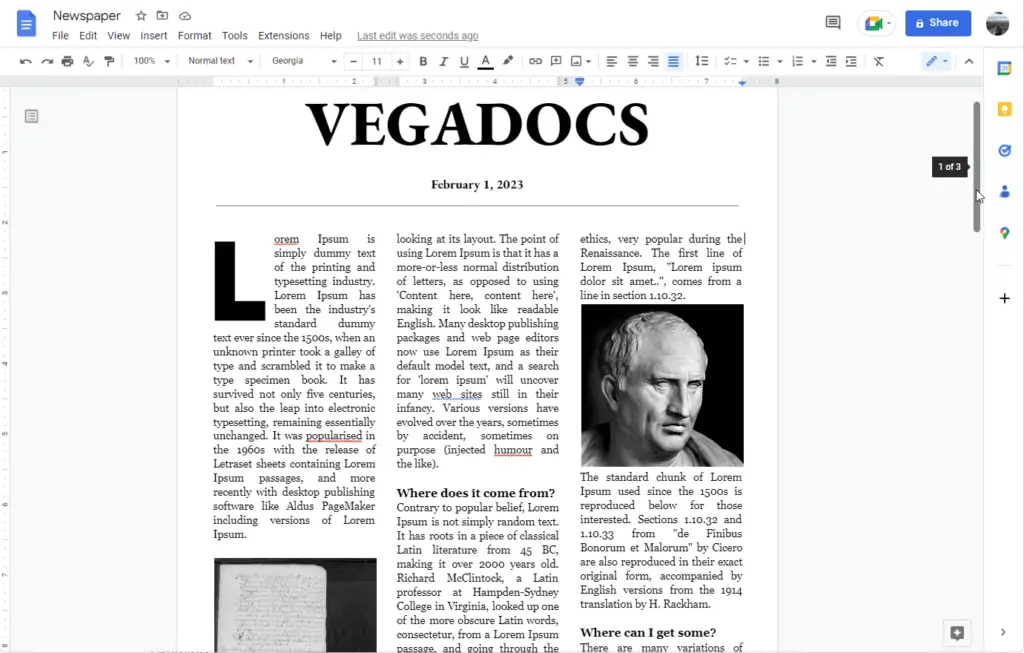
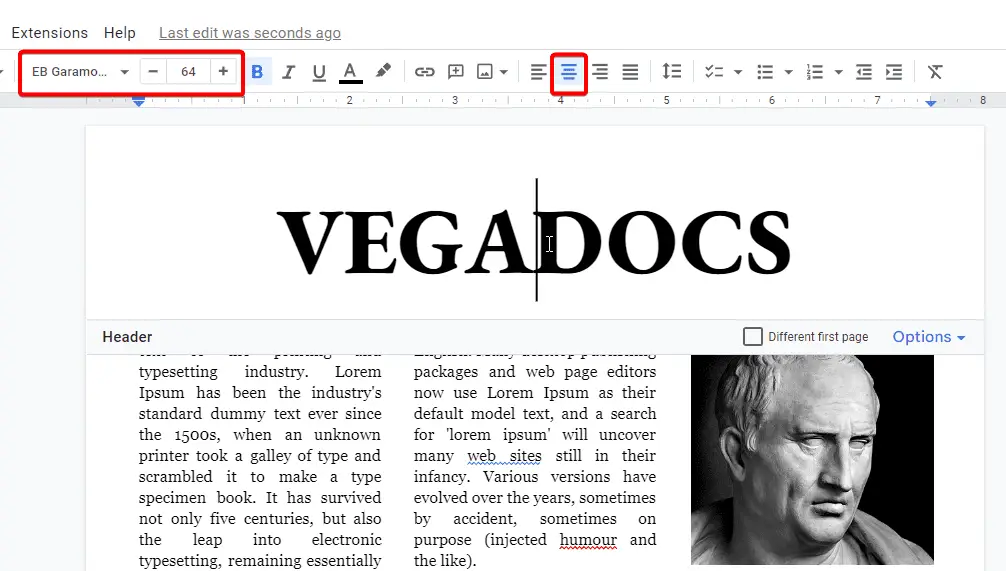
- Headlines and Titles: What's the name of your paper? "The Daily Chuckle"? "The Smith Family Chronicle"? Choose a bold font and a size that commands attention. Remember, this is your brand!
- Columns: This is where the magic happens. Use the "Insert" menu and then "Table". Select one row with however many columns you like! Two or three columns usually look the most newspaper-y. You can adjust the column widths by dragging the column borders. Then, start writing your articles in the columns.
- Images: A picture is worth a thousand words, right? Insert images to break up the text and add visual appeal. Use the "Insert" menu and then "Image". You can upload photos from your computer, search the web, or use Google Drive.
- Formatting is Key: This is where you make your newspaper look professional (or intentionally quirky, depending on your style).
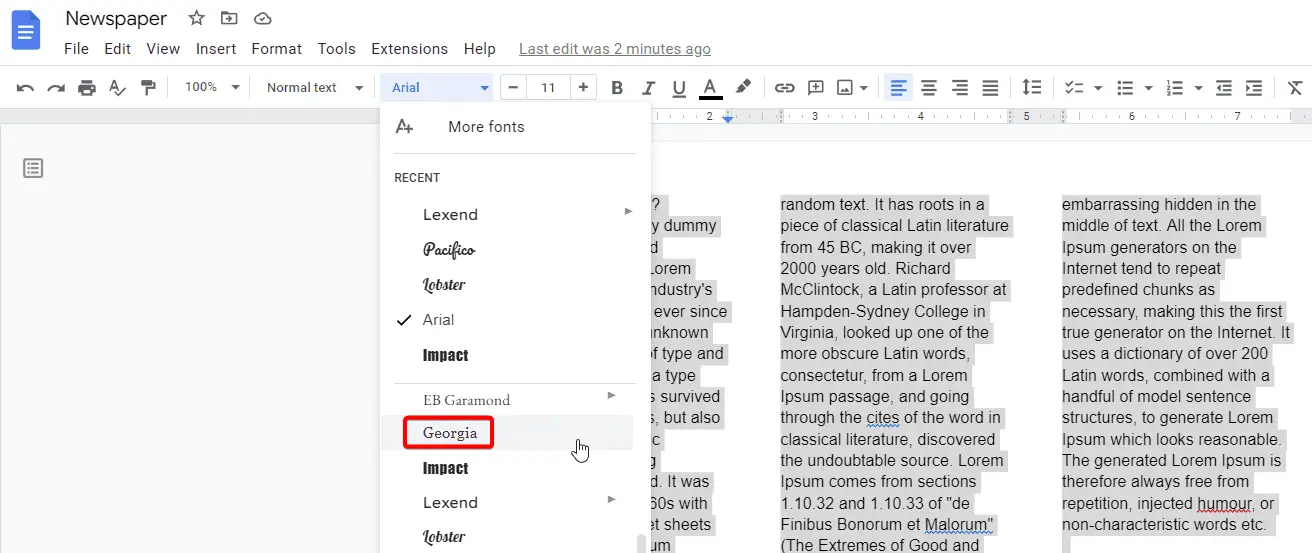
- Fonts: Choose readable fonts for the body text and different fonts for headlines and captions.
- Bold and Italics: Use bold text to emphasize important words and italics for quotes or emphasis.
- Spacing: Don't overcrowd your paper! Use line spacing and paragraph spacing to create a comfortable reading experience.
- Headlines, Headlines, Headlines!: Use catchy headlines to draw readers into your articles. Think of it like a movie trailer – you want to grab their attention in seconds.
- Captions: Don't forget to add captions to your images! Captions provide context and help readers understand what they're looking at.
- Footers: Footers can add interesting information, like page numbers, bylines, or publication dates.
- Export and Share: When you're happy with your masterpiece, export it as a PDF ("File" -> "Download" -> "PDF Document"). Now you can print it, email it, or share it online!
Pro Tips for a Newspaper That Pops
Want to take your Google Docs newspaper to the next level? Here are a few extra tips:
So, What Are You Waiting For?
Creating a newspaper in Google Docs is a fun, creative, and surprisingly easy project. It's a chance to unleash your inner journalist, designer, and storyteller. So, fire up Google Docs, gather your ideas, and start creating! Who knows, you might just be the next publishing sensation. Or, at the very least, you'll have a unique and memorable keepsake to share with friends and family.
Go on, give it a try! You might just surprise yourself with what you can create.