How To Clean Up Jagged Edges In Cricut Design Space
Hey there, fellow crafting enthusiast! Ever feel like your Cricut projects are almost perfect, but those darn jagged edges are ruining the whole vibe? You're not alone! We've all been there, staring at a design on our screen, whispering, "Why you gotta be so pixelated?" But fear not! Cleaning up those edges in Cricut Design Space is totally doable, and trust me, it'll take your creations from "meh" to "WOW!"
Think about it: crisp, clean lines elevate everything. Imagine a beautiful invitation with flawlessly smooth curves or a vinyl decal that looks like it was professionally made. That's the power of conquering those jagged edges! And the best part? It's not rocket science. (Unless you're crafting actual rockets, then, well, maybe it is a little rocket science. But the edge-cleaning part is still easy!)
Understanding the Culprit: Resolution and Image Type
Okay, let's get a tiny bit technical (but I promise, it won't hurt!). Jagged edges usually pop up when you're working with low-resolution images, especially JPEGs. Think of it like blowing up a tiny photo on your phone – the bigger it gets, the more pixelated it looks. Same principle applies here.
Must Read
So, what's the solution? Ideally, you want to start with a high-resolution image. PNG files are generally better than JPEGs because they handle transparency and often have higher quality. But what if you're stuck with a JPEG? That's where the magic happens in Cricut Design Space!
The Magic Wand: Contour and Smooth Tools
Alright, let's dive into the nitty-gritty! These tools are your new best friends. Seriously, you'll be using them all the time.

The Contour Tool: Your Selective Eraser
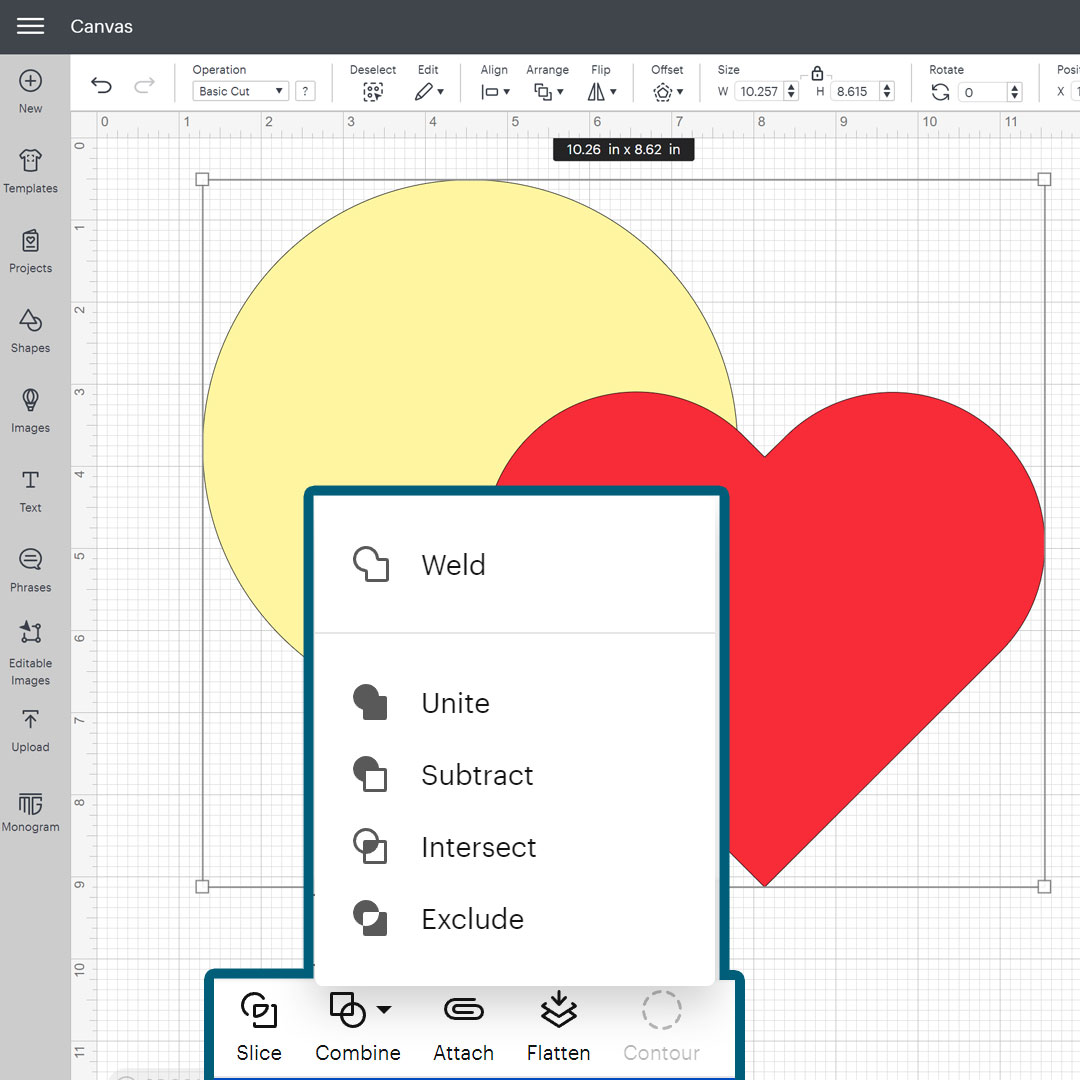
The Contour tool is fantastic for removing unwanted little bits and pieces that contribute to the jaggedness. It's like having a tiny, digital eraser! Select your image, then click "Contour" in the bottom right-hand corner. A window will pop up showing all the cut paths in your design. Now, you can simply click on the parts you want to hide or eliminate. Poof! Gone! (Isn't that satisfying?)
Pro tip: Zoom in really close so you can see exactly what you're getting rid of. Sometimes, what looks like a small detail from far away can be a big, jagged offender up close.
The Smooth Tool: A Gentle Touch
Now, for the Smooth tool. This one isn't directly in Design Space, but can sometimes be applied in other software before you import the file to Cricut. If you have access to other image editing softwares like Inkscape or Adobe Illustrator, look for the smooth tool or a function that lets you refine image edges. You can also use online tools like Vectorizer. These tools will round those sharp, jagged edges into smooth curves.

When using external software to smooth, be careful not to overdo it! Sometimes, a little bit of jaggedness is okay, especially if it's part of the design's character. (Think rustic fonts – a little roughness can actually add to the charm!).
Tracing for Perfection: The Upload Tool
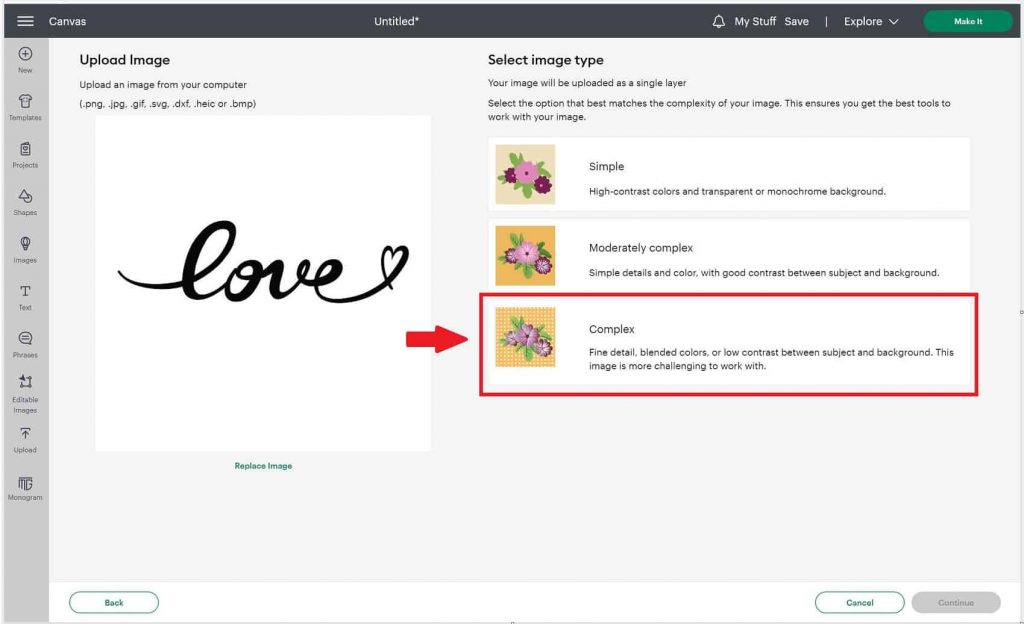
If you're really struggling with jagged edges, especially on more complex designs, consider tracing the image in Design Space. When you upload an image, you have the option to select complex or simple and then remove the background.

Select "Complex" because it will retain more detail and color. After that, remove any unwanted background. You can then smooth, apply the contour tool and then save the image as a print and cut file or cut file.
Beyond the Basics: Tips and Tricks
- High-Quality Images are Key: Seriously, start with the best image you can find. It will save you tons of time and frustration.
- Less is More: Don't over-smooth. Sometimes, a little bit of detail is a good thing.
- Test Cuts are Your Friend: Always do a small test cut before committing to a large project. This allows you to see how the edges look in real life and make adjustments as needed.
- Practice Makes Perfect: The more you use these tools, the better you'll get at identifying and fixing jagged edges.
So there you have it! Cleaning up jagged edges in Cricut Design Space isn't as scary as it seems, right? With a little practice and the right tools, you'll be creating flawlessly smooth projects in no time. Imagine the possibilities! Think of all the amazing things you can make! Go forth and create with confidence!
Ready to take your Cricut skills to the next level? There are tons of online resources, tutorials, and communities dedicated to helping you master every aspect of Cricut Design Space. So, jump in, explore, and have fun! Happy crafting!