
How To Check Power Consumption Of Pc
Hey there, fellow tech explorer! Ever stared at your blinking PC tower and wondered, "Just how much juice is this thing slurping up?" You're not alone! It's like having a pet dragon – you love it, but you also wonder about its fiery appetite. Checking your PC's power consumption might sound like a super technical, complicated mission, but I promise, it's actually pretty fun and surprisingly straightforward. No need for a lab coat or a PhD in electrical engineering, just a dash of curiosity!
So, why bother peering into the power habits of your beloved computer? Well, for a few reasons! Maybe you're trying to save a few pennies on your electricity bill (who isn't?). Maybe you're a budding eco-warrior wanting to reduce your carbon footprint (go you!). Or perhaps you're just genuinely curious, like a detective trying to solve the mystery of the glowing box. Whatever your reason, understanding your PC's power usage is a cool bit of knowledge to have in your back pocket.
The "Guess-timate" Method: Software Solutions
Let's start with the easiest, albeit less precise, way to get a ballpark figure. Think of this as getting a weather report – it tells you generally what's happening, but won't predict exactly when that tiny raindrop will hit your nose. Software tools can show you what individual components are doing.
Must Read
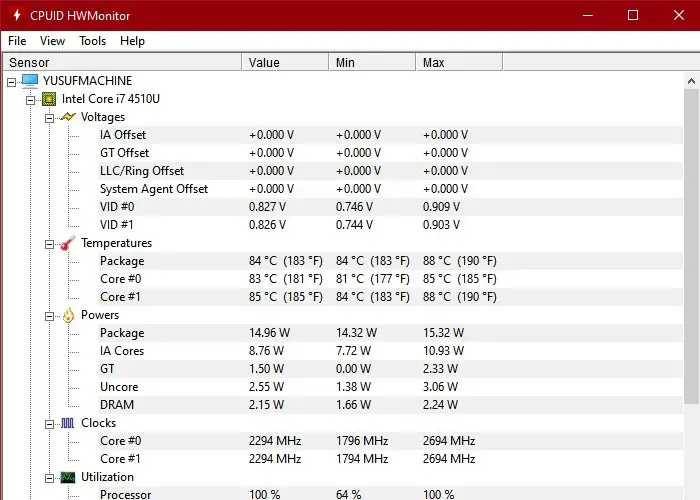
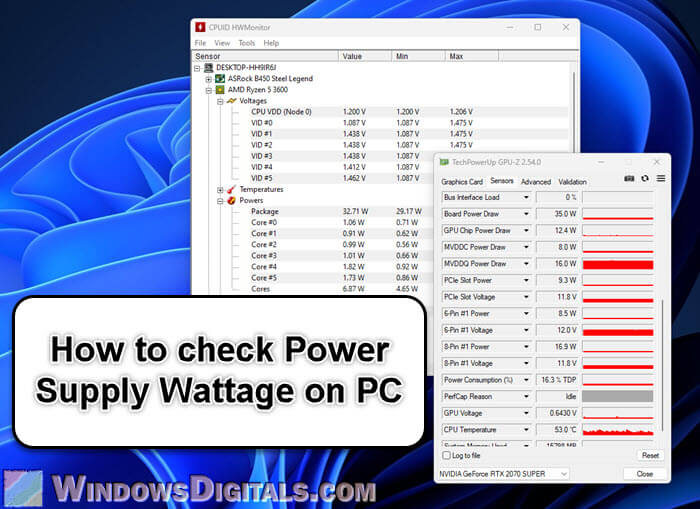
Tools like HWMonitor or AIDA64 are fantastic for peeking under the hood. They'll tell you how much power your CPU (the brain) and GPU (the graphics powerhouse) are drawing. This is super handy if you're gaming or doing some heavy-duty video editing and want to see how hard those specific parts are working.
However, here's the catch: these tools usually don't show you the total power draw of your entire system. They miss things like your motherboard, RAM, hard drives, cooling fans, and all the little bits that make your PC sing. So, while great for component-specific insights, it's not the full picture of what's coming out of your wall socket. It’s like knowing how much your car's engine consumes, but not counting the AC or the stereo!
![How To Check Your PC’s Power Consumption [4 Methods]](https://www.cgdirector.com/wp-content/uploads/media/2022/08/Open-Hardware-Monitor-Screenshot-768x1019.jpg)
The "Real Deal" Method: Hardware Heroes!
Alright, if you want the truth, the whole truth, and nothing but the truth, you'll need a little hardware helper. And fear not, this isn't some expensive, fancy piece of kit. We're talking about a humble, incredibly useful device called a Kill-A-Watt meter (or a similar brand of wall outlet power meter).
This little gadget is your best friend for accurate power consumption measurements. It's super easy to use, even if you're not a tech whiz. Here's how it works:
- Plug it in: Take your power meter and plug it directly into the wall outlet where your PC usually gets its juice.
- Plug your PC into it: Now, take your PC's power cable (and anything else connected to that specific outlet, like your monitor) and plug it directly into the power meter.
- Read the magic numbers: Turn on your PC, and the meter will instantly start displaying how many watts your system is currently consuming.
Voila! You're now a power-monitoring maestro! You can watch the numbers fluctuate in real-time. See how much it draws when it's just idling, when you're browsing the web, or when you fire up that graphics-intensive game. It's fascinating!
These meters are usually pretty affordable, often costing less than a fancy pizza. And they're not just for PCs; you can use them for anything that plugs into a wall – your toaster, your TV, even your charging phone. It's an excellent investment for understanding your home's electricity usage.

The "Future Planner" Method: PSU Calculators
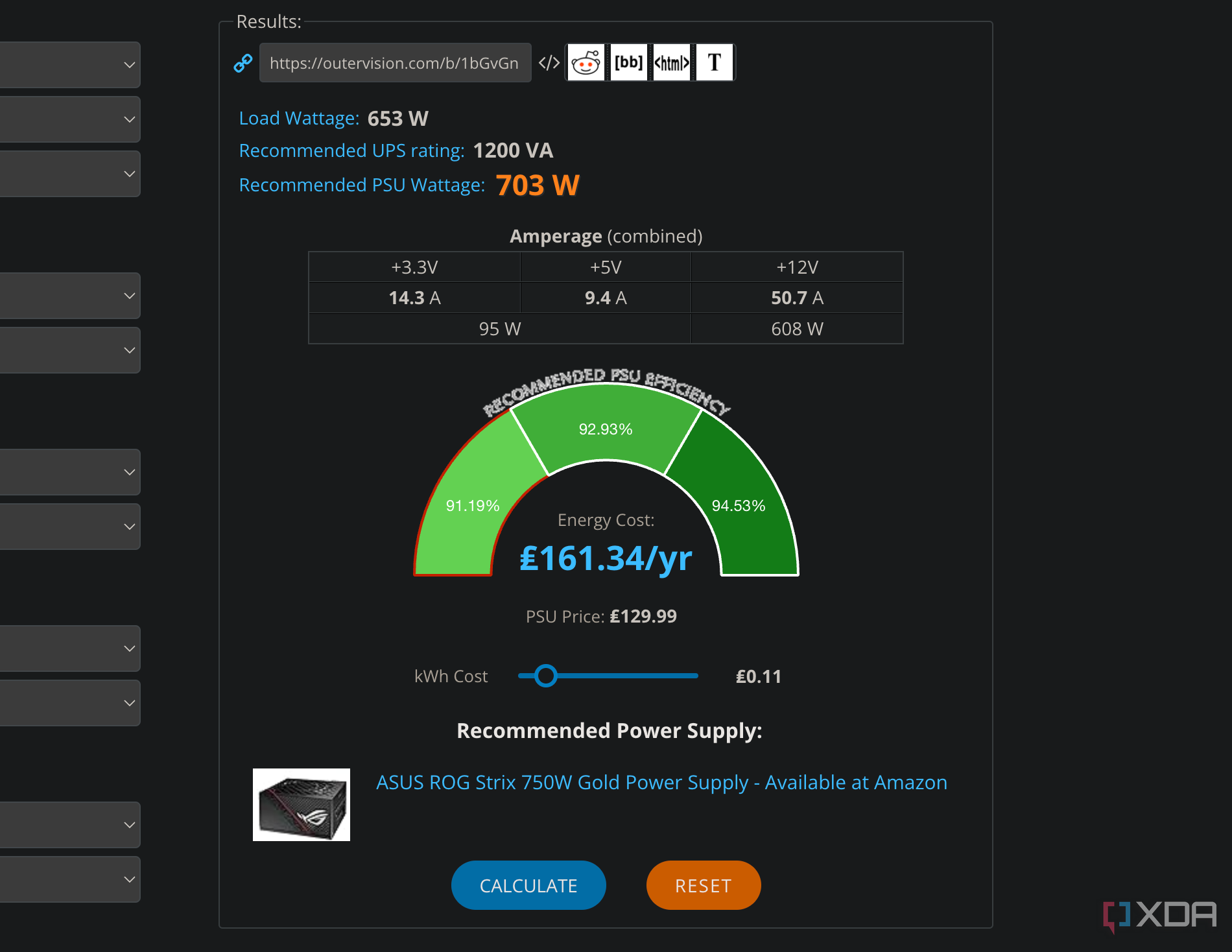
This isn't for checking your current consumption, but it's super relevant if you're building a new PC or upgrading parts. Online PSU calculators (Power Supply Unit calculators) help you estimate how powerful your power supply needs to be. You punch in all your components (CPU, GPU, RAM, drives, fans, etc.), and it spits out a recommended wattage.
While not a measurement tool, it's crucial for ensuring your PC has enough power and can give you a rough idea of its potential maximum draw. Think of it as mapping out the dragon's future diet before you even adopt it!
What to Look For in Your Readings
- Idle Power: How much power your PC uses when it's just sitting there, doing nothing much. This is your baseline.
- Load Power: What it uses when you're actively working, browsing, or watching videos.
- Peak Power: The absolute highest draw, usually when you're gaming, rendering, or running benchmarks. This is where your PC truly flexes its muscles!
Knowing these numbers helps you understand your PC's efficiency and identify if something might be drawing more power than it should.
Time to Be a Power-Savvy Superhero!
So there you have it! Checking your PC's power consumption isn't scary; it's an empowering step towards understanding your tech better and maybe even saving a little bit of energy along the way. Whether you grab a handy Kill-A-Watt meter or just use software for a quick peek, you're now armed with the knowledge to be a true PC power detective.
Go forth, embrace your inner scientist, and uncover the energy secrets of your computer! Every little bit of knowledge makes you smarter, more aware, and dare I say, a little bit cooler. Happy power-peeking, and may your electricity bills be ever in your favor!