How To Change Wifi On Google Nest Hub

Ever found yourself in a tech tangle, wondering how to get your beloved Google Nest Hub to reconnect to your home’s digital heartbeat after a Wi-Fi change? Maybe you’ve upgraded your router to a sleek new model, moved to a fantastic new place, or just decided your old Wi-Fi password needed a serious refresh. Whatever the reason, having your smart display stubbornly disconnected can feel like losing an old friend.
Fear not, fellow digital dweller! Changing your Nest Hub's Wi-Fi settings isn't a cryptic ritual reserved for tech gurus. It’s actually quite straightforward, and with a little guidance, you’ll have your Hub back to playing your favorite podcasts, showing off your best photos, and answering life’s most pressing questions ("Hey Google, what's the weather like in Bora Bora?") in no time. Think of us as your friendly neighborhood tech whisperers, ready to guide you to digital zen.
Why Your Nest Hub Might Need a New Digital Address
Before we dive into the how-to, let's briefly chat about why this might even be on your to-do list. The most common culprit is a new Wi-Fi router, which essentially gives your home a new internet "address." Moving homes is another big one – suddenly, your Nest Hub is in unfamiliar digital territory. Or perhaps you've changed your existing Wi-Fi network's name (SSID) or password for better security (smart move!). In any case, your Nest Hub needs to be pointed to the correct, invisible highway of your home network to function.
Must Read
Consider your Nest Hub the central nervous system of your smart home. When it’s disconnected, it’s like an orchestra without a conductor. Let’s get that conductor back on stage!
Method 1: The Google Home App – Your Smart Home's Remote Control
This is usually the easiest and most recommended route, assuming you still have access to your Google Home app on your smartphone or tablet. Think of the app as your magic wand for all things Google smart home.

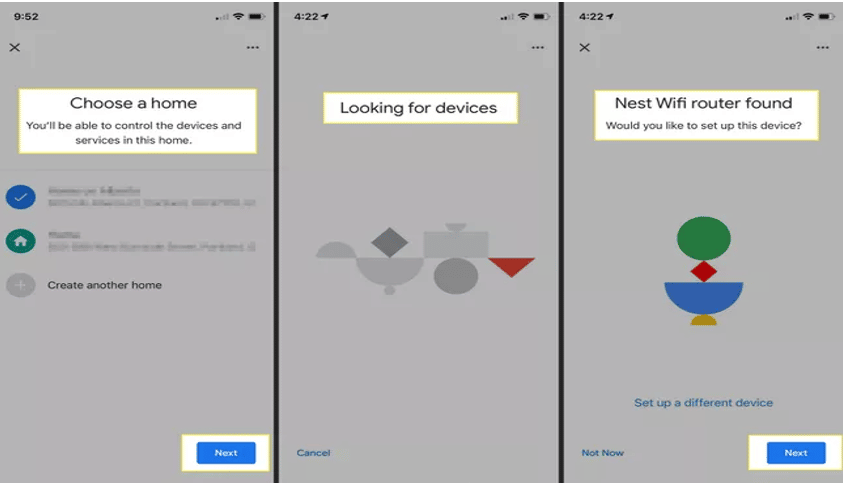
- Step 1: Open the Google Home App. Make sure you're logged into the same Google account that your Nest Hub is linked to. This is crucial!
- Step 2: Find Your Nest Hub. On the main screen, you should see your Nest Hub listed. It might show "Offline" or have an exclamation mark, which is totally expected. Tap on its icon.
- Step 3: Access Device Settings. Look for the gear icon (⚙️) in the top right corner. Tap it to enter the device settings.
- Step 4: Navigate to Wi-Fi. Scroll down until you see "Device information" and then "Wi-Fi." You might see "Current Wi-Fi network" or "Forget network." Tap on "Wi-Fi".
- Step 5: Forget and Reconnect. The app will likely prompt you to "Forget this network." Go ahead and do it! This clears out the old, defunct Wi-Fi info. After confirming, you'll be guided through the standard setup process to select your new Wi-Fi network from a list and enter its password. Voila!
Give your Nest Hub a moment to connect. You'll usually see a confirmation message on the Hub's screen, welcoming it back to the digital fold. Success!
Method 2: Giving Your Nest Hub a Direct Nudge (When the App Isn't Playing Nice)
What if your Google Home app is being finicky, or your Hub is completely off the grid and unreachable via the app? No worries, you can often "reset" its Wi-Fi directly on the device itself. This is akin to a gentle reboot for its network brain.
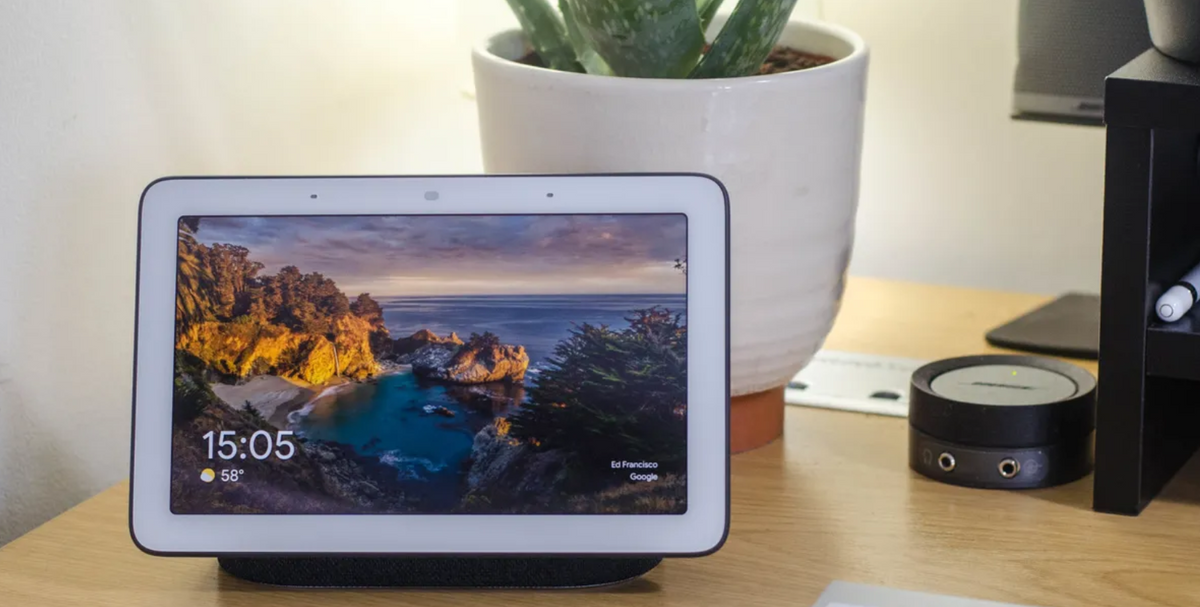
- Disconnect the Power. Unplug your Nest Hub from its power source. Wait about 10-15 seconds. This isn't just about turning it off; it's a "hard reset" that clears temporary glitches.
- Plug it Back In. As your Nest Hub powers on, it will usually try to find its old Wi-Fi network. Since that's gone (or changed), it will eventually display a message like, "I can't connect to Wi-Fi."
- Follow On-Screen Prompts. At this point, the Nest Hub itself will often prompt you to "Set up Wi-Fi" or "Reconnect to Wi-Fi." Tap on the screen where indicated.
- Select Your New Network. The Hub will then scan for available Wi-Fi networks nearby. Select your new network's name (SSID) from the list and follow the on-screen instructions to enter the password.
This method essentially forces the Nest Hub into setup mode, letting you input the new network details directly. Pretty neat, right?
Pro Tips & Troubleshooting: Because Even Smart Tech Has Its Moments
- Reboot Everything: If you're still hitting a wall, try rebooting your Wi-Fi router as well as your Nest Hub. Sometimes, a fresh start for all devices works wonders. Think of it as clearing the air in a busy digital room.
- Check Your Wi-Fi Band: Most modern routers offer both 2.4GHz and 5GHz networks. While the Hub supports both, 2.4GHz offers better range and wall penetration, sometimes making it more reliable for smart home devices, even if it's slightly slower. If you have separate networks, try connecting to the 2.4GHz one first.
- Factory Reset (The Last Resort): If all else fails and your Hub is truly unresponsive, a factory reset might be necessary. Be warned: this will erase all your personal settings and you'll have to set it up from scratch. To do this, usually, you press and hold both volume buttons on the back of the Hub for about 10 seconds until it confirms the reset. This is the nuclear option, but sometimes it's the only way to get a fresh start.
Changing your Google Nest Hub's Wi-Fi doesn't have to be a source of stress. With these simple steps, you'll have your smart display back in action, ready to brighten your day, manage your calendar, or simply display those gorgeous digital photos. It's about empowering yourself to keep your smart home running smoothly, so you can focus on the more important things in life – like figuring out what to ask Google next! A connected home truly is a happier home, bringing a little more ease and joy into our bustling daily lives.