How To Cast Oculus Quest 2 To Tv Without Chromecast
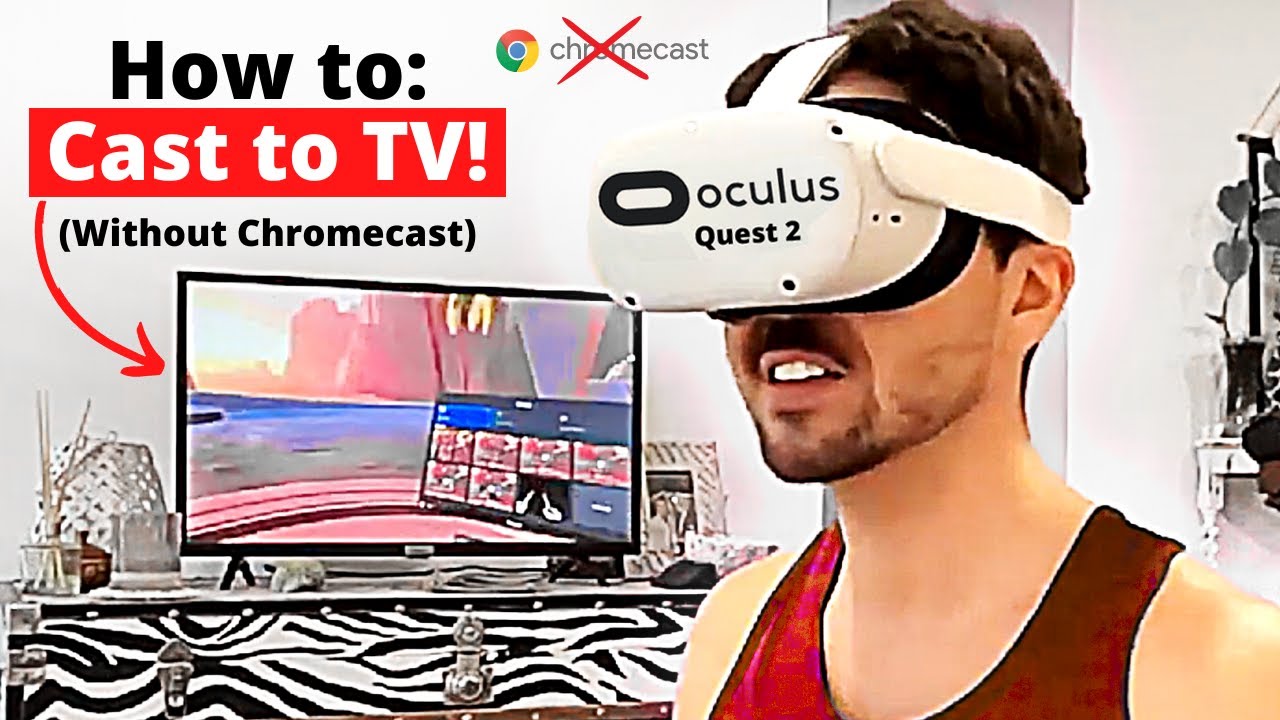
Ever slipped on your Oculus Quest 2 headset, ready for an immersive gaming session, only to wish your friends and family could see what you're experiencing? Or maybe you're a teacher wanting to share a fascinating virtual field trip with your students? You're not alone! While Chromecast is a popular option, it's definitely not the only way to get your VR adventures onto the big screen. Luckily, there are several methods to cast your Oculus Quest 2 to your TV without needing a Chromecast. It's a super handy skill to learn, and surprisingly easy!
So, what's the big deal about casting? The purpose is simple: to mirror the video output from your Oculus Quest 2 onto your TV screen. This lets others witness your VR gameplay, educational experiences, or even collaborative design sessions in real-time. The benefits are numerous. It enhances social interaction, turning solo VR sessions into shared experiences. Imagine playing a cooperative game and everyone in the room being able to offer advice or cheer you on! It also opens up possibilities for presentations and demonstrations, making VR a much more accessible and engaging tool.
Think about the educational applications! A history teacher could take students on a virtual tour of ancient Rome, casting the experience onto a classroom projector. Students can actively participate by asking questions about what they're seeing. In a science class, a teacher can dissect a virtual frog together with students via the TV, avoiding ethical concerns of using real animals and enhancing student interaction. Or picture a design student showcasing their 3D model of a building to a panel of professors, enabling them to view the project in detail as the student navigates the VR environment. The possibilities for immersive learning are virtually endless.
Must Read
In daily life, casting can be equally valuable. Perhaps you want to help a less tech-savvy family member learn to use their new VR headset. By casting your own screen, you can guide them through the menus and controls more easily. Or maybe you're hosting a party and want to entertain your guests with a VR game tournament. Casting allows everyone to follow the action and participate in the fun.

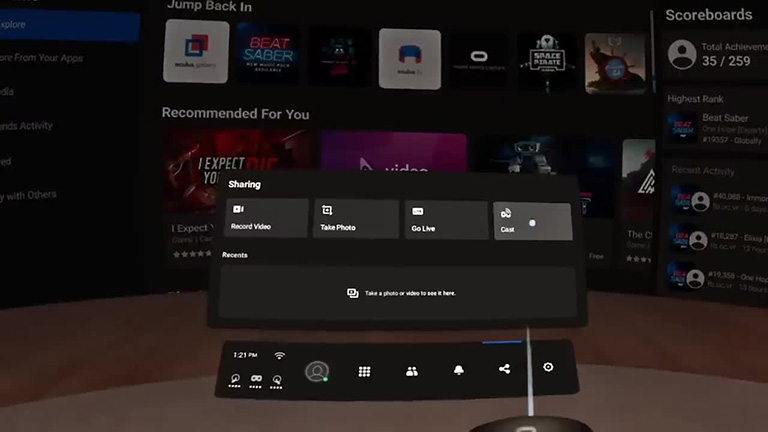
So how do you do it without a Chromecast? Many modern smart TVs come equipped with built-in screen mirroring capabilities, often using Miracast or AirPlay (for Apple devices). To check, look for these features in your TV's settings menu. From your Oculus Quest 2 headset, navigate to the "Share" option in the universal menu (usually accessed by pressing the Oculus button on your right controller). Select "Cast" and then choose your TV from the list of available devices. You might need to enter a pairing code displayed on your TV, and that's it! You're now casting. Another alternative involves using a laptop with an HDMI cable. You can cast to the laptop via the Oculus app, then connect the laptop to the TV.
A practical tip: Ensure both your Oculus Quest 2 and your TV are connected to the same Wi-Fi network for a stable connection. Experiment with different casting methods to find the one that works best for your equipment. Don't be afraid to explore your TV's settings and look for screen mirroring options – you might be surprised at what you find! With a little experimentation, you'll be sharing your VR adventures with everyone in no time. And remember, casting adds another layer of enjoyment and utility to your Oculus Quest 2 experience!