
How To Animate Text In Hitfilm Express
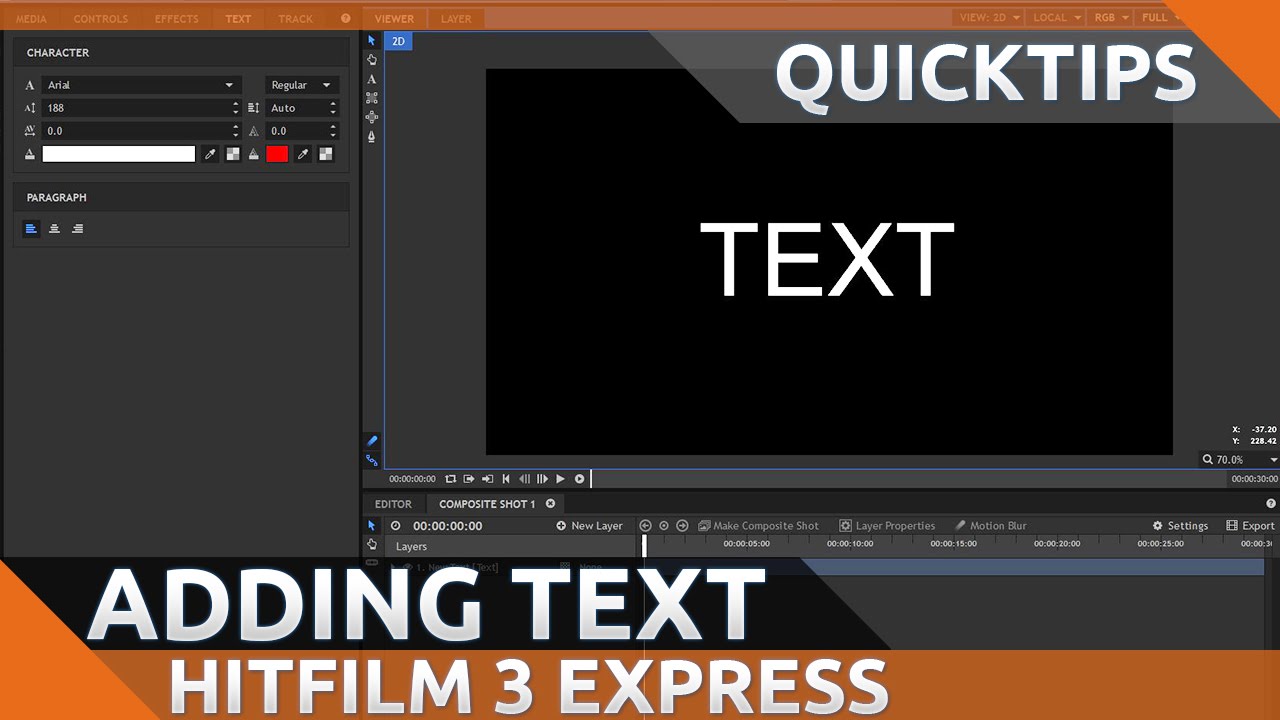
Ever watch a movie intro and think, "Wow, that text just magically appeared and danced across the screen!"? Yeah, me too. For years, I thought it was some kind of wizardry reserved only for Hollywood elites. Turns out, it’s not magic, it's animation! And you, my friend, can become a text-animating wizard in your own right, using Hitfilm Express – and I'm here to tell you how.
Think of animating text as giving your words a caffeine boost. Plain text? That's like a lukewarm cup of decaf. Animated text? BOOM! Espresso shot straight to the eyeballs! It grabs attention, adds personality, and makes your videos way more engaging. Imagine your next birthday greeting transforming from a static message into a swirling vortex of confetti and well-wishes. You'd be the cool uncle/aunt for sure!
Getting Started: Hitfilm Express to the Rescue
Hitfilm Express is like that super-helpful friend who’s always got your back. It’s a free video editing and visual effects software that packs a serious punch. Download it, install it, and prepare to have your mind slightly blown by all the possibilities. Don't be intimidated by the interface; we're just focusing on text animation today.
Must Read
Creating Your Text Layer
First things first, fire up Hitfilm Express. Then, create a new project. I know, sounds official, right? But trust me, it’s easier than assembling IKEA furniture. Once you're in, create a new composite shot. Think of it as your blank canvas.
Next, find the "Text" tool (usually looks like a big "T"). Click on it, then click on your composite shot. Type in your text. Bam! You've got words! Now, choose your font, size, and color. Don't be boring! Embrace your inner artist! Think comic sans is cool? Maybe not. Okay, definitely not.

The Key to Animation: Keyframes
This is where the magic happens. Keyframes are your best friend. They're like little markers that tell Hitfilm Express, "At this point in time, I want the text to be HERE," and "At this point in time, I want the text to be THERE." Hitfilm then smoothly animates the text between those points.
Find the “Transform” properties of your text layer (usually in the "Controls" panel). You’ll see things like "Position," "Scale," "Rotation," and "Opacity." Each of these can be animated using keyframes.

Animating Position: Text on the Move!
Let’s start simple. Click the little stopwatch icon next to "Position" to create your first keyframe. This tells Hitfilm, "Okay, right now, the text is here."
Now, move the playhead (that little vertical line) further down the timeline. Change the "Position" values (using the numbers or dragging the text in the viewer). Another keyframe is automatically created! See? Magic!
Hit play! Your text should now be moving from point A to point B. It’s probably a simple, linear movement, but hey, everyone starts somewhere. My first text animation looked like a drunken caterpillar trying to escape a black hole.
Beyond the Basics: Scale, Rotation, and Opacity
Want to get fancy? Try animating "Scale." Make your text grow or shrink over time. "Rotation" can add a dizzying spin. "Opacity" lets you fade your text in and out, like a ghostly apparition revealing its secrets.

Experiment! Play around with different combinations of these properties. There’s no right or wrong answer. The goal is to have fun and discover what looks cool. You might create something truly amazing, or you might create something that looks like a toddler had access to the animation controls. Either way, you’ll learn something!
Easing In and Out: Smooth Moves
Here’s a pro tip: right-click on your keyframes and choose "Ease In" or "Ease Out." This makes the animation smoother and more natural. Think of it like easing into a hot tub instead of belly-flopping in. Much more pleasant!
Animating text in Hitfilm Express is all about experimentation and having fun. Don't be afraid to try new things, mess up, and learn from your mistakes. With a little practice, you'll be creating text animations that rival the pros (okay, maybe not the actual pros, but definitely better than my drunken caterpillar). So go forth, animate, and unleash your inner text-animating wizard!