How Do You Connect A Laptop To The Internet
Let's face it, being disconnected from the internet these days is like being stranded on a desert island... except instead of coconuts, you're craving funny cat videos and online shopping! Knowing how to connect your laptop to the internet is a fundamental skill, and luckily, it's easier than you might think. Think of it as unlocking a world of information, entertainment, and connection – all at your fingertips!
Why bother learning this seemingly simple skill? Well, for beginners, it's your gateway to everything the digital world has to offer – learning new skills, staying in touch with loved ones, and finding answers to practically any question imaginable. For families, a stable internet connection means seamless movie nights, kids doing their homework, and everyone staying connected on their favorite social media platforms. And for hobbyists, whether you're into gaming, photography, coding, or anything in between, the internet is your ultimate playground for learning, collaborating, and sharing your creations with the world.
So, how do you actually do it? The most common method is via Wi-Fi. Think of Wi-Fi as a wireless radio signal that allows your laptop to communicate with a router, which is connected to the internet. Here's the basic process:
Must Read
- Click on the Wi-Fi icon in your system tray (usually located in the bottom right corner of your screen). It often looks like a series of curved bars.
- A list of available Wi-Fi networks will pop up. Find the name of your home Wi-Fi network (or the public Wi-Fi network you want to connect to).
- Click on your network's name and then click "Connect."
- If the network is secured with a password, you'll be prompted to enter it. Type in the password carefully, remembering that they are case sensitive.
- That's it! Your laptop should now be connected to the internet.
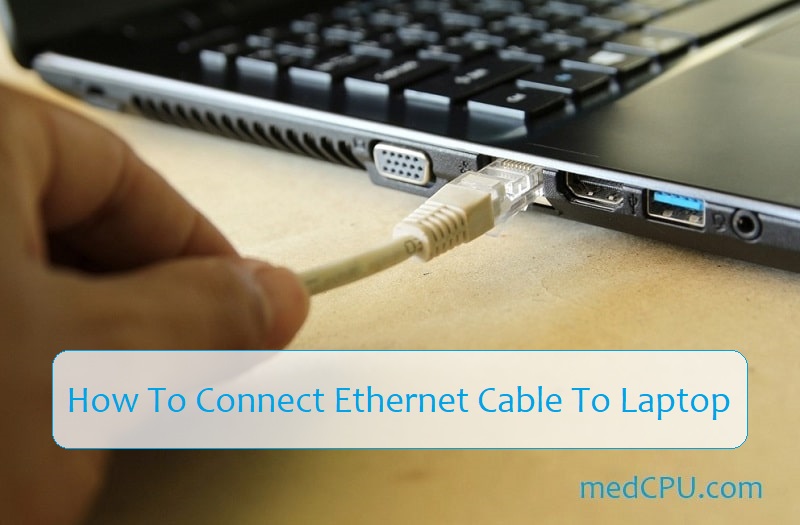
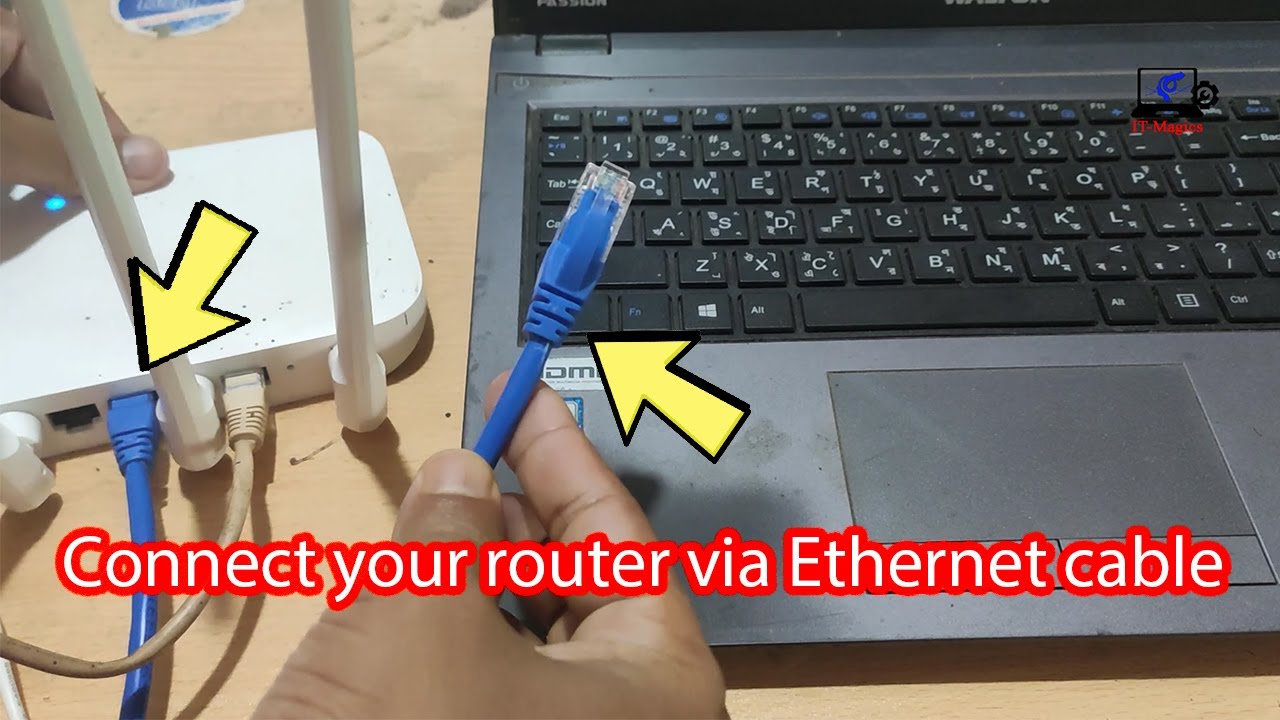
But what if Wi-Fi isn't an option? Don't despair! Another way to connect is using an Ethernet cable. This is a physical cable that plugs directly into your laptop's Ethernet port (it looks like a slightly larger phone jack) and into a router or modem. This is often a more stable and reliable connection than Wi-Fi, especially for things like online gaming or video conferencing. Just plug it in, and your laptop should automatically connect. You can also use your phone as a mobile hotspot. This allows you to share your phone's cellular data connection with your laptop via Wi-Fi. Just look for the "Mobile Hotspot" or "Tethering" option in your phone's settings.

Here are a few practical tips to get you started:
- Double-check your Wi-Fi password: Make sure you're entering the correct password. A common mistake is confusing uppercase and lowercase letters.
- Restart your router: If you're having trouble connecting to your home Wi-Fi, try unplugging your router for 30 seconds and then plugging it back in. This often fixes minor connection issues.
- Update your network drivers: Outdated network drivers can sometimes cause connection problems. You can usually update them through your operating system's device manager.
- Check your firewall settings: Sometimes, your firewall can block your laptop from connecting to certain networks. Make sure your firewall is configured correctly.
Connecting your laptop to the internet is a doorway to a world of possibilities. Once you've mastered these simple techniques, you'll be ready to explore all that the online world has to offer. So go ahead, connect, explore, and enjoy! The digital world awaits!