
How Can I Tell If My Power Supply Is Bad

Ever had your beloved computer suddenly decide to take an unannounced nap, or perhaps just refuse to wake up at all? It’s a bit like when your favorite coffee machine gives up the ghost right before your morning rush. Often, our first thought jumps to the CPU or the graphics card, those flashy, high-performing superstars of the PC world. But sometimes, the real culprit is a less glamorous, often overlooked component: the power supply unit, or PSU.
Think of your PSU as the heart of your computer, tirelessly pumping life-giving electricity to every single component. Without it, nothing works. And just like a heart, when it starts to falter, things can get a little… dramatic. But how do you tell if this silent hero is actually the villain behind your tech troubles? Let's demystify it together, with a sprinkle of fun and a dash of practical wisdom.
The Silent Workhorse: What Does Your PSU Do, Anyway?
At its core, your PSU's job is to convert the alternating current (AC) from your wall socket into direct current (DC) that your computer's various parts can actually use. It's like a highly efficient translator, ensuring everything speaks the same language. A good PSU delivers stable, clean power, helping your components live longer, happier lives.
Must Read
Fun fact: You might have seen "80 Plus Bronze," "Gold," or "Platinum" ratings on PSUs. These aren't just fancy badges; they indicate the unit's efficiency—how much power it pulls from the wall versus how much it actually delivers to your PC. Higher efficiency means less wasted energy as heat, which is good for your wallet and the planet!
When the Lights Go Out (And Other Drama): Common Symptoms
A failing PSU can manifest in several ways, from the glaringly obvious to the subtly irritating. Here’s what to watch out for:
1. Total Silence: The Dreaded "No Power" Scenario.
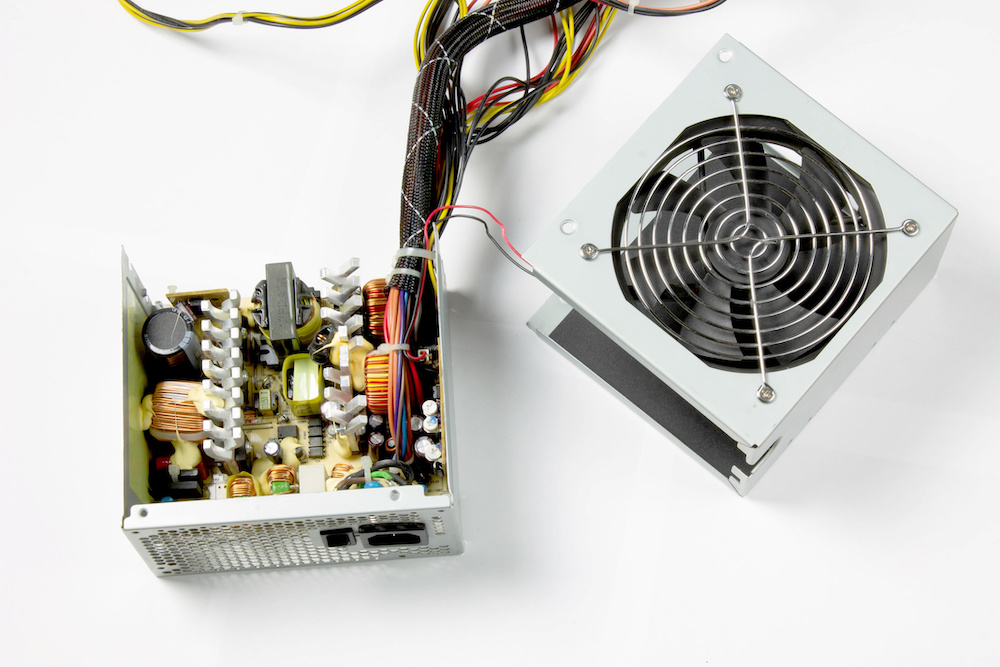
This is the most straightforward sign. You press the power button, and… nothing. No fan spin, no lights, no happy little startup chime. It’s as dead as a forgotten Tamagotchi. While it could be a faulty power button or motherboard, a PSU failure is a top suspect here. First tip: Always check your wall socket and power cable first! You’d be surprised how often it's just a loose plug.
2. The Intermittent Tantrum: Random Shutdowns or Restarts.
Your computer is chugging along, you’re in the middle of a game or an important spreadsheet, and BAM! Black screen. Or it might randomly restart. This isn't just annoying; it suggests your PSU is struggling to provide consistent power, especially under load. It's like a car engine sputtering when you hit the gas too hard.
3. A Symphony of Strange Sounds: Whines, Buzzes, or Grinding.
Listen closely. Is your PC making noises it never used to? A high-pitched whining can indicate failing capacitors, while a grinding or buzzing might point to a dying PSU fan. It’s like your computer is trying to tell you, "I'm not feeling so good!"
4. The Unmistakable Aroma: That Burning Smell.
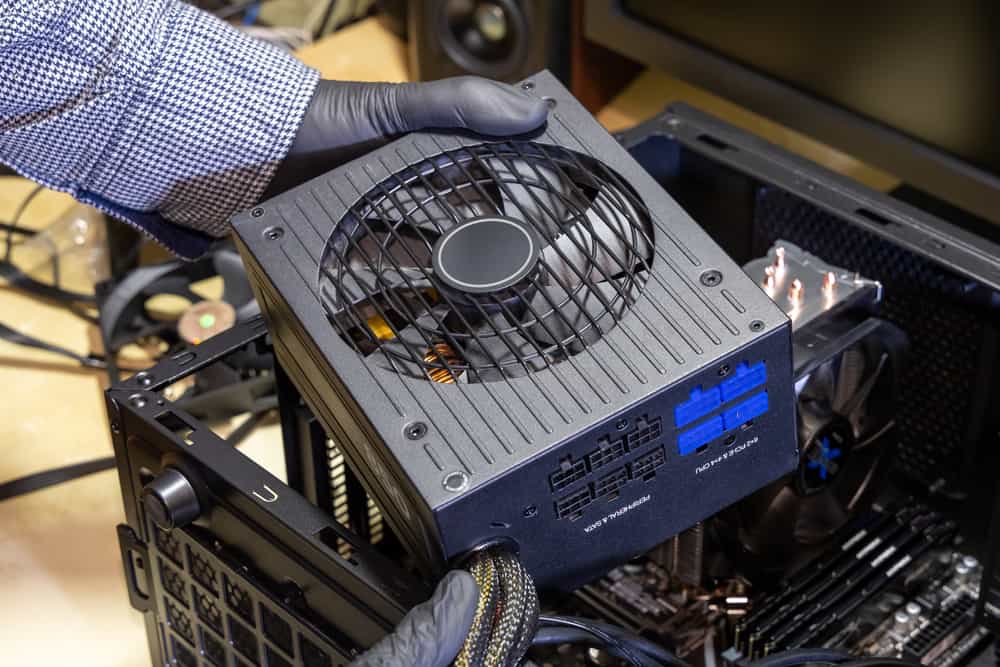
If you catch a whiff of something vaguely electrical burning, or worse, something like burning plastic, unplug your computer IMMEDIATELY. This is a serious sign that components inside the PSU are failing, potentially short-circuiting. It’s a definite red flag, hotter than a summer barbecue.
5. Feeling the Heat: Excessive Overheating.
If your PC case feels unusually hot to the touch, especially around the PSU's exhaust, it could be struggling. A failing PSU might generate more heat due to inefficiency, or its fan might not be doing its job to dissipate heat. This heat can also stress other components.
6. The Dreaded Blue Screen (and Friends): BSODs or System Crashes.
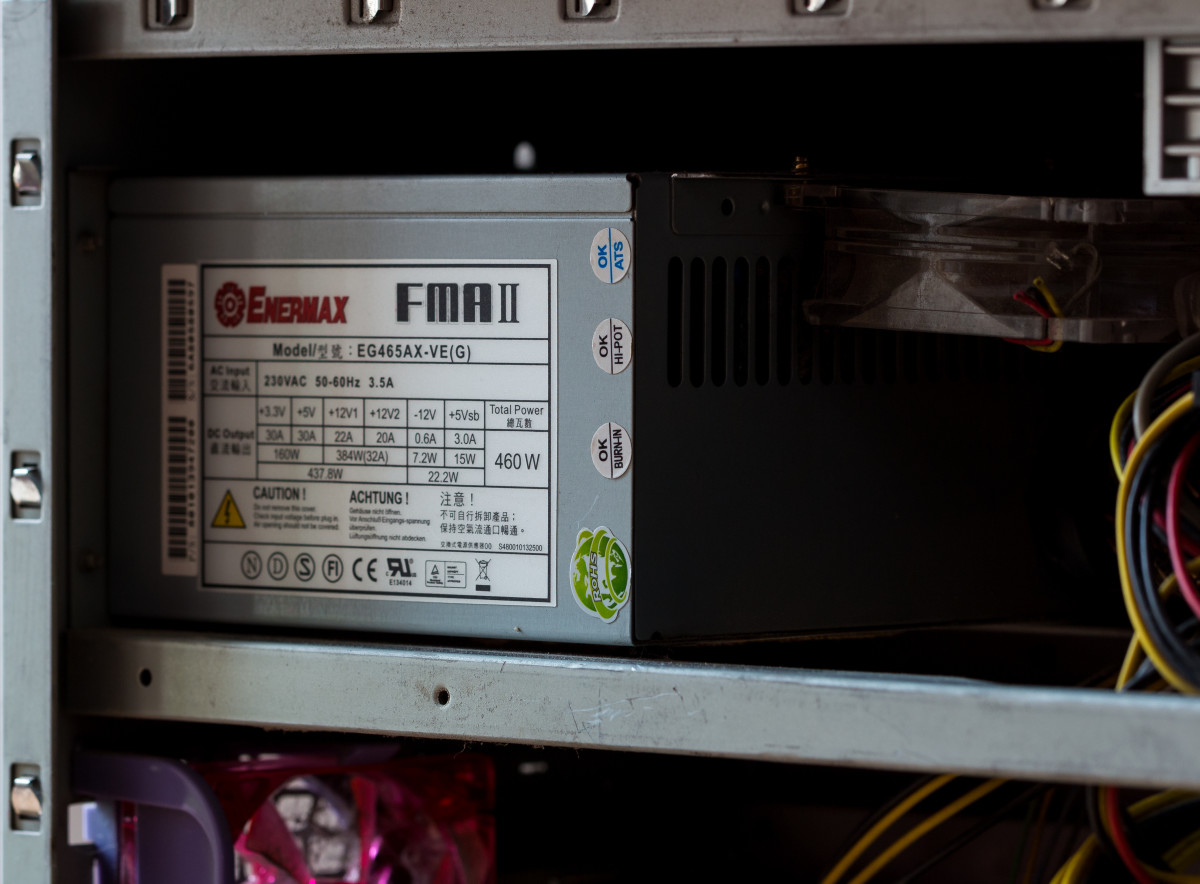
While the Blue Screen of Death (BSOD) or frequent crashes can be caused by many things (drivers, RAM, GPU), an unstable power supply can certainly contribute. If you've ruled out software issues and other hardware, don't dismiss the PSU.
Time to Play Detective: Gentle Investigations
So, you suspect your PSU. What's next? Here are some safe and simple steps:
• External Checks First: Ensure all power cables (to the wall, to the PC) are snugly seated. Check for excessive dust buildup around the PSU’s vents; a clogged fan can’t cool effectively. A quick blast of compressed air (from a distance, while unplugged!) can work wonders.
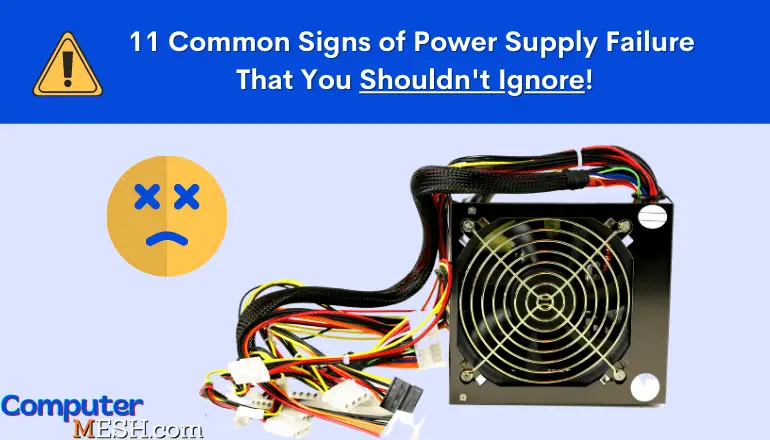
• Listen Up: With the PC on (if it will turn on), carefully listen to the PSU fan. Is it spinning? Is it struggling? Is it making more noise than usual?
• A Quick Peek (With Caution!): ONLY attempt this if you are comfortable and your PC is completely unplugged from the wall. Open your PC case and visually inspect the PSU. Look for obvious signs of trouble: bulging capacitors (they look like mini soda cans that have swollen on top) or any scorched areas on the circuit board. These are clear indicators of a failing unit.
So, What Now? Next Steps
If your detective work points to a faulty PSU, don't ignore it. A dying power supply can potentially damage other components. Backup any critical data if your computer is still somewhat operational.
For most users, especially if you're not comfortable opening up your PC, the best course of action is to consult a professional. They have specialized tools to test PSUs accurately and can safely replace it. If you're handy, research reputable PSU brands (Corsair, Seasonic, EVGA, be quiet!) and make sure to get one with adequate wattage for your system.
Life's Little Power Supplies
Just like our computers, our own lives have "power supplies"—the things that keep us going, stable, and happy. It might be a morning coffee ritual, a supportive friend, or a quiet moment of reflection. Sometimes, these "power supplies" in our lives can also start to falter, showing subtle signs of wear and tear. Paying attention to these signals, whether in our beloved tech or our own well-being, helps us ensure everything keeps running smoothly. Because a little proactive care goes a long, long way.