
Google Sheets Vlookup Partial Match
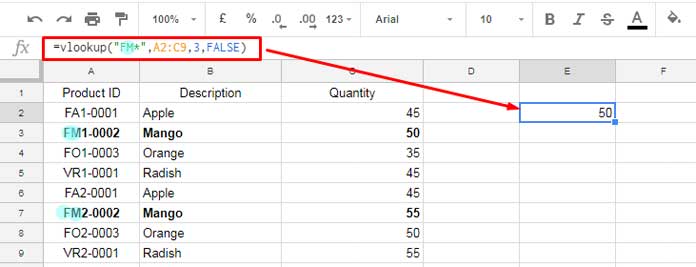
Okay, let's talk about Google Sheets and something that might sound scary: VLOOKUP with a partial match. But trust me, it's not as intimidating as trying to assemble IKEA furniture without the instructions. We've all been there, right? Staring blankly at a pile of wooden bits and wondering if you're actually building a bookshelf or some abstract modern art piece.
VLOOKUP, in its simplest form, is like asking a librarian to find a specific book. You give them the title, and they (hopefully) give you the book. But what if you only remember part of the title? That's where the "partial match" comes in. It's like whispering a keyword to the librarian, and hoping they can figure out which book you're thinking of.
The "Close Enough" Factor
Imagine this: You're trying to find your favorite coffee shop's address in a spreadsheet, but all you remember is that the name starts with "Brew." You could manually scroll through hundreds of rows, or… you could use VLOOKUP with a wildcard to find anything that contains "Brew." That's the magic of partial matching. It's about getting "close enough" to find what you're looking for.
Must Read
Think of it as trying to remember your friend's name. You can’t quite grasp “Bartholomew”, but you know it starts with “Bar”. You shout out "Hey Bar...!", and hope they respond. VLOOKUP with a partial match is that "Hey Bar...!" moment for your data.
How it Works (Without the Headache)
So, how do you actually do this? It's all about using wildcards. In Google Sheets, the wildcard character is the asterisk (). It means "anything can go here".
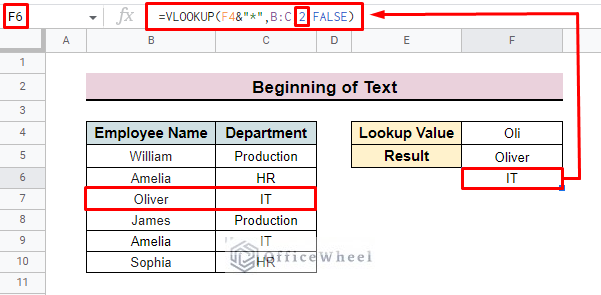
Let's say you have a list of products in one sheet and you want to pull the price from another sheet, but the product names aren't exactly the same. One sheet might say "Apple iPhone 15 Pro Max 256GB", while the other says "iPhone 15 Pro Max."
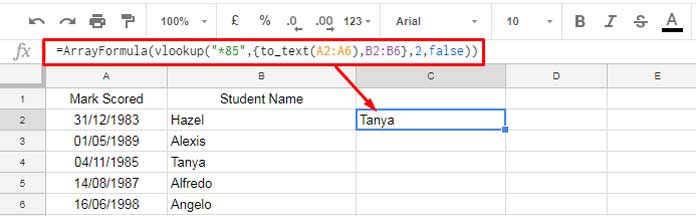
Here's the VLOOKUP formula you might use:
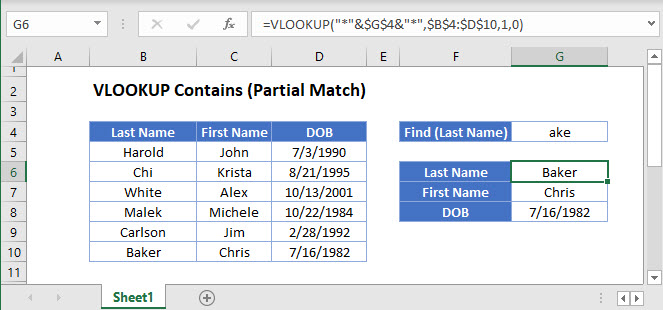
=VLOOKUP(""&A1&"",Sheet2!A:B,2,FALSE)
Let's break it down:
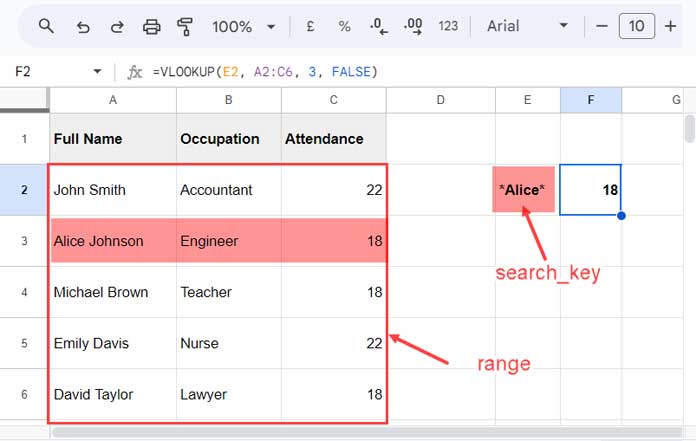
- A1: This is the cell containing the product name you're searching for (e.g., "iPhone 15 Pro Max").
- ""&A1&"*": This is the key! We're adding asterisks before and after the search term. This tells VLOOKUP to look for anything that contains "iPhone 15 Pro Max".
- Sheet2!A:B: This is the range of cells in Sheet2 where your product names (in column A) and prices (in column B) are located.
- 2: This tells VLOOKUP to return the value from the second column (the price).
- FALSE: This tells VLOOKUP to look for an exact match, but since we're using wildcards, it's really looking for something that contains the search term. Think of it as a friendly suggestion, not a strict order.
The & symbol is used to concatenate or join strings together. Basically, we're wrapping our search term in asterisks. It's like giving your search term a little hug with wildcards.
Common Mistakes (And How to Avoid Them)
One common mistake is forgetting the asterisks! Without them, VLOOKUP will only find exact matches, and you'll be back to scrolling through your spreadsheet like a digital caveman.
Another mistake is having messy data. If your product names are inconsistent (e.g., sometimes "iPhone" is capitalized, sometimes it's not), VLOOKUP might struggle. Cleaning your data is like decluttering your house - it makes everything easier to find.
In a Nutshell
VLOOKUP with a partial match is your friend when you need to find something in Google Sheets but don't have the exact search term. It's like having a search engine right inside your spreadsheet. So go forth, embrace the wildcard, and conquer your data!
Remember, even if it seems confusing at first, practice makes perfect. Just like that IKEA bookshelf, eventually you'll get the hang of it. And if not, well, at least you can say you tried (and maybe blame the instructions).