Google Nest Thermostat Factory Reset

Ever feel like your smart home gadgets, much like your mind after a long week, could just use a good old-fashioned reset? Maybe it’s time for a digital detox for your thermostat! Factory resetting your Google Nest Thermostat might sound intimidating, but it's actually a super useful, oddly satisfying task that gives you back control. It's not about breaking things; it's about giving them a fresh, clean slate – like a spring cleaning for your climate control. And trust me, once you know how, you'll feel like a true tech wizard, ready to tackle any smart home hiccup with confidence.
So, why would you want to hit the reset button on your Nest Thermostat? The reasons are as varied as the seasons it helps you manage! For beginners, it’s often the go-to fix for a stubborn Wi-Fi connection glitch or an erratic schedule that just won't behave. It’s a simple way to return to square one without pulling out your hair. For families moving into a new home, perhaps one that already has a Nest installed, a factory reset is crucial. It wipes away the previous owners' data, ensuring your privacy and letting you set up your heating and cooling exactly how your family likes it from scratch. And for the hobbyists or tech enthusiasts among us, a factory reset is invaluable when you're reconfiguring your entire smart home ecosystem, testing new automation routines, or simply want to ensure a completely clean setup for peak performance. It’s all about maintaining that smooth, seamless smart home experience.
Think of it like this: you've just bought a house with a Nest, and you want to ensure no old schedules or Wi-Fi passwords are lingering – reset it. You’re selling your current home and want to ensure your personal data is completely removed before the new owners arrive – reset it. Maybe your thermostat is acting a little quirky, refusing to connect to the internet, or learning habits you never intended – before calling customer support, a factory reset is often the first, best troubleshooting step. It clears out all learned behaviors, custom schedules, and network settings, making it feel brand new again. It’s also perfect if you’re gifting or selling your Nest to a friend; you want to hand it over as a blank canvas, ready for their personal touch.
Must Read
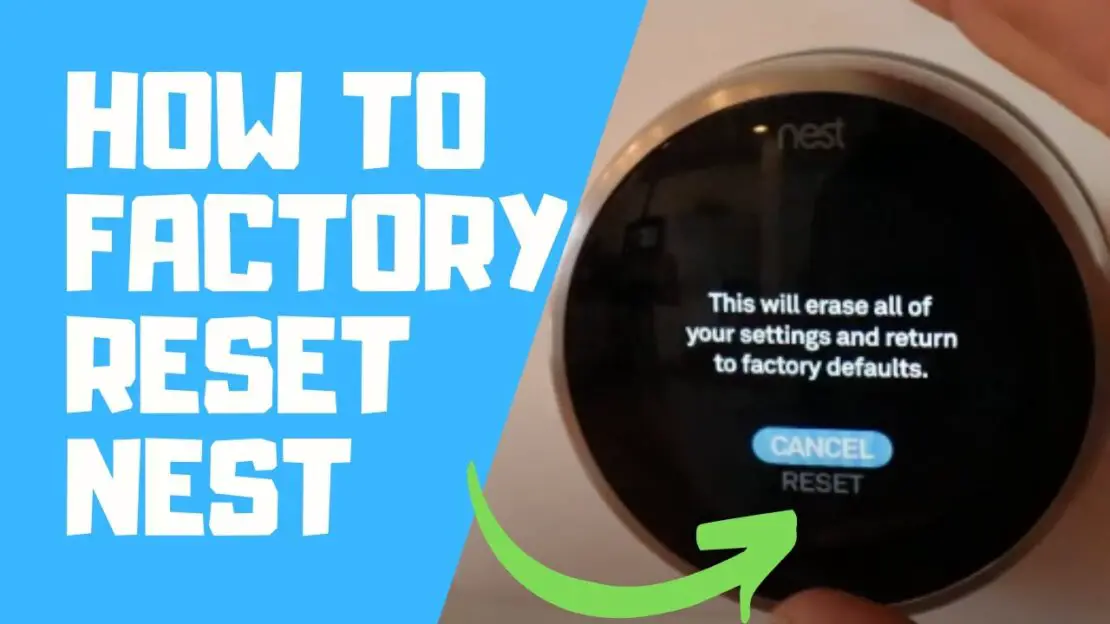
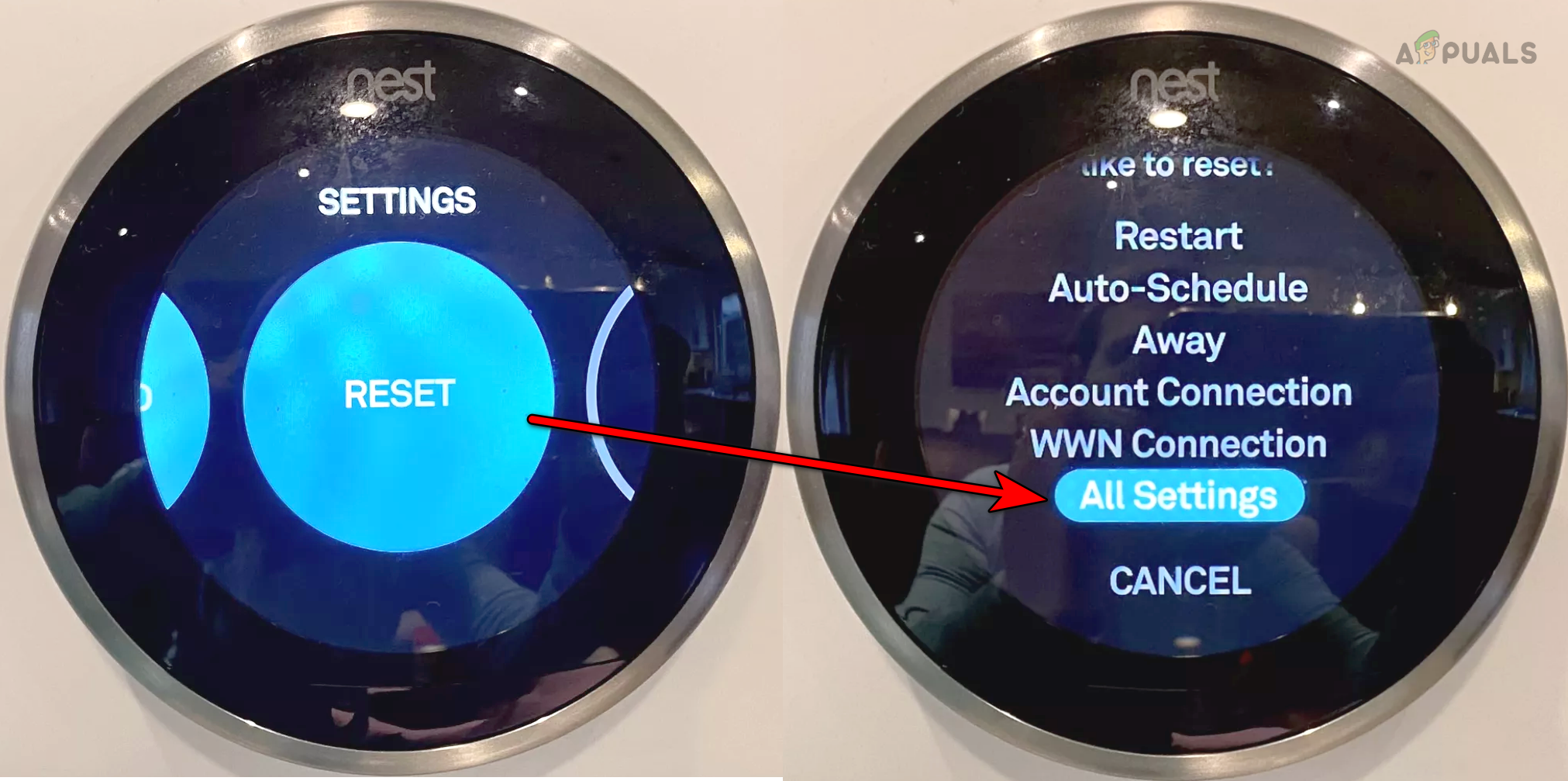
Ready to give your Nest that fresh start? Don't worry, it's surprisingly simple! First, make sure your Nest Thermostat is powered on. For the Nest Learning Thermostat and Nest Thermostat E: Press the ring to bring up the main menu. Turn the ring to navigate to the Settings icon (it looks like a gear) and press to select. Scroll down until you see "Reset" and select it. Here, you'll typically choose "All Settings" or "Factory Reset." Confirm your choice, and your Nest will begin its cleanse. For the newer, screen-less Nest Thermostat (the one you swipe on): Swipe down from the top of the display to open the Quick View menu. Tap the Settings icon (the gear). Scroll down and select "Reset." Confirm the "Factory Reset." Remember, this process will wipe all your personal settings, schedules, and Wi-Fi credentials from the device itself. You’ll then need to add it back to your Google Home or Nest app as a new device to fully unlink it from your account and set it up anew!
See? That wasn't so scary, was it? Performing a factory reset on your Google Nest Thermostat is a powerful tool in your smart home arsenal. It’s not just about fixing problems; it’s about reclaiming control, ensuring privacy, and giving your smart thermostat a fresh opportunity to learn and adapt to your life. So go ahead, embrace the power of the reset button – your smart home, and your peace of mind, will thank you for it!