
Factory Reset Google Nest Thermostat

Hey there, tech whisperer! Ever looked at your Google Nest Thermostat and thought, "You know what? We need a fresh start." Maybe you're moving, maybe it's acting a bit… well, moody, or maybe you just want to wipe the slate clean. Whatever your reason, performing a factory reset on your Nest is actually super straightforward. Seriously, it's easier than trying to get a cat into a carrier (usually!).
Think of it like giving your thermostat a brain scrub, a digital detox, a clean bill of health! It’s not a scary process, and you definitely won't break it. Pinky swear.
Why Would You Even Think About a Reset?
Good question! While your Nest usually hums along happily, there are a few prime scenarios where a factory reset is your best buddy:
Must Read
- Moving On Up (or Out!): If you're selling your home or moving to a new pad, you absolutely want to reset your Nest. You don't want the new occupants fiddling with your old heating schedule, right? Awkward! Plus, it's just good manners to leave it as a blank canvas for them.
- Passing the Torch: Giving your Nest to a friend or family member? A factory reset ensures they get a fresh device, untainted by your peculiar heating habits (like keeping it at 68 degrees year-round – gasp!).
- When Things Get... Quirky: Is your Nest acting a bit buggy? Not connecting to Wi-Fi? Forgetting your schedule? Sometimes, a good old-fashioned reset is the magic wand that makes everything right again. It's the "turn it off and on again" for smart thermostats.
- Starting Fresh: Maybe you just want to reconfigure everything from scratch, perhaps with a new Google account or a different setup. A reset gives you that clean slate.
See? Totally legitimate reasons. No, your Nest isn't plotting against you; it just sometimes needs a gentle nudge back to factory default bliss.
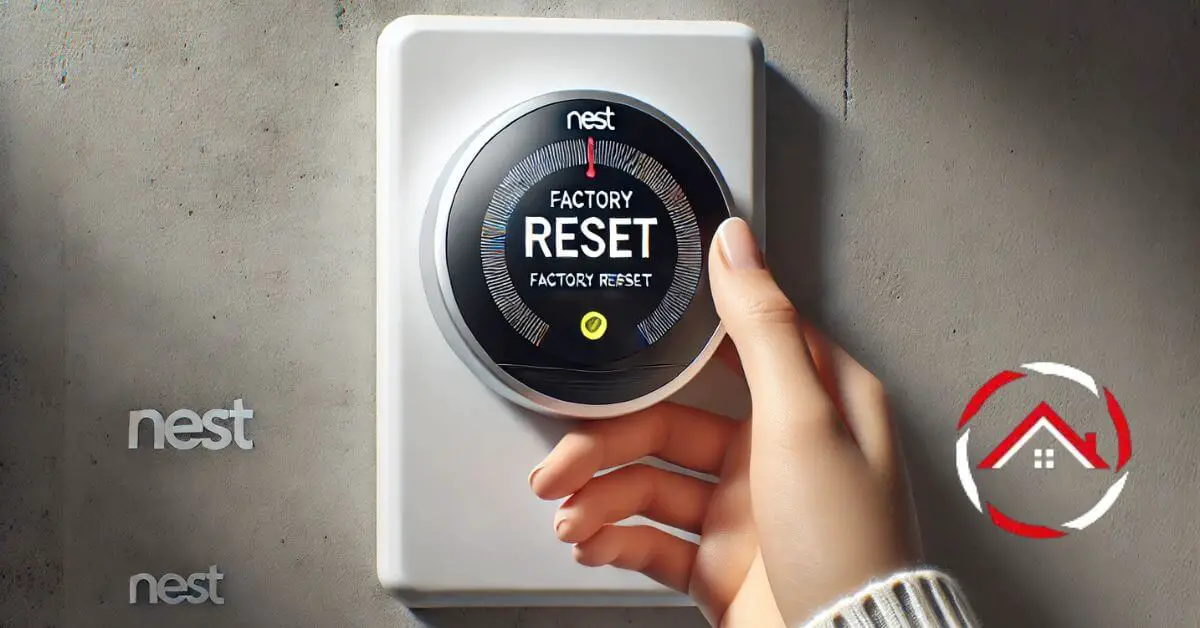
Let's Get This Reset Party Started! (It's Easy, Promise!)
Ready to dive in? Grab your Nest Thermostat – no tools required, just your fabulous fingers. Here’s the step-by-step lowdown:
Step 1: Wake Up Your Nest!
If your Nest’s screen is off, just press its ring to wake it up. Say "Good morning!" or "Good evening!" – it appreciates the courtesy.
Step 2: Head to the Main Menu.
Once awake, press the ring again to bring up the main menu. You’ll see options like "Temperature," "Schedule," and "Settings." We're going for "Settings," obviously!

Step 3: Navigate to Settings.
Turn the outer ring of your Nest until "Settings" (or the little gear icon, depending on your model) is highlighted. Then, press the ring to select it. You’re doing great!
Step 4: Find the Reset Option.
Inside "Settings," you’ll need to scroll down again. Keep turning that ring until you find an option like "Reset," "Factory Reset," or sometimes it might be tucked under "Equipment" or "System." When you find it, press the ring to select.
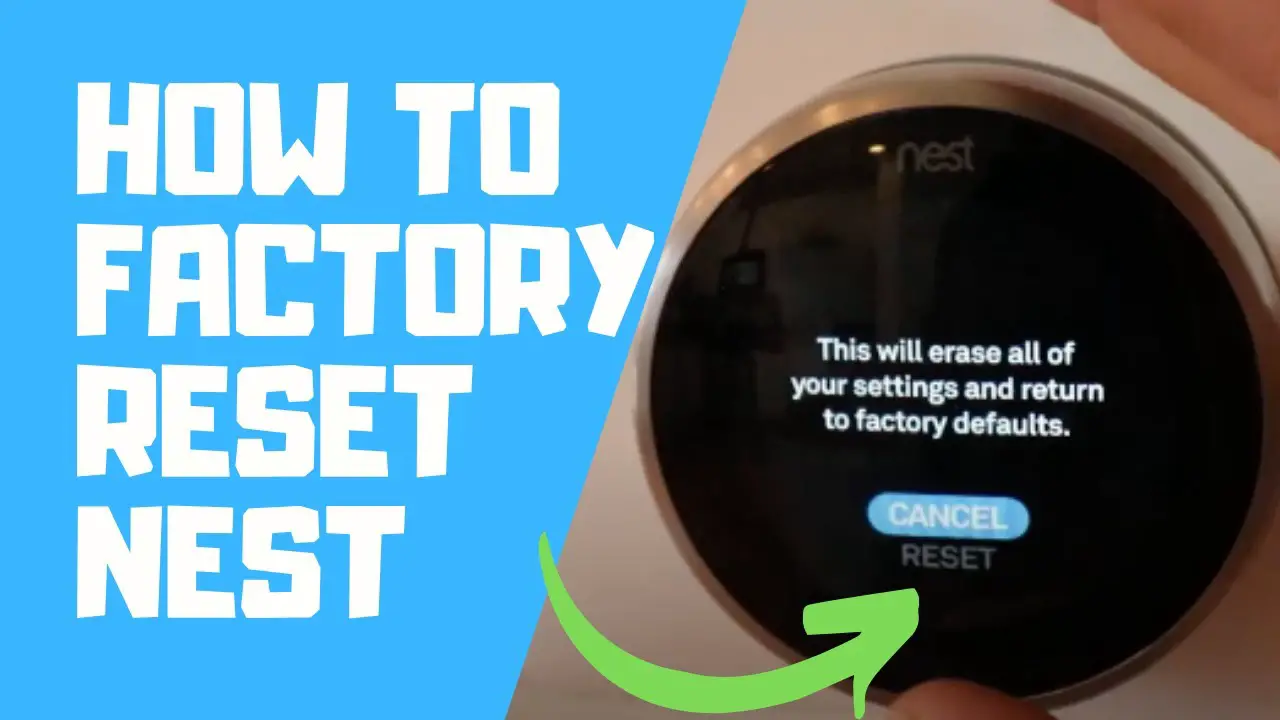
Step 5: Confirm, Confirm, Confirm!
Your Nest is smart, but it also wants to be sure you know what you’re doing. It will usually ask you to confirm a few times. It'll give you options like "Reset All Settings" or "Reset to Factory Defaults." It might even warn you that this will delete all your data (schedules, Wi-Fi info, etc.). Don't panic! That's exactly what we want. Keep confirming with a firm press of the ring on "Yes" or "Continue."
Step 6: Watch the Magic Happen.
Your Nest will now do its thing. It might show a progress bar or just restart. Once it’s done, it will boot up as if it just came out of the box – asking you to choose your language and location. Voilà! You’ve successfully performed a factory reset!
A Few Friendly Nudges Before You Go
Just a couple of quick reminders, because I care:

- If you're selling or giving away your Nest, make sure you also remove it from your Google Home app or Nest app! A factory reset on the device itself doesn't automatically unlink it from your account. That's a separate, equally easy step in the app.
- If you're keeping it, be ready to re-enter your Wi-Fi password and set up your schedule and preferences all over again. Consider it a fun little reunion with your smart home!
You Did It! You're a Nest Nurturer!
Congratulations, tech hero! You’ve just performed a digital cleanse on your Google Nest Thermostat. It’s now a blank slate, ready for its next adventure, whether that’s in a new home or simply with a fresh, less quirky personality in its current one. You've tamed the tech, taken control, and frankly, you deserve a high-five!
See? Tackling smart home gadgets doesn't have to be intimidating. With a little guidance, you can make these things dance to your tune. Now go forth and enjoy your perfectly reset, perfectly poised-for-perfection thermostat. You've earned that smug, satisfied smile!