Davinci Resolve Gpu Rendering
Okay, so you’re diving into the glorious world of DaVinci Resolve, huh? Awesome! But then you hit a wall. A rendering wall. Your timeline is crawling like a snail in molasses, and you’re wondering if your computer is powered by hamsters on a tiny treadmill. Fear not, my friend! We’re gonna talk about GPU rendering, which is basically like swapping those hamsters for a rocket engine. (No hamsters were harmed in the making of this analogy).
What's the GPU Got to Do With It?
Think of your computer as having two brains. The CPU (Central Processing Unit) is like the super-smart accountant, good at general tasks and keeping everything organized. The GPU (Graphics Processing Unit) is like the… well, the special effects wizard! It's built for crunching numbers related to visuals – think colors, effects, transformations. DaVinci Resolve is very visually demanding, so leaning on your GPU is key.
Without a capable GPU, your CPU is trying to do everything. Imagine asking your accountant to also juggle flaming torches while balancing on a unicycle. They might be able to do it, but it's going to be slow, painful, and probably involve a lot of dropped torches (and maybe a few tears). That's your laggy timeline.
Must Read
Is My GPU Up to the Task?
Alright, time for some detective work. First, find out what GPU you have. On Windows, hit the Windows key, type "Device Manager," and look under "Display adapters." On Mac, click the Apple menu, then "About This Mac," and check the "Graphics" section. Google your GPU model to see its specs. Things to look for are memory (VRAM) and the generation of the card. More memory is generally better (think 8GB or more for smooth sailing with 4K footage), and newer generations usually mean better performance.
Resolve has minimum requirements listed on Blackmagic Design’s website (the creators of Resolve), but honestly, you'll want something a bit beefier for a good experience. Those minimums are like saying you can drive across the country in a Yugo. Technically true, but… not recommended.
Making Resolve Use Your GPU (The Magic Words!)
Okay, now for the crucial part: telling Resolve to actually use your GPU. Here's how:
- Open DaVinci Resolve.
- Go to DaVinci Resolve > Preferences (or File > Project Settings) - it depends on what you're changing.
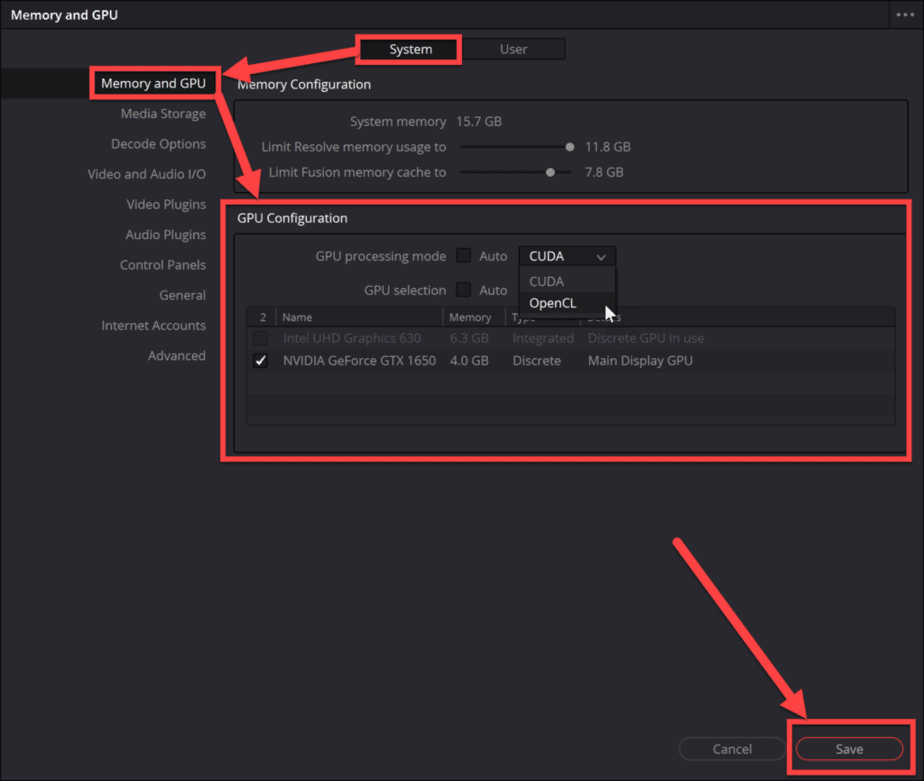
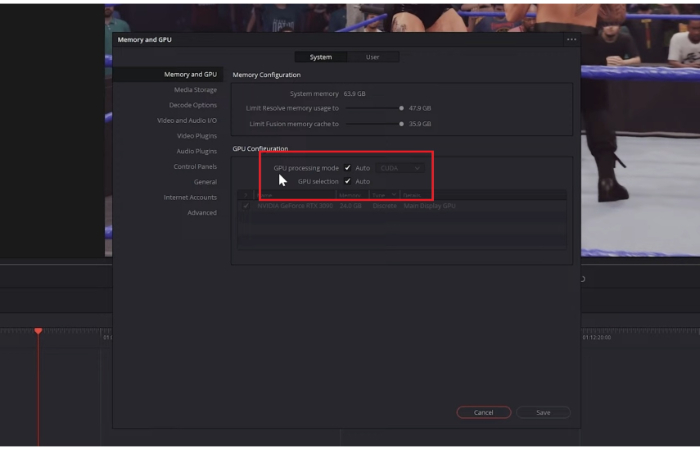
- Navigate to the "Memory and GPU" section. This is where the magic happens.
- Make sure your GPU is selected under "GPU Processing Mode." Usually "Auto" works, but you can manually select "CUDA" (for Nvidia cards) or "OpenCL" (for AMD cards and some older Nvidia cards). Experiment to see what works best!
- Under "GPU Configuration," ensure all your available GPUs are checked. Give them some love!
- Adjust the "Memory Usage" sliders. Leave some RAM for your operating system, but give Resolve as much as you can without crashing your system. This is a bit of trial and error.
- Restart Resolve! This is super important. Resolve needs to restart to apply these changes. Don't skip this step, or you'll be wondering why nothing changed.
Other Tricks to Boost Performance
Even with a good GPU, there are other things you can do to speed things up:
- Optimize Media: Use optimized media (lower resolution versions of your footage) for editing, then switch back to the full resolution for rendering. Resolve can create these proxies for you!
- Render Cache: Enable render cache! Resolve will pre-render parts of your timeline, making playback smoother. Go to Playback > Render Cache > Smart or User. "Smart" lets Resolve decide what to cache, "User" lets you pick specific clips to cache.
- Reduce Noise Reduction: Noise reduction is a GPU hog. Use it sparingly.
- Close Other Programs: Seriously, free up those resources! Close your web browser, email, everything that's not Resolve.
- Update Your Drivers: Make sure you have the latest drivers for your GPU. Nvidia and AMD release updates regularly that often include performance improvements for video editing software.
Still Slow? Time for an Upgrade?
If you've tried all these tips and your timeline is still crawling, it might be time to consider upgrading your GPU. Sorry to be the bearer of potentially expensive news! But think of it as an investment in your creative future. Plus, shiny new tech is always fun, right?
Choosing a GPU can be overwhelming. Look at reviews and benchmarks specifically for DaVinci Resolve. Focus on VRAM and overall performance. And remember to check that your power supply can handle the new card!
Final Thoughts (and a virtual high-five!)
GPU rendering is a game-changer for DaVinci Resolve. By understanding how it works and tweaking your settings, you can unlock your system's potential and enjoy a much smoother editing experience. It might seem a bit technical at first, but don't be intimidated! Experiment, learn, and have fun. You got this! Now go forth and create amazing things! And remember to save your project regularly – because no amount of GPU power can save you from losing hours of work. Trust me, I've been there. Happy editing!