
Can You Open Epub In Notability

Okay, so picture this: me, armed with a steaming mug of coffee and a brand new ebook I was dying to annotate in Notability. I tapped, I swiped, I practically begged my iPad to just open the darn file. And… nothing. Zilch. Nada. The silent treatment from my beloved note-taking app. Anyone else been there? Don't leave me hanging!
That frustrating experience got me thinking (and Googling, let’s be honest): can you actually open an EPUB file – you know, the standard ebook format – directly in Notability? Let’s dive in, shall we?
The Short Answer (Because We All Have Short Attention Spans)
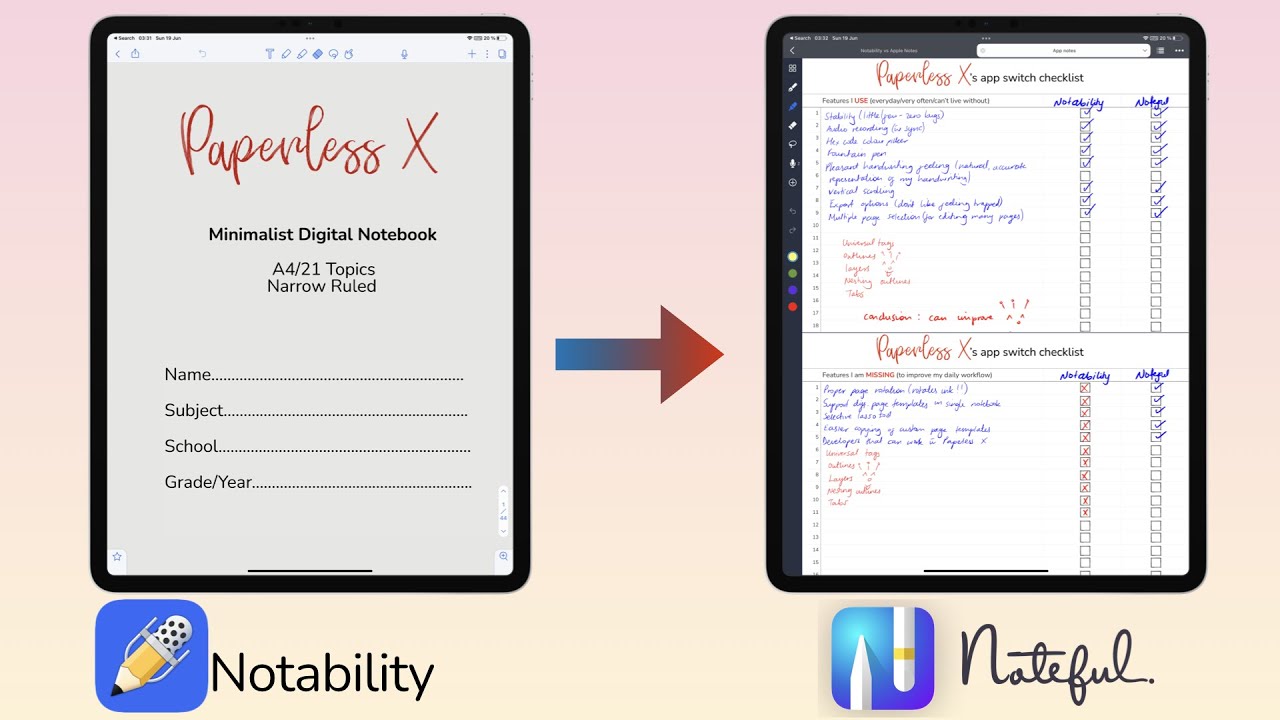
Unfortunately, the answer is a resounding… no. Notability, in its current form, doesn't natively support EPUB files. I know, I know. It's a bummer. You're probably thinking, "But why, Notability, why?!". Well, that's a question for the developers (maybe we should all tweet them?).
Must Read
So, What Can You Do? (Don’t Despair!)
Alright, alright, don't throw your iPad across the room just yet. There are definitely workarounds! We just need to get a little creative. Think of it as a fun little digital puzzle.
Here are a couple of options to get your EPUB content into Notability for all your annotating needs:
1. Convert to PDF (The Most Common Route)
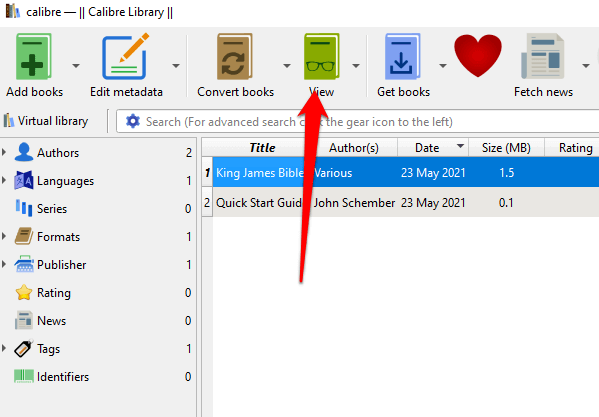
This is your bread and butter solution. EPUB to PDF converters are everywhere. Seriously, just Google it! There are online converters (be mindful of privacy, though!) and desktop software options like Calibre (which is free and awesome). Once you have your PDF, importing it into Notability is a breeze. Just tap that little "+" icon, choose "Import," and select your file.
Pro-tip: Make sure the converter you choose maintains the formatting of your ebook as much as possible. Nobody wants a jumbled mess of text!
2. Take Screenshots (For Smaller Sections, Maybe)
Okay, this isn’t ideal for an entire book, but if you only need to annotate a specific chapter or excerpt, you can screenshot the pages of your EPUB reader and then import those images into Notability. This is a bit clunky, though, and you might lose image quality. Use at your own risk! Consider it the "emergency" option.
3. Copy and Paste (If You're Feeling Patient)
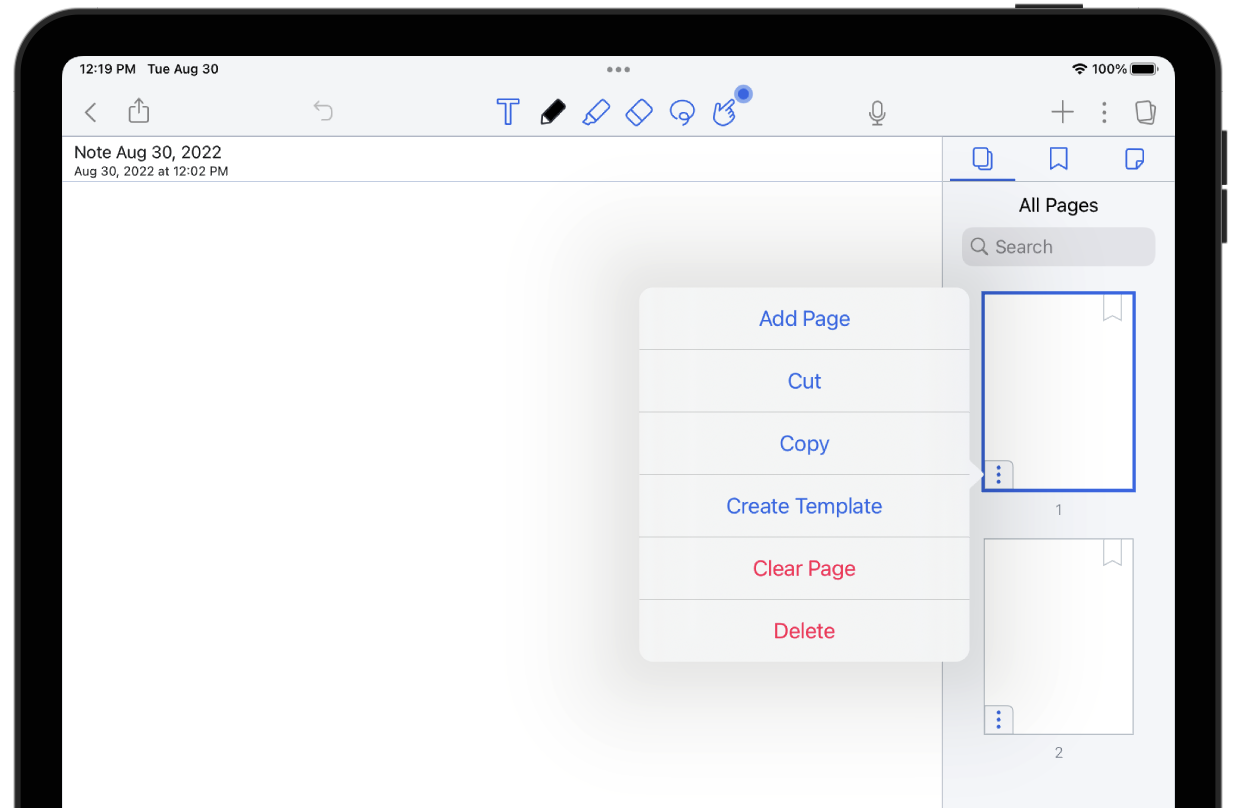
Again, not ideal for a whole book, but you can copy text from your EPUB reader and paste it into a new Notability note. This works best if you want to take notes about the book rather than annotate the text directly. Prepare for some formatting adjustments, though. It's usually not a perfect copy-paste situation.
Why Isn't Native EPUB Support a Thing?
That’s the million-dollar question, isn't it? Honestly, I have no idea. Maybe it's a licensing issue, maybe it's a development priority thing, or maybe they just haven't gotten around to it yet. Someone needs to start a petition!
The good news is that Notability is constantly being updated, so there's always a chance they'll add EPUB support in the future. Fingers crossed!
In Conclusion (Because I Know You're Busy)
While you can’t directly open an EPUB file in Notability, there are definitely ways to get your content in there for annotation. Converting to PDF is usually the best option, but the other methods might work in a pinch. So, don't let a little file format incompatibility stop you from taking amazing notes!
Happy annotating, friends! And let's all collectively wish for native EPUB support in the next Notability update. Pretty please?
