
Battery Indicator Missing Windows 10
/MainImage-5c66a6914cedfd00014aa37c.jpg)
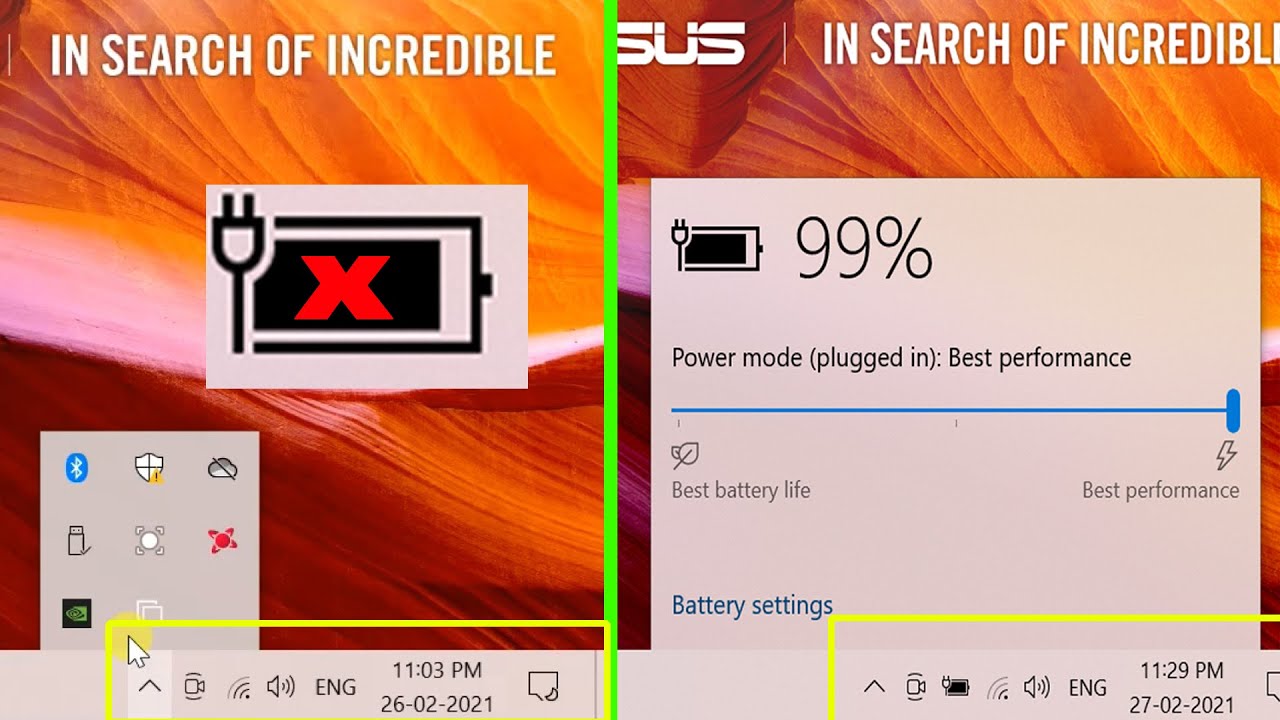
Oh, the horror! One minute you're merrily clicking away, probably saving the world in a spreadsheet or watching a cat video marathon, and the next... poof! Your trusty little battery indicator has vanished into thin air. It’s like your laptop decided to play a cruel game of hide-and-seek with its own vital signs! That tiny icon, a beacon of power (or lack thereof), just upped and left.
Suddenly, you're living on the edge, a digital daredevil without a net. How much juice do you have left? Is that the sweet hum of productivity or the ominous whir of an impending power nap (for your laptop, not you)? The suspense is agonizing! Fear not, fellow adventurer, for we shall embark on a quest to reclaim your missing energy buddy!
Think of it as a thrilling scavenger hunt, where the prize isn't gold or jewels, but the glorious return of that humble battery icon. We'll explore every nook and cranny of your
Must Read
The Great Icon Escape: Our First Clue!
The Taskbar Tango: Right-Click Rendezvous
Sometimes, the simplest tricks are the most effective. Our little battery icon often just gets shy and ducks away into the shadows of your taskbar. But we know where to find it!
First, gently float your mouse over an empty space on your Taskbar – that long strip at the bottom of your screen where all your apps hang out. Give it a polite right-click. A menu will magically appear, full of fascinating options.
"It's like asking the taskbar politely, 'Excuse me, have you seen my battery friend around here?'"
From this wondrous menu, select Taskbar settings. Don't be shy! This is our entry point into the icon's secret hideout. Click it with confidence, like a seasoned detective cracking a case.
Now you're in the Taskbar settings window. Scroll down, down, down, past all the fancy personalization options, until you spot a section called Notification area. This is where our missing icon often tries to blend in with the crowd.
Within this section, you'll see a link that boldly declares: Turn system icons on or off. This is it! The moment of truth! Click on this link as if you're hitting the jackpot button on a game show.
A new list will appear, showing all the system icons that could be gracing your taskbar. Look for the one that says Power. Is its toggle switch set to Off? Gasp! The culprit!
Simply toggle it to On! Like magic, or rather, like giving a sleepy icon a gentle nudge, your battery indicator should reappear on your taskbar. Victory! You've brought it back from the digital wilderness!
When Shyness Persists: A Deeper Dive into Settings
The System Icons Shenanigans: Another Path
Sometimes, our beloved operating system likes to offer multiple routes to the same destination, just to keep us on our toes! If the direct taskbar tango didn't quite do the trick, let's try a slightly different approach through the main Settings app.
Hit the Windows key on your keyboard, or click the Start button. Then, click on the little gear icon to open up your

Once you're in Settings, navigate to Personalization. Because, let's face it, your missing battery icon is a deeply personal matter! Within Personalization, look for Taskbar on the left-hand menu and give it a firm click.
We're back in familiar territory! Scroll down to that same Notification area section. You'll again see the glorious link: Turn system icons on or off. Give it another confident click!
Just like before, scan the list for Power. Ensure its switch is flipped to the On position. Sometimes, a gentle re-confirmation is all it takes to convince a stubborn icon to make a grand reappearance.
"It's like making sure the icon really heard you the first time. We're very persuasive digital sherpas!"
If it was already on, try toggling it off and then on again. Think of it as giving the icon a little wake-up shake, a tiny digital jolt to remind it of its duties.
The Tech Whisperer: A Driver Detective Story
Device Manager Drama: Rebooting the Battery Brain
Okay, if our icon is still playing hard to get, it might be time to call in the big guns. No, not a team of actual detectives, but the powerful Device Manager! This is where your laptop's internal organs are listed, categorized, and managed.
Type Device Manager into your Windows search bar and hit Enter. A window will pop up, filled with a tree-like structure of all your computer's hardware. It might look a bit intimidating, but we know exactly where we're going!
Scroll down until you see the category labeled Batteries. Click the little arrow next to it to expand its contents. You'll likely see something like Microsoft ACPI-Compliant Control Method Battery. This is the brain behind your battery's operations!
Here's the fun part: right-click on Microsoft ACPI-Compliant Control Method Battery. From the menu, select Disable device. Don't panic! Your laptop won't explode, promise. It's like telling the battery brain to take a tiny, momentary vacation.
After it's disabled, right-click on it again, and this time, select Enable device. This action often gives the battery driver a fresh start, clearing up any little digital cobwebs that might have been hiding your icon.
"It's like hitting the reset button on your battery's internal GPS. Sometimes it just needs to be turned off and on again to find its way home!"
Once you've done this, it's a good idea to perform a classic Restart of your computer. This gives the changes a chance to properly settle in, and often, your little battery friend will pop right back up on the taskbar, beaming with renewed purpose!
The Healing Touch: Power Troubleshooter Pal
Let Windows Fix It: The Troubleshooter's Magic Wand
Did you know your
Head back to your Windows search bar and type in Troubleshoot settings. Hit Enter, and you'll be whisked away to the troubleshooting command center.
Look for Other troubleshooters and click it. A list of specific problem-solvers will appear. Scan the list until you find the one named Power. This is our guy!
Click the Run button next to Power. Windows will then get to work, scanning your system for any glitches or misconfigurations related to power management. It's like having a little digital technician doing a house call!
Follow any on-screen prompts or suggestions it provides. Sometimes, it might ask you to apply a fix or confirm a change. Let it do its thing, and cross your fingers for a swift resolution.
"The troubleshooter is like that wise elder who just knows how to fix things without much fuss. Let it work its quiet magic!"
Even if it doesn't explicitly say it fixed anything directly related to the icon, these power-related tweaks can often nudge the battery indicator back into visibility. It's worth a shot!
The Classic Reset: The Good Old Restart Rocket
When in Doubt: Reboot, Rejuvenate, Reappear!
Ah, the universal panacea of the digital world: the restart. It's the "turn it off and on again" advice that's been around since the dawn of computers, and for good reason! Sometimes, all your laptop needs is a fresh start, a clean slate, a quick nap.
If you've tried all the above and your battery icon is still playing Houdini, don't underestimate the power of a full Restart. Go to your Start Menu, click the Power icon, and select Restart.

This isn't just putting your computer to sleep; it's completely shutting down all processes and then booting them back up from scratch. It clears out temporary glitches, refreshes memory, and gives everything a chance to reload correctly.
"Think of it as giving your laptop a refreshing cold shower and a strong cup of coffee. It wakes everything up and makes sure it's ready to go!"
Often, upon logging back in after a fresh restart, that charming battery icon will be right there on your taskbar, blinking its little percentage at you, happy to be back in action.
The Update Upgrade: Windows Update Wonderland
Keeping Things Fresh: Patches and Performance
Sometimes, the missing icon isn't a mischievous prank, but a tiny bug hiding in an older version of
It's time to check if your Windows is running the latest and greatest! Head to Settings (that gear icon again!), then click on Update & Security.
From there, click on Windows Update. Click the Check for updates button and let your computer search the digital cosmos for any pending upgrades.
"Imagine your laptop getting a digital spa day, with fresh new software and all the latest bug spray!"
If there are updates available, let them download and install. This might require another restart, but think of it as a necessary step to bring your system up to optimal performance and potentially banish that pesky icon disappearance act for good.
The New Identity Play: User Profile Parade
Is It You or the System?: A Detective's Trick
Here’s a curious trick from the detective’s handbook: sometimes a problem isn’t with the computer itself, but with your specific user profile. Think of it like a glitch in your personal digital space. We can test this theory easily!
The idea is to create a
Go to Settings, then Accounts, and then Family & other users. Click on Add someone else to this PC and follow the prompts to create a new local user account.

"It's like trying on a new digital outfit to see if the battery icon likes it better!"
Once the new profile is created, log out of your current account and log in to the new one. Check the taskbar. Is your battery icon shining brightly there? If it is, then the issue is likely tied to your original user profile.
If the icon appears in the new profile, you then have a couple of choices: either try to troubleshoot your original profile further (which can get a bit more technical), or simply migrate your files to the new, working profile and use that as your main one. It's a bit of a fresh start, but sometimes it’s the easiest path to digital peace!
The Hardware Check Hint: A Whisper of Reality
When Software Isn't the Culprit: A Gentle Nudge
In rare cases, after trying every software trick in the book, the missing battery icon might be a subtle hint about a deeper secret: a hardware hiccup. Don't panic! It's usually nothing too dramatic.
This simply means that your laptop's internal battery or its connection to the system might be feeling a little under the weather. It could be loose, or perhaps the battery itself is reaching the end of its magnificent life cycle.
You might notice other signs, like your battery draining incredibly fast, or your laptop only working when it's plugged into the wall. If you suspect a hardware issue, a professional diagnosis might be the next step.
"Sometimes, the messenger (the icon) is just trying to tell you something about the source (the battery itself)!"
But let's be positive! Most of the time, the solutions we've explored will bring your icon back to life. This is just a little footnote for those extremely stubborn cases.
Victory Lap: Reclaiming Your Power Peace!
Phew! We've navigated the digital labyrinth, explored hidden settings, and coaxed stubborn icons back into existence. Whether it was a simple toggle switch or a dance with the
Your little battery icon is back, proudly displaying its percentage, empowering you to know exactly when to reach for that charger. No more guessing games, no more sudden power outages mid-epic-saga. You are in control!
So go forth, confident in your newfound tech-savviness. You've proven that even the smallest digital disappearances can be solved with a little patience, a dash of curiosity, and a good dose of enthusiastic problem-solving. Enjoy your fully-informed, perfectly powered computing!