Why Is My Monitor Flashing On And Off
Imagine this: you're deep in thought, perhaps battling digital dragons or crafting the next great spreadsheet, when suddenly – blink! Your monitor flickers, goes dark, then pops back on like a startled meerkat. Uh oh. Before you start planning its dramatic farewell or consulting ancient computer spirits, take a deep breath! This doesn't have to be a tech-horror story. More often than not, your screen's impromptu light show is just a little cry for help, easily remedied with a bit of detective work and a sprinkle of magic (the good, techy kind, of course!).
The Case of the Disco Monitor!
That annoying flicker can feel like your computer is having a mini-meltdown, or perhaps it's just practicing for its next rave. But fear not, intrepid digital explorer! Most of the time, the culprit behind this flashing phenomenon isn't a digital ghost, but rather one of a few common, easily fixable issues. Let's unmask these shadowy figures!
Culprit #1: The Wobbly Wires – Or, Your Cables Need a Hug!
Picture this: you're trying to have a conversation with someone, but every few seconds, they just stop talking and then resume like nothing happened. Annoying, right? That's exactly how your monitor feels when its cables aren't snug. We're talking about the HDMI, DisplayPort, or DVI cables that link your monitor to your computer, and don't forget the power cable that gives it life! Over time, or with a tiny accidental kick, these can loosen up, creating an intermittent signal that makes your screen throw a mini tantrum. It’s like a car trying to run on a half-connected spark plug – it just sputters!
Must Read
Pro Tip: Gently push in all the cables connected to your monitor and your computer. Listen for that satisfying little click! Sometimes, all it needs is a firm, loving handshake.
Culprit #2: The Power Play – Is Your Monitor Thirsty for Juice?
Even the mightiest monitor needs a constant flow of electricity to keep its pixels sparkling. If the power cable is slightly loose, or if your power strip is overworked (maybe it's powering your monitor, your computer, a desk lamp, a phone charger, and a tiny espresso machine all at once!), your monitor might experience little brownouts. It's like trying to run a marathon on sips of water – eventually, it's going to falter. A flickering screen could be its way of saying, "Hey! More power, please!"
Is your PC getting enough juice? Make sure your monitor’s power cable is securely plugged into both the monitor and a functioning wall outlet or a surge protector that isn't pulling triple duty as a charging station for half your neighborhood's gadgets. Sometimes, simply trying a different outlet can make all the difference, especially if your current one is feeling a bit under the weather.
Culprit #3: The Grumpy Graphics Guru – Your Drivers Need a Pep Talk!
Your computer’s graphics card is the maestro behind everything you see on screen, and its drivers are the sheet music it uses to perform. If these drivers are outdated, corrupted, or simply having a bad day, your monitor might get confused and start acting erratically. It's like a chef trying to cook a gourmet meal with an old, stained recipe card – things are bound to go wrong! A sudden system update, or even a hiccup during installation, can leave your drivers feeling a bit out of sync, causing that irritating flicker.
Sometimes, a quick driver update is like giving your graphics card a spa day. Head over to your graphics card manufacturer's website (think NVIDIA, AMD, or Intel) and download the latest drivers. A fresh installation often smooths out these software wrinkles, bringing harmony back to your display.
Culprit #4: The Settings Scramble – Has Something Changed Behind the Scenes?
Modern monitors and computers have a dazzling array of settings. Sometimes, a rogue update, an accidental click, or even another program can subtly tweak your display settings, leading to a clash that causes flickering. For example, if your computer is trying to output a refresh rate (how many times per second your screen updates) that your monitor isn't quite comfortable with, it might protest with a flash-and-dash. It's like trying to play a high-definition movie on an old VCR – the picture just isn't going to look right, or even display at all!
A mischievous little setting could be the culprit! Dive into your computer's display settings (usually found by right-clicking on your desktop) and your monitor's physical menu buttons. Check for things like refresh rate, resolution, and input source. Make sure they’re set to values your monitor definitely supports. A quick reset to default settings can often be a magical cure!
Culprit #5: The Monitor's Meltdown – When the Screen Itself is Tired
While we hope it's one of the simpler fixes, sometimes the flickering is a sign that your beloved monitor is reaching the end of its pixelated journey. Like an old car that starts making strange noises, an aging monitor can develop internal issues with its backlight, power supply, or even the display panel itself. If you've tried everything else and your monitor is still putting on its light show, it might be time to gently consider that it's just plain worn out. It's had a good run, displayed countless cat videos, and helped you conquer virtual worlds!
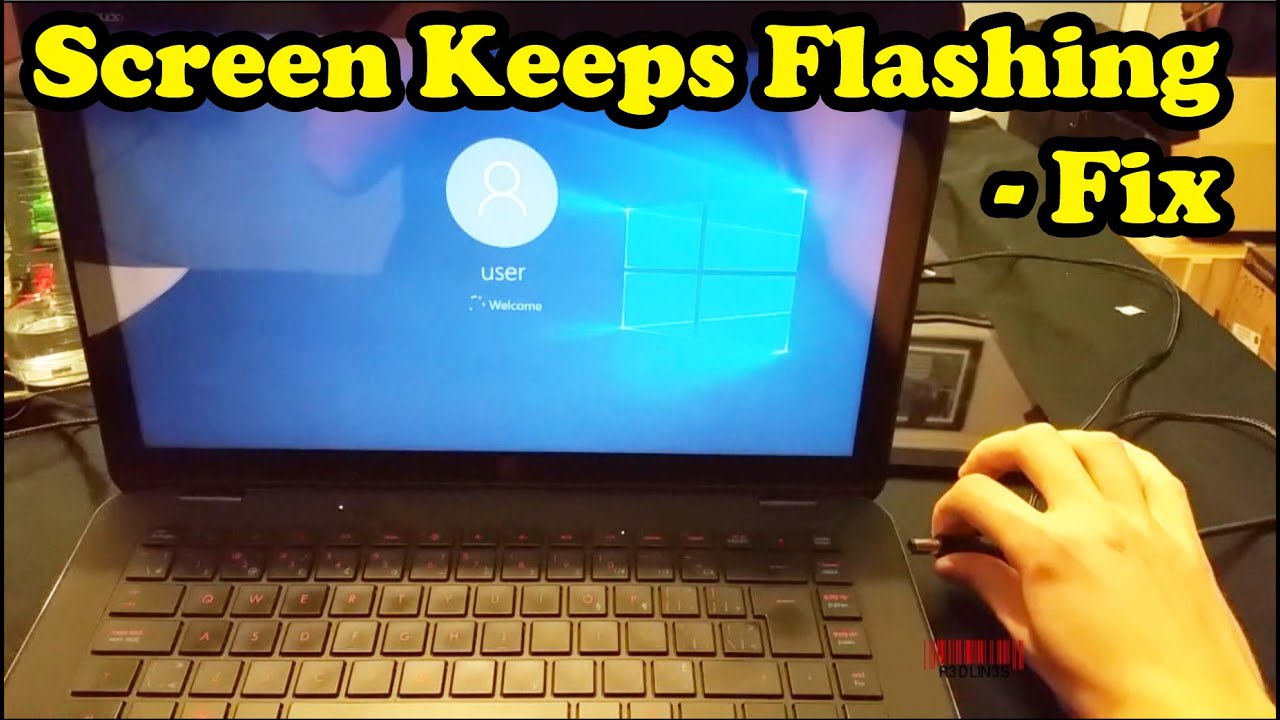
Even the best monitors eventually need a well-deserved retirement. Before you fully commit to a new screen, try connecting your computer to a different monitor or even a TV if you have one handy. If the flashing stops, then you've pinpointed the problem: it's your monitor, waving a white flag.
Your Detective Toolkit: How to Find the Flicker Fix!
Don't just stare at it dramatically! Approach this like a fun mystery. Start with the easiest, most common culprits and work your way down. Check those cables first – they're the ultimate suspects! Then move on to power, and if that doesn't work, dive into software. The key is to try one thing at a time. After each step, restart your computer and see if the problem persists. You're a tech detective, and you've got this!
So, the next time your monitor decides to emulate a strobe light, remember: it’s probably not a sign of the apocalypse. It’s likely just a minor hiccup trying to get your attention. With a little patience, a gentle jiggle, and perhaps a quick software update, you'll have your screen back to its brilliant, stable self, ready for all your digital adventures. Go forth and conquer, you magnificent tech whisperer!