Netgear Nighthawk Not Connecting To Internet
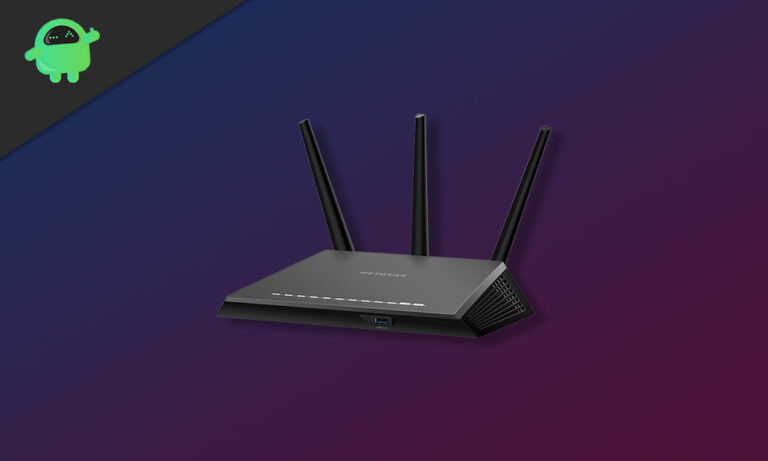
Ah, the modern marvel of a perfectly connected home! There's a certain joy, a silent symphony of digital contentment, when your Wi-Fi is humming along, smooth as a freshly brewed coffee. For many, that symphony is conducted by a Netgear Nighthawk. These aren't just any routers; they're the stallions of the home network, built for speed, designed to conquer dead zones, and engineered to handle everything from intense gaming marathons to 4K streaming binges without breaking a sweat. We rely on them to be the invisible backbone of our digital lives, powering our work, our entertainment, and keeping us connected to the world.
The Nighthawk, with its often futuristic design and impressive antenna array, promises a robust, high-performance internet experience. It's the silent workhorse that ensures your video calls for work are crystal clear, your smart home devices respond instantly, and your kids can stream their cartoons in peace. From sharing large files to battling online dragons with friends, or simply scrolling through social media, a Nighthawk is meant to provide that seamless, lag-free connection that makes everyday digital life not just possible, but enjoyable.
But then comes that moment. The dreaded moment. You glance at your device, and there it is: "No Internet Connection." The usually reassuring glow of your Nighthawk seems... off. Panic might start to bubble. Before you declare war on your router or descend into a digital dark age, let's walk through some practical tips to get your Nighthawk roaring back to life. Think of this as your friendly neighborhood guide to bringing connectivity back from the brink.
Must Read
First things first, and this is the ancient internet wisdom that holds true even for the mightiest Nighthawk: "Have you tried turning it off and on again?" Seriously! Unplug your Nighthawk router from power. Do the same for your modem (the box your internet service provider gave you). Wait a full 60 seconds. This allows both devices to completely power down and clear any temporary glitches or cached data. Plug the modem back in first, wait for its lights to stabilize (usually a minute or two), then plug your Nighthawk back in. This simple reboot often works wonders, a digital palate cleanser for your network.
Next, let's play detective with your cables. Are all the cables securely connected? Ensure the Ethernet cable running from your modem to the Nighthawk's yellow "Internet" port is snug at both ends. Also, double-check the power cables for both devices. A loose connection can be surprisingly deceptive. While you're at it, cast an eye on your Nighthawk's indicator lights. The little globe icon (representing the internet) should ideally be a solid white or green. If it's amber, red, or blinking erratically, it's telling you there's a problem getting a signal from your modem or ISP.
Consider the scope of the problem. Is it just your laptop that can't connect, or is your phone, tablet, and smart TV also feeling the internet drought? If only one device is struggling, the issue might be with that specific device's Wi-Fi adapter or settings, not your Nighthawk. Try connecting another device to isolate the problem. If all devices are offline, the focus remains on the Nighthawk or your internet service provider (ISP).
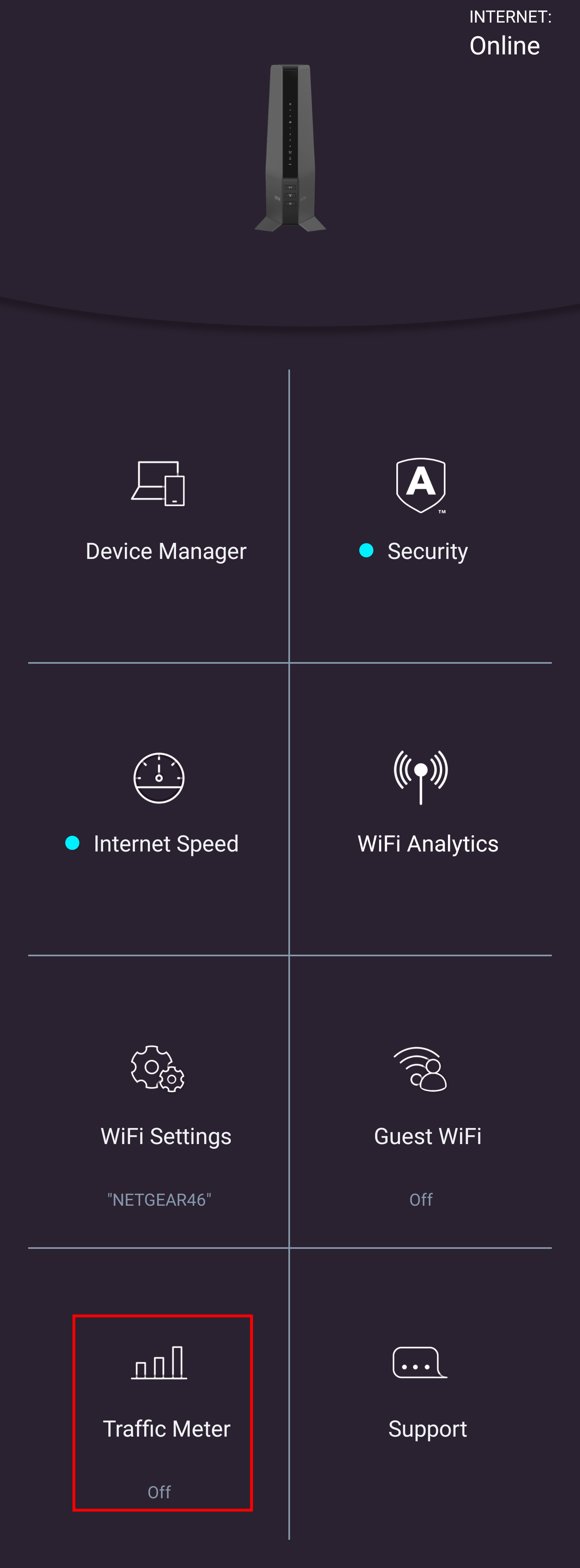
Speaking of your ISP, have you checked for a wider outage? A quick search on your phone's cellular data for "Is [Your ISP Name] down?" or a call to their support line can confirm if the problem lies beyond your home network. If your ISP is experiencing issues, unfortunately, all the router wizardry in the world won't help until they fix it on their end. Also, if you're comfortable, try logging into your Nighthawk's administrative interface (usually by typing routerlogin.net or 192.168.1.1 into a browser, assuming you have the login details). Look for a "System Status" or "Internet Status" page; it can often give you more specific clues about why the connection isn't coming through.
Finally, while less common for immediate "no internet" issues, ensuring your Nighthawk's firmware is up-to-date can prevent future headaches. Manufacturers release updates to improve performance and fix bugs. You'll typically do this through the router's admin interface or the Nighthawk app. If, after all this, your Nighthawk remains stubbornly offline, it might be time to consider a factory reset (a small button usually requiring a paperclip) as a last resort, but be warned: this will erase all your custom settings, requiring you to set up your network from scratch. Most often, a simple reboot and cable check will save the day, bringing back the glorious symphony of seamless internet to your home.