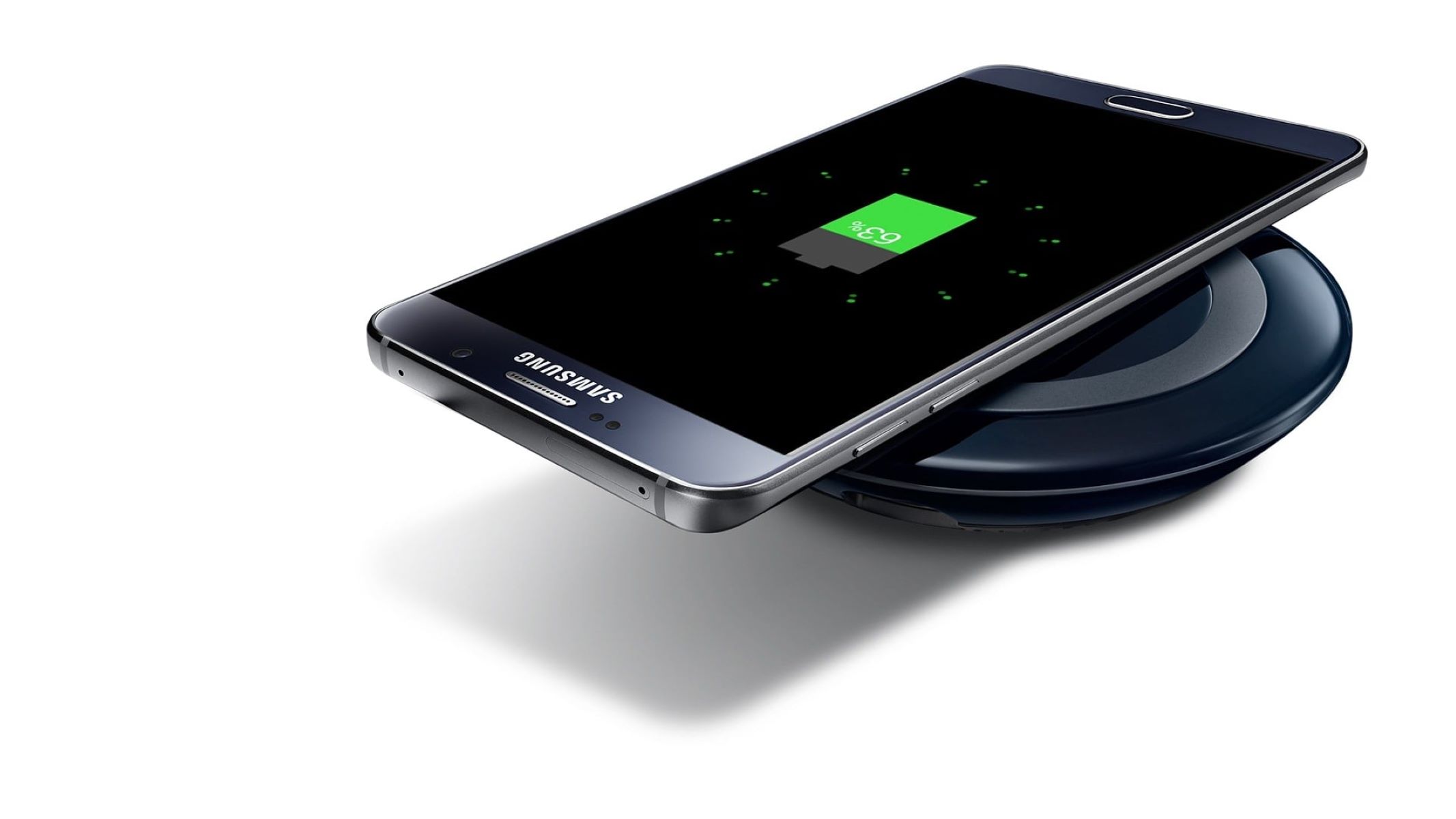
How To Wireless Charge Samsung With Another Phone

Let's face it, we've all been there. You're out and about, relying on your phone's GPS to navigate, snapping photos of breathtaking views, or just endlessly scrolling through social media, and suddenly… BAM! Your battery icon turns red, flashing that dreaded low battery warning. Panic sets in! But what if there was a way to give your Samsung phone a quick power boost using another phone? Sounds like something out of a sci-fi movie, right? Well, with Samsung's Wireless PowerShare, it's a reality, and it's surprisingly easy to do!
So, what exactly is this Wireless PowerShare magic, and why should you care? Simply put, it turns your compatible Samsung phone into a portable, wireless charging pad. This means you can use it to wirelessly charge other Qi-compatible devices, including other Samsung phones, earbuds like Galaxy Buds, and even smartwatches. Think of it as a digital "good Samaritan" service, allowing you to help a friend in need or keep your own essential accessories powered up when a charger isn't readily available.
The benefits are pretty clear. First and foremost, it's incredibly convenient. No more scrambling for a wall outlet or begging strangers for a charging cable. Just a phone-to-phone power transfer. Secondly, it offers peace of mind. Knowing you have a backup power source in your pocket can be a lifesaver, especially when traveling or exploring new places. Finally, it's undeniably cool. It's a neat tech trick that's sure to impress your friends!
Must Read
Ready to learn how to become a wireless charging wizard? Here's the breakdown:

- Check Compatibility: Not all Samsung phones support Wireless PowerShare. You'll need a relatively recent model, such as the Galaxy S10 and later, or the Galaxy Note10 and later. Check your phone's specifications online to confirm.
- Locate the Setting: Navigate to your phone's settings menu. Usually, you'll find Wireless PowerShare under "Battery" or "Device Care." Look for the Wireless PowerShare option and toggle it ON.
- Position is Key: Place the phone you want to charge on the back of your Samsung phone. Make sure the backs of the phones are facing each other, aligning the charging coils. The ideal position is usually center-to-center, but you might need to experiment slightly to find the sweet spot.
- Charging Commences: Once properly aligned, the charging process should begin automatically. You'll usually see a notification on both phones indicating that wireless charging is in progress.
- Patience is a Virtue: Wireless charging is generally slower than wired charging, so don't expect a rapid power boost. It's best for providing a small charge to keep a device going until you can access a regular charger.
Important Notes:
- Make sure both phones have sufficient battery life. Your phone will stop sharing power when its battery level drops below a certain threshold (usually around 30%) to ensure it has enough power to function.
- Remove any cases or accessories that might interfere with the connection between the phones.
- Avoid moving the phones while charging to maintain a stable connection.
Wireless PowerShare is a fantastic feature that can be a real lifesaver in a pinch. So, the next time you see a friend with a dying phone, or your Galaxy Buds are running low on juice, remember you have the power to help – literally! Just activate Wireless PowerShare and become the hero of the hour. Who knew being a good Samaritan could be so technologically advanced?