
How To Use Conifgurations In Solidworks
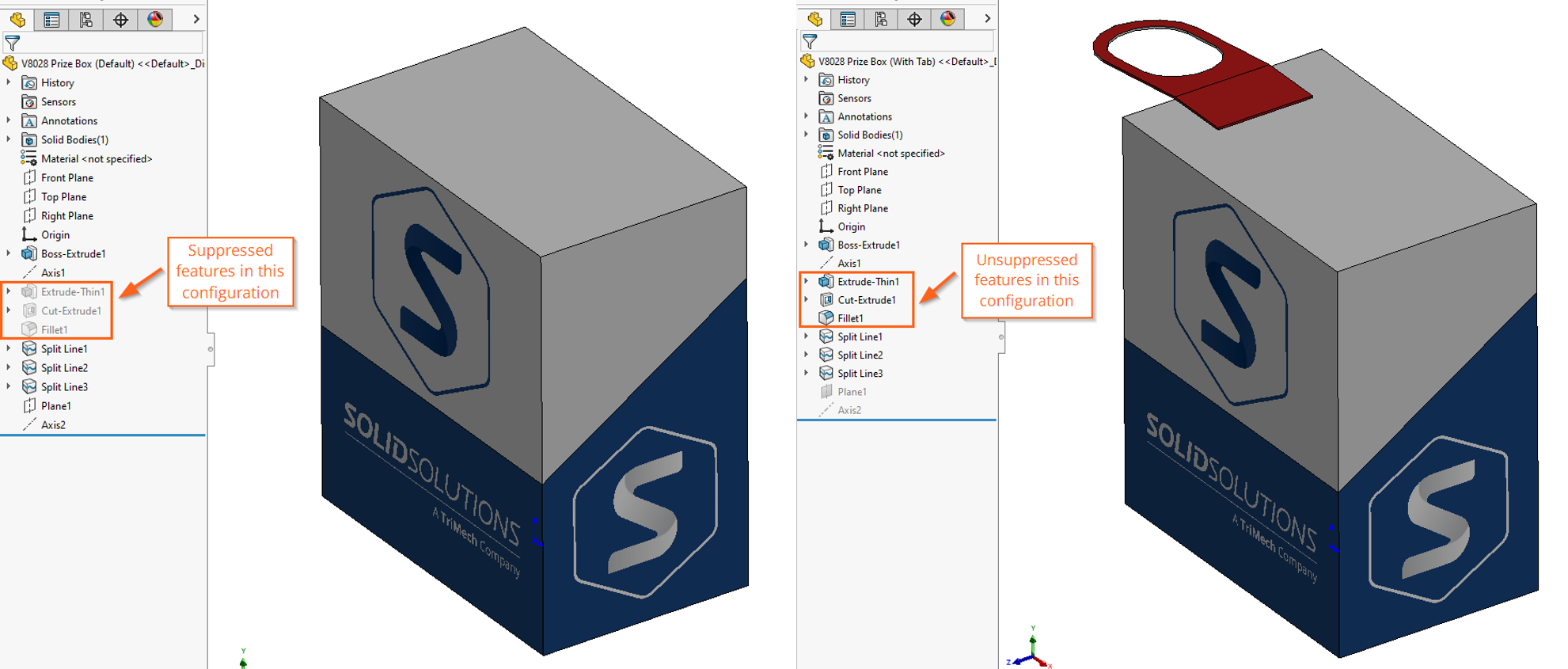
Ever feel like you're living in a multiverse, juggling different versions of the same thing? Whether it's your coffee order (iced, hot, oat milk, soy milk… the choices are endless!) or your weekend plans (stay in, go out, hike, binge-watch… the options paralyze!), managing variations is just part of modern life. Well, guess what? The engineering world faces the same delightful dilemma, and SolidWorks has a nifty tool to help: Configurations.
Think of Configurations as parallel universes for your CAD models. One model, infinite possibilities. Ready to dive in?
What Exactly Are SolidWorks Configurations?
Imagine you're designing a stylish desk lamp. You might want different versions: a tall one, a short one, a black one, a chrome one. Instead of creating separate files for each variation, Configurations let you manage them all within a single file. It's like having a wardrobe where you can instantly swap out clothes and accessories to create entirely different outfits.
Must Read
Essentially, Configurations allow you to create different versions of a part or assembly within a single SolidWorks document. These versions can differ in dimensions, features, materials, suppression states, and even custom properties. It's the ultimate organizational tool for handling design variations.
Getting Started: The ConfigurationManager Tab
First things first, locate the ConfigurationManager tab in the SolidWorks FeatureManager Design Tree (usually on the left side of your screen). This is your mission control for all things configuration-related. Click on it and you'll see a section dedicated to configurations.

To create a new configuration, simply right-click in the ConfigurationManager and select "Add Configuration." Give it a descriptive name (e.g., "Short_Black_Lamp") so you can easily identify it later. Now, the real fun begins!
Tweaking Your Designs: Dimensions and Features
Here's where the magic happens. With your new configuration active, you can start modifying the model. Let's say you want to change the height of our desk lamp. Simply double-click on the dimension you want to change, and you'll see a dialogue box. Make sure the "This configuration" radio button is selected. Now, enter your new value. Voila! The dimension updates only for that specific configuration.

You can also control the suppression state of features. Right-click on a feature in the FeatureManager Design Tree and select "Suppress" or "Unsuppress." Again, make sure you're applying this change to the correct configuration. Suppressing a feature essentially removes it from the model for that specific version.
Practical Tip: Use design tables to automate configuration creation. If you have many configurations based on a set of parameters, a design table (essentially an Excel spreadsheet linked to your SolidWorks model) can save you massive amounts of time and effort. Think of it as the "Easy Button" for creating multiple variations.
Materials and Custom Properties
Configurations aren't just about geometry. You can also control materials and custom properties. Right-click on the part in the FeatureManager Design Tree and select "Material." Choose a different material for your active configuration, and it will only apply to that version. The same principle applies to custom properties like part numbers, descriptions, or finish types.

Fun Fact: Did you know that the concept of modularity and standardization, which underlies configurations, can be traced back to the early days of manufacturing? Think of Henry Ford's assembly line – a system built on interchangeable parts and efficient production of variations.
Why Bother with Configurations?
Okay, so you know how, but why? The benefits are plentiful:

- Reduced File Size: Managing multiple variations within a single file significantly reduces file size and clutter.
- Improved Organization: Keep all related designs together in one place.
- Simplified Design Changes: Easily switch between configurations to review and modify different versions.
- Streamlined Manufacturing: Generate bills of materials (BOMs) for each configuration, making manufacturing easier.
Cultural Reference: Think of Lego sets. Each set allows you to build different models from the same set of bricks, demonstrating the power of configurations in the physical world. It's the same principle at play in SolidWorks.
Bringing it All Together
SolidWorks Configurations are a powerful tool for managing design variations. They help you stay organized, reduce file size, and streamline your workflow. Whether you're designing a simple desk lamp or a complex machine, understanding configurations is essential for any SolidWorks user.
Final Thought: Just like in life, having different options and being able to adapt to different situations is crucial. SolidWorks Configurations empower you to do just that – explore different possibilities and create designs that perfectly meet your needs. Embrace the multiverse of design!