
How To Turn Location Off Google Chrome
Alright, gather 'round, folks! Let's talk about Chrome and its, shall we say, enthusiastic tracking of your location. You know, that little blue dot that follows you around like a lovesick puppy? Ever feel like your browser knows you a little too well? Like it's about to suggest a new coffee shop five blocks away even before you knew you wanted coffee?
Yeah, me too. It's a tad creepy. So, let's wrestle control back from the digital overlords (or, you know, Google) and put Chrome's location tracking on a leash. Don't worry, it's easier than parallel parking a DeLorean. And arguably more important.
Why Bother Turning It Off?
Good question! Picture this: you're planning a surprise party for your best friend, furiously searching for party supplies online. Chrome, bless its helpful heart, is diligently noting your every move. Next thing you know, targeted ads for glitter cannons and inflatable flamingos are popping up on your friend's Facebook feed. Surprise ruined! Thanks, Chrome…thanks a lot.
Must Read
Okay, maybe that's a bit dramatic. But seriously, controlling your location data is about privacy. It's about not feeling like you're constantly being watched. Plus, turning off location services can sometimes help save battery life on your laptop or phone. Think of it as giving your device a mini-vacation. A digital spa day, if you will.
The Great Escape: Turning Off Location in Chrome (Desktop Edition)
Alright, buckle up. We're going in! First, fire up Chrome. Not literally, of course. I'm not responsible for any singed eyebrows.
1. Click on those three little dots in the upper-right corner. They look like they're having a secret meeting. It's the "Customize and control Google Chrome" menu. It's where all the magic happens (or, in this case, where the magic stops happening).
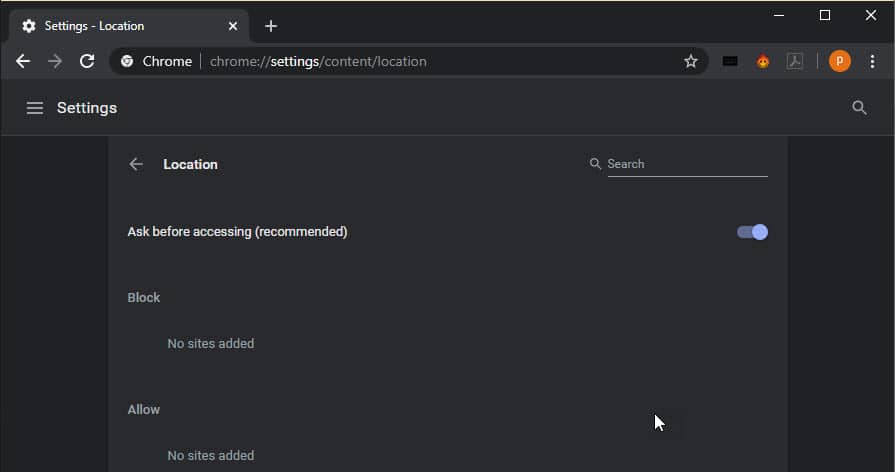
2. Scroll down to "Settings." Click it. This is the gateway to Chrome's inner workings. Prepare to be amazed (or slightly overwhelmed).
3. In the search bar at the top of the Settings page (the one that says "Search settings"), type "location." You could also type "Where am I?", but it might just give you the address of Google's headquarters.
4. You should see something like "Site Settings" and a "Location" option. Click on "Location." Congratulations! You're halfway there!
5. Now, you have a few options. The easiest? Just toggle the switch at the very top that says "Sites can ask for your location" to the "Off" position. Boom! Mission accomplished. Chrome is now location-blind. It's like giving it a pair of Groucho Marx glasses. It can still see, just...not you. At least, not your exact location.

6. You can also manage permissions for specific websites. You might want to allow location access for Google Maps (unless you enjoy getting hopelessly lost). You can click on the blocked websites and allow/block individually.
Location Liberation: Chrome on Your Phone/Tablet
Fear not, mobile users! We haven't forgotten about you. The process is pretty similar, just squeezed into a smaller screen.
1. Open the Chrome app on your phone or tablet. You knew that already, right? I just wanted to make sure you're still with me.

2. Tap those three dots (or sometimes three lines, depending on your device) in the corner. Again, they're plotting something. Probably world domination...or maybe just suggesting a new recipe.
3. Tap "Settings." It's probably hiding somewhere near the bottom of the menu. Don't worry, it's not playing hide-and-seek.
4. Scroll down (or tap "Privacy and security" first) until you find "Site settings" and tap that. Tap on "Location".
5. Just like on the desktop version, flip the switch to "Off" to prevent all sites from asking for your location. Alternatively, manage permissions for specific websites, allowing or blocking them as you see fit. Remember, it's your digital domain! You're the king or queen (or non-binary monarch) of your online kingdom!

Important Caveats & Hilarious Misconceptions
Now, before you go off thinking you're completely invisible, let's address some common misconceptions. Turning off location in Chrome doesn't mean you're completely untraceable. Your internet service provider (ISP) can still track your general location based on your IP address. And if you're using other apps with location services enabled, they'll still be sending out your coordinates like digital carrier pigeons.
Think of it this way: you've turned off the GPS in your car, but you're still driving on a public road. People can still see what kind of car you're driving and generally where you're going. You're just not broadcasting your exact position to the entire internet.
Also, be aware that some websites and services may not function correctly without location access. For example, Google Maps might struggle to give you directions, and your favorite pizza delivery app might not know where to send the pepperoni goodness. It's a trade-off, my friends. A delicate dance between privacy and convenience.
So there you have it! You are now a master of Chrome location settings. Go forth and browse with confidence, knowing that you've regained a little bit of control over your digital life. And remember, always be skeptical of glitter cannon ads. They're never as fun as they look.