How To Tell Usb 2 From Usb 3
Ever found yourself staring at a progress bar, wondering why your file transfer is moving at a snail's pace, while other times it zips across in an instant? Or maybe you've just bought a shiny new external hard drive and want to make sure you're getting all the speed it promised? Well, friend, you're not alone! This little mystery often boils down to a simple, yet powerful, distinction: USB 2.0 versus USB 3.0.
Understanding the difference between these two generations of Universal Serial Bus isn't just for tech gurus; it's a fantastic little piece of knowledge that can save you time, frustration, and even money. Imagine being able to transfer an entire movie in mere seconds instead of several minutes, or backing up your precious photo collection without having to grab a coffee (or two!). Knowing which USB port is which allows you to optimize your device connections, ensuring your super-fast external SSD isn't hobbled by an older, slower port, and that your backups complete before bedtime. It's like unlocking a secret level of efficiency for all your digital adventures!
So, how do you become a USB detective? Fear not, it's easier than you think! There are a few key clues to look for, even without needing a magnifying glass or a degree in computer science.
Must Read
The Color Code Clue:
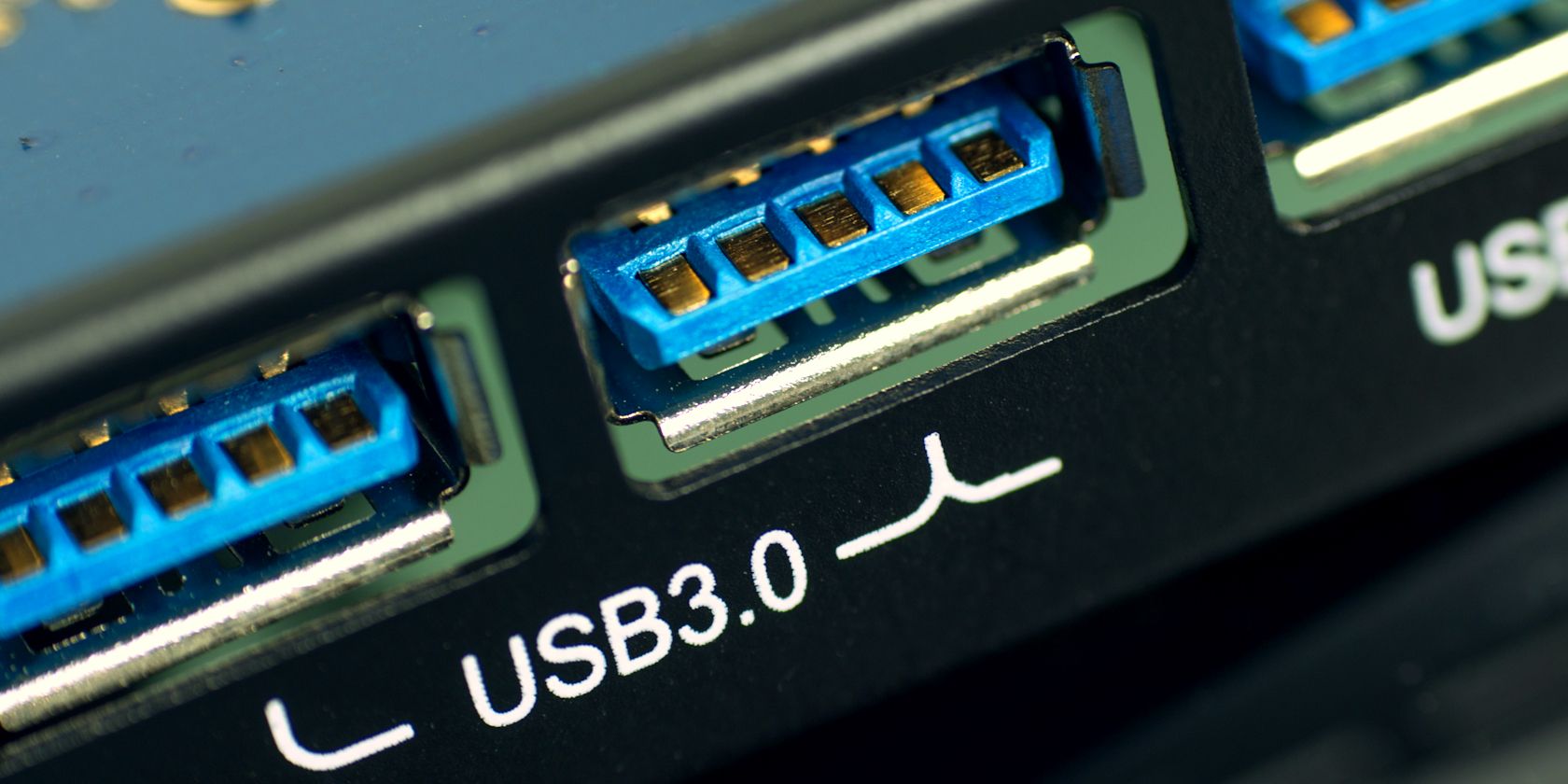
This is often the easiest and most reliable visual cue. Peek inside the USB port itself (on your computer, laptop, or hub).
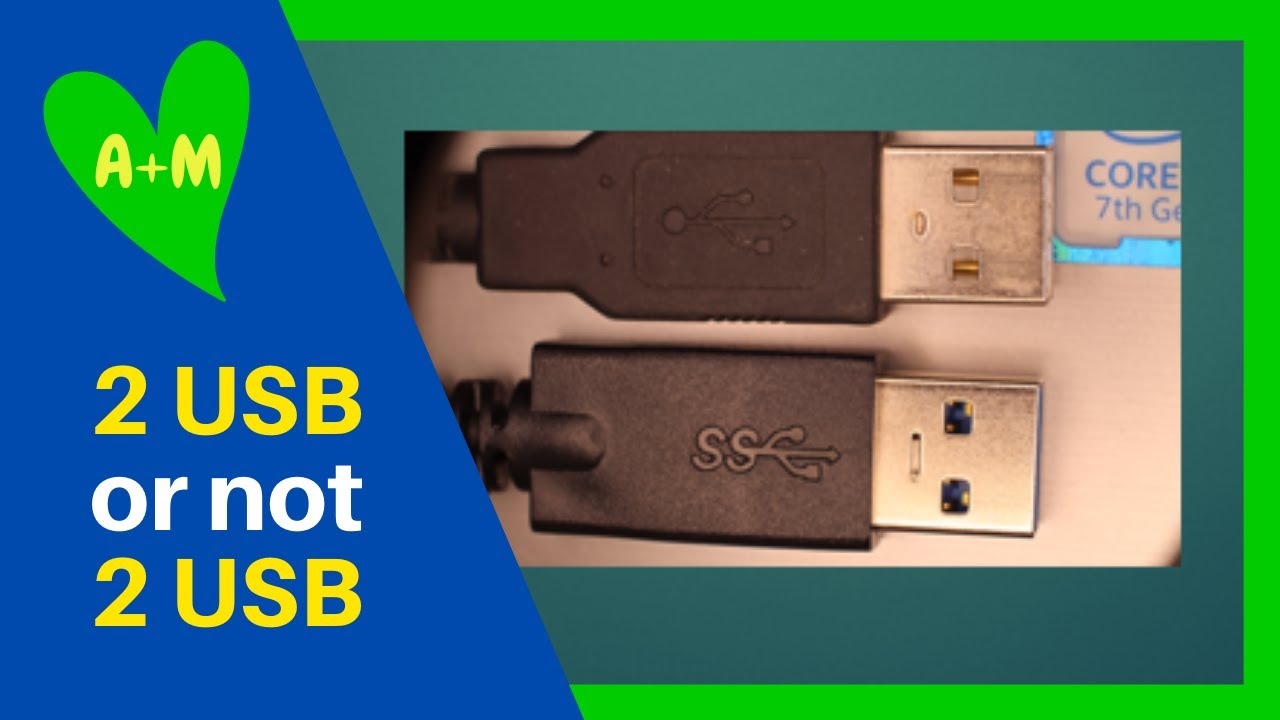
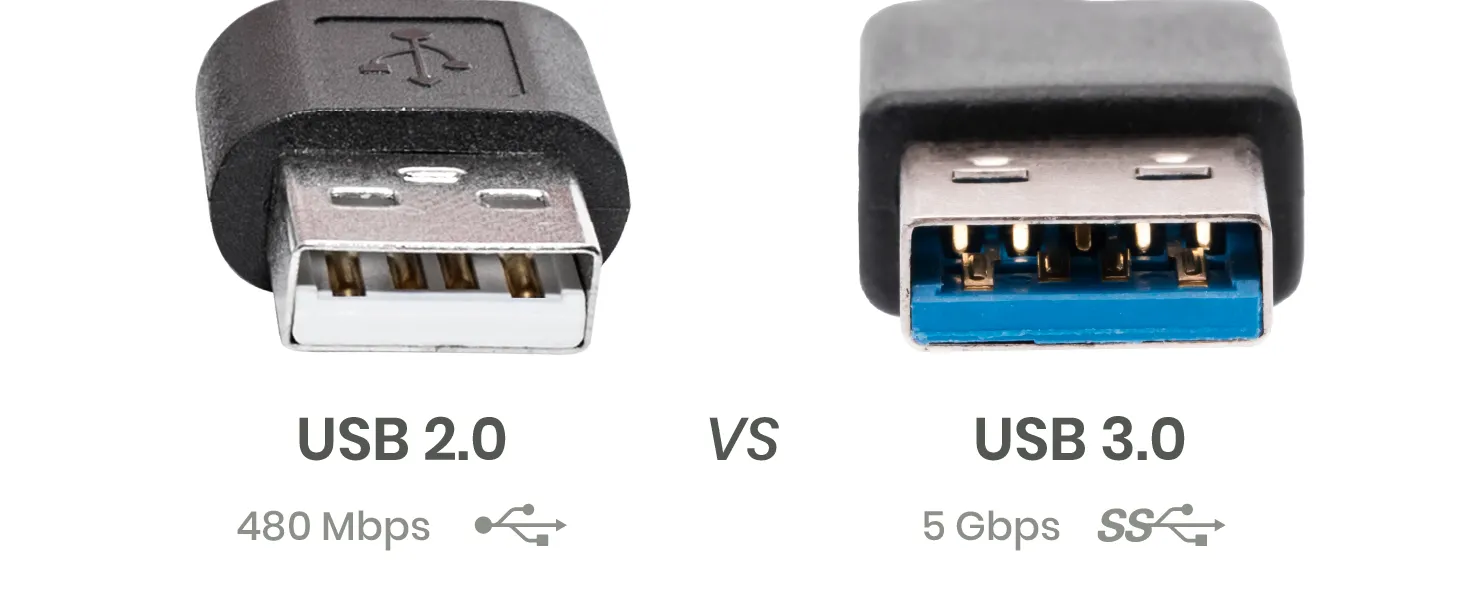
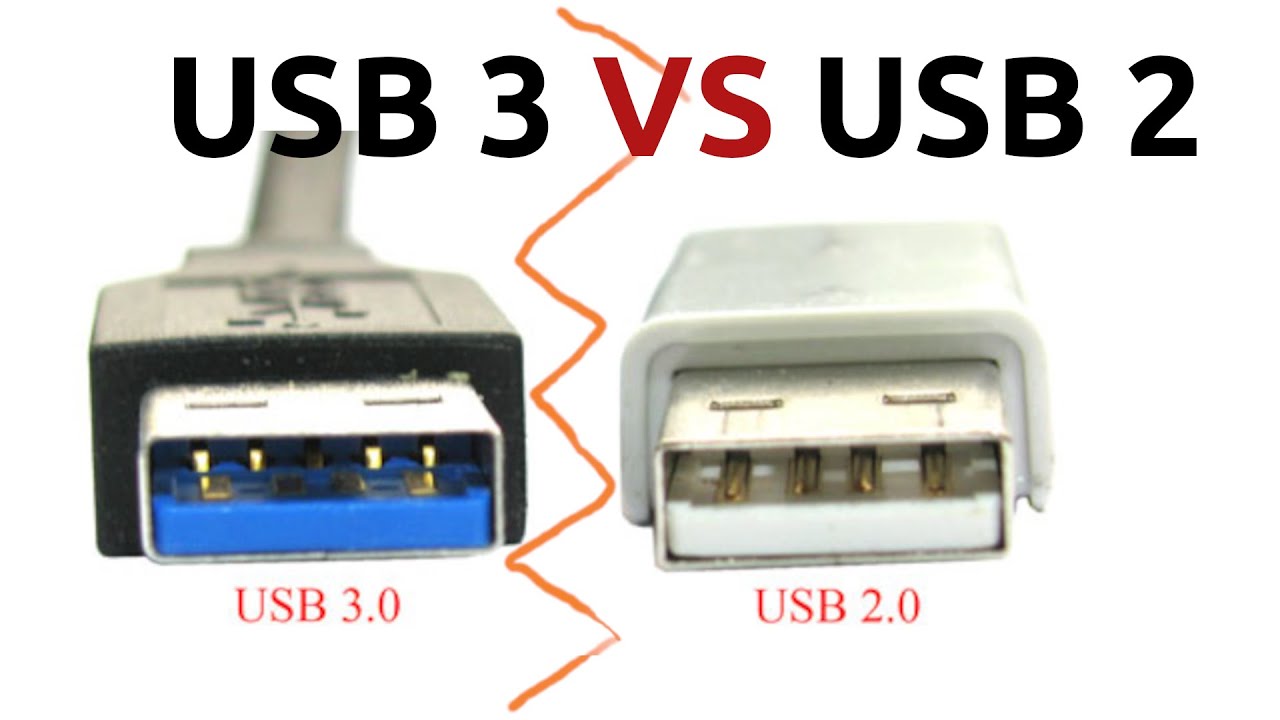
- If the plastic insert inside the metal housing is black or white, you're almost certainly looking at a USB 2.0 port.
- If that plastic insert is a vibrant blue, congratulations! You've found a USB 3.0 port. This blue coloring is the industry standard for indicating SuperSpeed USB. (Though a small disclaimer: occasionally, you might find a non-blue USB 3.0 port, especially with certain manufacturers, but blue is the most common signpost!)
The "SS" Symbol Clue:
Another excellent indicator is the logo printed next to the USB port.
- For USB 2.0, you'll typically see the standard USB trident symbol (it looks a bit like a tiny pitchfork).
- For USB 3.0, look for the same USB trident symbol, but with the letters "SS" (which stands for SuperSpeed) emblazoned next to it. This "SS" is your clear sign that you're dealing with the faster version.
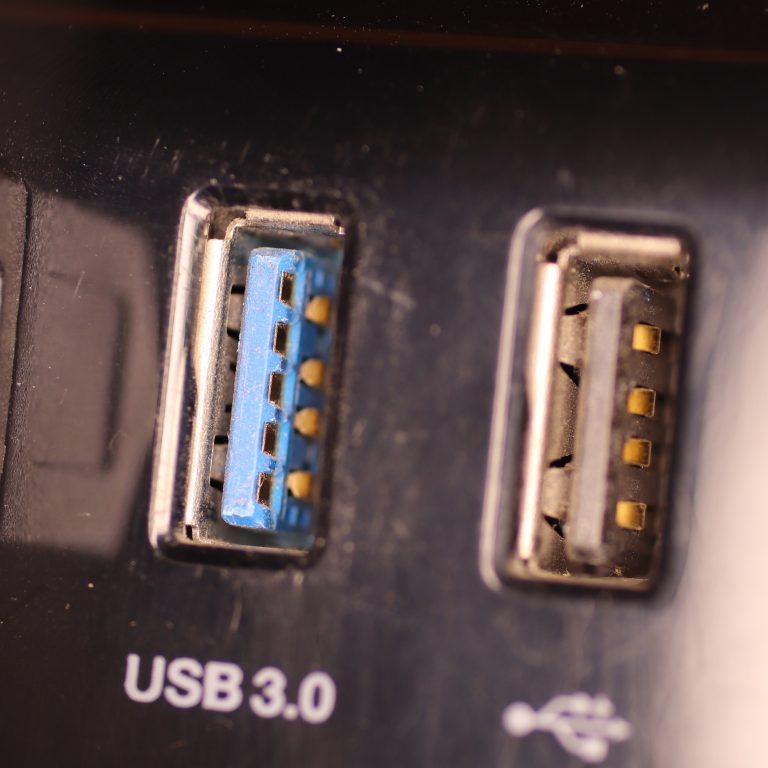
The Pin Count (For the Curious):
If you're really keen, and have good eyesight (or a very strong light!), you can even discern the difference by counting pins. USB 2.0 connectors typically have 4 pins, while USB 3.0 connectors have 9 pins (the extra five are recessed further back, providing the additional data channels for speed). This is harder to spot visually on a port, but it's a definitive physical difference!
Now you're armed with the knowledge! Go forth and examine your ports, cables, and devices. By ensuring you connect your high-speed devices to your high-speed ports, you'll unlock their full potential and kiss those long transfer times goodbye. Enjoy the thrill of SuperSpeed USB!