
How To Setup My Vizio Tv To Alexa
Hey there, tech-savvy friend! Ever wished you could control your TV with just your voice? I mean, who doesn't? Especially when you're buried under a mountain of blankets and the remote is, like, miles away. Well, guess what? If you've got a Vizio TV and an Alexa device, you're in luck! Setting them up together is surprisingly easy. Trust me, if I can do it, anyone can (and I once tried to microwave a sponge. Don't ask).
First Things First: Prep Work!
Before we dive in, let's make sure you have everything you need. Think of it as gathering your ingredients before baking a cake... a cake that controls your TV, of course. You'll need:
- A Vizio Smart TV, obviously. Make sure it's connected to your Wi-Fi. (Duh!)
- An Amazon Echo device (like an Echo Dot, Echo Show, or even the Alexa app on your phone). You knew that part, right?
- An Amazon account. If you have an Echo, you've got one!
- A Vizio account. Don't have one? Don't panic! We'll get to that.
Ready? Great! Let's get this show on the road!
Must Read
Creating (or Locating) Your Vizio Account
Alright, so, remember that Vizio account I mentioned? This is crucial. If you already have one because you've registered your TV or used other Vizio services, awesome! You're one step ahead! If not, no sweat. Here’s how to create one:
- On your Vizio Smart TV, look for the "Extras" or "SmartCast" menu. It might be hidden in the settings somewhere, so do a little exploring! It's like a treasure hunt, but with less buried gold and more TV control.
- Find the "Account" option.
- If you don’t have an account, select "Create Account" and follow the on-screen instructions. You'll probably need to provide an email address and create a password. Remember that password! Write it down somewhere safe… or use a password manager. (Seriously, do it!)
Boom! You’ve got a Vizio account. Pat yourself on the back. You deserve a snack.
Enabling the Alexa Skill on the Alexa App
Now for the magic! We need to tell Alexa that you want to talk to your Vizio TV. This is where the Alexa app comes in. Grab your phone or tablet and follow these steps:
- Open the Alexa app. You know, the one with the blue icon that looks vaguely like a speech bubble.
- Tap the menu icon (usually three horizontal lines) in the top left corner.
- Select "Skills & Games".
- In the search bar, type "Vizio SmartCast" and hit enter.
- Find the "Vizio SmartCast" skill and tap on it.
- Tap the "Enable to Use" button.
- You'll be prompted to sign in with your Vizio account. Enter the email and password you used earlier.
You might get a pop-up asking for permissions. Grant them! Alexa needs to be able to "see" and control your TV. Don't worry, she's not judging your Netflix queue... probably.
Discovering Your Devices
Almost there! Now, Alexa needs to find your TV. It's like playing hide-and-seek, but with electronics. In the Alexa app, you can either:
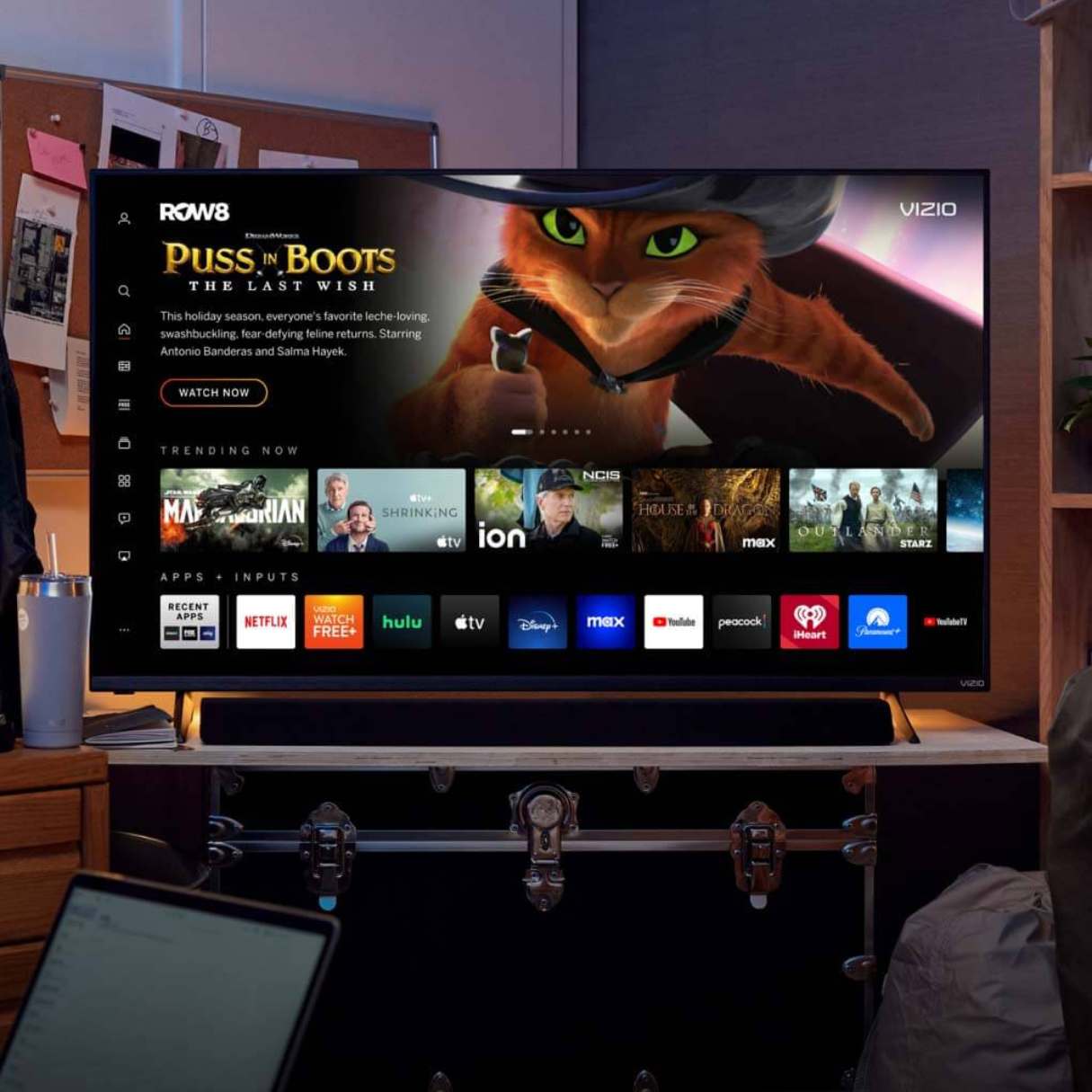
- Say "Alexa, discover devices" to your Echo device.
- Or, in the Alexa app, go to "Devices", tap the "+" icon, and select "Add Device". Then, follow the on-screen prompts.
Alexa will scan your network and hopefully find your Vizio TV. If she doesn't, double-check that your TV and Echo device are connected to the same Wi-Fi network. And make sure your TV is actually turned on. I know, I know, obvious, but it happens! We've all been there.
Time to Test it Out!
Alright, moment of truth! Let’s see if this whole thing actually works. Try saying things like:
:max_bytes(150000):strip_icc()/vizio-works-with-alexa-5abc17298023b90036fa6e2d.jpg)
- “Alexa, turn on Vizio TV.”
- “Alexa, turn off Vizio TV.”
- “Alexa, volume up on Vizio TV.”
- “Alexa, change the channel to [channel number] on Vizio TV.”
- “Alexa, play [Name of Movie] on Vizio TV" *if you have services linked to your Vizio TV.
If everything is set up correctly, your TV should respond to your commands! Congratulations, you're officially living in the future! Or, at least, a slightly more convenient version of the present.
If it's not working, don't lose hope! Double-check all the steps above. Make sure you're using the correct Vizio account credentials. And remember, technology can be finicky. Sometimes, a simple reboot of your TV and Echo device can do the trick. Also, make sure the Vizio SmartCast skill is still enabled in the Alexa app. Check for updates! Maybe you’ll need to update the Alexa app, or even your Vizio TV’s software.
Wrapping Up: Enjoy Your Voice-Controlled TV!
See? I told you it was easy! Now you can control your Vizio TV with your voice, impress your friends, and never have to get up from the couch again (well, almost never). Enjoy the newfound power and convenience! You earned it! And remember, if I can do it, you definitely can. Now go forth and conquer your couch!
