
How To Screenshot On Lenovo
Let's face it, we live in a screenshot-obsessed world. Whether it's capturing a hilarious meme, documenting a crucial error message, or sharing a killer online deal with your friends, knowing how to snag a quick picture of your screen is a fundamental digital skill. And if you're rocking a Lenovo device, you're in luck! Taking screenshots is easier than ordering a pizza online. This guide will turn you into a screenshot superhero in no time!
So, why is screenshotting so darn useful? Well, imagine trying to explain a complicated tech issue to a support agent over the phone. Frustrating, right? A screenshot allows you to show them exactly what's going on, saving you time and potential headaches. Need to remember a temporary password displayed on your screen? Screenshot! Want to share an amazing travel deal you found? Screenshot! The possibilities are endless. It's like having a digital Polaroid camera for your computer or tablet.
Now, let's dive into the how-to! Lenovo, being the awesome tech company it is, offers several ways to capture your screen. Here's the lowdown on the most common methods:
Must Read
The Classic Keyboard Shortcut: Print Screen (PrtScn)
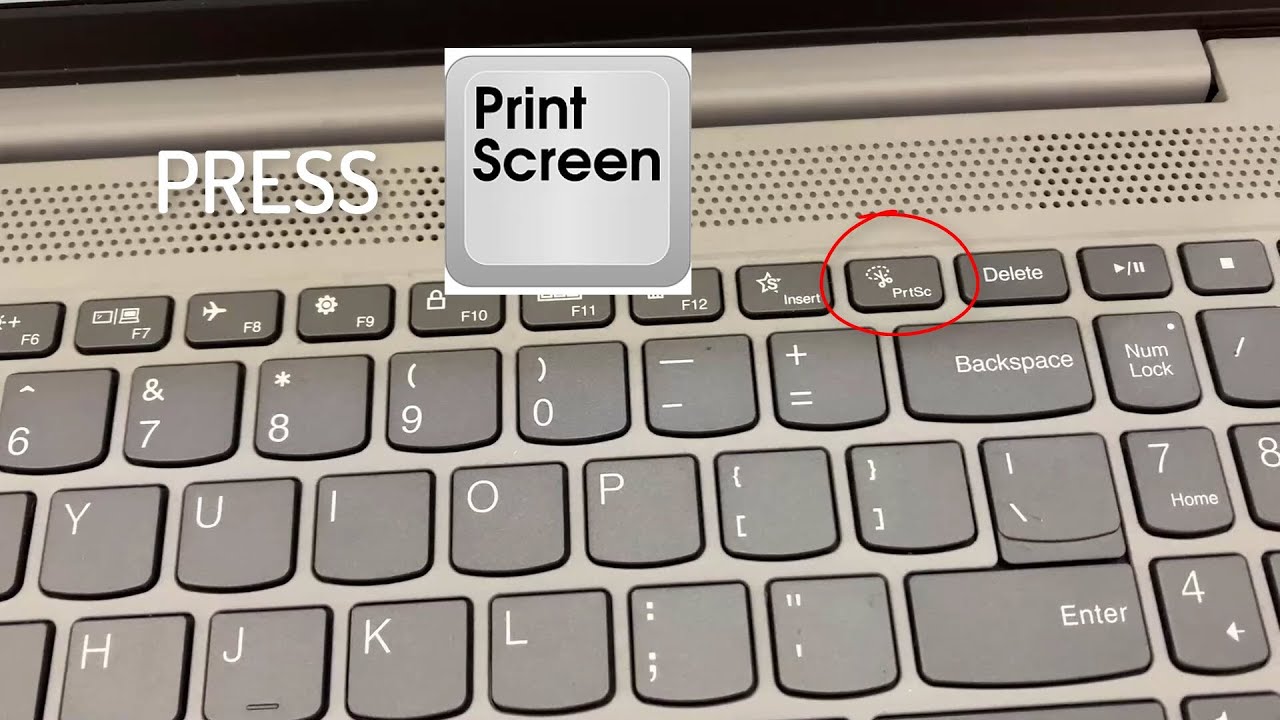
This is the OG screenshot method. Locate the "PrtScn" key on your keyboard. It's usually in the upper right area. Simply press it! What happens next depends on your Lenovo's settings. Sometimes, the screenshot is copied to your clipboard, ready to be pasted into an image editor like Paint (search for it in your Windows start menu). Open Paint (or your preferred image editor) and press Ctrl+V (paste). From there, you can crop, annotate, and save your masterpiece.
On some Lenovo models, pressing PrtScn might automatically save the screenshot to a designated folder in your Pictures library. Check your settings (search for "screenshot settings" in Windows) to customize where your screenshots are saved and how they're taken.
Windows Key + Print Screen: The Instant Saver
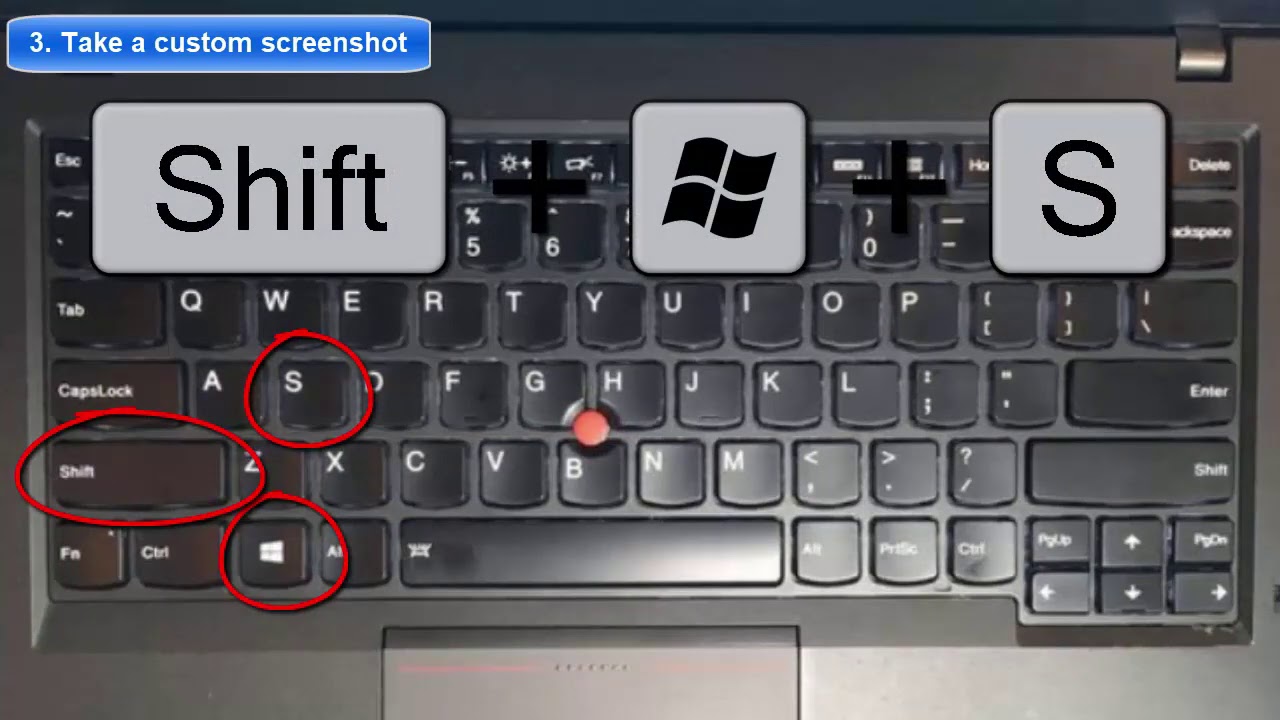
Want a quicker route? Press the Windows key + PrtScn simultaneously. Your screen will briefly dim, indicating that a screenshot has been taken. This method automatically saves the screenshot as a PNG file in your Pictures > Screenshots folder. Super convenient!
![How to Screenshot on a Lenovo Laptop [ThinkPad, Legion, Yoga & More]](https://www.cgdirector.com/wp-content/uploads/media/2022/11/ThinkPad-X1-Nano-PrtSc-Button.jpg)
Alt + Print Screen: Active Window Only
Need to capture just the window you're currently working in? Press Alt + PrtScn. This captures only the active window and copies it to your clipboard. Paste it into an image editor to save it as a file.
Using the Snipping Tool (Windows) or Snip & Sketch (newer versions): For Precision Shots
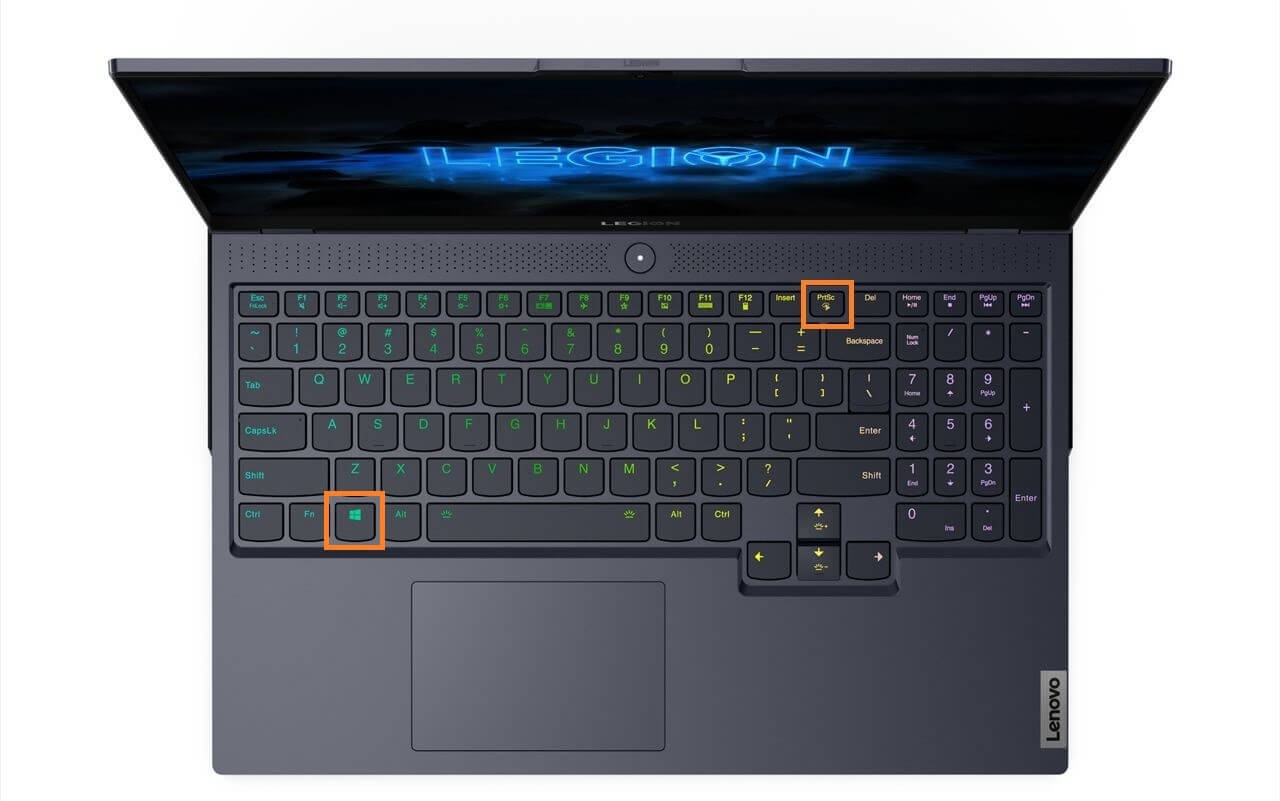
For more control, use the Snipping Tool (search for it in your start menu). This tool allows you to select a specific area of your screen to capture, whether it's a rectangle, a freeform shape, or the entire screen. Snip & Sketch is the newer version and offers similar functionality with added annotation tools. Simply search for "Snip & Sketch" to find it. You can even use the shortcut Windows Key + Shift + S to directly activate Snip & Sketch!
And that's it! You're now equipped with the knowledge to conquer any screenshotting challenge on your Lenovo device. Go forth and capture those digital moments! Remember to experiment with the different methods to find the one that best suits your needs. Happy screenshotting!
