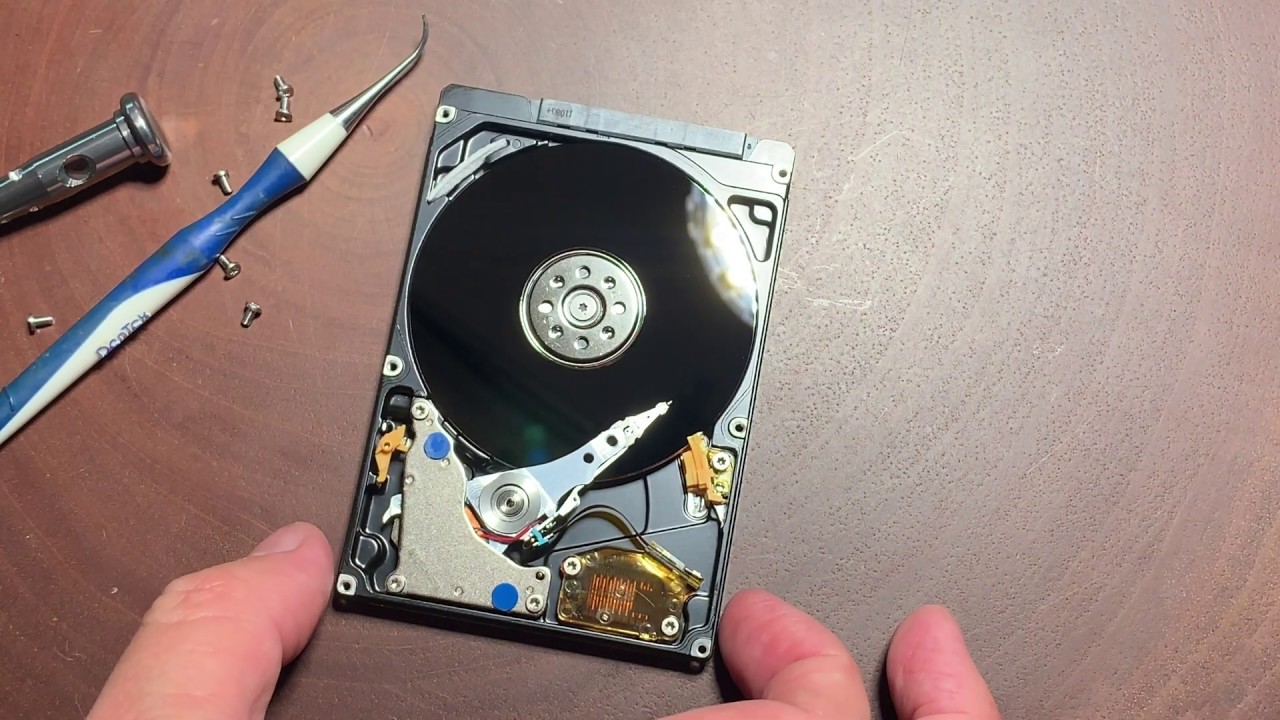
How To Recover Your Hard Drive

Hey there, tech adventurer! Ever felt that icy dread creep in when your computer makes that sound? You know, the one that hints at impending doom for all your precious files? Yeah, me too. But don't panic! Learning how to recover your hard drive can be a super-useful skill, and honestly, kinda empowering. Think of it as digital superhero training!
We're going to break it down so even if you think "RAM" is just a fluffy animal, you'll be able to understand what's going on and maybe even rescue your data. (Spoiler alert: sometimes it's surprisingly easy!)
First Things First: Assess the Damage
Okay, before you start swinging your virtual lasso, let's figure out what we're dealing with. Is your computer just being sluggish? Or is it refusing to boot altogether? Maybe you accidentally deleted a crucial folder? The symptoms matter!
Must Read
Here are some common scenarios:
- The Computer Won't Start: This could be a serious hardware problem, or just a corrupted operating system. Don't assume the worst just yet!
- The Drive Makes Weird Noises: Clicking, grinding, whirring... none of these are good. If your drive is making strange sounds, shut it down immediately. Seriously. Continued use could cause more damage.
- Files are Missing or Corrupted: Did you accidentally delete something? Did a virus attack? This is often the easiest problem to fix. Huzzah!
Important Note: If you suspect physical damage (like after a power surge or a drop), it's best to consult a professional data recovery service. Tinkering yourself might make things worse. But for software-related issues, let’s roll up our sleeves!
Software Solutions: Your Digital Rescue Kit
Alright, time for some digital magic! There's a whole arsenal of software tools designed to help you recover lost data. Think of them as digital detectives, sniffing out those missing files. Here are a few popular options:
- Recuva: A free and user-friendly option. Great for recovering accidentally deleted files. Seriously, try this one first. You'll be surprised how often it works.
- TestDisk & PhotoRec: Powerful open-source tools. More technical, but can handle more complex recovery situations. Good for when you're feeling a little more adventurous.
- EaseUS Data Recovery Wizard: A commercial option with a free trial. Offers a wide range of features and a user-friendly interface. Sometimes, you get what you pay for.
How to Use Data Recovery Software (The Basic Steps):
- Download and Install: Choose a reputable program and install it on a different drive than the one you're trying to recover. (Installing it on the same drive could overwrite the data you're trying to save!)
- Select the Drive: The software will ask you which drive to scan. Carefully select the drive with the missing data.
- Scan: The software will scan the drive for recoverable files. This can take a while, so grab a coffee or binge-watch your favorite show.
- Preview and Recover: Once the scan is complete, you'll see a list of recoverable files. Preview them to make sure they're what you're looking for, then choose a safe location (again, a different drive!) to save them.
Important: The sooner you attempt data recovery after losing files, the better your chances of success. Every time you use your computer, you risk overwriting the lost data. So, time is of the essence!
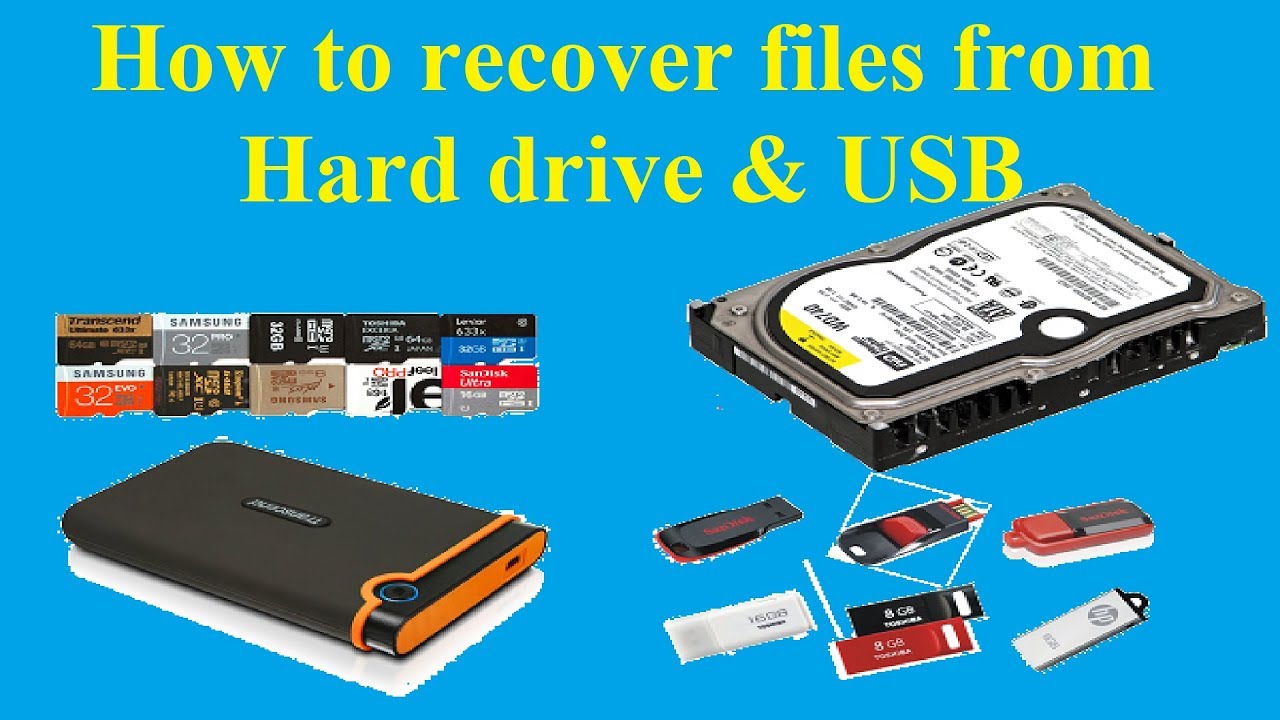
Prevention is Better Than Cure (Data Backup 101)
Okay, let's be honest. Data recovery can be stressful. The best way to avoid the whole ordeal is to have a solid backup strategy. Think of it as your digital safety net.
Here are a few backup options:
![[SOLVED] How to to Access Hard Drive from Another Computer](https://www.easeus.com/images/en/data-recovery/drw-pro/recover-date-from-dead-hard-drive-theme.jpg)
- External Hard Drive: An easy and affordable option. Just plug it in and copy your files regularly.
- Cloud Storage (Google Drive, Dropbox, OneDrive): Automatically backs up your files to the cloud. Super convenient!
- Time Machine (for Macs): A built-in backup tool that automatically backs up your entire system.
The 3-2-1 Rule: A good rule of thumb is to have 3 copies of your data, on 2 different media, with 1 copy stored offsite. Overkill? Maybe. But trust me, you'll thank yourself later.
Don't Be Afraid to Ask for Help!
If you're feeling overwhelmed, don't hesitate to seek professional help. Data recovery services can be expensive, but they have specialized tools and expertise that can recover data that you might not be able to get back on your own. It's like calling in the cavalry of the digital world!
Learning how to recover your hard drive is like learning a new superpower. It's empowering, practical, and can save you a whole lot of heartache. (And maybe even some money!) So, go forth and explore! There's a whole world of digital knowledge waiting to be discovered. Who knows, you might even find yourself enjoying the challenge. Happy recovering!