
How To Put Tvtap On Firestick

Hey there, tech explorers! Ever feel like your Firestick is just…okay? Like a perfectly fine car, but you're yearning for a rocket ship? Well, buckle up, because we're about to talk about TVTap, and how you can get it on your Firestick to seriously boost your entertainment game.
Now, what exactly is TVTap? Think of it as a giant digital buffet of live TV channels from around the world. From sports to news to entertainment, it's all there, ready for you to chow down. Sounds pretty tempting, right?
Why Bother with TVTap on Firestick?
Let's be honest, cable bills are the bane of our existence. They're like those pesky weeds in your garden that just keep coming back no matter how hard you try. TVTap offers a way to potentially cut those cords (and save some serious cash!) by giving you access to a huge range of channels without the commitment or the exorbitant fees. Think of it as liberating your TV viewing.
Must Read
Plus, who doesn't love having more options? Netflix is great, but sometimes you just want to flip through live TV, see what's on, and maybe discover something new. TVTap lets you do just that. It's like having a global remote control at your fingertips.
The (Relatively) Easy Peasy Installation
Alright, so how do we actually get this awesome app onto our Firestick? Don't worry, it's not rocket science. It might seem a little daunting at first, but trust me, if I can do it, you can too!
The key thing to remember is that TVTap isn't available directly through the Amazon Appstore. That means we're going to have to do a little side-loading. Don't let that scary word scare you! It's just a fancy way of saying we're going to install an app from a source other than the official store.
Step 1: Prepare Your Firestick for the Unknown
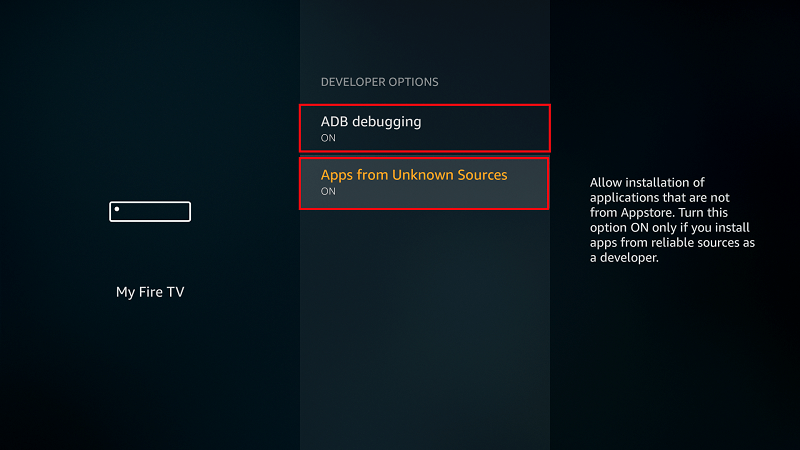
First, you need to enable "Apps from Unknown Sources" on your Firestick. It's like giving your Firestick permission to accept a delivery from a…well, an unknown source! To do this:
- Go to Settings on your Firestick home screen.
- Find My Fire TV (or Device, depending on your Firestick model).
- Click on Developer Options. If you don't see Developer Options, keep clicking on "About" until it appears.
- Turn Apps from Unknown Sources to ON. You may get a warning message – just click "OK."
Step 2: Download the Downloader App (Yes, Really!)
Now, we need an app that can actually download files from the internet. The most popular choice is called "Downloader" (creative, right?). It's like a digital forklift, ready to haul our TVTap app onto your Firestick.
- Go back to your Firestick home screen and use the search function to find "Downloader."
- Download and install the Downloader app.
Step 3: The Grand TVTap Download
Open the Downloader app. You'll see a text box where you can enter a URL. This is where you'll need to type in the correct URL for the TVTap APK file. This URL can change, so make sure you do a quick search online to find the most up-to-date link. Double-check the link before you type! One wrong letter and you'll end up downloading something completely different (and probably not very exciting).
Once you've entered the URL, click "Go." Downloader will start downloading the TVTap APK file. This might take a few minutes, depending on your internet speed.

Step 4: Install, Install, Install!
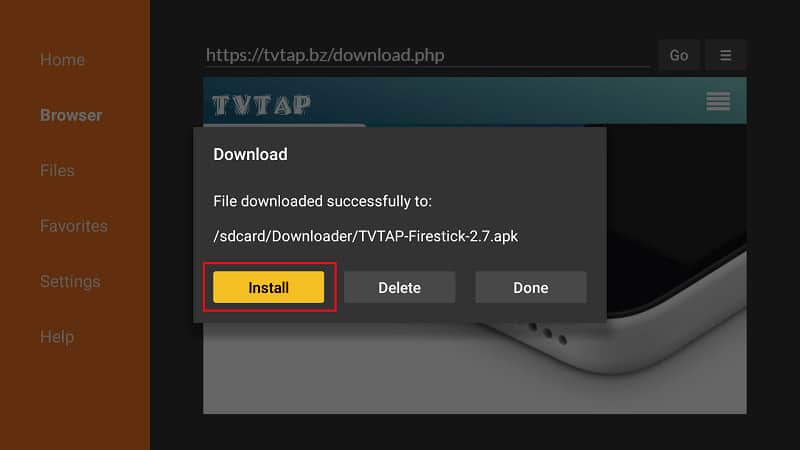
Once the download is complete, Downloader will prompt you to install the TVTap app. Follow the on-screen instructions to install it. It's usually a simple process of clicking "Install" and then "Open" once it's done.
Step 5: Enjoy the Show!
Congratulations! You've successfully installed TVTap on your Firestick. Now you can launch the app and start exploring the world of free live TV. Explore the channels, find your favorites, and get ready for some serious binge-watching!
A Few Words of Caution…
Now, before you get too carried away, a quick word of caution. Because TVTap offers access to channels from all over the world, the legality of using it can vary depending on your location. It's always a good idea to do a little research and make sure you're not violating any copyright laws.
Also, just like any app, TVTap might have occasional glitches or buffering issues. This is usually due to internet speed or server load. Try restarting your Firestick or your internet router if you encounter any problems. Using a VPN can sometimes help improve streaming stability as well, though that's a whole other adventure!
Final Thoughts
So, there you have it! A hopefully not-too-scary guide to getting TVTap on your Firestick. Is it worth the effort? Well, that's up to you to decide! But if you're looking to expand your entertainment horizons, cut the cord, and potentially save some money, it's definitely worth a try.
Happy streaming!