
How To Put Low Power Mode In Control Center
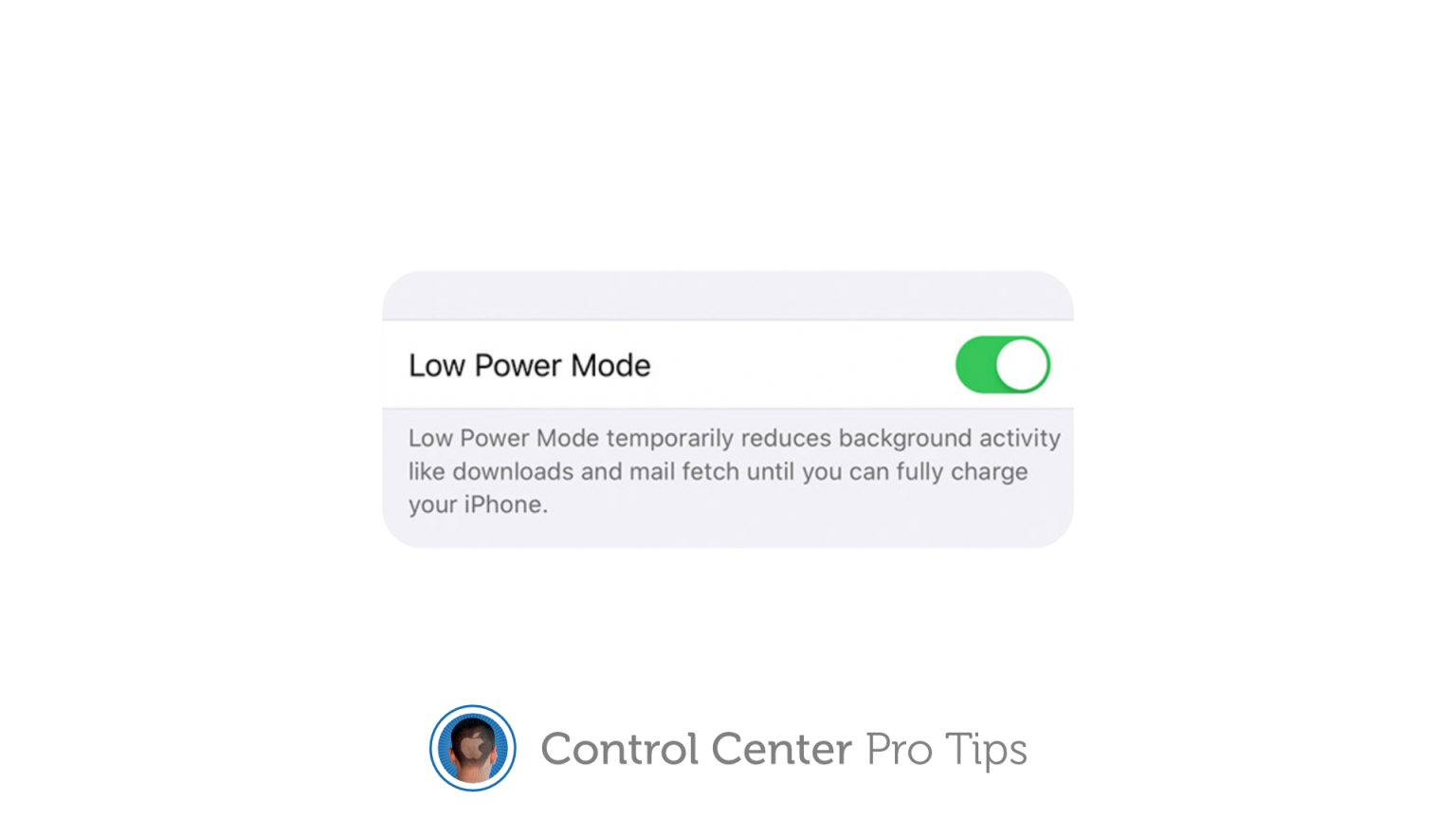
Hey there, digital dynamo! Ever been in that heart-stopping moment when your phone battery decides to play hide-and-seek, just when you need it most? Gasp! We’ve all been there, staring at that angry red sliver, wondering if our phone is trying to tell us something... like, "Charge me, human! Before I become a fancy brick!"
Well, fear not, my friend, because today we're talking about a secret weapon that's here to save your day (and your social media scrolling time): Low Power Mode! It’s like giving your iPhone a tiny, much-needed vacation, letting it conserve energy so it can last just a little bit longer when you're nowhere near an outlet. Think of it as your phone's equivalent of taking a power nap. Smart, right?
Low Power Mode is seriously awesome. It quietly dims your screen a tad, pauses background app refresh (no more apps secretly chatting in the background!), reduces visual effects, and generally tells your phone, "Hey buddy, take it easy for a bit." Super handy when you're out and about, maybe trying to navigate to that new coffee shop or just desperately waiting for that important text. No more frantic searches for an outlet like you're on a treasure hunt!
Must Read
The Small Problem (and Our Big Solution!)
Now, Low Power Mode is fantastic, but sometimes it feels like it’s tucked away in the settings, requiring a mini expedition to activate. Who has time for a deep dive into menus when your battery is at 5% and you’re trying to order takeout?! Not us, that’s who!
Wouldn't it be grand if you could just swipe and tap, and BAM! Low Power Mode engaged? Well, guess what? You totally can! We're gonna bring this magical button right into your Control Center, making it just a flick of your finger away. It’s like giving your phone its own express lane to efficiency! Ready to become a battery-saving wizard? Let's do this!

Step-by-Step Magic: Adding Low Power Mode to Control Center
Step 1: Into the Settings We Go!
First things first, let's head over to your phone's brain: the Settings app. It’s that grey gear icon, probably chilling on your home screen or lurking somewhere in your App Library. Give it a tap!
Step 2: Find Your Control Center!
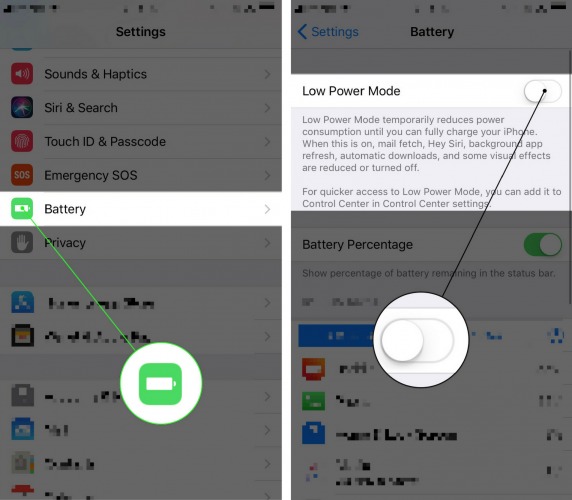
Once you're in Settings, you'll want to scroll down a bit until you spot something called Control Center. Think of Control Center as your phone's quick-access command station, where all the handy toggles like Wi-Fi, Bluetooth, and Flashlight hang out. Go ahead and tap on it.
Step 3: The "More Controls" Treasure Chest!
Inside Control Center, you'll see two main sections: "Included Controls" (stuff already in your Control Center) and "More Controls" (the good stuff you can add!). You're looking for More Controls – this is where the real customization magic happens!
Step 4: Invite Low Power Mode to the Party!
Now, scroll through the list under "More Controls" until you find Low Power Mode. It usually has a cute little battery icon next to it, just begging to be added. Once you spot it, tap the green plus sign (+) next to it. It's like sending out an exclusive invitation for a super helpful feature to join your Control Center party!

Step 5: Mission Accomplished!
And just like that, poof! Low Power Mode has now moved up into your "Included Controls" section. You’ve successfully added it! Give yourself a high-five, you tech whiz, you!
How to Use Your New Battery Superpower!
To test drive your new superpower, simply swipe down from the top-right corner of your screen (for iPhones with Face ID) or swipe up from the bottom (for iPhones with a Home button). Ta-da! There’s your Control Center, now with its newest, most helpful resident!
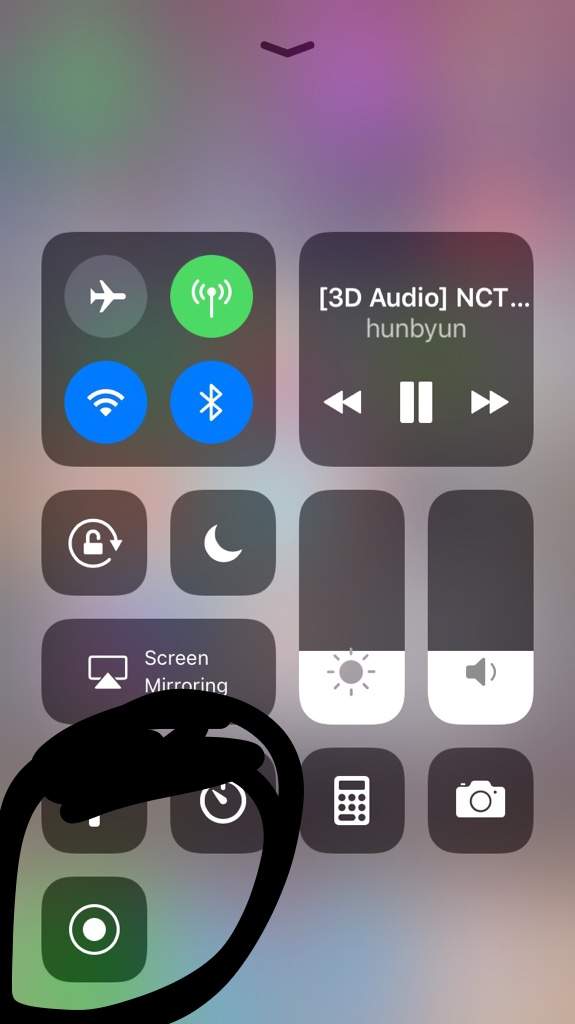
Look for the battery icon – that’s your new Low Power Mode toggle. Tap it, and watch as your battery icon in the top-right corner turns yellow, signaling that your phone is now in power-saving mode. To turn it off, just tap it again, and your battery icon will go back to its usual color. See? Easy peasy, lemon squeezy!
Go Forth and Conquer!
So there you have it! You've just upgraded your iPhone experience, making sure you're always ready to tackle whatever the day throws at you – without the dreaded "battery low" panic attack. No more frantically searching for a charger or watching your phone die mid-text! You’re now the master of your battery destiny.
Go forth, empowered and charged, knowing you've got this clever trick up your sleeve. May your battery always be green (or at least yellow for a bit longer!). Stay awesome, and keep those devices humming!