
How To Make A Custom Alarm Sound Iphone

Are you tired? So, so tired of that jarring, soul-crushing BEEP BEEP BEEP or the generic, frankly uninspired "Radar" sound that rips you from your dreams every single morning? Do you wish your iPhone could wake you up with a little more... pizzazz? A little more you? Well, buckle up, buttercup, because your phone is about to become a tiny sound magician, and you're the master illusionist! We're talking about transforming your wake-up call from a boring chore into a personalized party.
Imagine waking up to the gentle purr of a cat (or the not-so-gentle demand for breakfast from your actual feline overlord), a snippet of your absolute favorite pump-up song, your kid's adorable giggles, or even your own voice exclaiming something utterly ridiculous like, "Rise and shine, buttercup, the coffee's calling!" This isn't just a dream, my friend; it's about to be your reality. And guess what? It’s easier than trying to fold a fitted sheet!
Step 1: Dream Up Your Sonic Masterpiece!
First things first: what sound sparks joy in your heart? What noise makes you want to leap out of bed (or at least gently roll out)?
Must Read
- Record Yourself: Open the Voice Memos app on your iPhone. Record yourself singing, telling a joke, making a silly sound, or delivering a motivational speech. This is prime custom alarm territory!
- Capture a Moment: Got a video of your pet doing something hilarious? You can often extract the audio later, or just capture a short soundbite.
- Your Favorite Tune: Want a snippet of a song? If you own the song (like, it's downloaded to your device, not just streaming), you can totally use a slice of it. Just remember, we're looking for a short, punchy segment!
The world is your oyster, or rather, your sound library! Just make sure whatever you choose is under 30 seconds for optimal alarm-itude. Think of it as a sonic appetizer, not the whole meal.
Step 2: Enter the Fun Zone – GarageBand!
Yep, that app you might have lurking on your phone, or you can grab it for free from the App Store. Don't let the professional-sounding name intimidate you; for our purposes, it's just a super-friendly sound editor!
Open GarageBand. If it asks you to pick an instrument, just swipe until you find something simple like the Audio Recorder. You'll see a bunch of funky buttons, but don't panic. We're only going to poke a few. Tap the little + sign on the top right to make sure you have an empty track ready to rock.
Pro Tip: If you're using a song, make sure it's already downloaded to your iPhone. GarageBand likes things local!
Getting Your Sound into GarageBand:
Look for a little loop icon (it looks like two overlapping loops) at the very top right. Tap it! This opens your audio browser. Then, tap on Files or Music (depending on where your glorious sound lives). Navigate to your recorded voice memo, your song, or whatever awesome audio you've chosen. Once you find it, simply tap and hold, then drag it onto the main track area in GarageBand. Shazam! It's in there!

Step 3: The Snip-Snip Magic!
Now that your sound is in GarageBand, it's time to perfect it. Tap on the audio clip you just dragged in. You'll see little yellow handles appear on either end. Drag these handles to trim your sound to exactly the part you want to hear for your alarm. Remember, keep it punchy and under 30 seconds. This is where you become the audio director of your morning movie!
You can also pinch to zoom in and out on the track to get a more precise trim. Play it back to make sure it's just right. Does it make you smile? Does it make you want to face the day? Good!

Step 4: The Grand Export – To Ringtone We Go!
This is where GarageBand performs its magic trick. In the top-left corner, tap the little downward-pointing arrow. From the menu that pops up, choose "My Songs." Your masterpiece will be saved there.
Now, tap and hold on your newly saved song. A menu will appear with several options. Look for the word "Share" and tap it. Then, from the sharing options, select "Ringtone."

GarageBand will then ask you to name your ringtone. Give it a fun, memorable name like "My Awesome Wake Up" or "Cat Meow Alarm." Tap Export. In a blink, GarageBand will tell you it was a success!
"Your new alarm sound has been successfully exported! Prepare for ultimate wake-up glory!"
Step 5: Alarm Awaits!
You're almost there! The finish line is in sight!
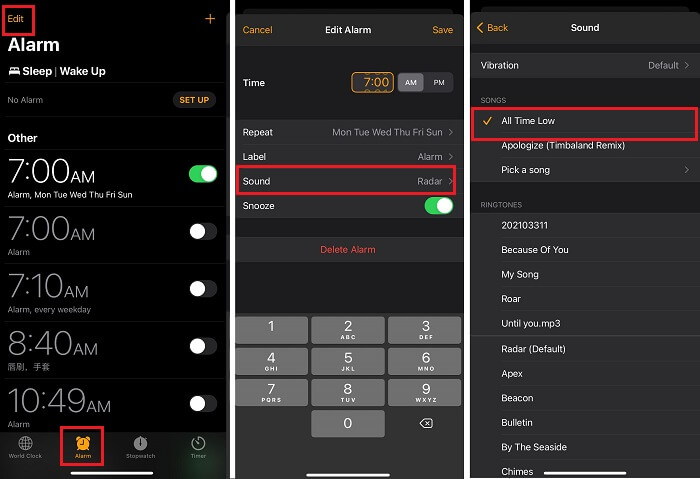
- Open your iPhone’s Clock app.
- Tap on the "Alarm" tab at the bottom.
- Tap "Edit" in the top left, then select the alarm you want to customize (or tap the + to create a new one).
- Tap on "Sound."
- Scroll up, and right at the top, under "RINGTONES," you'll see your brand-new, custom-made sound! It'll have the exact name you gave it. Tap it!
- Tap "Back" then "Save."
And there you have it! Your mornings are about to be forever changed. No more generic beeps, no more mundane melodies. You've just unlocked a whole new level of iPhone personalization. Prepare to wake up with a smile, a chuckle, or at least a renewed sense of "Okay, that was better than 'Radar.'" Enjoy your custom sonic sunrise, you magnificent sound alchemist!