
How To Install Vlc On Lg Smart Tv

Okay, picture this: It's Friday night. You've got your comfy pants on, the popcorn's popping, and you're ready to binge-watch that quirky indie film everyone's been raving about. But then… disaster strikes! Your LG Smart TV’s built-in media player throws a hissy fit, refusing to play the file. Sound familiar? Don't let a finicky media player ruin your movie night! That's where VLC comes in, your digital Swiss Army knife for video playback. Let’s get it installed!
Why Bother with VLC on your LG Smart TV?
Think of VLC like that super-organized friend who always has the right adapter or charger. It’s just reliable and compatible. Unlike some built-in players that are picky about file formats, VLC plays practically anything you throw at it – MP4, MKV, AVI, you name it. It’s like having a universal remote for your media!
Another great reason to get VLC is the customization. Some built-in players are like locked boxes. You get what you get. VLC, on the other hand, lets you tweak the audio, subtitles, and even video settings to your heart's content. Perfect for those times when the subtitles are lagging or the audio is too quiet.
Must Read
Plus, VLC is free! No hidden fees, no annoying in-app purchases. Just pure, unadulterated media playing goodness. Now, let’s get this show on the road!
Unfortunately, There's a Little Catch (But Don't Worry!)
Alright, before we dive in, here's the slightly annoying truth: you can't directly install the full desktop version of VLC on all LG Smart TVs. LG uses its own operating system (webOS), which doesn't natively support the traditional VLC app. Boo! But, wait! There's a way around this that’s almost as good.

While there isn't an "official" VLC app specifically for webOS, there are alternative methods to access and enjoy your video files using VLC's powerful capabilities.
Option 1: Casting from Your Phone or Computer
This is the easiest option for most people. If you already have VLC installed on your phone (Android or iPhone) or computer, you can simply "cast" your video files to your LG Smart TV. Think of it like sharing photos at a family gathering, but with videos!
Here's how to do it (the general idea – specific steps may vary slightly):
- Make sure your LG Smart TV and your phone/computer are connected to the same Wi-Fi network. This is crucial! It's like needing the same language to talk.
- Open VLC on your phone/computer.
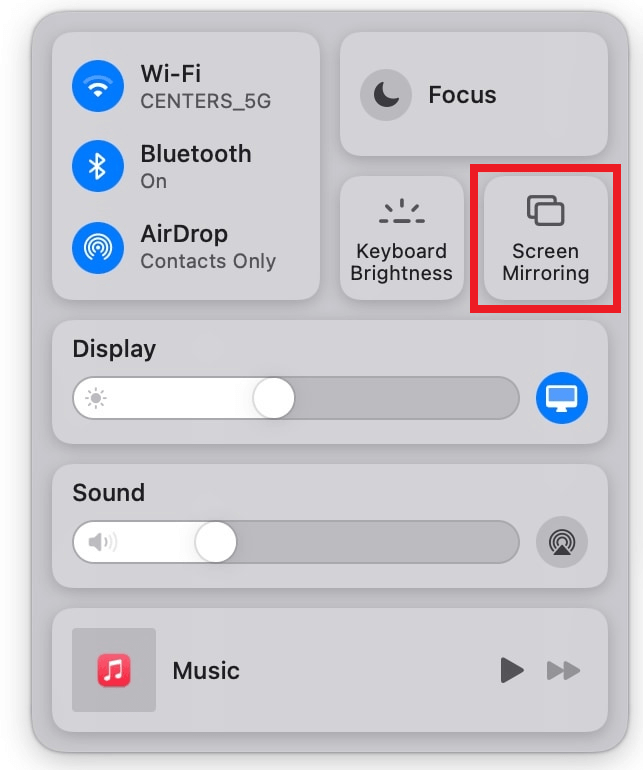
- Find the "Cast" or "Chromecast" option within VLC. Look for an icon that looks like a rectangle with a Wi-Fi signal.
- Select your LG Smart TV from the list of available devices. Your TV's name will likely appear.
- Play your video in VLC. It should now magically appear on your TV screen!
This method is fantastic because you're still using VLC's awesome playback engine, just on a bigger screen. It’s like having a private movie theater experience in your living room.
Option 2: Using DLNA Server with VLC (Slightly More Technical)
Okay, this option is a bit more involved, but it's great if you want to access a large library of videos stored on your computer from your TV. DLNA (Digital Living Network Alliance) allows your devices to share media files across your home network.
Essentially, you'll use VLC to act as a DLNA server on your computer, making your videos accessible to your LG Smart TV's built-in media player (or a third-party DLNA client app, if you prefer).
Here's a simplified overview (consult VLC's documentation for detailed instructions):
- Configure VLC as a DLNA server on your computer. This involves specifying which folders VLC should share.
- On your LG Smart TV, use the built-in "SmartShare" app (or a similar DLNA client app) to browse your computer's shared folders. Your computer running VLC should appear as a source.
- Select the video you want to watch. The TV's media player will handle playback, but VLC is still serving the file.
This method requires a little more setup, but it's a powerful way to access your entire video collection on your TV. Think of it as building a personal video library accessible from your couch!
Troubleshooting Tips
Sometimes, things don't go as planned. Here are a few quick fixes:
- Make sure both devices are on the same Wi-Fi network. This is the most common culprit.
- Restart your router. It's the digital equivalent of "have you tried turning it off and on again?"
- Update VLC to the latest version. Bug fixes are your friend.
- Check your firewall settings. Make sure VLC isn't being blocked from accessing the network.
Enjoy your VLC-Powered Movie Nights!
So, there you have it! While you might not get the exact VLC app experience on your LG Smart TV, these workarounds allow you to harness VLC's power for a smoother, more versatile viewing experience. Now, go forth and conquer those pesky video formats! And remember, popcorn is mandatory.