
How To Freeze Frame In Final Cut Pro
Ever wanted to hit pause on real life? In a video, you totally can! And guess what? It's super easy to do in Final Cut Pro. We're talking about the magic of a freeze frame. Think of it like a superhero landing pose, perfectly captured forever (or, you know, for a few seconds in your video).
Why Freeze Frames Are Awesome
Okay, so why bother with a freeze frame? Imagine this: your friend does an epic faceplant while trying to skateboard. Hilarious, right? Now, imagine freezing that exact moment of peak awkwardness. Comedy gold! Freeze frames are fantastic for highlighting funny or dramatic moments. They let the audience really soak it all in. Plus, they just look cool.
They can also add suspense. Picture a character reaching for a mysterious object. Freeze frame! Now everyone’s wondering what's going to happen next. The tension builds! Freeze frames are excellent for creating a sense of anticipation.
Must Read
Beyond comedy and drama, freeze frames can be used for emphasizing a point. Maybe you're showcasing a beautiful landscape. Freezing on the most stunning view lets viewers truly appreciate its beauty. It’s like giving them a little pause to say, "Wow, look at that!"
Freezing Time in Final Cut Pro
So, how do we actually do this wizardry in Final Cut Pro? It's simpler than you might think. Really! Here's the gist:

First, find the perfect moment you want to freeze. Think of it like spotting a shooting star. Gotta be quick!
Next, park your playhead (that little line that shows where you are in the video) right on that chosen frame. This is your target!
Now comes the magic. There are a few ways to add a freeze frame. One is to use the keyboard shortcut Shift + H. Boom! Instant freeze frame. You can also find the "Add Freeze Frame" command in the Edit menu, under "Retime".
That selected frame will become a still image in your timeline. By default, it’s usually four seconds long. But don't worry, you can make it longer or shorter just by dragging the edges of the freeze frame clip in your timeline. It's like stretching or shrinking time itself!
Playing With Your Freeze Frame
Once you’ve got your freeze frame, the real fun begins! Think of it as a blank canvas. You can add text, graphics, or even sound effects to enhance the moment. Imagine freezing on that skateboard faceplant and adding a cartoon "splat!" sound. Hilarious, right?
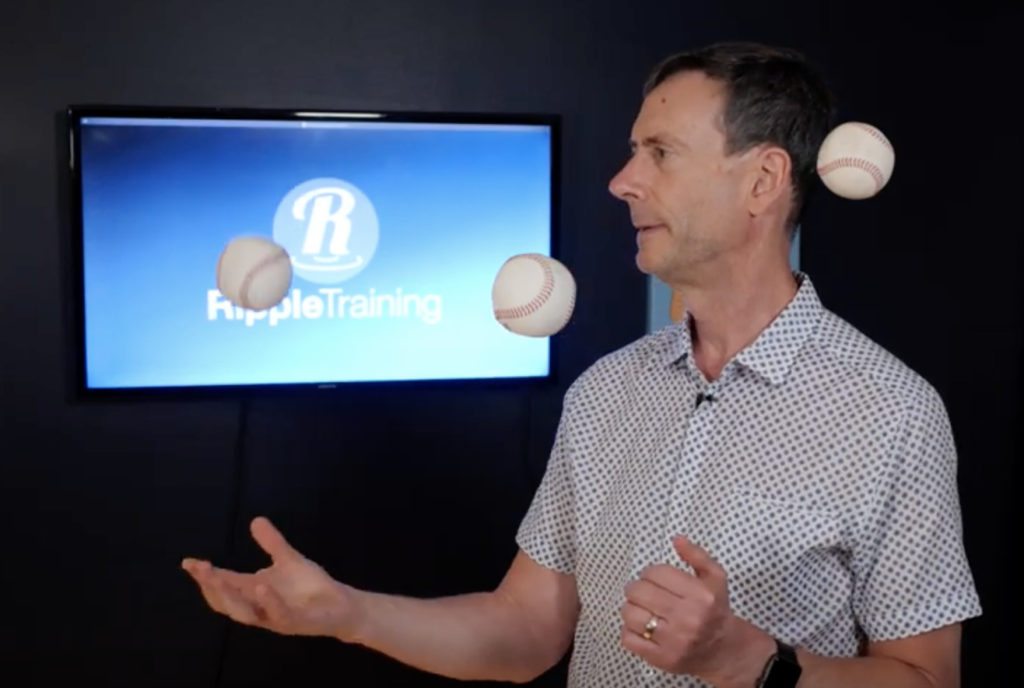
Try adding a slow zoom into the freeze frame. This can draw the viewer's eye to a specific detail. Or, experiment with color grading to make the freeze frame stand out even more. You could make it black and white for a dramatic effect, or boost the colors for a surreal vibe.
And don't forget about transitions! A smooth fade into the freeze frame can look super professional. Or, a quick cut can add a sense of urgency.

Unleash Your Inner Director
Freeze frames are a simple but powerful tool. They can add humor, suspense, and emphasis to your videos. They are surprisingly easy to use in Final Cut Pro. So, next time you're editing, give it a try! You might be surprised at how much it can elevate your storytelling.
Experiment with different techniques. Don't be afraid to get creative. After all, filmmaking is all about having fun and expressing yourself. Freeze frames let you do just that, one paused moment at a time. Now go forth and freeze some time!
Remember to always have fun experimenting in Final Cut Pro!
So what are you waiting for? Try it today! You may be on your way to creating the next viral sensation.