
How To Download Music For Spotify
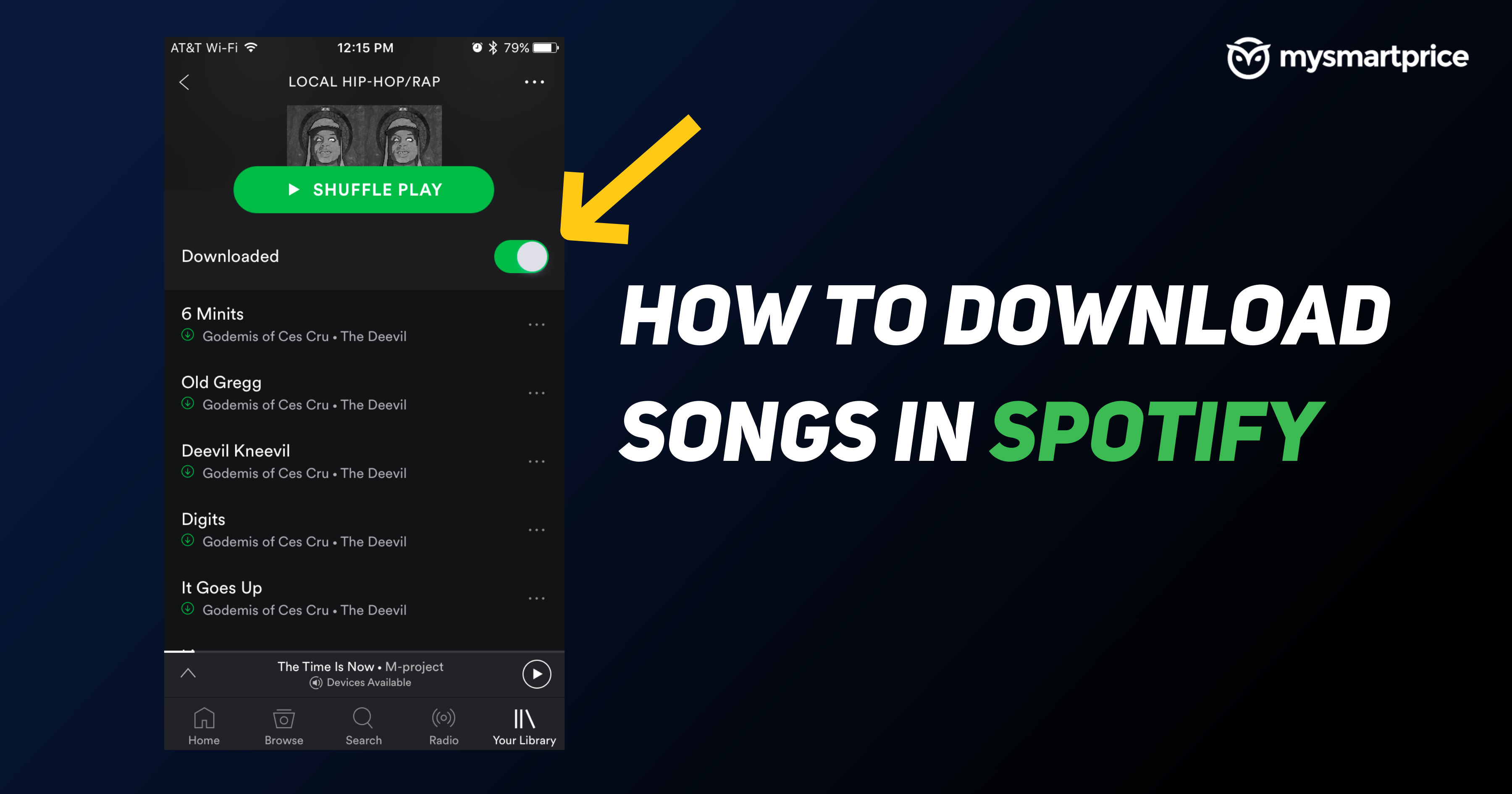
Alright, gather 'round, music lovers! Let's talk about downloading music on Spotify. Now, I know what you're thinking: "Downloading? In this economy? Isn't that, like, so 2005?" But hear me out! It's not about hoarding illegal MP3s anymore (though, let's be honest, we've all been there). This is about smart listening. This is about conquering that dreaded airplane mode and finally being able to listen to that epic power ballad during your dentist appointment. Seriously, who wants to hear the drill when you can be soaring with Celine?
So, how do we achieve this musical nirvana? Fear not, it's easier than parallel parking a DeLorean. (And for some of you, that's saying something.)
Step 1: Acquire the Almighty Spotify Premium
First things first, you're going to need Spotify Premium. Yes, I know, it costs money. But think of it as an investment in your sanity. Imagine being trapped on a deserted island with only the free version of Spotify. You'd be subjected to endless ads for questionable dating apps and audiobooks narrated by robots. Premium is basically your survival kit in the digital jungle.
Must Read
Besides, think of all the free stuff you get with premium. You can listen to music ad-free, you can skip songs to your heart's content (finally escape that one song your friend always puts on), and, most importantly, you can download music! It's a win-win-win!
Step 2: Find Your Musical Treasure
Now that you're rolling in Premium dough (figuratively, please don't try to pay your rent with Spotify credits), it's time to curate your musical hoard. Browse through albums, playlists, individual songs - the whole shebang. Think of it as online window shopping, but instead of buying shoes you'll never wear, you're stocking up on sonic happiness.

Pro Tip: Create playlists! This is where you really start flexing your musical muscle. Theme playlists are the best. "Songs to Listen to While Avoiding Eye Contact," "Music for Dramatic Entrances," "Songs That Make You Feel Like You're the Main Character in a Movie" – the possibilities are endless!
Step 3: Unleash the Download Button!
This is the moment you've been waiting for. The culmination of your efforts. The musical equivalent of finding the Ark of the Covenant (though, hopefully, without the melting faces).
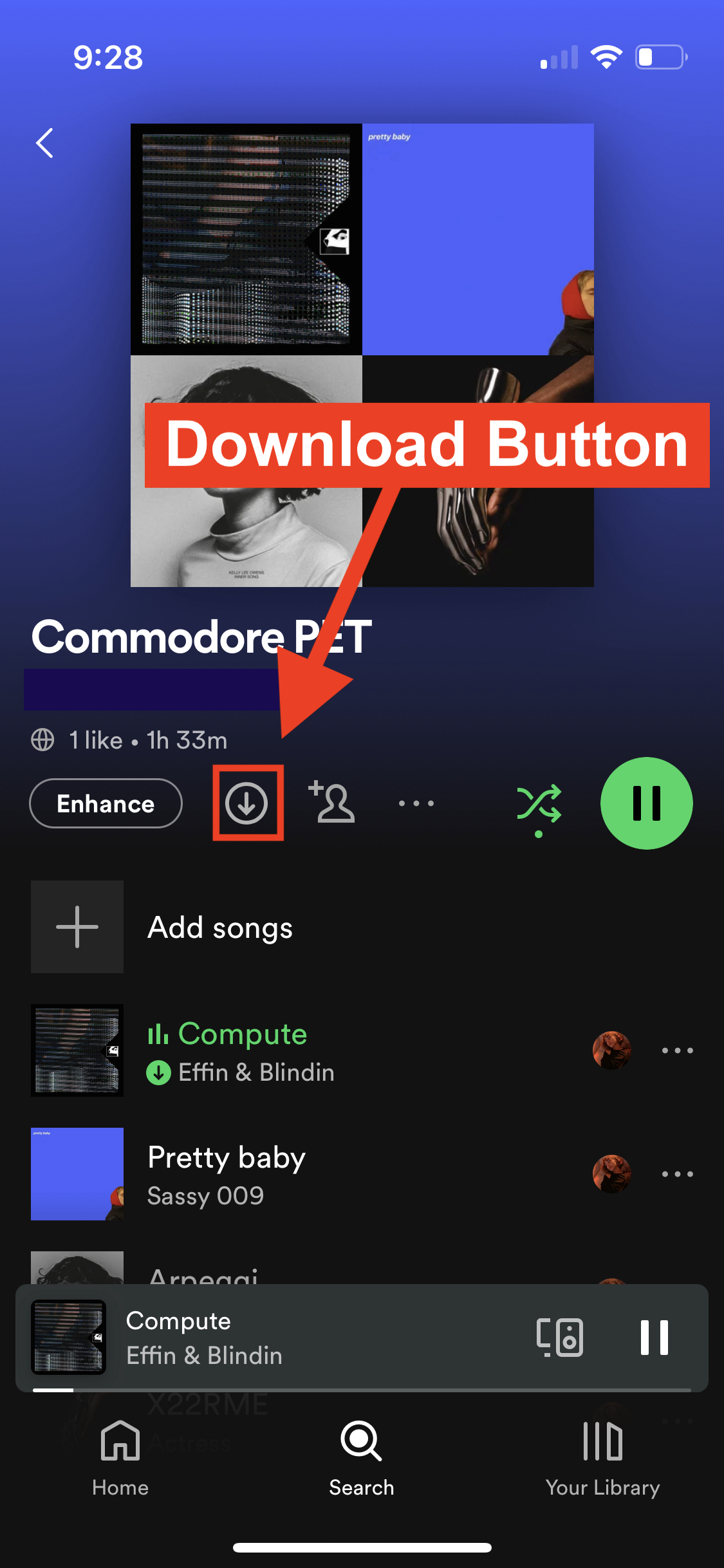
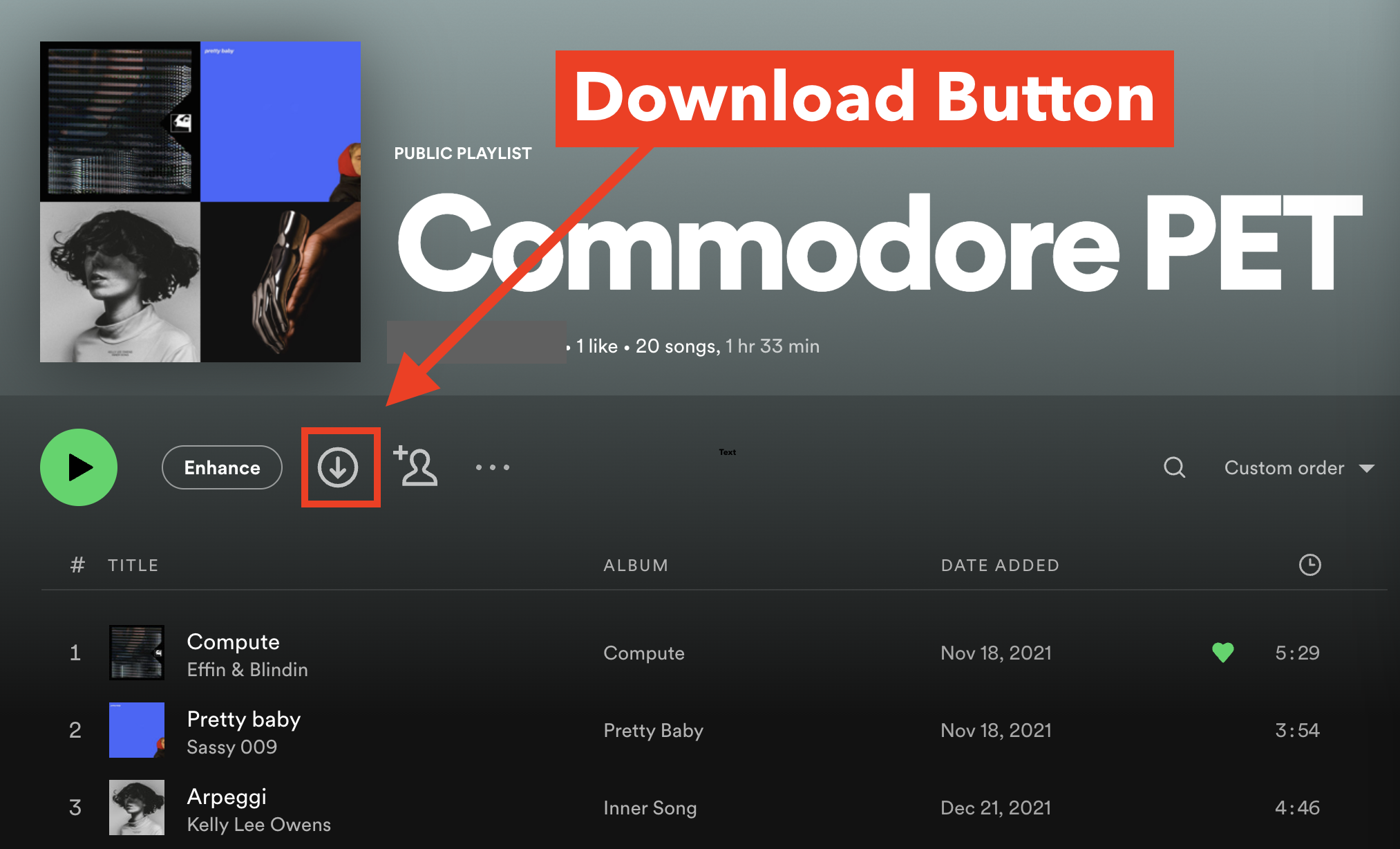
For albums and playlists, look for the download button – it's usually a little downward-pointing arrow. Tap it! Watch as the magic happens! It's like a tiny musical genie is stuffing all those songs into your phone, ready for offline enjoyment.
For individual songs, you'll first need to add them to a playlist. Then, simply download the playlist containing your chosen track. Spotify doesn't let you download individual songs directly (probably to prevent you from downloading just the chorus of your favorite song on repeat... although, I may have done that once or twice...).
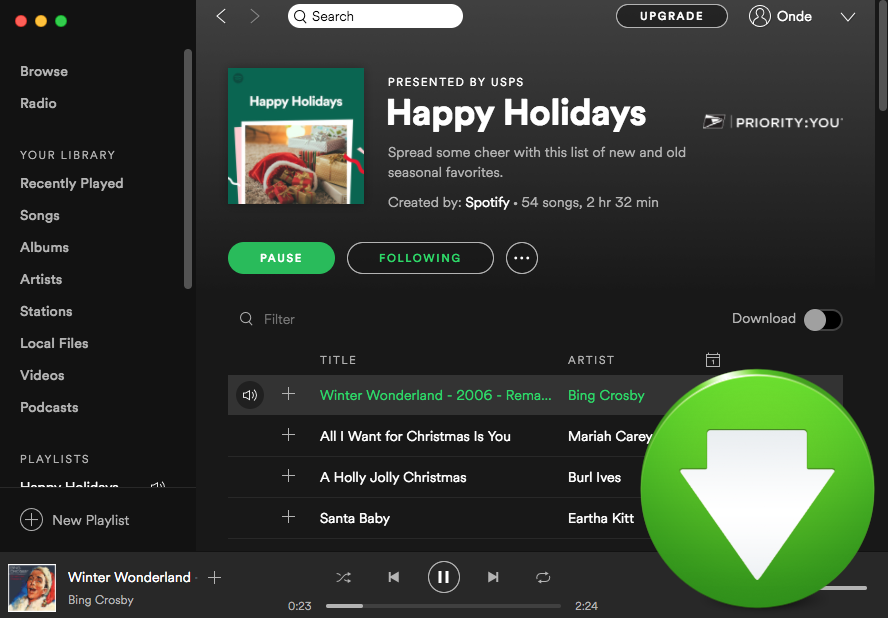
Important Note: Make sure you're connected to Wi-Fi when downloading. Unless you want your data plan to spontaneously combust in a fiery explosion of overage charges, stick to Wi-Fi. Trust me on this one.
Step 4: Verify Your Offline Status (Like a Secret Agent)
Now, to ensure your musical heist was successful, go into your Spotify settings and enable Offline Mode. This will simulate the apocalypse, cutting you off from the internet and forcing you to rely solely on your downloaded tracks.
Play a song! Does it work? Did you do it? Congratulations! You are now a master of offline music consumption! Go forth and conquer those Wi-Fi dead zones! Impress your friends with your musical preparedness! You are now the musical MacGyver of your social circle!
Troubleshooting: When Things Go Wrong (Because They Always Do)
Okay, let's be real. Technology is fickle. Sometimes things don't work the way they're supposed to. So, if you're running into trouble, here are a few things to try:
- Make sure you have enough storage space on your device. Seriously, downloading a ton of music can eat up your storage faster than you can say "Bohemian Rhapsody."
- Check your Spotify settings. Make sure you haven't accidentally disabled downloads or set a download quality that's too high for your device.
- Restart the Spotify app. The classic IT solution. Works surprisingly often.
- Restart your device. The ultra classic IT solution. When in doubt, reboot!
- Update the Spotify app. Outdated apps are like grumpy old men – they tend to cause problems.
- Contact Spotify support. When all else fails, call in the professionals. They're usually pretty helpful, and you might even get a free month of Premium for your trouble. (Okay, probably not, but it's worth a shot!)
So there you have it! The definitive guide to downloading music on Spotify. Now go forth, download responsibly, and never be caught in a Wi-Fi wasteland again! And remember, sharing is caring... unless you're sharing your Spotify password. Then you're just asking for trouble. Trust me.