
How To Do Fractions On A Ti-83 Plus
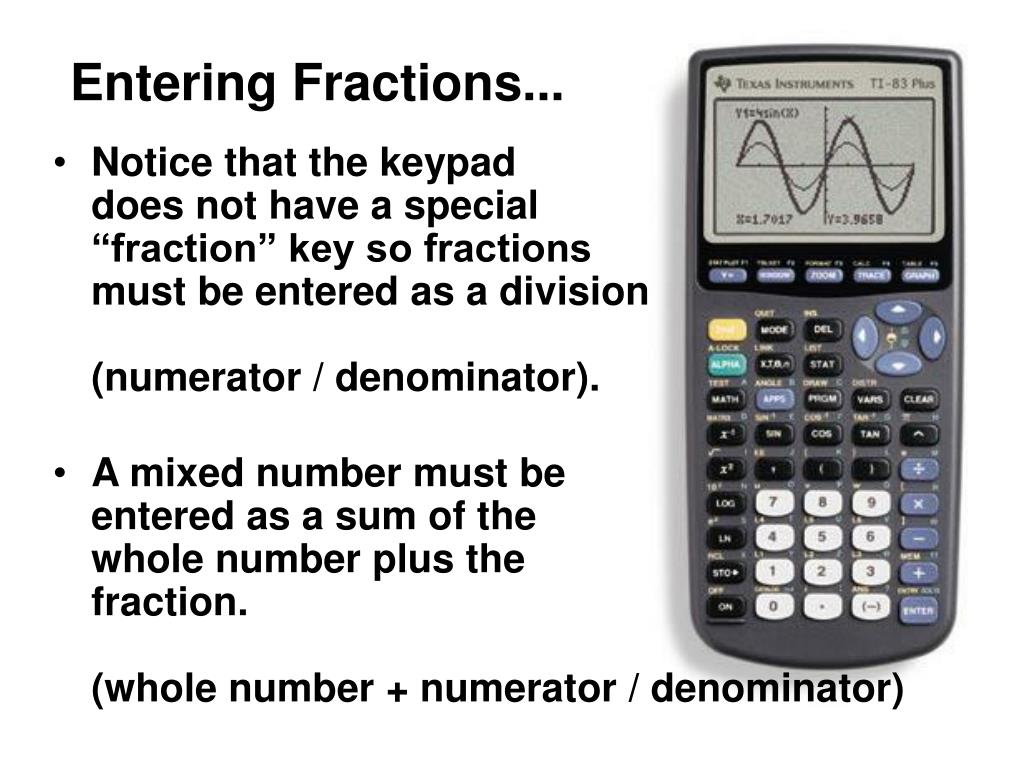
Okay, let’s talk fractions. I know, I know, the word itself can send shivers down your spine, like remembering that time you accidentally wore mismatched socks to a first date. But fear not! We're tackling fractions, and we're doing it with our trusty sidekick, the TI-83 Plus. This calculator is practically a dinosaur, but it's a reliable dinosaur, and it can absolutely handle fractions, even if it doesn't look as sleek as your phone.
Fractions in Real Life (aka Why You Should Care)
Why bother with fractions anyway? Well, ever tried sharing a pizza and making sure everyone gets a fair slice? That's fractions! Trying to figure out how much fertilizer to use in your garden without accidentally turning your tomatoes into mutant, super-sized veggies? Fractions again! Even figuring out how much gas you have left in your tank (half a tank, a quarter of a tank…you get the idea) involves fractions. So, learning to wrangle these numerical critters is actually pretty useful.
Think of your TI-83 Plus as your fraction-taming lasso. It might not be the flashiest lasso, but it gets the job done. Let's learn how to use it!
Must Read
Entering Fractions: The Simple Way
First, let's talk about entering a basic fraction, like 1/2. This is the easiest part. Just type in 1 ÷ 2. Seriously, that's it. Hit ENTER, and your calculator will probably give you a decimal (0.5). Which is fine, if you're into decimals. But if you need that fraction to stay a fraction, keep reading!
Turning Decimals Back into Fractions: The Magic Trick
This is where the TI-83 Plus works its, ahem, magic. You've got your decimal on the screen (from our 1 ÷ 2 example, it's 0.5). Now, press the MATH button. It's usually located near the top left corner of your calculator.

A menu will pop up. The very first option, 1:►Frac, is what you want. You can either press 1 or just hit ENTER while 1:►Frac is highlighted.
Your calculator screen should now show Ans►Frac. This basically means "take the previous answer and turn it into a fraction." Hit ENTER one more time, and bam! There's your fraction: 1/2.
This trick works on any decimal. Calculate something crazy like 5 ÷ 7, get that messy decimal, and then use MATH ► Frac to turn it back into its fractional form.
Working with Mixed Numbers: A Little Extra Effort
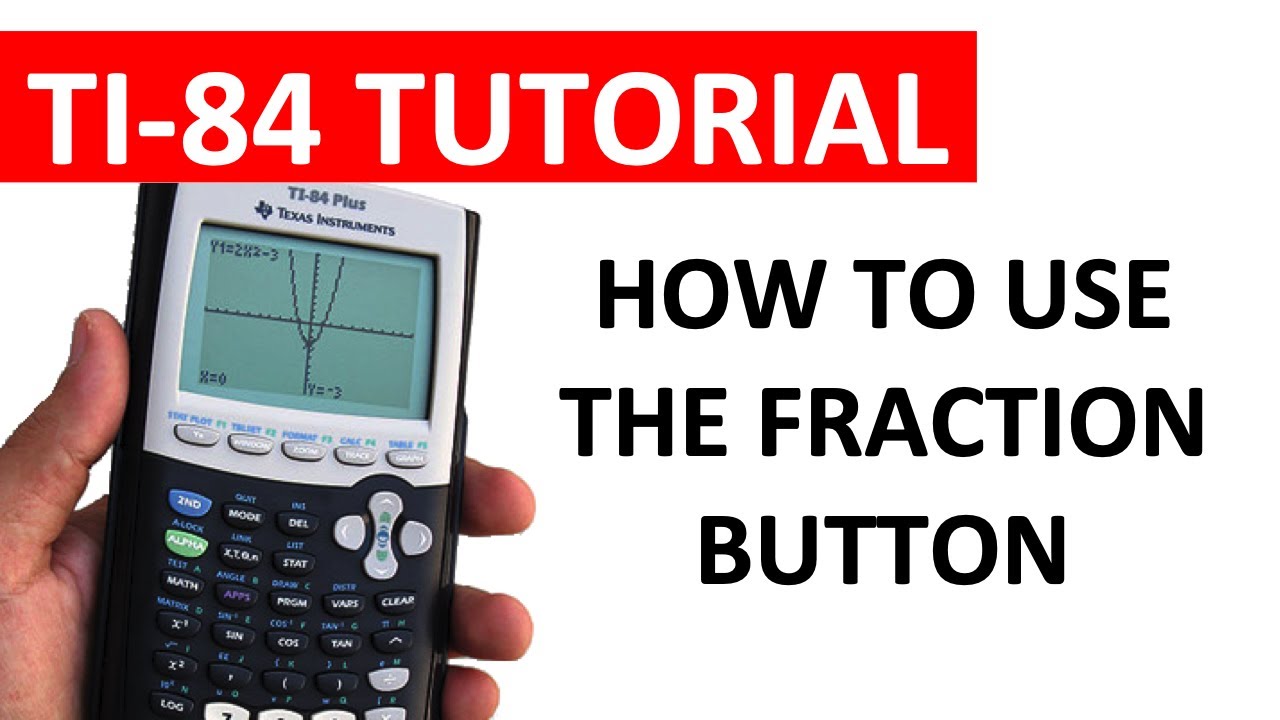
Okay, mixed numbers (like 2 1/4) are where things get a tiny bit more complicated. The TI-83 Plus doesn't have a direct way to enter mixed numbers in one go. We need to trick it a little.
The best way to deal with mixed numbers is to convert them to improper fractions first. Remember that from elementary school? Good times! (Maybe not.)
So, for 2 1/4, we multiply the whole number (2) by the denominator (4), which gives us 8. Then, we add the numerator (1) to get 9. So, 2 1/4 is the same as 9/4.
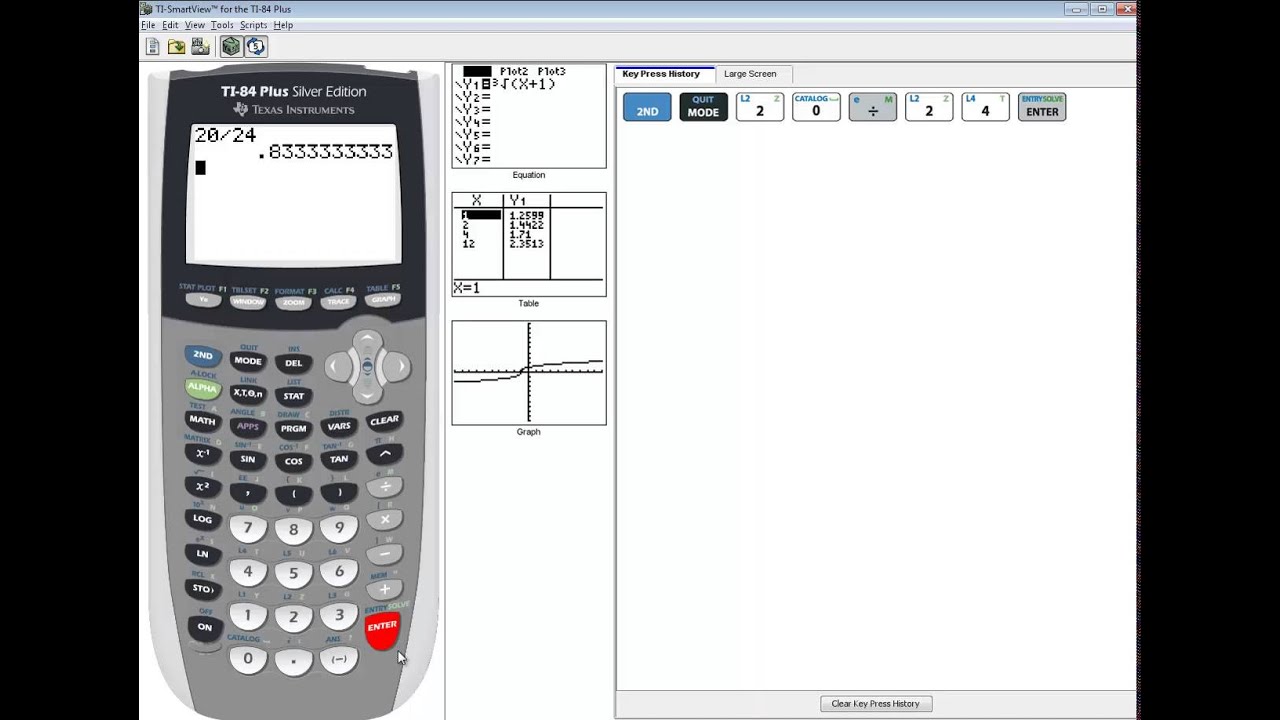
Now, you can just enter 9 ÷ 4 into your calculator, hit ENTER, and use the MATH ► Frac trick to keep it as a fraction. Easy peasy, lemon squeezy, right?
Adding, Subtracting, Multiplying, and Dividing Fractions: Piece of Cake (or Pizza!)
Once you have your fractions in the right format (either basic fractions entered directly or mixed numbers converted to improper fractions), you can add, subtract, multiply, and divide them just like you would with any other numbers. Just use the +, -, ×, and ÷ buttons.

For example, to add 1/2 and 1/4, you would enter 1 ÷ 2 + 1 ÷ 4 and then hit ENTER. Don't forget to use the MATH ► Frac trick to keep the answer as a fraction!
Final Thoughts: Don't Be Afraid to Experiment!
The TI-83 Plus might seem intimidating at first, but once you get the hang of these basic fraction tricks, you'll be a fraction master in no time. Remember, practice makes perfect, so don't be afraid to experiment and play around with different fractions. And hey, if you mess up, just hit CLEAR and try again. We've all been there, staring blankly at a calculator screen, wondering what went wrong. It's part of the learning process!
Now go forth and conquer those fractions! Your pizza-sharing skills will thank you.