
How To Connect Your Apple Watch To Your New Phone
Okay, picture this: You're finally holding that brand-spanking-new iPhone in your hands. The sleek design, the upgraded camera... it's a tech-lover's dream come true. You're ready to dive in, download all your apps, and bask in the glory of your new gadget. Then it hits you: What about your Apple Watch? It’s just sitting there, silently judging your excitement.
Don’t panic! It’s easy to pair your Apple Watch with a new phone, even if it feels like it’s going to be a monumental task. Trust me, I've been there. I once spent a solid hour convinced I'd bricked my watch trying to do this (spoiler alert: I hadn't!). So, let's walk through the process, step-by-step, without any unnecessary drama.
Unpair Your Apple Watch From Your Old iPhone (Seriously, Do This First!)
This is crucial. Don't skip this step! It's like saying goodbye to an old friend before moving on to a new one (a slightly dramatic analogy, but you get the idea).
Must Read
There are two ways to unpair, let's look at the easiest one first:
Method 1: Using Your Old iPhone
- Make sure your Apple Watch and old iPhone are near each other. Duh, right?
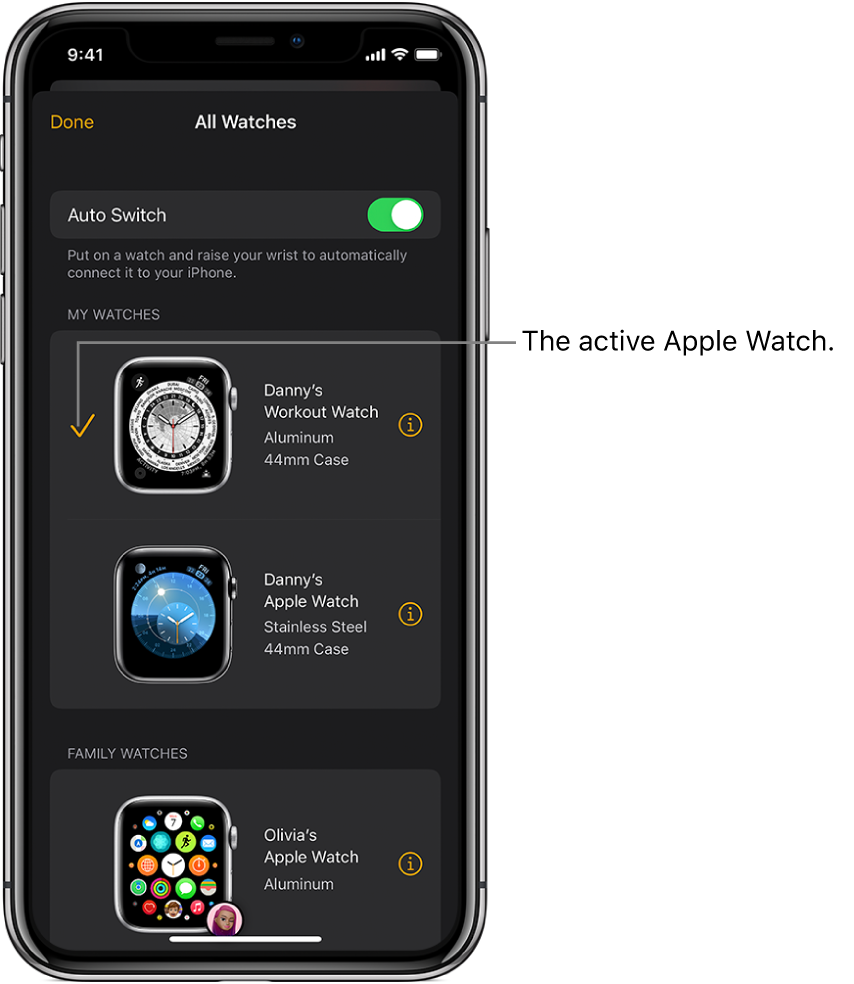
- Open the Watch app on your old iPhone.
- Tap the My Watch tab at the bottom.
- Tap All Watches at the top.
- Tap the "i" icon (info button) next to your Apple Watch.
- Tap Unpair Apple Watch. You might have to enter your Apple ID password here, so have it handy.
- Confirm that you want to unpair. Your iPhone will create a backup of your watch data, which is super important if you want to restore your settings later.
See? Easy peasy! (Almost makes up for the hour I spent troubleshooting, right?)
Method 2: What if you don’t have the old iPhone anymore?
Okay, things just got a little bit more complicated. But don't freak out! You still have options, it will just require you to erase all content and settings on the Apple Watch directly.
- Go to the Settings app on your Apple Watch.
- Go to General, then select Reset.
- Tap Erase All Content and Settings.
- Follow the on-screen prompts, entering your password if prompted.
Important note: if you can't unpair as usual, this method won’t create a backup. Meaning you're starting fresh. Consider it a minimalist lifestyle choice for your wrist!
Pairing Your Apple Watch With Your New iPhone
Alright, the hard part is over! Now for the fun stuff.

- Turn on your new iPhone and make sure Bluetooth is enabled.
- Turn on your Apple Watch. If it's already on, it should display the pairing screen. If not, you might need to restart it by holding down the side button until you see the Apple logo.
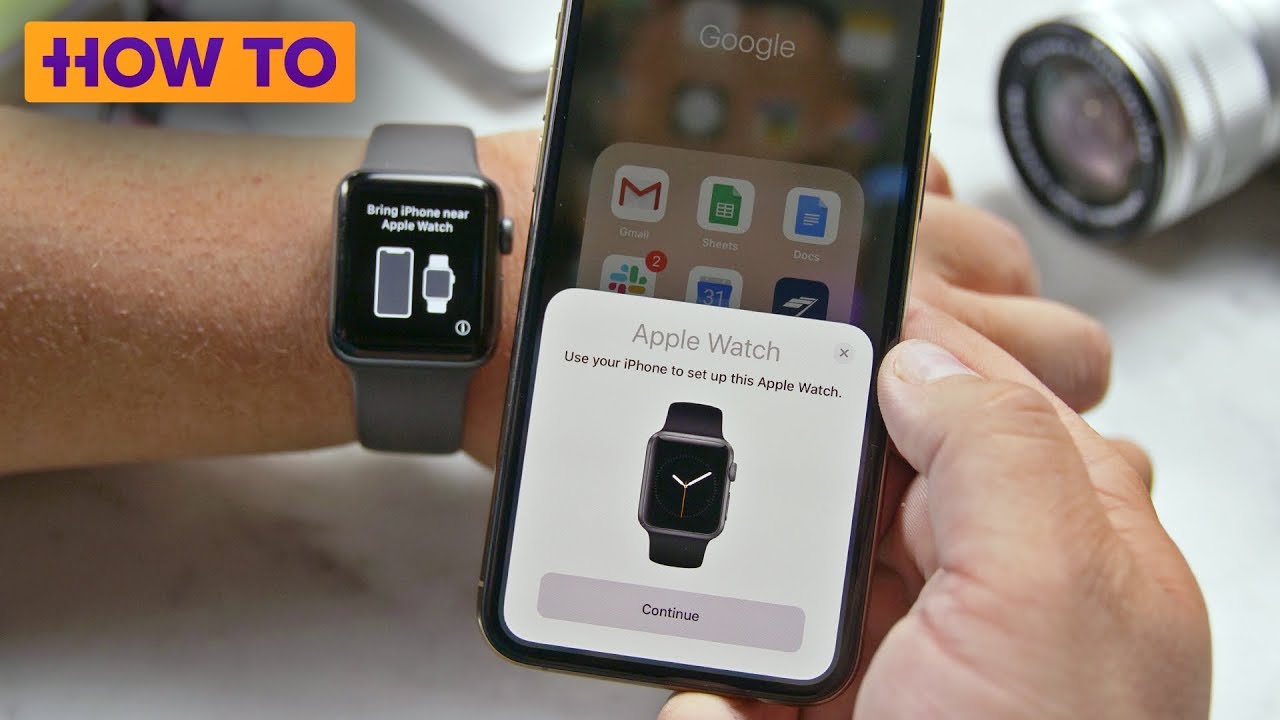
- Hold your Apple Watch near your new iPhone. A pairing animation should appear on your iPhone screen.
- Tap Continue on your iPhone.
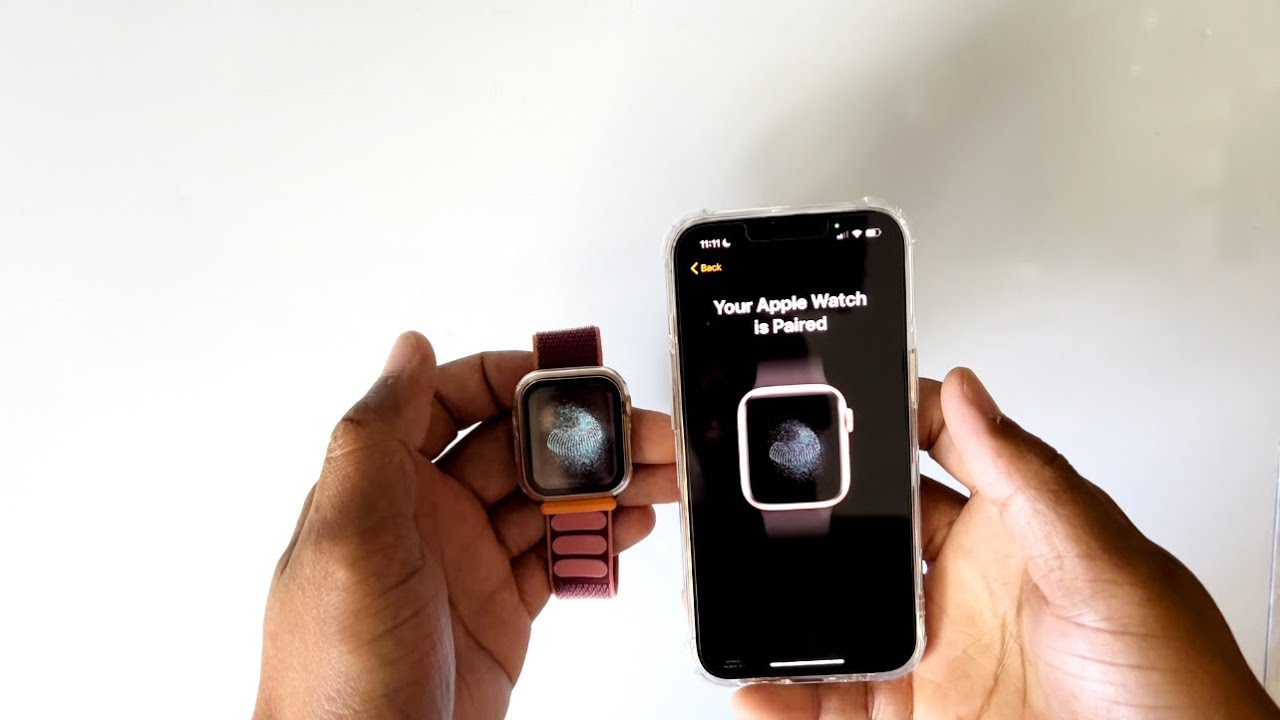
- Choose whether to Restore from Backup or Set Up as New Apple Watch. If you unpaired correctly from your old iPhone, you'll definitely want to restore from backup!
- Follow the on-screen instructions. This might involve entering your Apple ID password and setting up a passcode for your watch.
- Wait patiently. The pairing process can take a few minutes.
And that's it! Your Apple Watch is now happily connected to your new iPhone. High five! (Or, you know, just tap your watch on your phone. That works too.)
Troubleshooting Tips (Because Things Rarely Go Exactly As Planned)
- Bluetooth Blues: Make sure Bluetooth is turned on both your iPhone and your Apple Watch. Sometimes the simplest solutions are the ones we overlook.
- Software Snags: Ensure both your iPhone and Apple Watch are running the latest software versions. Outdated software can cause all sorts of weirdness.
- Restart Everything: Seriously, sometimes a good old-fashioned restart is all it takes. Turn off both your iPhone and Apple Watch, then turn them back on.
- Battery Woes: Make sure both devices have enough battery life. A low battery can sometimes interfere with the pairing process.
If you're still having trouble, don't be afraid to reach out to Apple Support. They're usually pretty helpful, and they've seen it all before. (Trust me.)
So there you have it! Connecting your Apple Watch to a new phone isn’t nearly as scary as it seems. Just follow these steps, and you'll be back to tracking your steps and receiving notifications on your wrist in no time. Now go enjoy that new iPhone!
