
How To Connect Sony Tablet To Tv
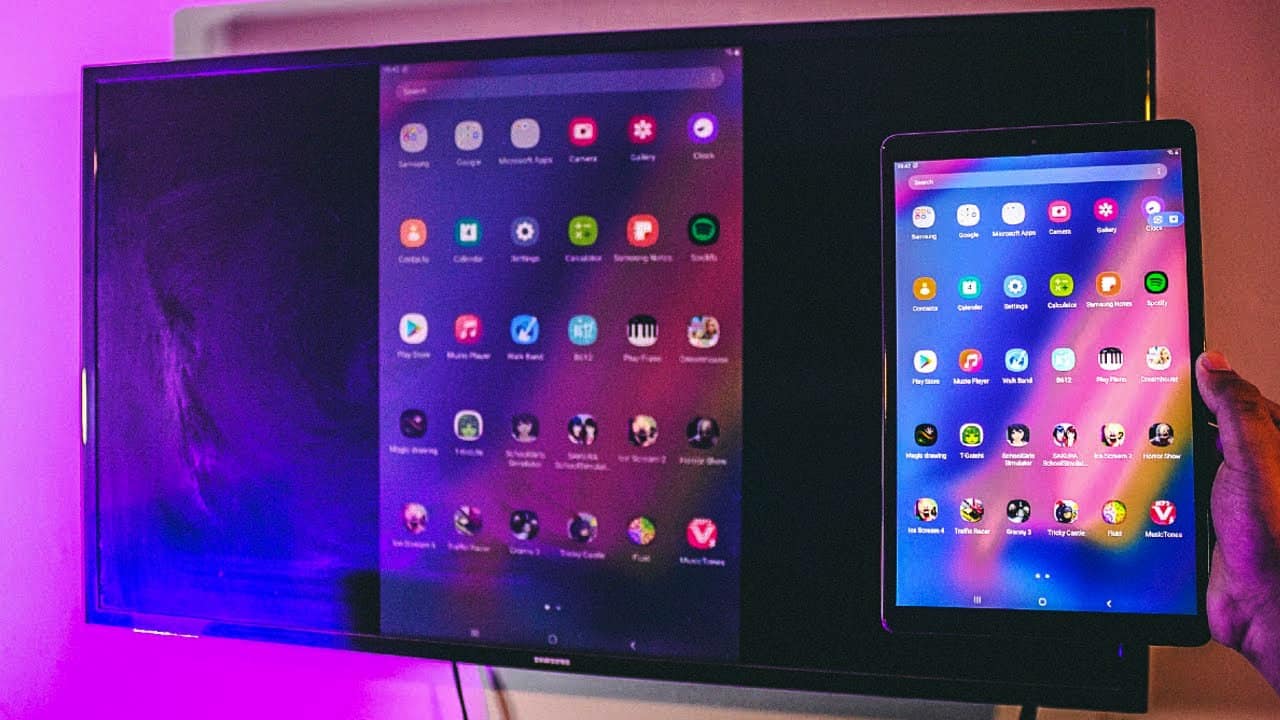
Hey there, tech enthusiasts! Ever wished you could supersize your Sony tablet experience? Imagine taking that awesome game, that captivating movie, or those hilarious vacation photos and blasting them onto your big screen TV. Sounds pretty sweet, right? Well, guess what? You absolutely can! Let's dive into how to connect your Sony tablet to your TV and unlock a whole new world of entertainment. It's easier than you think!
Why Bother Connecting Your Tablet to Your TV?
Okay, valid question. Why go to the trouble? Think of it like this: your tablet is a personal chef, whipping up delicious digital experiences. Your TV? That's the grand banquet hall, ready to serve up those experiences to a bigger audience.
Connecting your Sony tablet to your TV opens up a ton of possibilities:
Must Read
- Movie Night, Elevated: Ditch the tiny screen and enjoy your favorite flicks in all their glory on the big screen. Popcorn required!
- Gaming Goodness: Some games are just begging to be played on a bigger display. Think racing games, adventure games… anything benefits from that extra immersion. Imagine playing Angry Birds on a 50-inch screen!
- Photo Sharing, Made Simple: Remember that amazing trip to the Grand Canyon? Share those stunning photos with family and friends without everyone crowding around a small tablet screen.
- Presentations and Productivity: Need to give a presentation? Mirror your tablet screen onto a TV or projector for a smooth and professional experience.
Basically, it's about taking what you love doing on your tablet and making it bigger, bolder, and more enjoyable. So, are you ready to level up your entertainment game?
The Wired Route: HDMI to the Rescue!
One of the most reliable ways to connect your Sony tablet to your TV is through an HDMI cable. Think of it like the USB cable's cooler, video-savvy cousin. HDMI stands for High-Definition Multimedia Interface, and it delivers both audio and video signals in stunning quality.

What you'll need:
- Your Sony Tablet
- An HDMI cable
- An HDMI adapter (if your tablet doesn't have a full-size HDMI port – many only have a micro-HDMI or USB-C port).
- A TV with an HDMI port (pretty much all modern TVs have one).
The process is straightforward:

- Connect one end of the HDMI cable to the HDMI port on your TV. Note which HDMI port you're using (e.g., HDMI 1, HDMI 2).
- Connect the other end of the HDMI cable to your tablet (either directly or via the adapter).
- Turn on your TV and select the correct HDMI input channel. This is usually done using the "Input" or "Source" button on your TV remote.
- Voila! Your tablet screen should now be mirrored on your TV.
Easy peasy, right? If you're having trouble, double-check that all the cables are securely connected and that you've selected the correct HDMI input on your TV. Also, some tablets might require you to adjust the display settings to enable HDMI output.
Going Wireless: Casting a Spell (Screen Mirroring)
Prefer to ditch the cables? I get it! Nobody likes tangled cords. Luckily, there are wireless options to connect your Sony tablet to your TV. The magic word here is "screen mirroring." Think of it as beaming your tablet's screen directly to your TV using Wi-Fi.

Here's where things get a little more varied, depending on your TV and tablet:
- Chromecast: If you have a Chromecast plugged into your TV, you can easily cast your tablet screen using the Google Home app. It's like having a tiny remote control for your TV inside your tablet.
- Miracast: Many Android devices (including Sony tablets) support Miracast, a wireless display standard. Some TVs have built-in Miracast support, while others require an adapter. Check your TV's manual to see if it's compatible.
- Smart TV Apps: Some Smart TVs have built-in screen mirroring apps. Search for "Screen Mirroring" or "Cast" in your TV's app store.
The exact steps for screen mirroring will vary depending on your devices, but generally, you'll need to:

- Make sure both your tablet and TV are connected to the same Wi-Fi network. This is crucial!
- Enable screen mirroring on your TV.
- On your tablet, find the screen mirroring option (usually in the settings menu under "Display" or "Connectivity").
- Select your TV from the list of available devices.
If everything goes smoothly, your tablet screen should magically appear on your TV. If not, don't panic! Double-check your Wi-Fi connection, make sure screen mirroring is enabled on both devices, and consult the user manuals for your TV and tablet. Sometimes, a simple restart can do the trick!
Troubleshooting Tips: When Things Go Wrong
Even with the best instructions, technology can sometimes be a little temperamental. If you're having trouble connecting your Sony tablet to your TV, here are a few things to try:
- Check the cables: Make sure they're securely connected.
- Restart everything: Turn off your TV and tablet, wait a few seconds, and then turn them back on. This can often resolve minor glitches.
- Update your software: Make sure your tablet and TV have the latest software updates installed.
- Consult the manuals: Your TV and tablet manuals are your friends. They often contain troubleshooting tips and specific instructions for your devices.
- Google it: If all else fails, search online for your specific problem. Chances are, someone else has encountered the same issue and found a solution.
Connecting your Sony tablet to your TV opens up a whole new world of entertainment possibilities. Whether you choose the wired route with HDMI or go wireless with screen mirroring, the process is usually straightforward and rewarding. So go ahead, give it a try, and enjoy your favorite content on the big screen!