How To Check Watt Usage On Pc
There's a certain magic to a PC, isn't there? Whether you're plunging into epic gaming worlds, rendering your next masterpiece, or simply browsing the web, your computer is a silent workhorse, buzzing with unseen energy. For many, the sheer joy of PC ownership comes from the infinite possibilities it unlocks. But have you ever paused to consider what’s truly powering all that digital magic? We’re not talking about your PSU, but the actual electricity it’s gobbling up from your wall socket. This isn't just about being a tech-head; it’s about becoming a savvy PC owner, an eco-conscious warrior, and perhaps even a money-saving hero!
So, why bother checking your PC's watt usage? The benefits are surprisingly compelling and touch various aspects of your everyday life. Firstly, there’s the obvious: your electricity bill. PCs, especially high-performance gaming rigs, can be surprisingly thirsty, and knowing their consumption helps you understand where your money is going. Optimizing usage can lead to noticeable savings over time. Secondly, it’s about environmental impact. Reducing your PC's power draw, even slightly, contributes to a lower carbon footprint, making you a greener digital citizen. Thirdly, it's a fantastic tool for system optimization and troubleshooting. Is your new GPU drawing more power than expected? Is your power supply unit (PSU) adequate for all your components? Monitoring wattage gives you crucial insights, helping you avoid brownouts or future upgrade headaches. It’s like giving your PC a regular energy audit!
You might wonder where this seemingly niche knowledge applies. Think about it: a dedicated streamer leaving their PC on for hours, a freelancer rendering complex video projects overnight, or a hardcore gamer with RGB lighting galore. All these scenarios involve significant, continuous power draw. Even a family PC left idling for long periods can contribute to cumulative energy use. Knowing your watts helps you make informed decisions, whether it’s setting up efficient power plans, deciding if a new component will push your PSU too far, or simply gauging if your always-on media server is an energy vampire.
Must Read
Ready to become a watt-watcher? Here are some practical tips to effectively check and understand your PC’s power consumption:
- The Hardware Hero: A Kill-A-Watt Meter: For the most accurate and straightforward total system usage, invest in a Kill-A-Watt meter (or similar plug-in energy monitor). These devices plug directly into your wall socket, and your PC (or power strip) plugs into them. They’ll display the real-time watt consumption of everything connected. This is your go-to for knowing exactly how much juice your entire setup (monitor, speakers, PC) is pulling from the wall. Measure at idle, during web browsing, and critically, during your most intensive activities like gaming or rendering.
- The Software Sleuths: In-PC Monitors: While not as precise for total system draw, various software tools can give you excellent insights into individual component power usage.
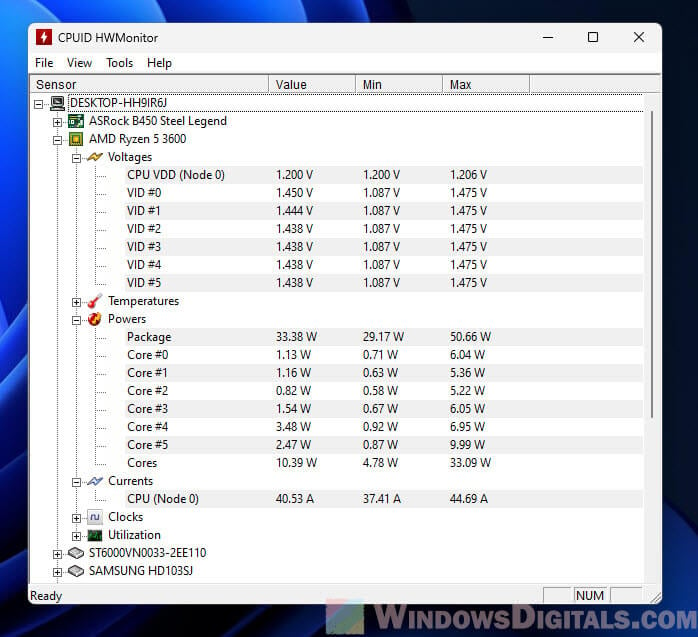
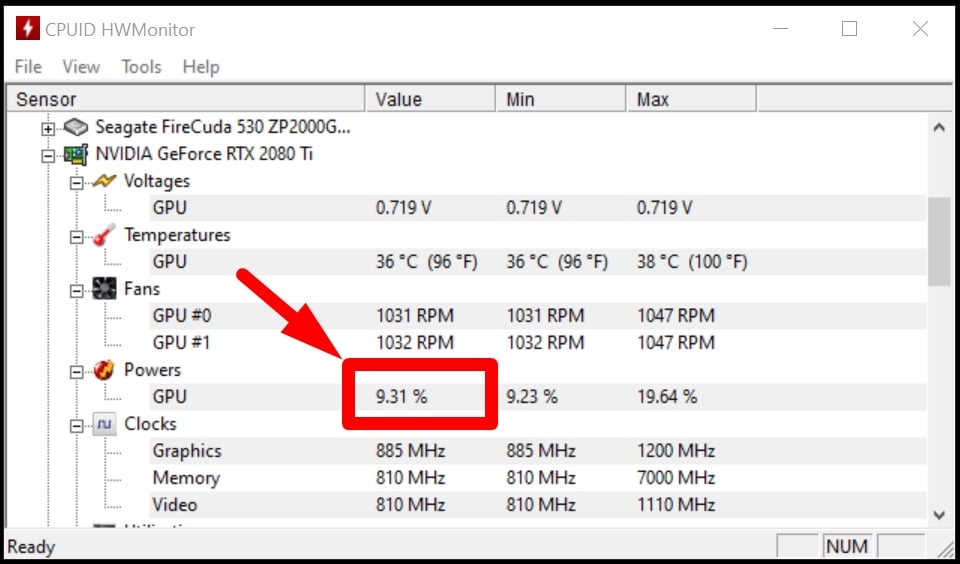
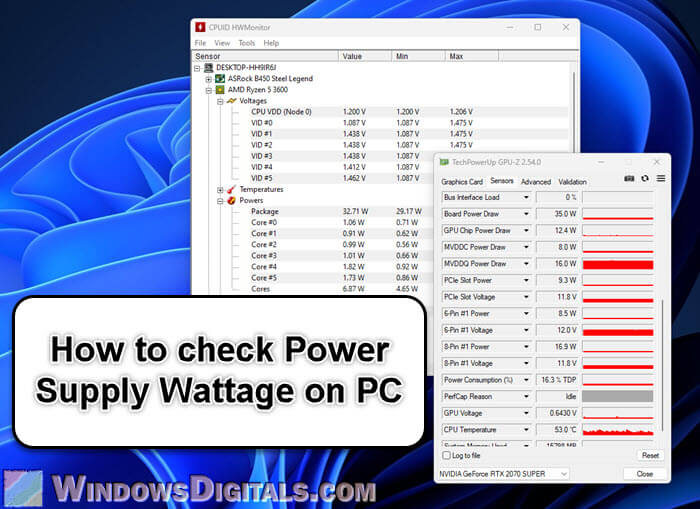
- HWMonitor or HWiNFO64: These fantastic utilities display detailed information about your CPU, GPU, and other components, often including estimated power draw in watts. Keep in mind these are typically estimates based on sensor readings and don't account for PSU inefficiency or other peripherals.
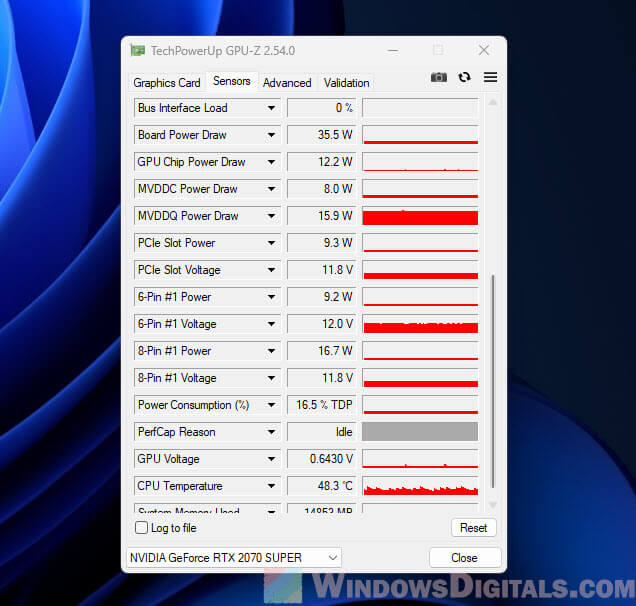
- GPU Monitoring Software: Programs like MSI Afterburner (works with most GPU brands) show real-time GPU power consumption, clock speeds, and temperatures. This is vital for gamers and content creators.
- Power Plans & Settings: Don't forget your operating system's built-in tools! Windows Power & Sleep settings allow you to choose between "Balanced," "Power Saver," and "High Performance" plans. Experiment with these to see their effect on performance and, by extension, power draw. You can often tweak individual settings like screen timeout and sleep timers for further optimization.
- Observe Under Load: To get a full picture, measure your wattage under different scenarios: at idle (doing nothing), while browsing the web, and most importantly, during your heaviest tasks (e.g., running a demanding game, video encoding, or a CPU/GPU stress test). You’ll be surprised by the difference!
By combining these methods, you'll gain a comprehensive understanding of your PC's energy footprint. You'll not only save a few pennies and help the planet, but you'll also become a more knowledgeable and confident PC user, truly mastering your machine from the inside out. Happy watt-watching!