
How To Check How Much Power Your Pc Is Using
Your PC. It sits there, humming away. Maybe it’s quiet, maybe it sounds like a tiny jet engine. But what is it really doing inside? More importantly, how much secret energy is it gobbling up?
You’ve probably never thought about it. Most people don’t. We just plug it in, hit the power button, and hope for the best. That’s the unspoken rule of PC ownership.
But what if I told you there's a playful adventure waiting? A quest to discover your PC's true appetite? It's easier than you think.
Must Read
The Software Sleuth: Peeking Behind the Digital Curtain
Let’s start with the most accessible tool. It’s probably already living on your PC. Your old friend, Task Manager.
Don't roll your eyes! This isn't just for killing frozen programs. It holds secrets. Big, electricity-sucking secrets.
Simply press Ctrl + Shift + Esc. Your PC will open its little digital diary. Go to the 'Processes' tab.
You'll see a list of everything running. Scroll over to the right. Look for a column called 'Power Usage'.
If you don't spot it, no worries. Just right-click on any column header. A menu pops up. Tick the box for 'Power Usage'.
Suddenly, a whole new world appears. You’ll see terms like 'Very Low', 'Low', 'Moderate', or gasp, 'High'. It’s like seeing who ate all the cookies in the jar.
Some programs are innocent nibblers. Barely taking a sip. Others are full-on cookie monsters. They demand constant energy.
Watching this column can be surprisingly fun. See how the power usage jumps when you open a new tab? Or when a game loads? It’s a live show of your PC’s hunger.
This is your first clue. Your digital footprint of power. It’s like a tiny, built-in surveillance system for energy. And it's free.
No special tech skills needed. Just a curious finger on the keyboard. It’s a great starting point for your power-hunting journey.
The Digital Detective: Deeper Into the Watts
Ready to get a bit more serious? If Task Manager was just a friendly hello, then dedicated monitoring software is a full-blown investigation.
These are programs you download. Think of them as special power-detective kits. They dive super deep into your PC's hardware.
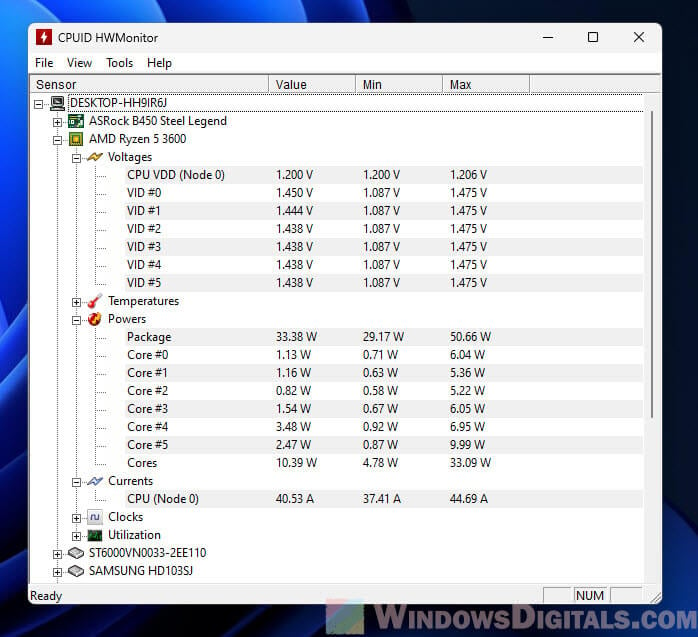
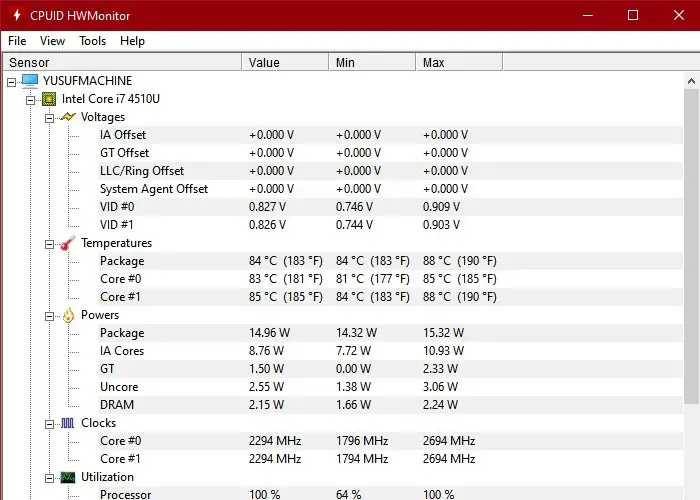
Names like HWMonitor or AIDA64 might sound fancy. But they are surprisingly easy to use. They just show you numbers. Lots of numbers.
You'll see things like your CPU's wattage. Or how much power your graphics card is pulling. These are the big power hogs.
These numbers change constantly. It's like watching a real-time heartbeat of your PC’s energy. Open a game, numbers jump. Close it, they drop.
It’s strangely satisfying. You get to see the actual watts. Not just 'High' or 'Low'. Real, tangible digits.
This level of detail is for the truly curious. The ones who want to know exactly what's going on. It’s like having an X-ray vision for your PC’s power.
You might discover your machine is a quiet sipper most of the time. Or maybe, under heavy load, it’s a roaring energy dragon.
And that's okay! Knowing is half the fun. It’s all part of understanding your digital companion. Don't be afraid of the numbers.
![How To Check Your PC’s Power Consumption [4 Methods]](https://www.cgdirector.com/wp-content/uploads/media/2022/08/Open-Hardware-Monitor-Screenshot-768x1019.jpg)
They tell a story. A story of efficient engineering, or perhaps, a story of pure, unadulterated power. And both are cool in their own way.
The Hardware Hunter: The Truth-Teller Gadget
Now, for the ultimate quest. This involves a physical gadget. A little device that gives you the absolute, no-nonsense truth.
It’s called a Kill A Watt meter. Yes, really. That’s its name. And it sounds like something a superhero would use.
This little box plugs into your wall socket. Then, your PC’s power cord plugs into it. Simple. No software needed.
It measures the electricity flowing from your wall into your PC. This is the whole enchilada. Monitor, speakers, all of it.
The Kill A Watt shows you the exact watts. In real-time. This is the gold standard for power measurement. No more guessing games.
Turn your PC on, watch the numbers jump. Load a demanding game, watch them climb higher. This is your PC’s true hunger displayed for all to see.
It's like putting a measuring cup under your PC’s plug. You can literally see the energy flowing in. It's incredibly satisfying.
You might realize your PC isn’t as power-hungry as you thought. Or perhaps, it’s far more ravenous. Either way, you’ll know.
This gadget is fantastic for anyone truly curious. It settles all bets. It’s the definitive answer to "How much power is my PC using?"

And it’s not just for PCs. You can test your toaster. Your TV. Your coffee maker. It makes you feel like a secret agent of energy.
So go ahead, embrace the hardware. Plug it in. Watch the numbers. Become the ultimate power detective. It’s a small investment for huge insight.
The Online Oracle: Predicting Your PC's Appetite
Don't want to buy new gadgets or download software? No problem. The internet is full of helpful tools. Specifically, online power supply calculators.
These aren't real-time measurements. Think of them more as a helpful prediction. An educated guess about your PC's potential.
You go to a website. It asks you about your PC’s insides. Your CPU model. Your specific graphics card. How many hard drives you have. Even your fans.
You meticulously fill in all the blanks. It’s like building your PC all over again, but on a web page. Every component gets accounted for.
Then, with a click of a button, it crunches the numbers. And out pops a suggested wattage. This is how much power your PC should need.
It’s super useful if you’re planning a new build. Or if you want to know if your current power supply is enough. Or just to satisfy a nagging curiosity.
It’s not dynamic. It won’t show you spikes or dips. But it gives you a solid baseline. A theoretical maximum hunger.
Think of it as the nutritional label for your PC. It tells you its caloric potential. How much it could eat if it were going full tilt.
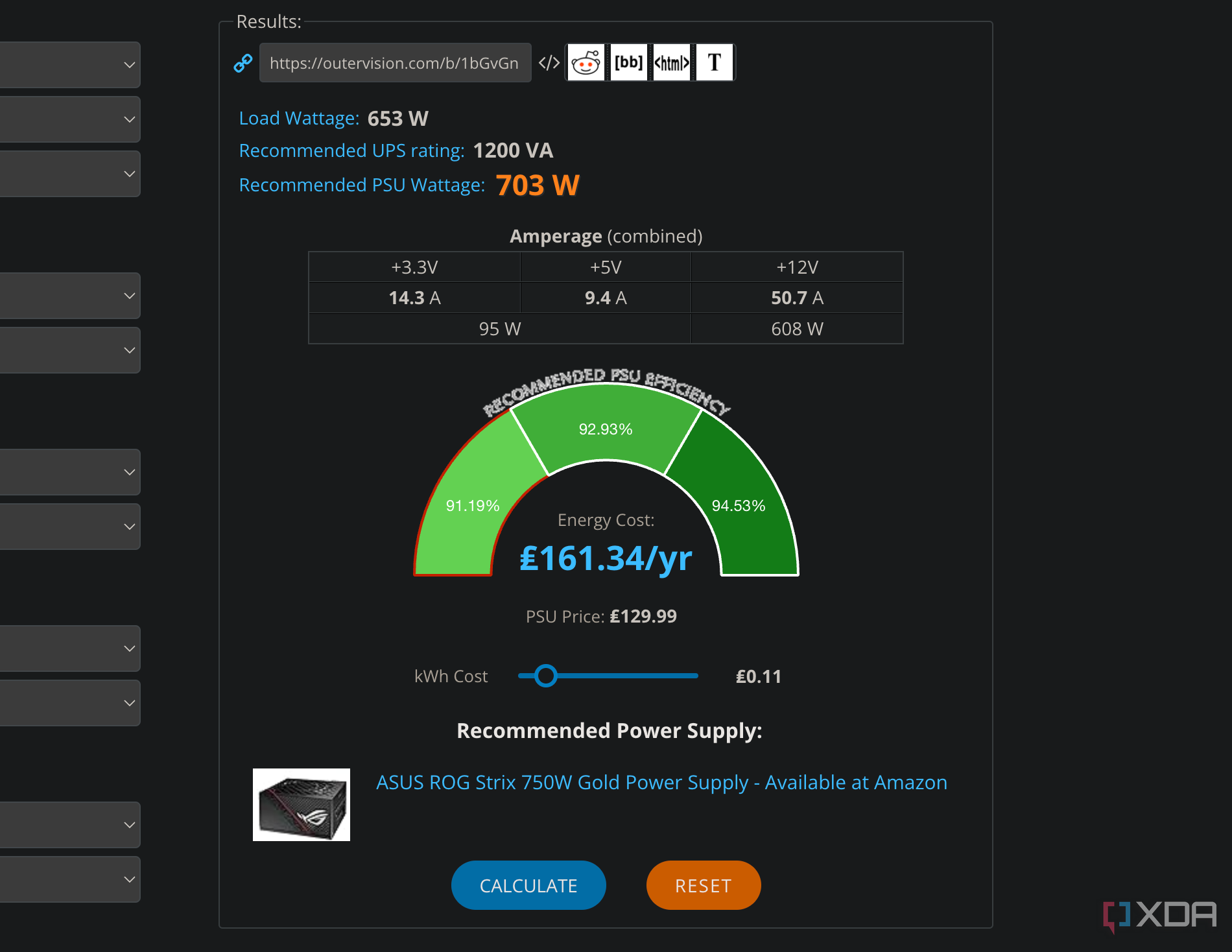
This method is all about estimation. About understanding the sum of its parts. It’s a great way to satisfy that initial curiosity without any fuss.
And it's quite satisfying to input all your carefully chosen components. Then see the big number. It's like seeing your PC's potential super-strength.
The Grand Reveal: So What Now?
You’ve done the detective work. You’ve seen the numbers. Perhaps a tiny gasp escaped your lips. Or maybe, a shrug.
Because here's the slightly unpopular truth: most of us just plug and play. We don’t think about watts. We think about frames per second. And that’s perfectly fine!
But knowing is kind of fun, right? It's like discovering a secret about your best digital pal. Your PC isn’t just a black box anymore.
"Who needs a tiny power footprint when you're conquering digital worlds? (Just kidding... mostly.)"
Your gaming rig might be a quiet sipper during emails. Or a roaring dragon when rendering a video. Either way, it's your dragon.
And sometimes, the sheer power consumption is part of the charm. It's the cost of awesome graphics. Of lightning-fast speeds.
So, next time your PC whirs, you'll know. You’ll have a playful secret. You'll know if it's merely sipping power. Or chugging it down like there's no tomorrow.
It's all about curiosity. About peeking behind the curtain. And having a little chuckle at the mystery of the watts.
You're now officially a PC power detective. Go forth and investigate! Your PC’s secrets await.