
How To Change The Volume Of Your Alarm
Ever woken up to an alarm that's more of a gentle whisper, leaving you blissfully unaware until panic sets in? Or maybe, just maybe, your alarm decided it was going to audition for the role of a foghorn, startling you straight out of bed with a jolt that could power a small city? Fear not, my friend, for you are not alone in this wild world of alarm volume woes!
Today, we're embarking on a grand adventure, a quest, if you will, to master the mighty alarm volume. Prepare to feel empowered, for soon you'll be the undisputed conductor of your morning symphony!
The Great Divide: Why Your Alarm Isn't Your Ringtone
First, a tiny secret: your phone is a clever little gadget. It often has a completely separate volume control just for your alarm. This means you can keep your ringtone a mellow hum for calls, while your alarm can be a full-blown rock concert or a soothing lullaby – whatever your heart desires!
Must Read
It’s like having two different dials, one for your everyday chat and another for your "time to conquer the day" signal. No more accidentally turning down your alarm when you meant to silence a spam call!
Android Adventures: Taming the Digital Rooster
Alright, Android adventurers, let's dive into your device! Your journey usually begins by finding the Clock app. It often looks like, well, a clock! Sometimes it’s a simple circle, sometimes it has hands, but it’s always ticking with potential. Tap it with confidence!
Once inside the Clock app, you’ll typically see different tabs: Alarm, Clock, Timer, Stopwatch. Our destination is clearly the Alarm tab. Give it a tap!
Now, look for your existing alarms. You might need to tap on one of them or find a general Settings icon (often a little gear) within the alarm section. This is where the magic happens, where you unlock the gateway to sound customization!
"This is where the magic happens, where you unlock the gateway to sound customization!"
Voila! You should now be greeted by a glorious Volume Slider. This isn't just any slider; this is your personal sound maestro. Drag your finger across it, and watch the tiny little sound waves (or sometimes just a number) dance up and down.
As you slide it, your phone might even give you a little sample of the new volume, a delightful peek into your future morning. Is it a gentle caress or a sudden explosion? You decide!
Most Android phones also have a handy Test button. After adjusting your slider, tap that test button! Does it make you jump with delight or barely register? This is your chance to fine-tune it before your actual wake-up call.
Imagine setting it just right: a gentle crescendo that pulls you from dreamland like a kindly friend, rather than a frantic siren blasting you into orbit. The perfect alarm volume is a beautiful, personal choice.
Pro Tip for Android Users:
Some Android versions might have this setting tucked away a little differently. If you can’t find it right away, don’t despair! Try looking for "Alarm volume" within your main phone Settings under "Sound & Vibration." The digital world is full of delightful surprises!
Remember to save any changes you make! Often, there's a little checkmark or "OK" button to confirm your newfound audio power. You are now the master of your Android wake-up call!
iPhone Illuminations: Unlocking the Apple Sound Chamber
Alright, iPhone aficionados, let’s get you squared away! Your journey, much like your Android comrades, often begins in the Clock app. It’s typically a clean, white icon with a black clock face. Tap it, and let’s get started!
Inside, you'll see familiar tabs: World Clock, Alarm, Stopwatch, Timer. Naturally, we're heading straight for Alarm. This is where your morning destiny awaits!
Now, here's where iPhone sometimes plays a little game of hide-and-seek. For iPhones, the master alarm volume isn't always right inside the Clock app for all alarms. Instead, it's often nestled in a different, equally powerful location: your main Settings app!
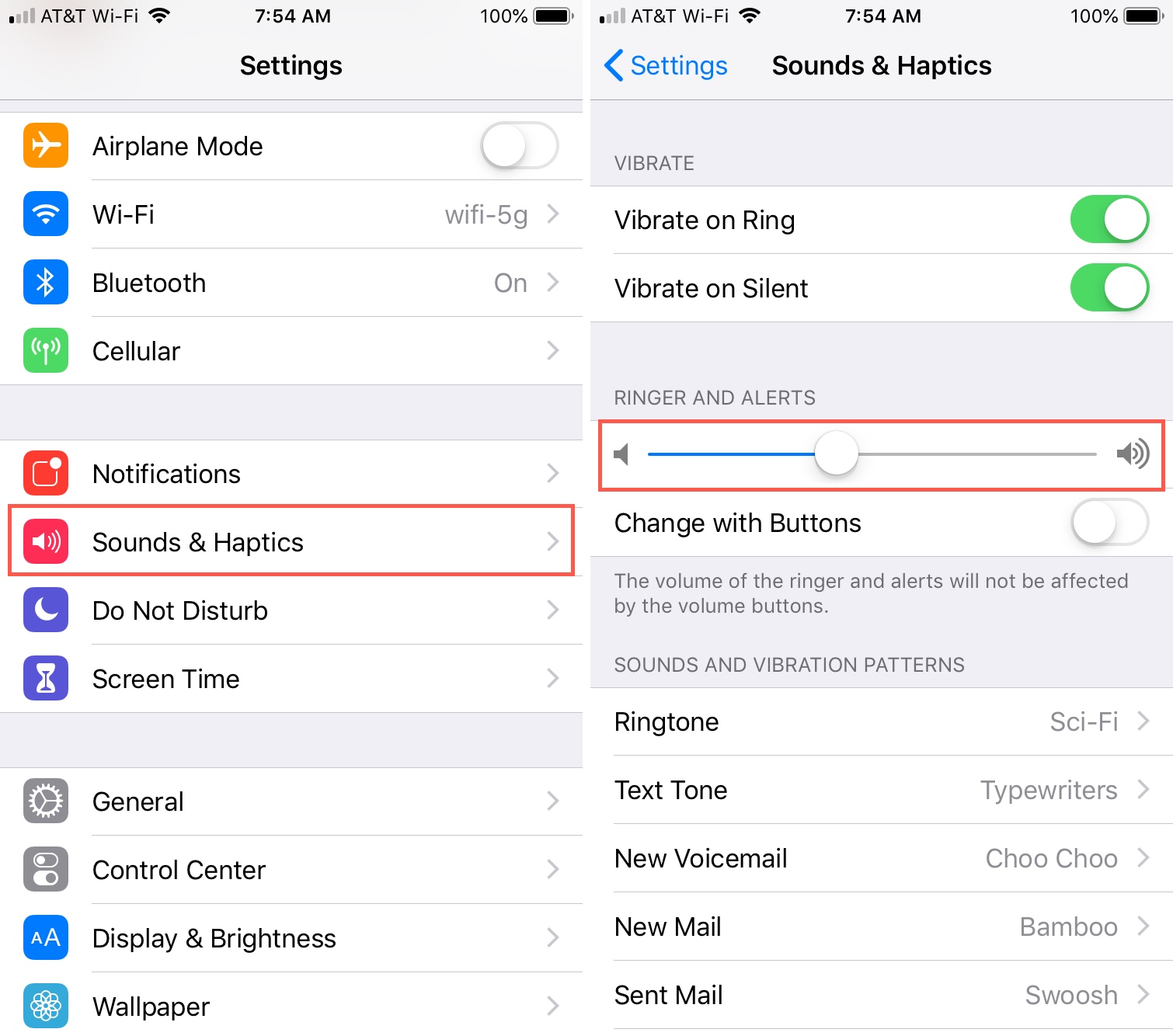
Yes, the grey gear icon! Tap into the heart of your iPhone's customization. Scroll down a bit until you find Sounds & Haptics (or sometimes just Sounds). This is where the magic of your phone’s audio lives!
"This is where the magic of your phone’s audio lives!"
Once inside Sounds & Haptics, look for a section called Ringer and Alerts. Below this, you'll see a wonderful Volume Slider. This slider is your key to unlocking the perfect wake-up sound!
Slide it left for a gentle nudge, slide it right for a robust reveille! As you adjust, your iPhone will play a quick sample, letting you know exactly what kind of morning greeting to expect. No more guessing games!

The iPhone Secret Weapon: Change with Buttons
Here’s an absolute game-changer for iPhone users: right below that Ringer and Alerts volume slider, you'll spot a toggle called Change with Buttons. This little switch is a super-hero!
If you turn this ON (the switch will be green!), it means that your physical volume buttons on the side of your iPhone will also adjust your alarm volume. So, if you accidentally turn your ringer down with the side buttons, your alarm volume might go down too.
If you turn Change with Buttons OFF, then your side volume buttons will not affect your alarm volume. This is often the preferred setting for many, as it ensures your alarm stays at its chosen level, no matter how much you fiddle with other sounds!
Make your choice, my friend, and embrace the power! Remember that once you set it, you might need to go back to the Clock app to set individual alarm times and sounds. The volume you just set in Settings is the overall master volume for those.
You've done it! You've navigated the sleek corridors of Apple and emerged victorious, a true master of your morning soundscape.
The Universal Wisdom: Experiment, Play, and Conquer!
Whether you're an Android aficionado or an iPhone innovator, the core principle remains: experimentation is key! Your perfect alarm volume isn't a fixed destination; it's a journey of discovery.
Try a whisper-soft setting for a few days. Did you wake up in a panic, realizing you missed half the morning? Or did you drift awake feeling incredibly refreshed? Now, crank it up a notch!
Maybe you need a volume that’s just loud enough to cut through your deepest slumber, but not so loud it sends your pet cat (or partner!) bolting from the room. That sweet spot is out there, waiting for you!
Don't be afraid to try different alarm tones too! Sometimes a different sound at the same volume can make all the difference. From gentle chimes to upbeat tunes, your phone is a veritable orchestra.
Setting your alarm's volume to perfection isn't just about waking up; it’s about starting your day right. It's about feeling in control, empowered, and ready to face whatever adventures lie ahead.
So go forth, digital maestros! Adjust those sliders, tap those test buttons, and fine-tune your morning symphony. You are now officially an alarm volume guru, ready to face every sunrise with precisely the right amount of sound!