
How To Change The Background On The Ps4
Tired of That Same Old PS4 Wallpaper? Let's Fix That!
Okay, let's be honest. You've been staring at the same blue waves since you bought your PlayStation 4.
Isn't it time for a change? I think so. Let's ditch the default and go wild.
Option 1: Embracing the Theme
First things first, head to the PlayStation Store.
Must Read
Browse those themes, my friend! There are thousands.
Some are free, some cost a few bucks. But a new theme is instant background change!
Downloading a theme is a breeze. Just click download and install. Easy peasy!
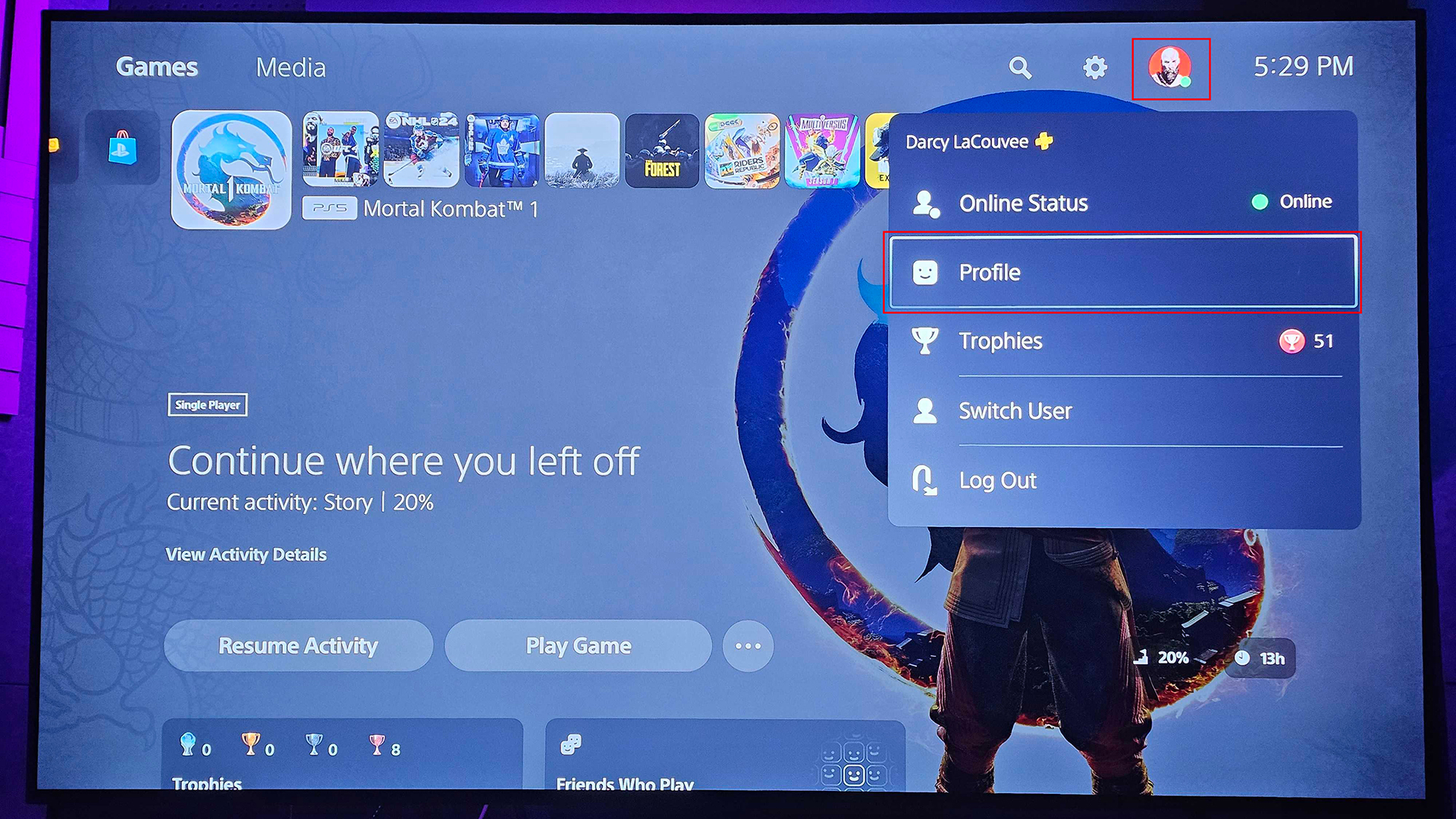
Then, go to your Settings, then to Themes. Find your new treasure.
Hit "Select Theme," and BAM! Freshness achieved.
Option 2: Screenshots to the Rescue
This is my personal favorite, even if it's a little unconventional.
Boot up your favorite game. Find a scene that just screams "wallpaper material."
Press the Share button! Then save that beautiful screenshot.
Now go back to Settings, then Themes. This time, choose "Custom."
Navigate to your screenshots and select the masterpiece you just captured.
Adjust it until it looks perfect. A game screenshot as your wallpaper? Bold move, I like it.
Option 3: USB Drive Shenanigans
This one's a bit more involved, but hear me out. It involves a USB drive.
Find an image you adore on your computer. Make sure it's the right resolution (1920x1080 is a safe bet).

Create a folder on your USB drive called "IMAGES" (all caps!). Place your image in it.
Plug the USB drive into your PS4.
Go back to Settings, then Themes. Select "Custom" again.
This time, you'll see your USB drive as a source. Choose your image!
Boom! PC power meets PS4 glory.
A Word on Screenshots...
Now, some might say using screenshots as backgrounds is tacky. They call it low resolution.
They might even suggest it's a sign of poor taste.
But I say... who cares? It's your PS4! Decorate it as you please.
My (Possibly Unpopular) Opinion
Look, I’ll be honest. I think the custom screenshot route is the best.
Why pay for a theme when you can immortalize a particularly epic moment from a game?
Plus, it’s a great conversation starter. “Oh, THAT? That’s when I one-shotted the final boss.”
Okay, maybe don’t actually say that. But you get the idea.
It adds a personal touch. A sprinkle of chaos. A dash of pure, unadulterated you.

And isn't that what gaming is all about?
Don't Be Afraid to Experiment!
The best part is, you can change your background as often as you change your socks.
Well, maybe not that often. But you get the point.
So go forth! Embrace the change! Ditch those boring blue waves!
Turn your PS4 into a reflection of your gaming soul. And remember: if anyone judges your screenshot wallpaper, just tell them it's "vintage."
Happy customizing! And may your backgrounds always be as epic as your gameplay.
Now go change your wallpaper, what are you waiting for?
The PlayStation 4 is waiting for its new, personalized look!