
How To Change Source On Roku Tv
Alright, you've got your Roku TV, the king (or queen!) of streaming, and you're ready to binge-watch. But wait! You want to switch to, say, your trusty old game console or that Blu-ray player you swore you'd use more often? No sweat! Changing the source on your Roku TV is easier than convincing your cat to try a new flavor of tuna.
The Magic of the Roku Remote
First things first, grab your Roku remote. This little clicker is your magic wand to navigate the TV world. Seriously, it's almost as powerful as a wizard's staff, minus the pointy hat and the cryptic spells.
Look for the Home button. It usually looks like a little house. Press it! This is like teleporting back to your TV's main menu.
Must Read
Now, using the directional pad (that plus-shaped button thingy), navigate around the screen. You're on a treasure hunt for the mystical "Input" tile. It might also be labeled "HDMI," "AV," or something similar depending on your Roku TV model.
Found it? Hooray! Select it with the OK button. This is like unlocking a secret portal to other dimensions... or, you know, just the different inputs on your TV.
A list of available inputs will pop up! It's like a menu of possibilities. Scroll through the options with the directional pad. You might see things like "HDMI 1," "HDMI 2," "AV," or even something mysterious like "Component."
Select the input you want with the OK button. Boom! You've successfully changed the source. Celebrate with a victory dance (optional, but highly encouraged).

The Secret's in the Labels!
Here's a pro tip: pay attention to the labels on the back of your TV. See which HDMI port your game console or Blu-ray player is plugged into. It's like labeling your spice rack – a little organization goes a long way!
If your game console is plugged into the port labeled "HDMI 2," then you'll want to select "HDMI 2" from the input list on your Roku TV. It's like matching socks, but with electronic devices! A great way to get ready to dive into a new game or catch up on an old movie.
HDMI ARC: The Advanced Option (Don't Panic!)
Now, let's talk about HDMI ARC. It might sound like something out of a sci-fi movie, but it's actually quite useful. ARC stands for Audio Return Channel, and it lets you send audio from your TV to a soundbar or receiver using only one HDMI cable.
If you have a soundbar connected to your Roku TV via HDMI ARC, you might need to select the corresponding HDMI input to hear the audio properly. It's like choosing the right language setting – essential for clear communication!
Not sure if you're using HDMI ARC? Check the back of your TV and your soundbar. If one of the HDMI ports is labeled "ARC," you're in business! If you're not using a soundbar or receiver, don't worry about it. This is an advanced option that you can leave alone for now.
Help! It's Not Working!
Okay, so you've tried everything, and you're still staring at a blank screen. Don't panic! It happens to the best of us. Let's troubleshoot.
First, double-check that the device you're trying to use is actually turned on. It sounds obvious, but it's easy to forget! Make sure the power button is lit up. Are your batteries running low? It happens! It's like forgetting to water your plants – a simple oversight with potentially disastrous consequences (for your viewing pleasure, anyway). Also, make sure your device is properly connected to your TV.
Next, make sure the correct input is selected on your Roku TV. Double-check the label on the back of your TV and make sure it matches the input you've chosen. It's easy to get mixed up!
Try unplugging the HDMI cable from both the TV and the device, then plugging it back in. Sometimes, a simple reseating of the connection is all it takes. It's like restarting your computer – a surprisingly effective solution to many problems.
If you're still having trouble, try a different HDMI cable. A faulty cable can cause all sorts of issues. It's like using a broken pen – frustrating and ultimately unproductive. Maybe you need a new HDMI cord.
As a last resort, you can try restarting your Roku TV. Go to Settings > System > Power > System restart. It's like giving your TV a good night's sleep.
Still Stuck?
If you've tried all of these things and you're still having trouble, don't despair! Roku has a fantastic support website with tons of helpful articles and videos. You can also contact Roku support directly for assistance. They're like the tech support superheroes, ready to swoop in and save the day!
A Few Extra Tips and Tricks
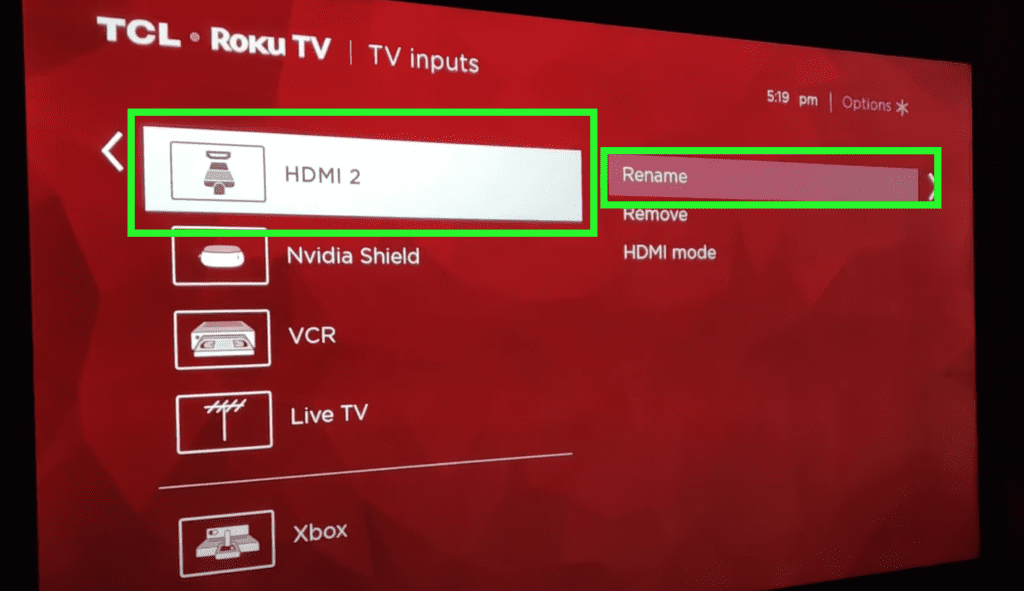
Some Roku TVs allow you to rename the inputs. This can be helpful if you have multiple devices connected to your TV. For example, you could rename "HDMI 1" to "PlayStation" or "Blu-ray Player." This is all about staying organized!
To rename an input, go to Settings > System > Input Settings and select the input you want to rename. Then, enter the new name using the on-screen keyboard. You are the boss of your Roku TV! Own it!
Some Roku TVs also have a feature called "Auto Input Switching." This feature automatically switches to the correct input when you turn on a device connected to your TV. This can be very convenient, but it can also be annoying if it doesn't work properly. It's like having a robot butler – helpful when it works, but a bit of a pain when it malfunctions.

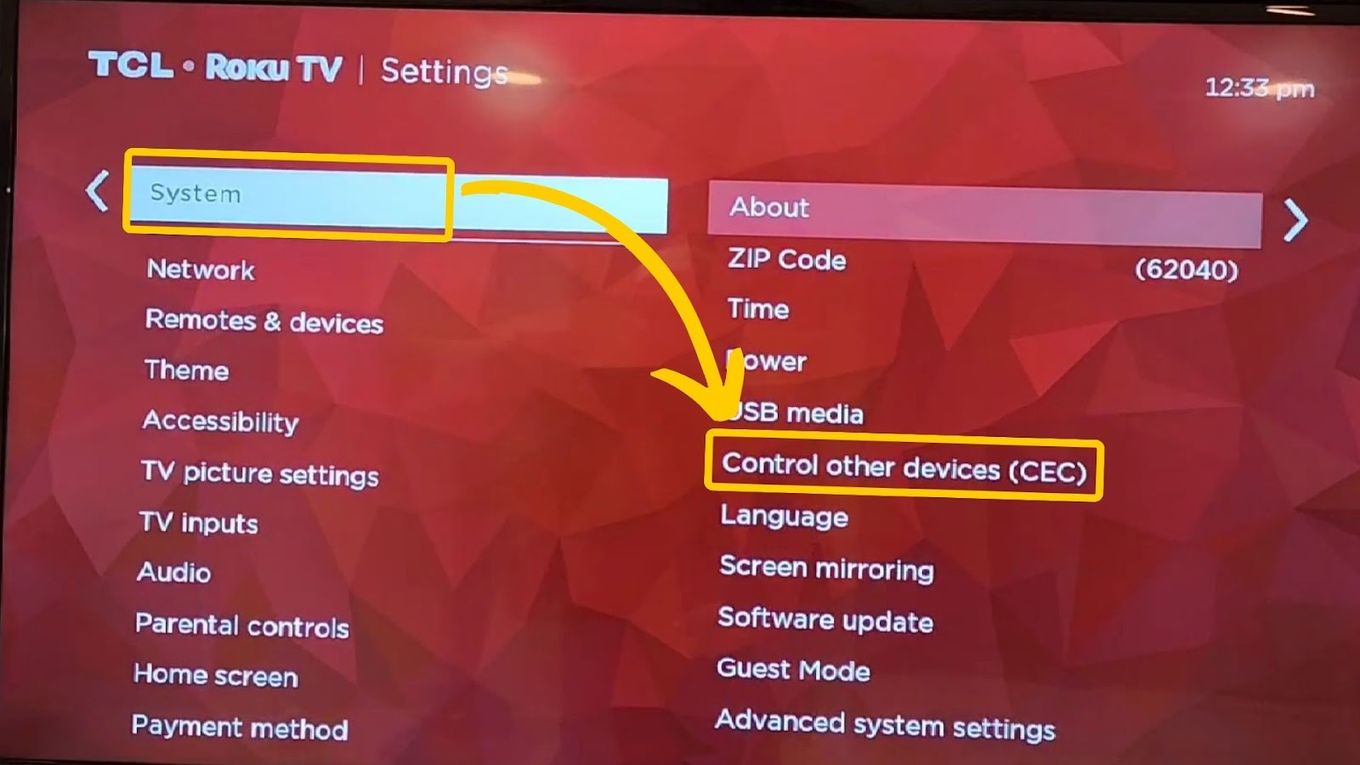
To enable or disable Auto Input Switching, go to Settings > System > Control other devices > 1-touch play.
If you have a Roku soundbar, you can use the Roku remote to control the volume and power of your TV. This is super convenient! No more juggling multiple remotes. It's like having a universal remote – all the power in one little package. This is the future, baby!
Congratulations! You're a Roku Input Master!
You've successfully navigated the world of Roku inputs. You've learned how to change the source, troubleshoot common problems, and even rename your inputs! Give yourself a pat on the back. You deserve it!
Now go forth and enjoy your Roku TV! Watch movies, play games, binge-watch your favorite shows – the possibilities are endless. And remember, if you ever get stuck, just refer back to this handy guide. We're here to help you on your Roku journey!
Happy streaming, and happy gaming! May your Roku TV always bring you joy and entertainment. Now, if you'll excuse me, I have a date with my Roku and a giant bowl of popcorn.