
How To Add To Iphone Home Screen
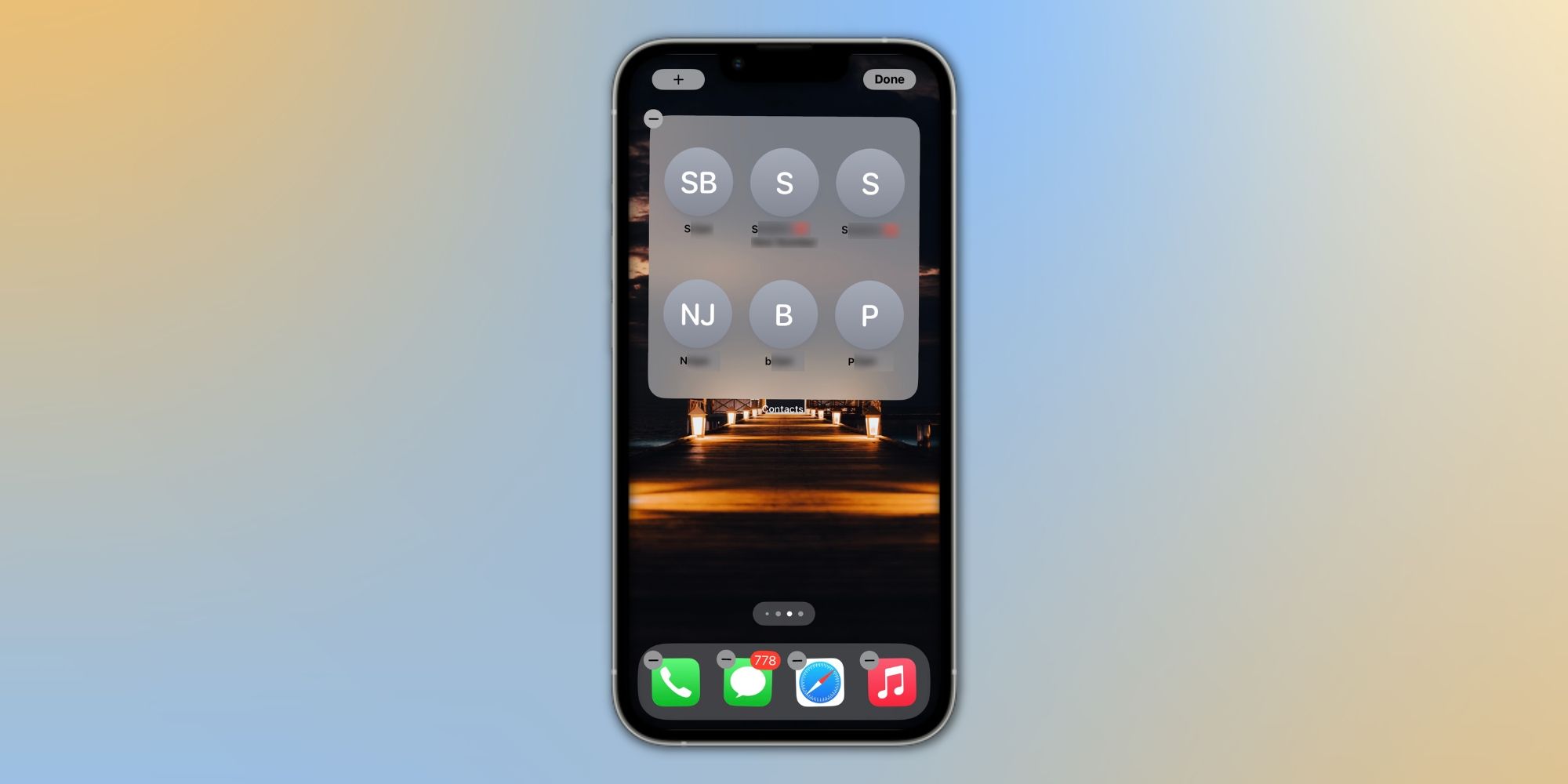
Ever feel like your iPhone home screen is a bit… vanilla? Like it’s missing that certain je ne sais quoi? Well, fear not, fellow iPhone aficionados! We're about to unlock a secret power: the ability to customize your home screen like a boss. I’m talking about adding anything – not just apps – directly to your home screen for lightning-fast access. It's not just about convenience; it's about making your phone truly yours!
So, what's the big deal? Why would you want to add things other than apps to your home screen? Think of it this way: your home screen is prime real estate. Why let it be cluttered with apps you rarely use when you could have instant access to your favorite website, a frequently used contact, or even a specific note you're always referencing? The possibilities are endless, and that's where the fun really begins.
The main purpose is simple: instant access. The benefits? Oh, let's count them! Increased productivity because you're not wading through menus. A more personalized and efficient user experience. Bragging rights amongst your friends (okay, maybe not bragging, but you'll definitely be the envy of their organized-but-not-as-organized-as-yours home screen). Basically, it’s about streamlining your digital life, one shortcut at a time.
Must Read
Ready to dive in? Here’s how to add a website to your home screen, a popular and incredibly useful trick:
Step 1: Surf's Up! Open Safari and navigate to the website you want to add. Maybe it's your go-to news site, a recipe blog you can't live without, or even a Google Doc you constantly edit.
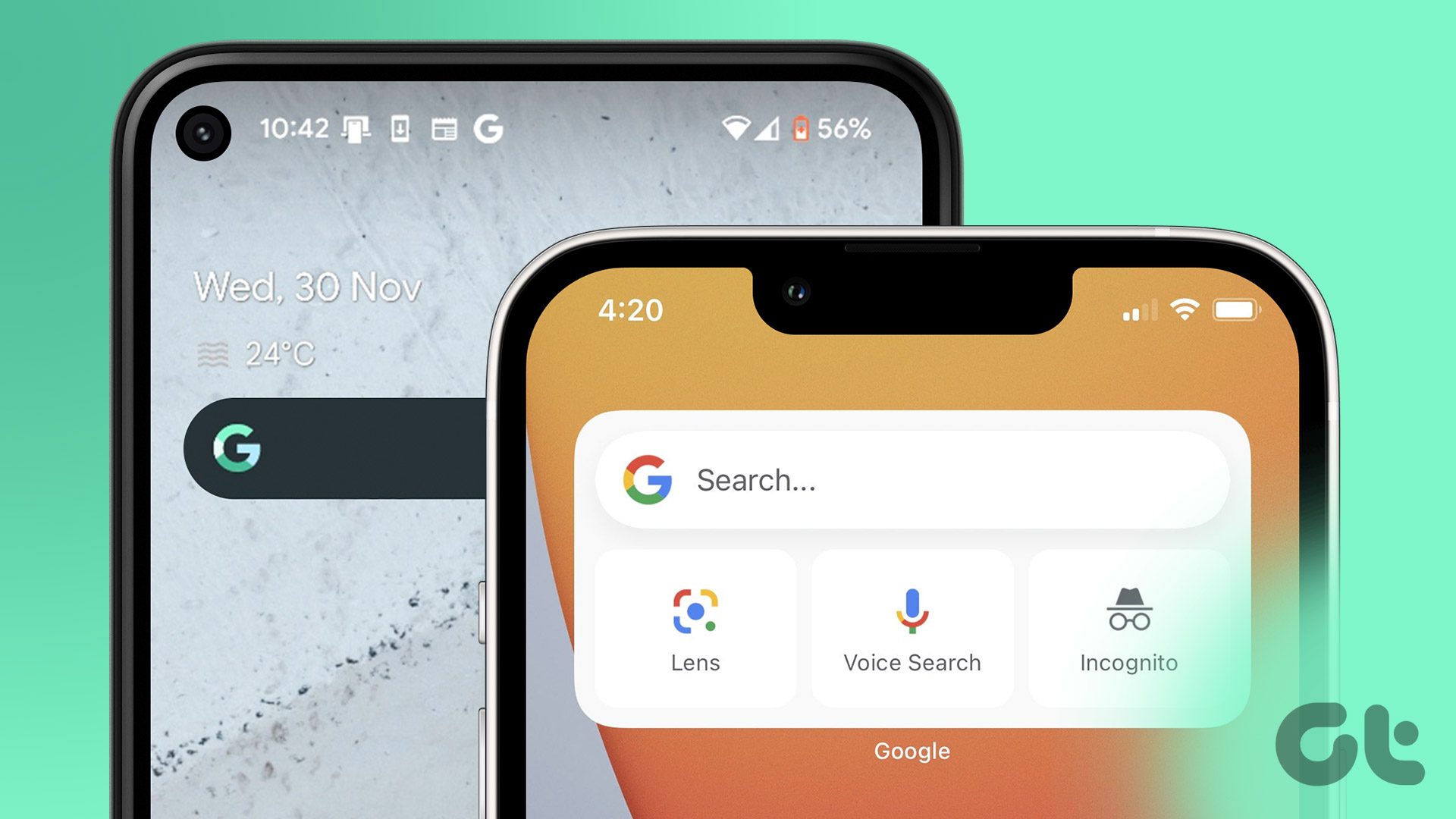
Step 2: Find the Share Button. Look for the little square icon with an arrow pointing upwards. It's usually located at the bottom of your screen (or the top, depending on your phone's orientation). Tap it.
Step 3: "Add to Home Screen" Magic. A menu will pop up with a bunch of options. Scroll down until you see the option labeled "Add to Home Screen." Give it a tap.
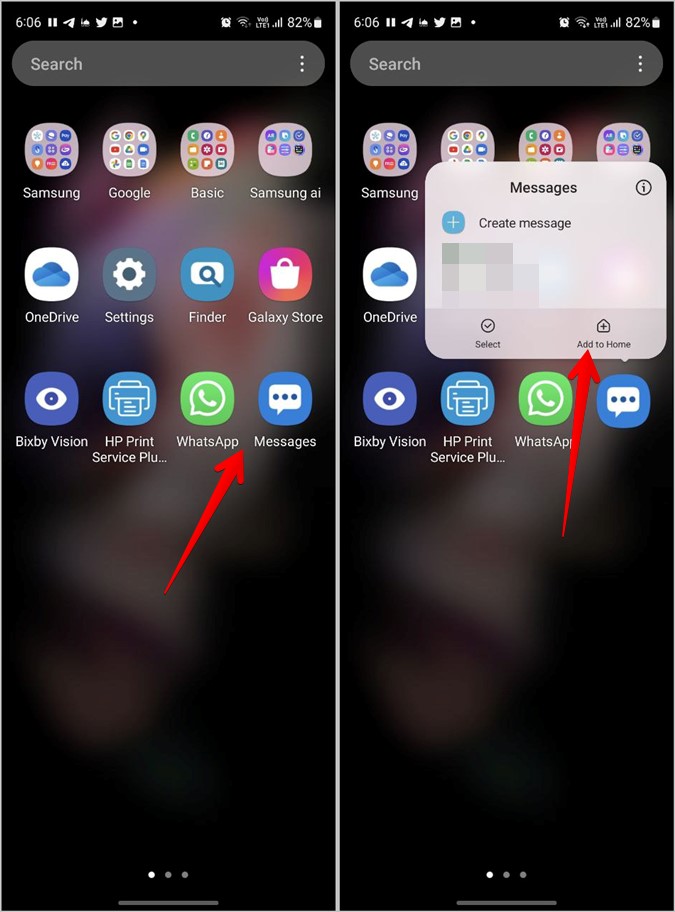
Step 4: Customize and Conquer. A preview will appear, showing you how the icon will look on your home screen. You can even edit the name that appears under the icon! Maybe you want to shorten a long website title or give it a fun nickname. Once you're happy, tap "Add" in the top right corner.
Step 5: Voila! The website icon is now on your home screen, ready for you to access with a single tap. Congratulations, you've officially leveled up your iPhone game!

But wait, there's more! This trick isn't just for websites. Many apps also offer the ability to create shortcuts for specific actions within the app. Look for similar "Share" or "Add to Home Screen" options within your favorite apps to discover even more ways to customize your home screen.
Experiment, have fun, and create a home screen that truly reflects your digital life! Who knew adding a little shortcut could make such a big difference?
