
How Do You Turn Down The Brightness On A Laptop
Alright, settle in, friends! Gather 'round, because we're about to tackle one of life's great mysteries… almost as baffling as why socks disappear in the laundry: How to dim the blasted screen on your laptop!
I know, I know. You're probably thinking, "Seriously? That's what we're doing?" But trust me. You’d be surprised how many people suffer from what I call "Laptop Lighthouse Syndrome" – blinding themselves and everyone around them with a screen brighter than a thousand suns. It's a public service, really. And hey, who knows, maybe knowing this will save your retinas, your battery life, and prevent you from being mistaken for a landing strip at night.
The Obvious Route: Keyboard Ninja Moves
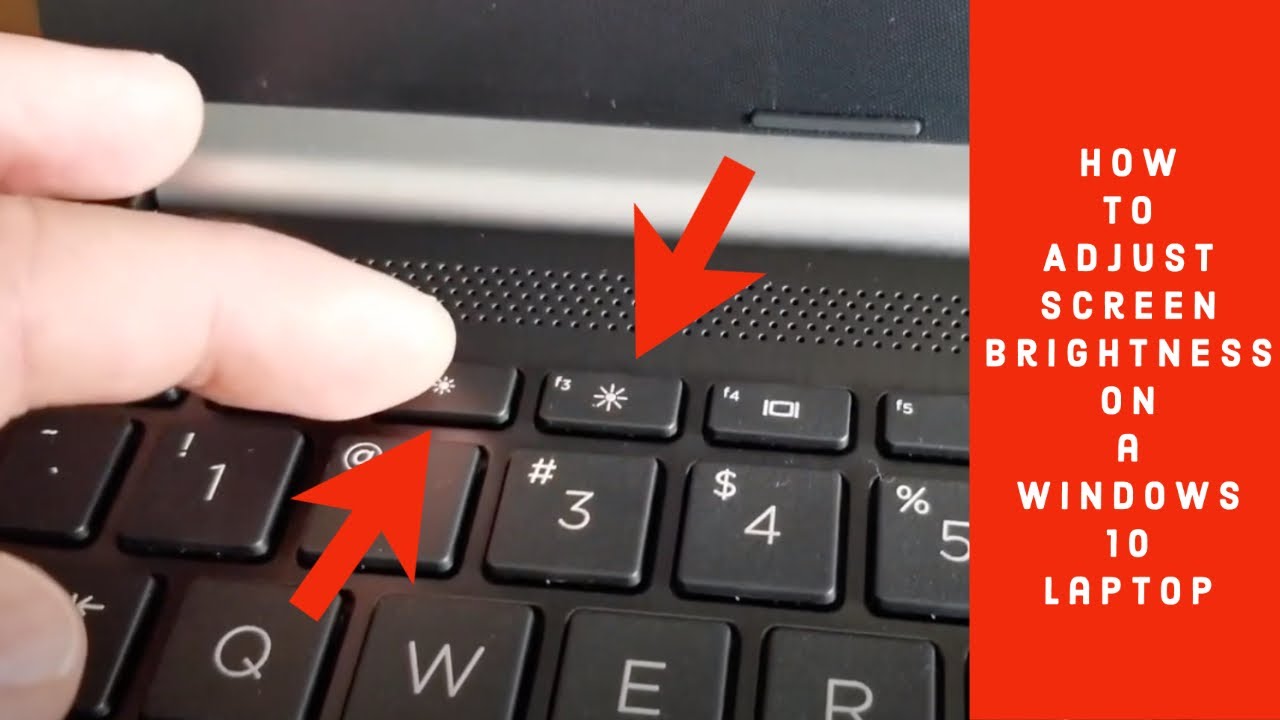
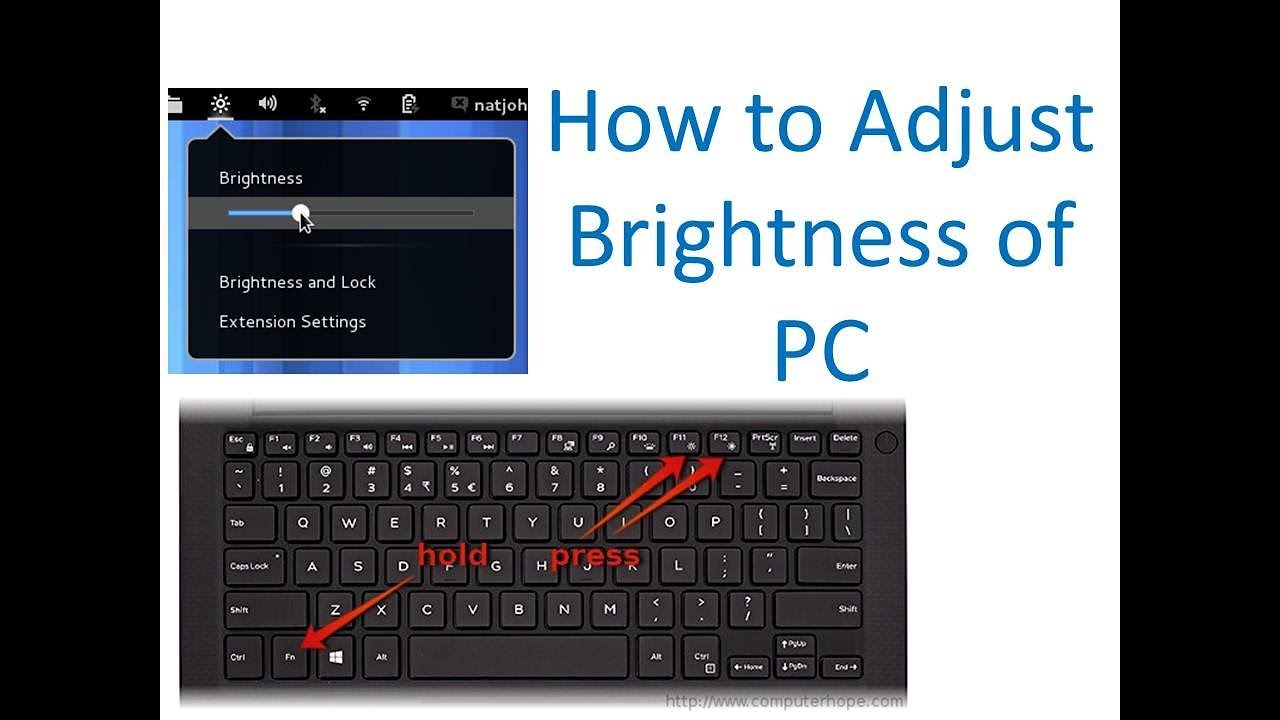
Okay, let's start with the basics, the way your computer wants you to do it. Think of yourself as a keyboard ninja, ready to unleash your dimming powers! Look at the top row of your keyboard – you know, the one with the F1, F2, F3, and so on. Somewhere in that area, you'll find symbols of a sun. One will likely have a plus sign (+) next to it (for brightness UP!), and the other a minus sign (-) (for brightness DOWN!).
Must Read
Now, here's the tricky part. Most laptops require you to hold down the "Fn" (Function) key – it's usually near the bottom left corner of the keyboard – while pressing the sun icon key. Think of it as a secret handshake. It's like your laptop is saying, "Prove you're worthy to control my luminance!" So, hold down Fn and tap that dimming sun until your screen achieves the perfect level of nighttime zen.
Pro Tip: If you're tapping away like a caffeinated woodpecker and nothing's happening, double-check that "Fn" key. Also, make sure the sun icons actually control brightness on your specific laptop model. Some manufacturers are… let's just say "creative"… with their key assignments.
The Slightly-Less-Obvious Route: Settings Shenanigans
Still battling the brightness? Fear not! We're diving into the operating system itself. Think of it as going behind the scenes, backstage at the laptop show.
Windows Warriors, Assemble!
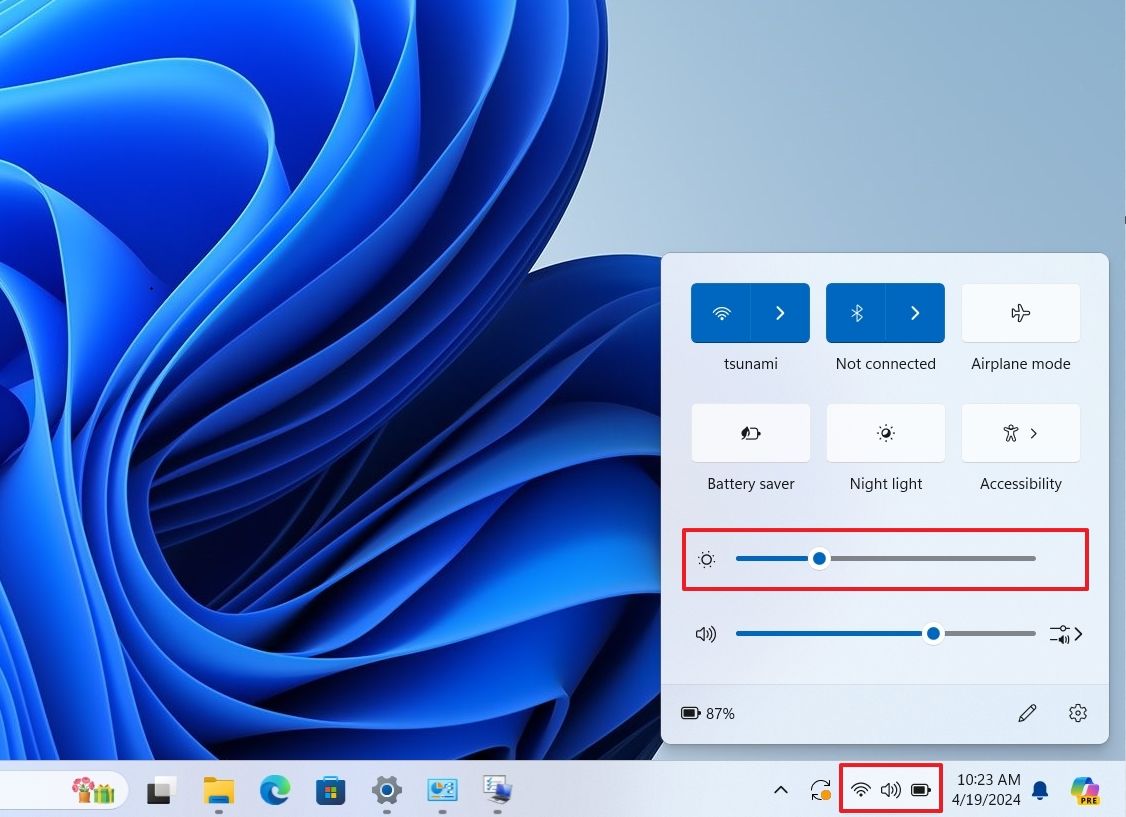
For you Windows folk, there are a couple of pathways. The first is to click on the Action Center icon in the bottom right corner of your screen (it looks like a speech bubble). You should see a brightness slider there. Drag that little dude left and right until your eyes are happy.
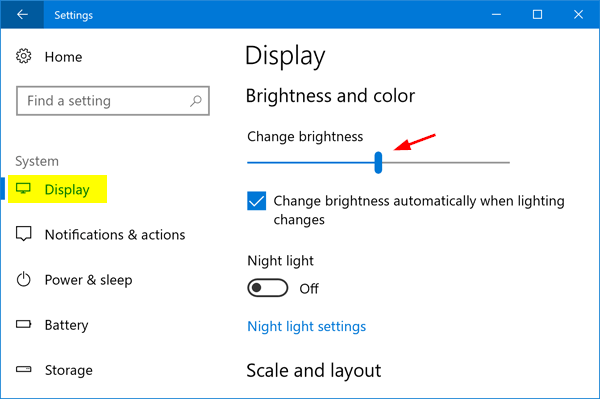
If that's not there (because computers love to play hide-and-seek), go to Settings (click the Windows Start button and then the gear icon). Then navigate to System > Display. Voila! A brightness slider awaits. Experiment, adjust, conquer! (Or just dim it a bit. That works too.)
Mac Masters, Show Your Mettle!
Mac users, you're not off the hook! Head to the Apple menu in the top left corner of your screen, and choose System Preferences. Then, click on Displays. You'll find a brightness slider there. Slide away! You can also often find brightness controls in the menu bar (at the top of your screen) if you have that option enabled.
Fun Fact: Did you know that staring at a bright screen before bed can mess with your melatonin production? Melatonin is the hormone that helps you sleep. So, dimming that screen isn't just about comfort; it's about sweet, sweet slumber!
The Desperate Measures Route: When All Else Fails
Okay, so the keyboard shortcuts are mocking you, and the settings are playing hard to get. What now? Don't throw your laptop out the window (tempting, I know). We have other options.
- External Monitor Magic: If you're using an external monitor, make sure its brightness settings aren't the culprit. Each monitor has its own controls, usually buttons on the monitor itself.
- Driver Drama: In rare cases, outdated or corrupted graphics drivers can cause brightness control issues. Try updating your graphics drivers. Google "how to update graphics drivers [your laptop model]" for specific instructions.
- The Nuclear Option (Almost): As a last resort, try restarting your computer. Seriously. Sometimes, a simple restart can fix weird software glitches. It's the IT equivalent of "Have you tried turning it off and on again?"
Important Caveat: If you've tried everything and your screen is still stubbornly bright, there might be a hardware issue. It's time to consult a professional. Don't try to disassemble your laptop yourself unless you're confident you know what you're doing. Trust me, you don't want to turn a simple brightness problem into a full-blown laptop apocalypse.
So, there you have it! The (hopefully) definitive guide to dimming your laptop screen. Go forth and conquer that brightness! And remember, a slightly dimmer screen is a happy screen. And a happy screen makes for happy eyes. And happy eyes make for… well, you get the picture. Now, if you'll excuse me, I need to go dim my own screen. I think I'm starting to glow in the dark.
