
How Do You Find Out What Your Wifi Password Is
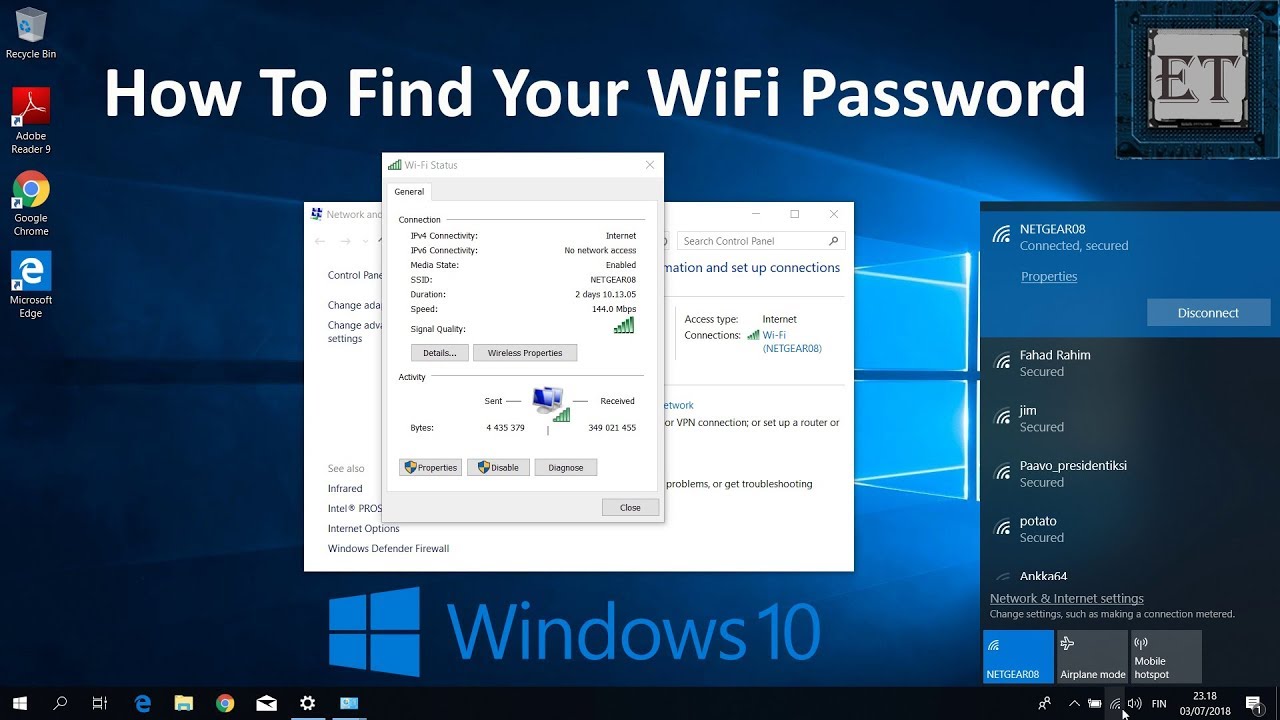
Ever feel like you're trapped in a Wi-Fi password guessing game? Like you're trying to crack a secret code from a spy movie? Well, fear not, intrepid internet explorer!
Unlocking your Wi-Fi password isn't as daunting as infiltrating a super-villain's lair. It's more like finding a hidden treasure in your own home. Let's embark on this digital quest together!
On Windows: The Command Prompt Caper
First up, the Windows route. Picture this: you're a tech wizard, summoning commands with a flick of your fingers. Okay, maybe just a few keystrokes.
Must Read
Open the Command Prompt. Type in a secret incantation. Just kidding! It's a simple command: netsh wlan show profile name="Your WiFi Network Name" key=clear. Remember to replace "Your WiFi Network Name" with the actual name of your Wi-Fi network, the one you're currently connected to.
Hit enter. Poof! Among the magical output, you'll find a section labeled "Key Content." That's where your precious Wi-Fi password hides, waiting to be discovered.
It's like being a digital archaeologist, unearthing artifacts from the depths of your computer's memory. Pretty cool, right?
Alternative Windows Route: The Network Settings Sneak
If command lines aren't your cup of tea, there's another way. We're going on a sneak mission through your network settings. Don your digital stealth gear!
-(1).png)
Go to Network and Sharing Center. Find the name of your Wi-Fi network connection. Click on it like you're selecting your champion for a battle!
A new window will pop up. Choose "Wireless Properties," then head over to the "Security" tab. Check the box that says "Show characters." Boom! Your password is revealed, plain as day.
This method feels like you're uncovering a secret panel in a detective movie. The anticipation is real!
On macOS: The Keychain Access Adventure
Now, let's venture into the realm of macOS. Here, the adventure revolves around something called Keychain Access. Sounds mysterious, doesn't it?
:max_bytes(150000):strip_icc()/006_find-wifi-password-on-windows-11-5216845-df2fdda1aa4645b38ceb6c3eea795887.jpg)
Open Keychain Access. You can find it using Spotlight Search (that magnifying glass in the top-right corner of your screen). Just type "Keychain Access" and hit enter.
In Keychain Access, search for your Wi-Fi network name. It's like browsing a digital library, looking for that specific book with the password you need.
Double-click on your network name. A window will appear. Check the box that says "Show password." You might need to enter your administrator password to confirm it's really you who wants to see the Wi-Fi key.
Voila! Your Wi-Fi password appears. It's like unlocking a treasure chest with the right key. A truly satisfying moment.
Router Access: The Ultimate Power User Move
Feeling adventurous? For the ultimate power move, you can access your router's settings. This is where the real magic happens.

First, you need your router's IP address. Usually, it's something like 192.168.1.1 or 192.168.0.1. You can find it by opening the Command Prompt (on Windows) or Terminal (on macOS) and typing ipconfig (Windows) or netstat -nr | grep default (macOS). Look for the "Default Gateway" address.
Type that IP address into your web browser. You'll be prompted to enter a username and password. These are usually printed on a sticker on your router. Common defaults are "admin" for both username and password.
Once you're in, navigate to the Wireless settings section. Look for something like "Wireless Security" or "WLAN Settings." Your Wi-Fi password, sometimes called a "passphrase," should be displayed there.
Accessing your router settings is like taking control of the entire internet infrastructure of your home. It's a responsibility, but also pretty empowering.

Important Considerations: A Word of Caution
A friendly reminder: treat your Wi-Fi password like a valuable possession. Don't share it carelessly. Protect your digital kingdom!
And if all else fails? There's no shame in contacting your Internet Service Provider. They're the Gandalf to your Frodo, guiding you through the digital wilderness.
So go forth and conquer your Wi-Fi password woes! May your internet connection be strong and your downloads speedy.
Remember, this is just the beginning of your internet exploration journey. There's a whole world of digital secrets to uncover. Happy hunting!
Always respect the device owner's privacy and rights. If you are not the device owner, ask for permission before checking.