
Honeywell Pro Series Thermostat Battery Replacement

Alright, picture this: it's a cozy evening, you're curled up on the couch, maybe with a good book or binging your latest obsession. The house is perfectly toasty, or delightfully cool, depending on the season. Life is good. Then, BAM! A sudden chill, or an unexpected wave of heat, washes over you. You glance at the thermostat, your trusty sentinel of comfort, and… it's blank. Or showing some cryptic, flashing symbol that looks suspiciously like a dying battery icon. Panic? Mild annoyance? A muttered curse about "modern technology"? Yeah, you know the feeling, don't you?
That, my friends, is usually the universe’s not-so-subtle way of telling you it's time for a Honeywell Pro Series Thermostat Battery Replacement. And before you start thinking you need to call in a whole HVAC crew, let me stop you right there. This is one of those incredibly satisfying, super-easy DIY tasks that will make you feel like a bona fide home maintenance hero. Seriously, it's easier than assembling most IKEA furniture.
Why Your Thermostat is Giving You the Silent Treatment
Your Honeywell Pro Series thermostat, like many of its digital brethren, relies on a little battery power to keep its screen lit and its internal clock ticking, even when your main furnace or AC system isn't actively running. When those batteries run low, it’s not just a blank screen; you might notice inconsistent temperatures, a display that's barely readable, or even your system simply not responding to your commands. It's basically saying, "Hey, I'm trying to help you, but I need a snack!"
Must Read
And here's a fun fact: even if your thermostat is wired to your home's electrical system for power, many models still use batteries as a backup. This means that if you have a power outage, your settings aren't lost, and the thermostat can continue to function (though it won't actually control your HVAC system without power to that). Pretty clever, right?
Let's Get Those Batteries Replaced!
Okay, enough with the dramatics. Let's roll up our sleeves. You don't need a toolbox worthy of a professional contractor, trust me. Most likely, you just need a couple of fresh batteries and maybe, maybe, a small flathead screwdriver for some stubborn covers.
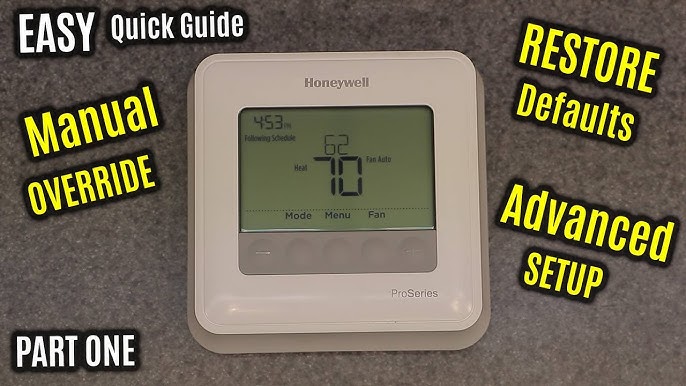
First things first, identify your specific Honeywell Pro Series model. While the process is generally similar, knowing your model number (often found on the back of the faceplate) can help if you get stuck and need to consult the manual (which, let's be honest, we all try to avoid until absolutely necessary).
Step-by-Step Battery Bliss:
-
Locate the Battery Compartment: This is often the trickiest part, but once you know, you know. For many Honeywell Pro Series models, the faceplate will either pull straight off the wall-mounted base, or it will have a small latch or button you need to press on the side or bottom to release it. Be gentle! You're not trying to win a wrestling match with your thermostat.
Pro tip: If it feels really stuck, try applying gentle, even pressure from the bottom and pulling slightly forward and up. Some models pivot open.

Honeywell Pro Series Thermostat Battery Replacement Guide | Uptechnet -
Identify the Battery Type: Once the faceplate is off (or the compartment is revealed), you'll see the batteries. They're usually AA or AAA. Make a note, or better yet, grab your fresh ones now!
-
Remove the Old Batteries: Pop them out. Go ahead, toss 'em responsibly. You've earned it.
-
Insert the New Batteries: This might sound obvious, but pay attention to the polarity (the + and - symbols). Putting them in backward is a rookie mistake we've all made, and it definitely won't work.

Honeywell Pro Series Thermostat Battery Replacement Guide | Uptechnet -
Reattach the Faceplate: Carefully align the faceplate with the wall plate and gently push it back into place until you hear a satisfying click or feel it seat firmly. Some models require you to push down and back slightly.
-
Test It Out: Voila! Your screen should now be bright and clear. Check if the time and date are correct (you might need to reset them if they weren't backed up). Try changing the temperature to make sure it responds. Success!
A Few More Pointers for the Savvy Homeowner
-
Don't Wait for Dead: Most thermostats will give you a low battery warning on the screen long before they completely conk out. Pay attention to it! Replacing them proactively means you never have to deal with that sudden temperature shock.

Honeywell Pro Series Thermostat Battery Replacement Guide | Uptechnet -
Keep Spares Handy: It sounds simple, but having a pack of AA or AAA batteries in your utility drawer is a game-changer. That way, when the warning flashes, you're ready.
-
Consult the Manual (If All Else Fails): If your specific model is proving particularly stubborn, or the battery compartment is in an unexpected spot, dig out that user manual. Or, just do a quick Google search for "Honeywell Pro Series [your model number] battery replacement." There's usually a video for everything these days!
And that's it! You've just saved yourself a service call, avoided a potential meltdown (both yours and your HVAC system's), and proved once again that a little common sense and a couple of batteries can solve a whole lot of problems. Now, go enjoy that perfectly controlled climate, you brilliant, capable human, you!