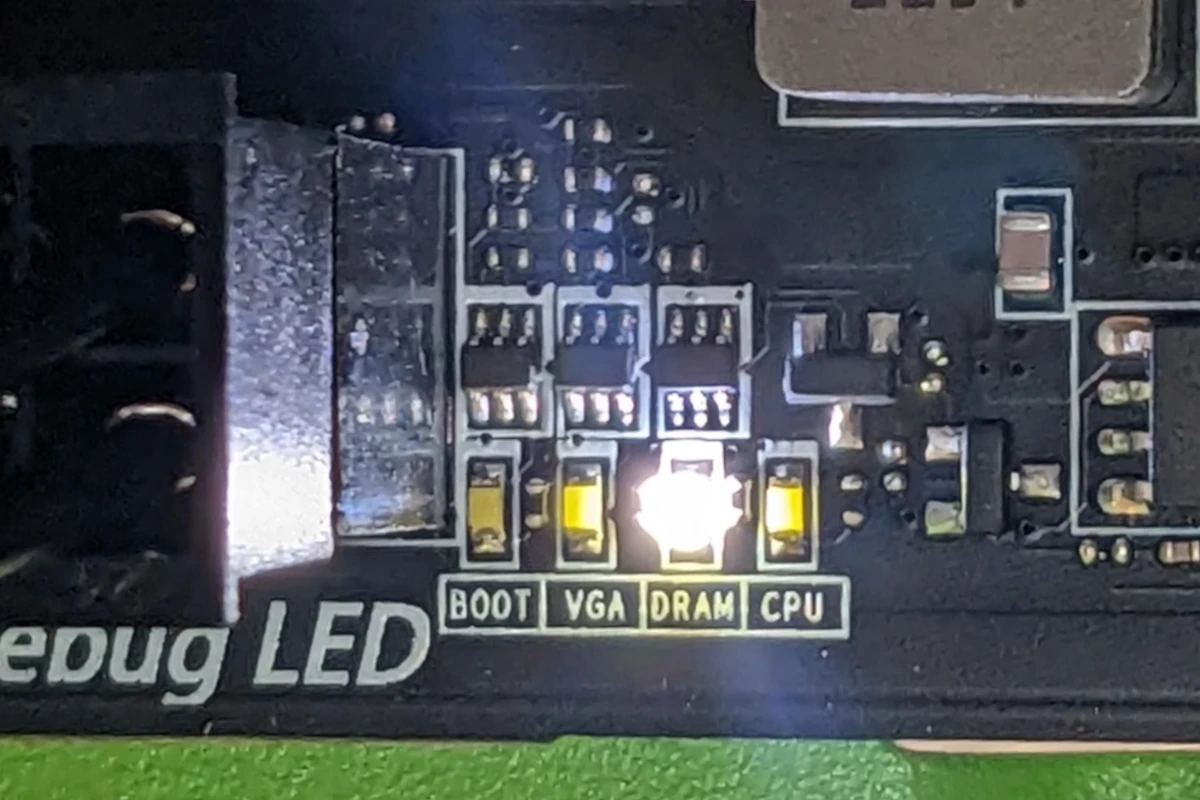
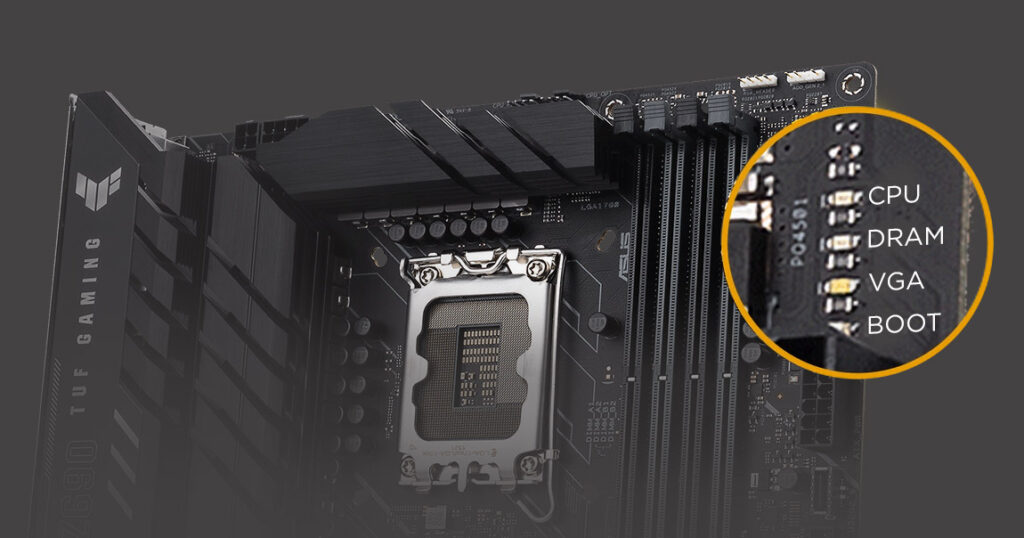
Dram Light On Motherboard
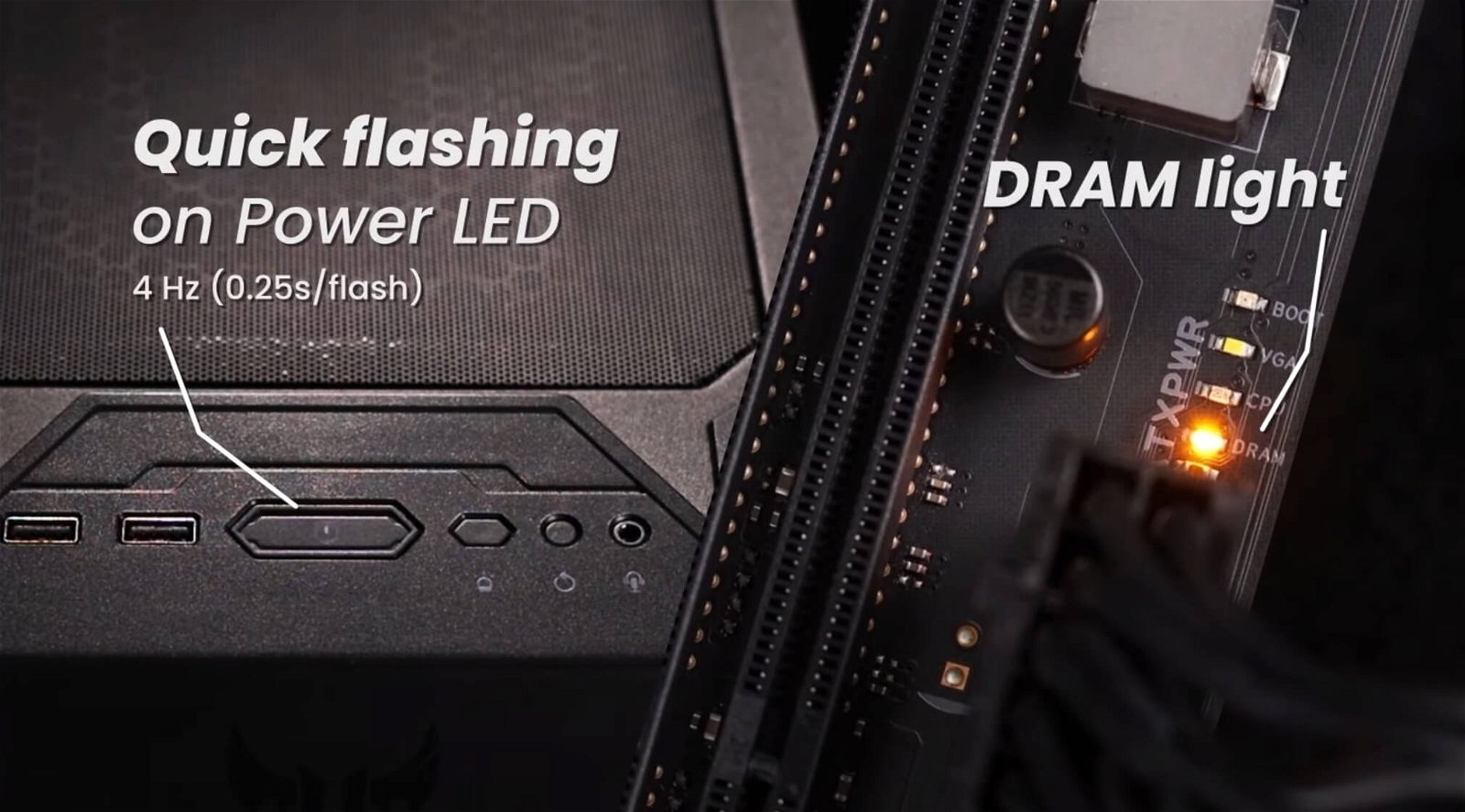
Ever wondered what those tiny lights on your computer's motherboard mean? They're not just for show! One of the most common – and arguably most important – is the DRAM light. It's a little indicator that tells you something about your computer's memory, also known as RAM. Understanding what this light signifies can save you a lot of headaches and troubleshooting time, and honestly, it's a bit like deciphering a secret language that your computer speaks.
So, what does the DRAM light actually do? Its primary purpose is to signal issues with your system's RAM. When you power on your computer, the motherboard goes through a series of self-checks, a process called POST (Power-On Self-Test). The DRAM light illuminates during this process to indicate that the motherboard is currently testing the RAM modules. If the light turns off and your computer boots normally, everything is fine! But if the light stays on, it means the motherboard has detected a problem with the RAM. This could range from a simple seating issue to a more serious hardware failure.
Knowing about the DRAM light can be incredibly beneficial. Imagine your computer suddenly starts crashing randomly, or refusing to boot at all. Instead of immediately panicking and assuming the worst, you can check the motherboard. If the DRAM light is illuminated, you know to focus your troubleshooting efforts on the RAM. This saves you time by preventing you from chasing down irrelevant software bugs or other potential problems. It's like having a built-in diagnostic tool that points you in the right direction!
Must Read
How can understanding the DRAM light be used in education or daily life? Well, for students learning about computer hardware, the DRAM light provides a tangible example of how different components interact. It illustrates the importance of RAM in the boot process and how the motherboard communicates errors. In daily life, knowing about the DRAM light empowers you to troubleshoot your own computer issues. Maybe you recently added new RAM and your computer won't boot. The DRAM light can quickly confirm that the new RAM is the problem (perhaps it's incompatible or not properly seated).
Here are a few simple ways to explore the DRAM light on your own. First, consult your motherboard's manual. It will likely have a section dedicated to troubleshooting using the diagnostic LEDs, including the DRAM light. Experiment! If you feel comfortable, try reseating your RAM modules. Turn off your computer, unplug it, open the case, and carefully remove and reinsert the RAM sticks. Make sure they click firmly into place. Then, power on the computer and see if the DRAM light turns off. Be careful when working inside your computer! If you're unsure about any step, seek professional help. Understanding the DRAM light might seem like a small thing, but it can make a big difference in your ability to keep your computer running smoothly and confidently.
![How To Fix DRAM Light On Motherboard? [15 Methods]](https://tech4gamers.com/wp-content/uploads/2023/05/HOW-TO-FIX-DRAM-LIGHT-ON-MOTHERBOARD.jpg)