
Windows 11 Stuck On Black Screen Before Login Update Drivers
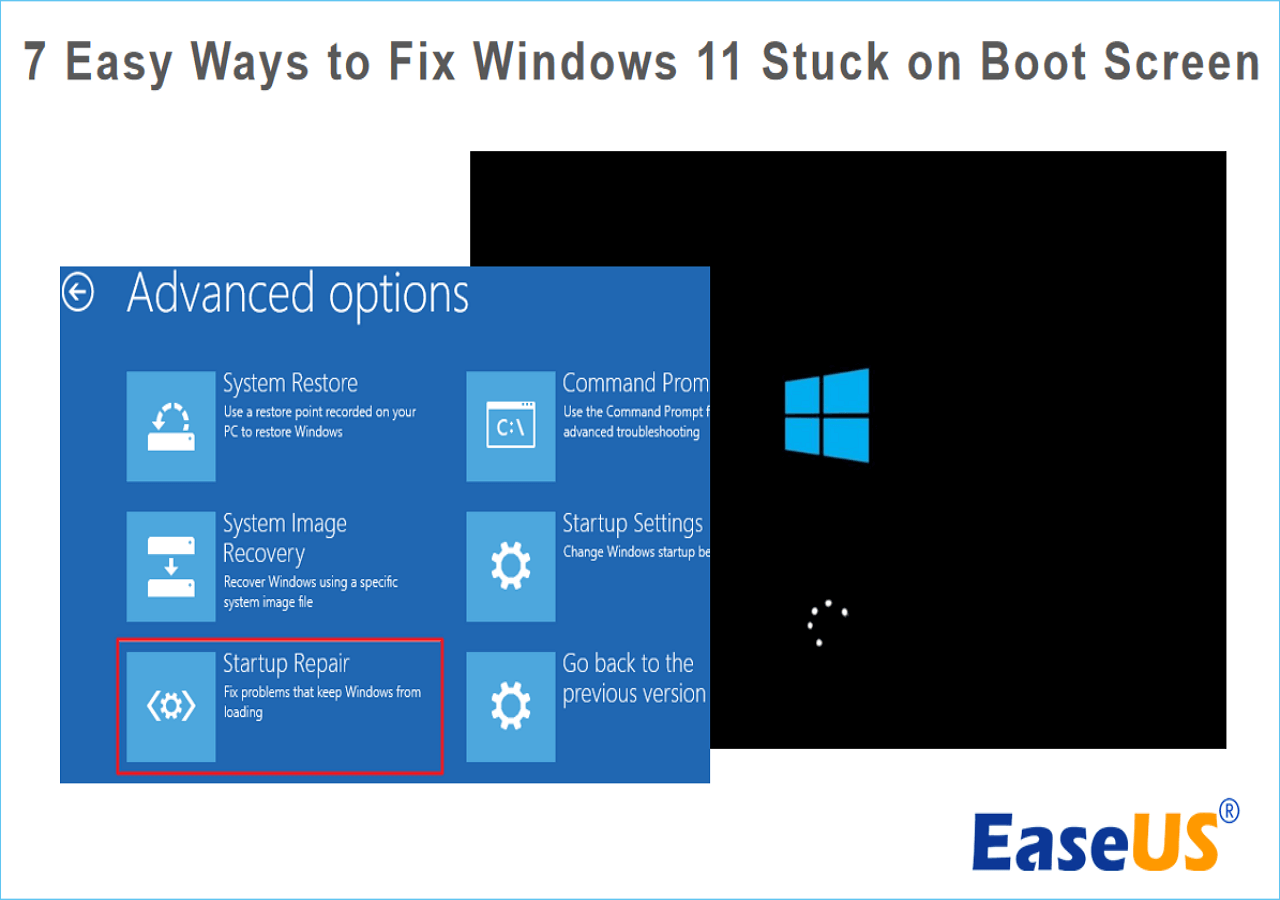
Okay, so picture this: you’re all hyped to start your day, maybe conquer some virtual worlds or finally tackle that overflowing inbox. You hit the power button on your trusty Windows 11 machine, and… blackness. Just a void. Like staring into the soul of your computer. Not exactly the inspiring start you were hoping for, huh?
Yep, you're likely experiencing the dreaded black screen before login. It’s the computer equivalent of showing up to a party and finding out it's BYOB (Bring Your Own Brainpower… and maybe a working computer).
Don't Panic (Yet!)
First things first: breathe. I know, it’s tempting to throw your monitor out the window (don't, please! Think of the squirrels!), but let's try some less destructive solutions first. This issue is actually surprisingly common, and usually has a pretty straightforward fix.
Must Read
Drivers: The Unsung Heroes (and Sometimes Villains)
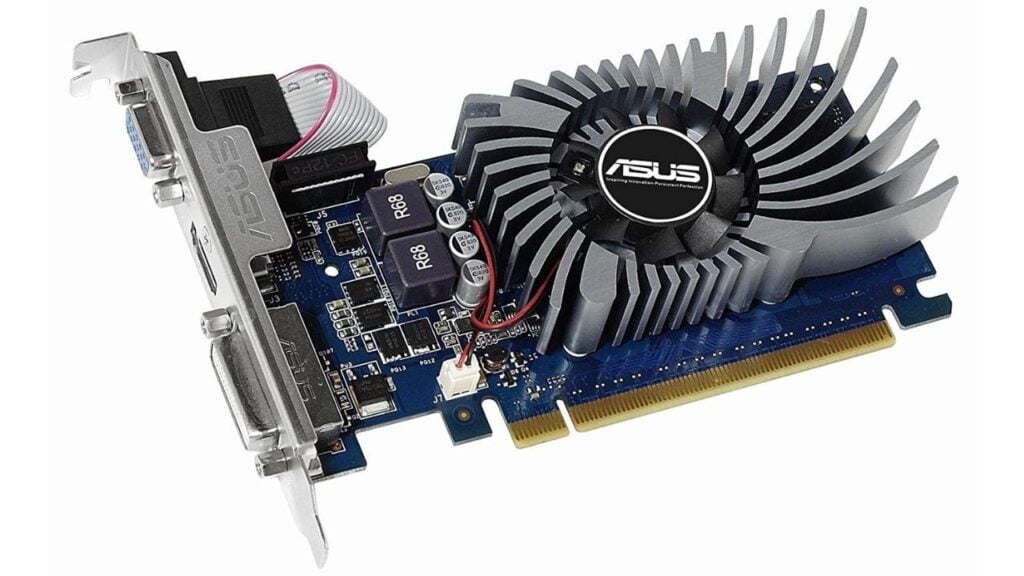
Nine times out of ten, the culprit behind this digital darkness is a grumpy display driver. Think of drivers like translators between your hardware (the graphics card) and your software (Windows 11). If the translator is speaking a different language, well, communication breaks down and you get… you guessed it… a black screen. It’s like trying to order a pizza in Italian when you only know how to say "Ciao."
So, how do we fix our broken translator?

The Safe Mode Shuffle
We need to get into Safe Mode. This is a special, stripped-down version of Windows that loads only the essential drivers. It's like taking your car to the mechanic with all the fancy bells and whistles turned off, so they can focus on the engine.
Here's the trick: since you can't see anything, you'll need to force your computer to boot into recovery mode. Do this by: 1) Holding down the power button until your computer shuts down. 2) Turn it back on. 3) Repeat steps 1 and 2 two more times. Yes, it feels barbaric, but trust me. On the third attempt to boot, Windows should recognize that something is wrong and take you to the Automatic Repair screen.
From there, navigate to: Troubleshoot > Advanced options > Startup Settings. You might have to click "See more recovery options" to find Startup Settings. Then, click Restart. After restarting, you'll be presented with a list of options. Press the number key corresponding to "Enable Safe Mode" or "Enable Safe Mode with Networking" (Networking is useful if you need to download drivers).
Driver Detective Work
Once you're in Safe Mode, it's time to update those pesky drivers. Here's how:
- Press the Windows key + X, and select Device Manager.
- Expand the "Display adapters" section.
- Right-click on your graphics card (it'll likely be something from Nvidia, AMD, or Intel).
- Select Update driver.
- Choose "Search automatically for drivers." Let Windows do its thing. If it finds an update, install it!
If Windows doesn’t find anything, try this:

- Right-click on your graphic card again, and select Uninstall device.
- Tick the box that says "Attempt to remove the driver for this device."
- Restart your computer. Windows will automatically reinstall the basic driver.
Downloading Directly from the Source
If the automatic update fails, head to the manufacturer's website (Nvidia, AMD, or Intel) and download the latest drivers directly. Make sure you download the driver specifically for your graphics card model and your version of Windows 11. If you opted for "Safe Mode with Networking" you can do this within Safe Mode.
Install the downloaded driver. Follow the on-screen instructions. This is usually just a matter of clicking "Next" a bunch of times. Like agreeing to the terms and conditions – nobody really reads those, right?
Other Potential Culprits
While drivers are the most common cause, other things can trigger the black screen of doom:

- Recent Windows Updates: Sometimes, updates can introduce bugs. If the problem started after an update, try uninstalling it.
- Hardware Issues: Though less likely, a faulty graphics card or monitor cable could be to blame. (Test with another monitor or cable if possible.)
- Overclocking: If you've been pushing your hardware to its limits, dial it back. Overclocking can cause instability.
The Light at the End of the Tunnel
Alright, hopefully, after updating (or reinstalling) your drivers, you're back in business! Restart your computer and cross your fingers. If everything went smoothly, you should be greeted by the familiar login screen. Huzzah!
Remember, even when technology throws a curveball, there's usually a solution. So, the next time you're staring into the abyss of a black screen, don't lose hope. You've got this! And if all else fails? There’s always the trusty IT support line (or, you know, bribing a tech-savvy friend with pizza).
Now go forth and conquer your digital day! You've earned it!