
Will Find My Iphone Work If The Phone Is Dead
Okay, let's be real. We've all been there. That moment of sheer panic when you can't find your iPhone. Keys? Wallet? Annoying, but manageable. Phone? Code Red! Luckily, Apple's "Find My" feature is usually a lifesaver. But what happens when your worst nightmare comes true? Your iPhone is dead. Stone cold. Battery at 0%. Does "Find My" still work? Let's dive in!
The "Find My" Basics: How Does It Usually Work?
Before we tackle the dead-battery scenario, let’s quickly recap how "Find My" usually works. Think of it like a digital breadcrumb trail. Your iPhone, when powered on and connected to the internet (Wi-Fi or cellular), periodically sends out a signal to Apple's servers, broadcasting its location. You can then use another Apple device (iPad, Mac) or even a web browser to log in to your iCloud account and pinpoint your phone on a map. Pretty cool, right? It's like having a tiny, digital bloodhound tracking your phone's every move.
The Dead Battery Dilemma: So, Will It Still Work?
Now, for the million-dollar question: Can "Find My" still locate your iPhone when the battery is completely drained? The short answer is: It might. And that "might" is all thanks to a feature Apple introduced a few years back.
Must Read
Here's the scoop. Some iPhones, even when seemingly "dead," can still transmit their location for a certain period after they power down. It's like a reserve tank for your location data. This feature is automatically enabled on many newer iPhones. Think of it as a little electronic ghost whispering, "I'm over here!" even after the lights have gone out.
But (and there's always a but, isn't there?), there are some caveats.
Factors Affecting "Find My" with a Dead Battery
Several factors can influence whether or not this post-power-down location tracking works:
- iPhone Model: This feature is more reliable on newer iPhone models. Older iPhones may not have this capability at all.
- iOS Version: Make sure your iPhone is running the latest version of iOS. Software updates often include improvements to "Find My" and its low-power tracking capabilities.
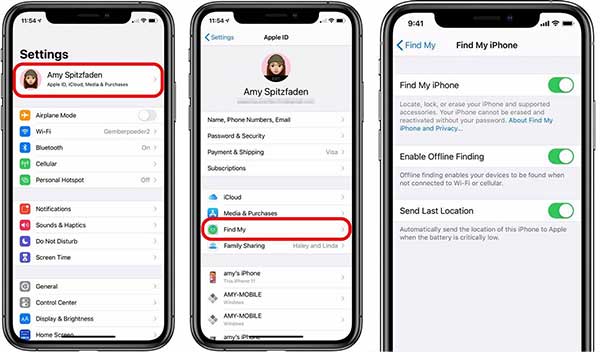
- Settings: Double-check that "Send Last Location" is enabled in your iPhone's "Find My" settings. This is crucial. To find it, go to Settings > [Your Name] > Find My > Find My iPhone and make sure "Send Last Location" is toggled on.
- Time Since Shutdown: The longer your iPhone has been off, the less likely it is to transmit its location. The reserve power won't last forever. It's like a very small, very stubborn battery stubbornly clinging to life.
How to Check for the Last Known Location
Alright, so you're in panic mode. Your phone is dead. What do you do? Fire up another Apple device (or a computer) and head to the "Find My" app or iCloud.com. If you're lucky, you'll see your iPhone's last known location displayed on the map.

Keep an eye out for a timestamp. The more recent the timestamp, the better. If the timestamp is from days ago, it means your phone hasn't been able to communicate its location since then, and the "dead battery" feature likely didn't kick in (or its reserve power has run out).
What if "Find My" Doesn't Work?
Okay, let's say "Find My" can't locate your dead iPhone. Don't despair just yet. There are still a few things you can try:

- Retrace Your Steps: Think back to the last time you remember having your phone. Methodically retrace your steps and check common hiding places (under the couch cushions, in your car, at the restaurant you went to).
- Use "Mark as Lost": In the "Find My" app, you can mark your iPhone as lost. This will lock your device remotely and display a message on the screen with your contact information. Hopefully, a good Samaritan will find it and return it to you.
- Contact Local Authorities: If you suspect your phone has been stolen, contact the police. They may be able to help you track it down.
Prevention is Key: Tips to Avoid the "Dead Battery Panic"
Of course, the best way to avoid the "dead battery panic" is to prevent it from happening in the first place. Here are a few simple tips:
- Charge Regularly: Obvious, but important! Keep your iPhone topped up whenever possible.
- Enable Low Power Mode: When your battery gets low, enable Low Power Mode to conserve energy. This will extend the battery life and give you more time to find a charger.
- Consider a Battery Case: If you're constantly running out of battery, a battery case can be a lifesaver.
The Bottom Line
Will "Find My" work if your iPhone is dead? Maybe. It depends on several factors, including your iPhone model, iOS version, and settings. While the "Send Last Location" feature offers a glimmer of hope, it's not a guaranteed solution. So, charge your phone, enable "Send Last Location," and hope for the best! And remember, a little prevention goes a long way in avoiding the dreaded "dead battery panic." Now go forth and keep track of your precious iPhone!
