
Why Is My Tablet Not Charging When Plugged In

Oh no! Your trusty tablet, your portal to endless cat videos and strategic Candy Crush conquests, has betrayed you. It’s plugged in, but stubbornly refusing to gulp down that sweet, sweet electricity. Don’t panic! We’ve all been there.
Let's embark on a thrilling quest to diagnose this digital dilemma. Think of yourself as a tech detective, armed with nothing but common sense and a dash of good humor!
The Usual Suspects: Cable Capers and Adapter Adventures
First, let's examine the charging cable. Is it intact? Give it a good once-over.
Must Read
Imagine it's a tiny, vital artery. Any kinks, bends, or exposed wires? If it looks like it survived a run-in with a particularly aggressive hamster, it might be time for a replacement.
Think of your charging cable like a garden hose. If it's bent or twisted, the water (electricity) can't flow through properly! A new cable is a cheap fix compared to a brand new tablet.
Next, cast your gaze upon the power adapter. This little brick is the unsung hero (or villain!) of our charging saga.
Is it properly connected to both the wall and the cable? Sometimes, even if it looks like it’s plugged in, it might be slightly askew. It's like trying to put a puzzle piece in upside down.
Try a different outlet! I know it sounds basic, but sometimes the simplest solutions are the most overlooked. Your regular outlet might be having a grumpy day.
Has the outlet tripped? It can happen, especially if you have a lot of devices drawing power at once. Resetting the breaker is often the superhero move that saves the day.
To really put your adapter to the test, try using it to charge a different device (like your phone). If it fails there too, you've found your culprit!
Port Problems: A Dusty Dilemma
Now, let’s investigate the tablet's charging port itself. This is where things can get a little… intimate.
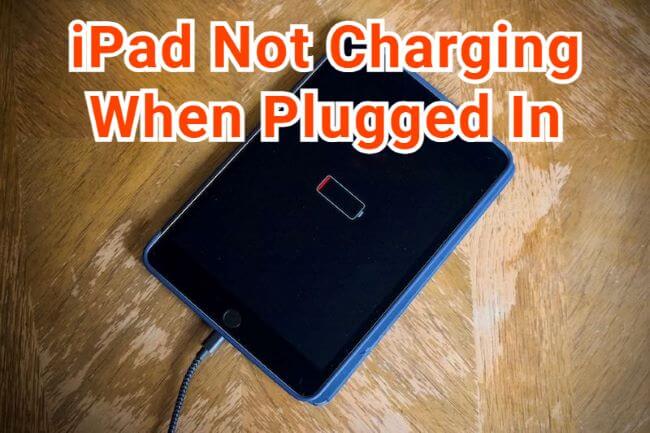
Grab a flashlight and peer into the port. What do you see? Is it sparkling clean, or does it resemble a miniature dust bunny convention?
Dust, lint, and other debris can accumulate in the charging port, creating a barrier that prevents a good connection. It's like trying to start a car with a clogged air filter!
Carefully use a can of compressed air to blow out any debris. Short, controlled bursts are key. Don't go overboard, or you might send those dust bunnies deeper into the abyss!
If you don't have compressed air, a toothpick or a non-metal tool can gently dislodge any stubborn particles. Be extremely careful not to damage the delicate pins inside!
Software Snafus: A Glitch in the Matrix
Sometimes, the problem isn't hardware-related at all. It could be a software glitch causing your charging woes.
Try restarting your tablet! It sounds cliché, but it's amazing how often a simple reboot can fix these kinds of problems. Think of it as giving your tablet a quick mental reset.
Make sure your tablet's operating system is up to date. Outdated software can sometimes cause charging issues.
Software updates often include bug fixes and performance improvements, including those related to power management. It's like giving your tablet a tune-up.

Battery Blues: The Inevitable Decline
Let's face it: Batteries don't last forever. Over time, they degrade and lose their ability to hold a charge.
If your tablet is several years old, its battery might simply be reaching the end of its lifespan. This is especially true if you use it heavily.
You might notice that the battery drains faster than it used to, or that it only charges to a certain percentage. These are classic signs of a failing battery.
Replacing the battery can breathe new life into your tablet. However, this can be a bit tricky, depending on the model.
For some tablets, replacing the battery is a relatively straightforward DIY project. Others require professional assistance.
The Deep Sleep Scenario: A Power Nap Gone Wrong
Sometimes, a tablet can enter a state of deep sleep where it appears to be completely unresponsive. It's like it's playing possum!
Try holding down the power button for an extended period of time (usually 10-20 seconds). This can sometimes force the tablet to reboot.
If that doesn't work, try plugging in the charger while holding down the power button. This can sometimes jump-start the charging process.
Third-Party App Interference: Rogue Programs at Play
Occasionally, a third-party app can interfere with the charging process. This is rare, but it can happen.

Think of it as a digital parasite sucking the power out of your tablet. If you've recently installed a new app, try uninstalling it to see if that resolves the issue.
Pay particular attention to apps that are known for being resource-intensive or that have access to battery management settings. These are the prime suspects.
Extreme Temperatures: Too Hot or Too Cold
Tablets, like humans, don't like extreme temperatures. Charging them in very hot or very cold environments can cause problems.
If your tablet has been sitting in direct sunlight or in a freezing car, let it return to room temperature before attempting to charge it.
Extreme temperatures can damage the battery and other internal components. It's best to keep your tablet in a comfortable environment.
Warranty Wonders: Time to Call in the Pros
If you've tried all of these troubleshooting steps and your tablet is still not charging, it might be time to call in the professionals.
Check your warranty! If your tablet is still under warranty, you may be able to get it repaired or replaced for free. It pays to read the fine print!
Contact the manufacturer or a qualified repair technician for assistance. They have the tools and expertise to diagnose and fix more complex problems.

Prevention is Key: Tips for a Healthy Charging Life
Now that we've explored the potential causes of your charging woes, let's talk about prevention. Here are a few tips to keep your tablet happy and healthy:
Use the original charger that came with your tablet. Using a different charger can sometimes damage the battery or other components. Think of it as giving your tablet the right kind of fuel.
Avoid overcharging your tablet. Once the battery is fully charged, unplug it from the charger. Leaving it plugged in for extended periods of time can shorten the battery's lifespan.
Store your tablet in a cool, dry place. Avoid exposing it to extreme temperatures or humidity.
Clean the charging port regularly. Use a can of compressed air or a soft brush to remove any dust or debris.
By following these simple tips, you can keep your tablet charging smoothly for years to come. Happy charging!
Don't Give Up!
Remember, diagnosing a tablet charging problem can be a process of elimination. Don't get discouraged if the first few solutions don't work.
Keep experimenting and troubleshooting until you find the cause of the problem. And if all else fails, remember that there are professionals who can help.
With a little patience and perseverance, you'll be back to enjoying your tablet in no time!