
Why Is My Iphone Not Charging While Plugged In
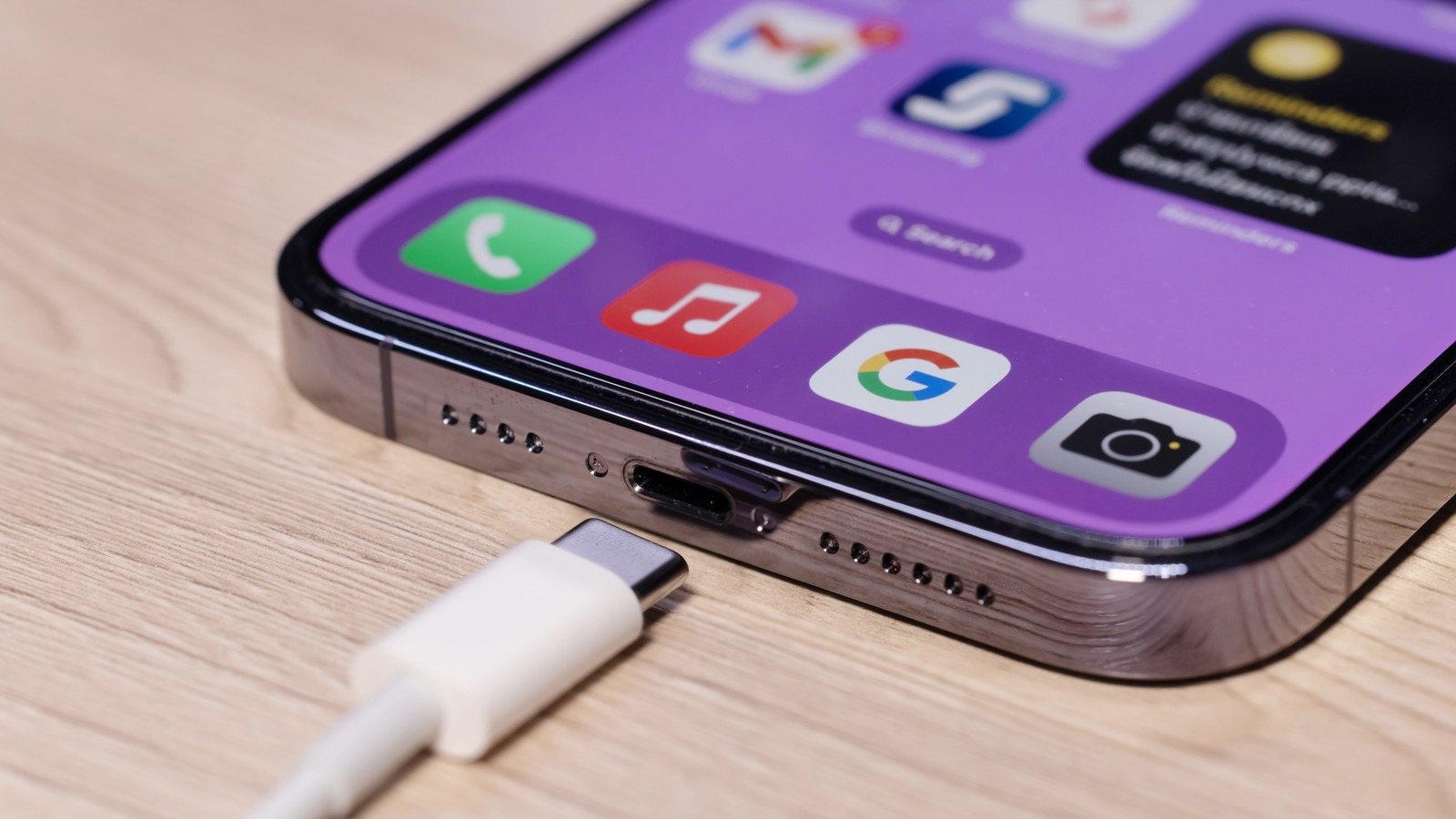
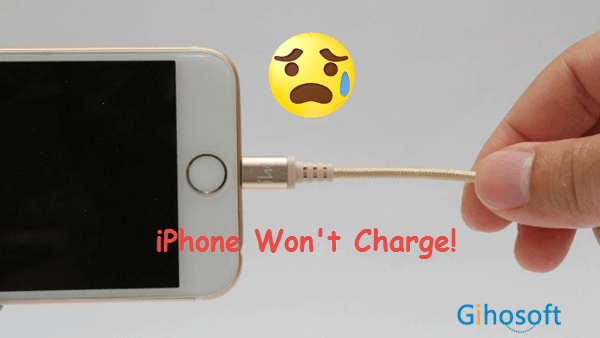
Oh no! Your iPhone is plugged in, but the battery icon stubbornly refuses to budge. That little lightning bolt just won't appear. What gives?
The Great Charging Mystery
It's a modern-day drama! You expect juice, but get zilch. Let's dive into the possible culprits behind this frustrating phone fail.
Is it the Cable?
First suspect: the charging cable. These little guys take a beating. Bent, frayed, or just plain cheap cables can cause charging chaos.
Must Read
Try wiggling the cable where it connects to your phone and the adapter. If you see any signs of life, the cable might be the problem.
The solution? Borrow a cable from a friend or grab a new one. Always choose Apple-certified cables for best results. Don't skimp on quality!
Adapter Adventures
Next, consider the wall adapter. Is it delivering the power punch your iPhone craves? Some adapters are just weaklings.
Test it out by plugging in a different device. If that device charges, your adapter is likely fine. If not, you've found your villain!
And remember, a higher wattage adapter can sometimes charge your phone faster. But always make sure it's compatible with your iPhone's power requirements.
The Port Predicament
Ah, the charging port – a magnet for lint, dust, and pocket fuzz. This debris can block the connection between your cable and your phone.
Grab a flashlight and peek inside. Is it a fluff-filled abyss? Time for a cleaning mission!
Use a toothpick or a non-conductive tool to gently remove any gunk. Be careful not to damage the delicate pins inside. This can be tricky but so rewarding.
Software Shenanigans
Sometimes, the problem isn't hardware, but software. A glitch in your iPhone's operating system can prevent charging.
Try a simple restart. Hold down the power button and volume up (or down, depending on your model) until the slider appears. Then slide to power off.
Once it's off, wait a few seconds and power it back on. This often resolves minor software hiccups.
The Force Restart Option
If a regular restart doesn't work, try a force restart. This is a more drastic measure, but it can sometimes kick-start the charging process.
The steps for a force restart vary depending on your iPhone model. Google "[Your iPhone Model] force restart" for specific instructions.
Don't worry, a force restart won't erase your data. It's like giving your iPhone a hard reboot.
Battery Blues
If your iPhone is very old, the battery itself might be failing. Batteries degrade over time, losing their ability to hold a charge.
Check your battery health in Settings > Battery > Battery Health. If the "Maximum Capacity" is significantly below 80%, it might be time for a battery replacement.
An aging battery is a common culprit, especially in older iPhones. Consider getting a professional battery replacement for your device.

The Overheating Issue
Is your iPhone overheating while charging? This can sometimes prevent it from charging properly. iPhones have safety mechanisms to prevent damage from excessive heat.
Remove your iPhone from direct sunlight or other heat sources. Let it cool down before trying to charge it again.
Avoid charging your iPhone in a hot car or under a blanket. Overheating can permanently damage your battery.
Outdated iOS
An outdated iOS version can sometimes cause charging problems. Apple regularly releases updates to fix bugs and improve performance.
Go to Settings > General > Software Update to check for available updates. Install any pending updates to ensure your iPhone is running smoothly.
Keeping your iOS up-to-date is a good habit in general. It can improve security and fix other potential issues.
Background App Activity
Too many background apps can drain your battery and interfere with charging. Close any apps that you're not actively using.
Double-tap the home button (or swipe up from the bottom of the screen on newer iPhones) to see your open apps. Swipe up to close them.
Limiting background app activity can also improve your iPhone's overall performance and battery life.
The Airplane Mode Trick
Try putting your iPhone in Airplane Mode while charging. This disables all wireless connections, allowing your iPhone to focus solely on charging.
Swipe down from the top-right corner of the screen to access the Control Center. Tap the Airplane Mode icon to turn it on.
This can sometimes speed up the charging process, especially if you're in a weak cellular or Wi-Fi signal area.
The Deep Discharge Dilemma
If your iPhone has been completely drained and left uncharged for a long time, it might take a while to "wake up." This is called deep discharge.
Plug it in and leave it charging for at least 30 minutes, even if it doesn't show any signs of life. Sometimes it just needs a little time to recover.
Avoid letting your iPhone battery drain completely on a regular basis. It's better to keep it topped up.
Third-Party App Interference
In rare cases, a third-party app might be interfering with the charging process. This is especially true if you've recently installed a new app.
Try uninstalling any recently installed apps and see if that resolves the issue. You can always reinstall them later if they weren't the problem.
Be cautious when installing apps from unknown sources. Stick to the App Store for safer downloads.
The Last Resort: Factory Reset
If you've tried everything else and your iPhone still won't charge, a factory reset might be your last resort. This will erase all data on your iPhone, so back it up first!
Go to Settings > General > Reset > Erase All Content and Settings. Follow the on-screen instructions to complete the process.
A factory reset will restore your iPhone to its original factory settings. It's like giving it a fresh start.
Time for Professional Help?
If none of these solutions work, it's time to seek professional help. There might be a hardware problem that requires expert attention.
Contact Apple Support or visit an authorized service provider. They can diagnose the problem and offer repair options.
Don't attempt to repair your iPhone yourself unless you have the necessary skills and tools. You could end up causing more damage.
So, there you have it! A comprehensive guide to solving the mystery of the uncharging iPhone. Good luck, and may your battery always be full!
Remember to always be patient and methodical when troubleshooting. And don't be afraid to ask for help if you need it!
Now go forth and conquer those charging woes! Your fully charged iPhone awaits!