
Where Is My Ssid On My Phone
Alright, settle in, grab your beverage of choice. We're about to embark on a quest. Not for the Holy Grail, mind you, but for something arguably more elusive and certainly more frustrating in the modern age: your Wi-Fi's SSID. You know, that mysterious name your smart TV, new laptop, or even that fancy smart toaster keeps asking for? "Please enter network name (SSID)."
And you stare at your phone. Your phone, which is currently using the Wi-Fi, happily streaming cat videos and updating apps. It knows the name! It just won't tell you. It’s like it’s holding out on you, a digital co-conspirator in your tech woes. Well, dear reader, today we’re cracking that code. We're going to make your phone spill the beans.
First, What Even Is an SSID?
Before we go digging, let's demystify this alphabet soup. SSID stands for Service Set Identifier. Sounds incredibly corporate, right? But really, it’s just the name of your Wi-Fi network. Think of it as the billboard sign for your internet connection, announcing its presence to the digital world. "Welcome to 'MyHouseOfDoom_Wi-Fi'!" or "PublicLibrary_Free_Internet!"
Must Read
Why do we need it? Because there might be dozens of Wi-Fi networks floating around your area. Your phone, laptop, and smart fridge need to know which one to connect to. And sometimes, you just plain forget what you named yours back in the hazy days of router setup.
Your Phone: The Secret Keeper (and How to Make It Talk)
Your phone is a veritable treasure trove of network information. It remembers all the Wi-Fi networks it has ever connected to, like a digital Rolodex of your travels and caffeine-fueled cafe visits. So, if your phone is currently connected to the network you're trying to identify, you're in luck! It's simply a matter of knowing where to look.

The Android Adventure: Where Your SSID Hides
For our Android-wielding friends, finding your SSID is usually a walk in the digital park:
- First, fling open your Settings app. It often looks like a gear icon.
- Next, tap on Network & internet or sometimes it's just called Connections. We're looking for the section that deals with how your phone talks to the outside world.
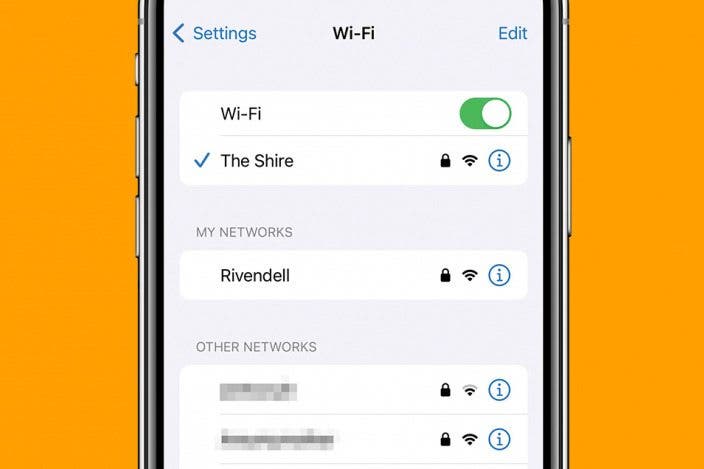
- Then, find and tap Wi-Fi. Here, you'll see a list of available networks and, crucially, the one your phone is currently connected to.
The network at the very top, likely with a "Connected" status or a little checkmark, is your elusive SSID! It's usually displayed right there, bold as brass. Sometimes, tapping on that connected network will bring up even more details, like its signal strength and even the IP address. Behold! The mystery is solved! Your phone just confessed.
The iPhone Expedition: Unearthing Your SSID
Apple aficionados, your quest is similarly straightforward. iPhones are usually pretty good at keeping things simple, and finding your SSID is no exception:
- Tap on your Settings app, the familiar grey gear icon.
- Scroll down a tiny bit and tap on Wi-Fi.
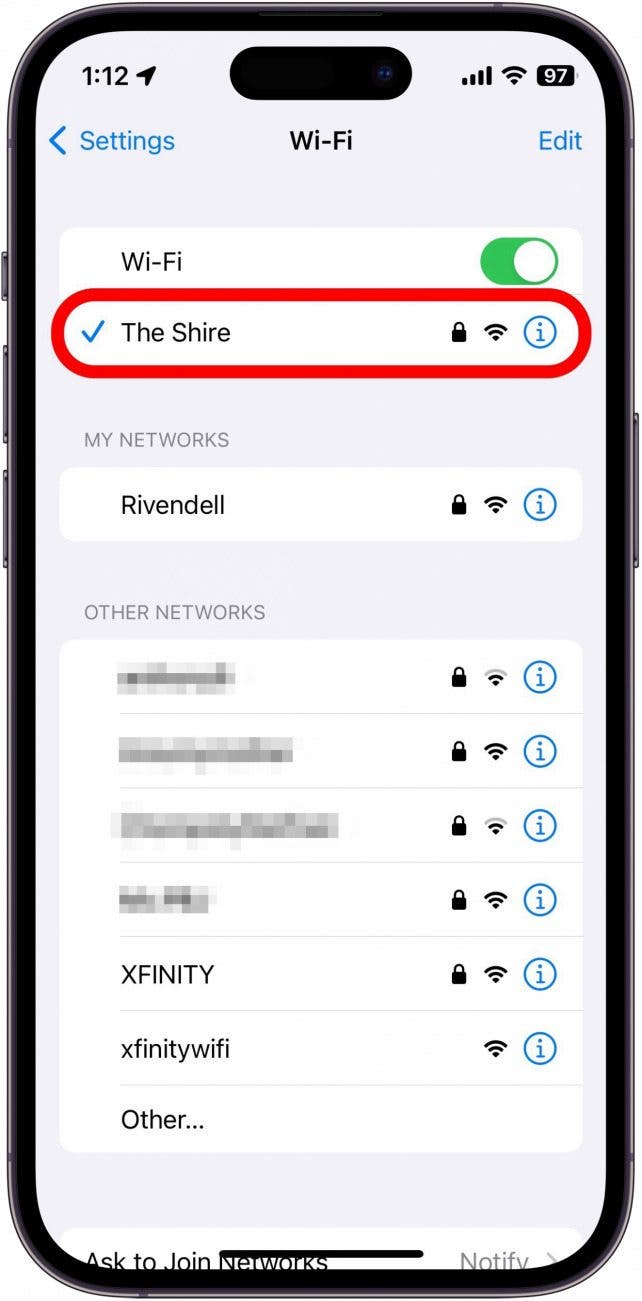
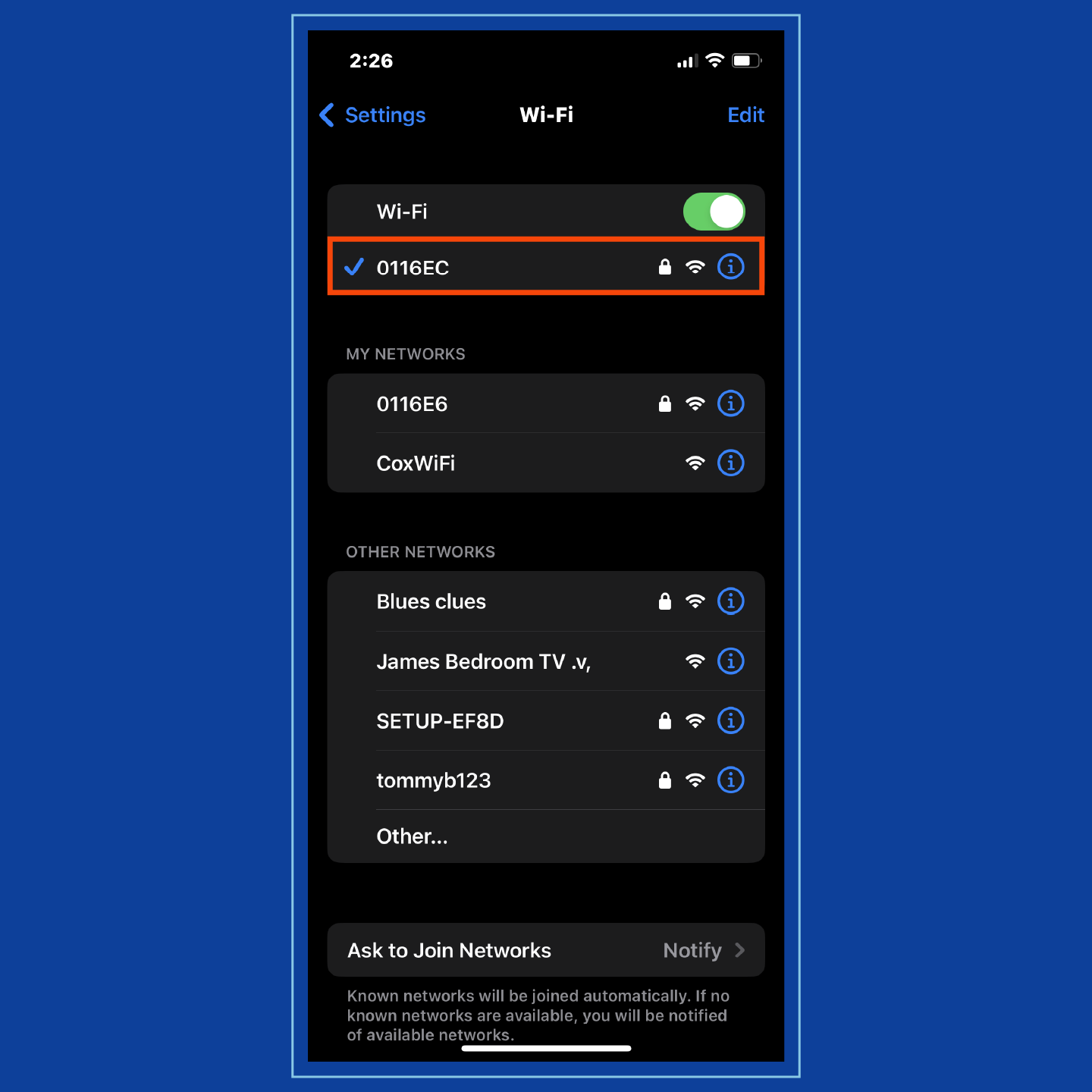
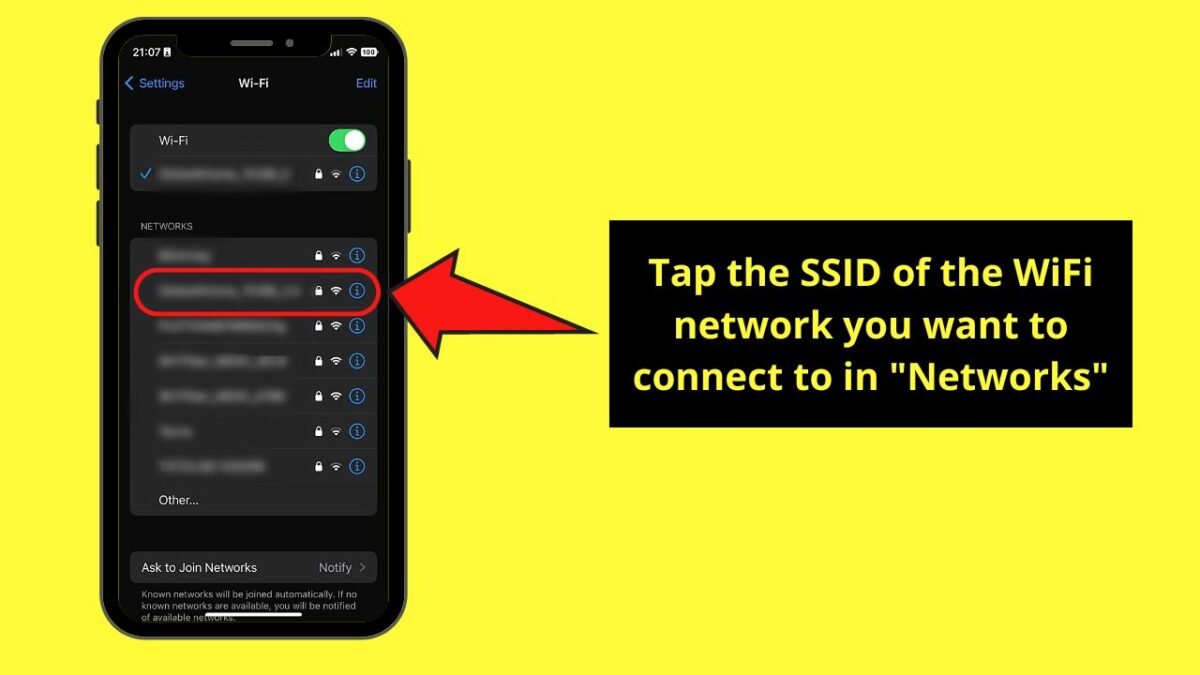
Right at the very top, under "My Networks," you'll see the name of the network your iPhone is currently connected to. It usually has a blue checkmark next to it. That's your SSID! It's staring you right in the face!
If you're feeling adventurous (or just curious), you can tap the little blue "i" (information) icon next to the network name. This will bring up a host of other fascinating tidbits, like your IP address, router IP, and sometimes even a brief history of your phone's relationship with that particular Wi-Fi signal. See? Your phone does remember everything.
But What If My Phone Isn't Connected (Or It's a Hidden Network)?
Okay, plot twist! What if you're setting up a brand-new phone, or your existing phone decided to throw a tantrum and disconnect? Or what if, gasp, your network is hidden?
The Router Whisperer
Your Wi-Fi router, that blinking box of internet magic, is often the ultimate source of truth. Many routers have a sticker on the bottom or side that lists the Default Wi-Fi Network Name (SSID) and the password. It’s like a secret decoder ring, usually found under a layer of dust bunnies. Grab your reading glasses!
The ISP Scrolls
Remember that welcome packet your Internet Service Provider (ISP) sent you when you first signed up? Or maybe an email from them when your service was installed? Sometimes, they print the default SSID and password there. It's worth digging through that "important papers" drawer (you know the one, it's mostly old receipts and takeout menus).
The Mysterious "Hidden Network"
Some people, for reasons known only to them (often a misguided attempt at security), choose to hide their SSID. This means your phone won't see it in the list of available networks. In this scenario, your phone can't tell you the SSID because it doesn't even "see" it to connect automatically. You'll need to know the exact name and type it in manually, like a digital secret handshake. If you didn't set this up, it's time to ask the person who did!
The Grand Finale: You Are Now an SSID Sleuth!
There you have it! The thrilling saga of finding your SSID on your phone. No more staring blankly at screens, no more frantic Googling, no more accusing your phone of passive-aggressive tech sabotage. Your phone is a loyal, if sometimes quiet, companion in your digital life. Now you know how to tap into its vast knowledge of Wi-Fi networks.
Go forth, connect all the things, and bask in the glorious glow of uninterrupted internet. You've earned it!