
What To Do If Monitor Says No Signal
Picture this: You’re deep into that spreadsheet, or maybe just chilling with your favorite cat video, and then – poof! – your screen goes black. Instead of your brilliant work or adorable feline antics, you’re greeted by a stark, unfriendly message: "No Signal." Panic stations? Nope! Take a deep breath. This isn’t the digital apocalypse; it’s more like your TV remote running out of batteries at the most inconvenient moment. Annoying, sure, but usually, it's a super simple fix.
Most of us have been there. One minute everything's fine, the next you're staring at a screen that looks like it's taken an early retirement. It feels like your computer is giving you the silent treatment. But don't fret! That "No Signal" message is actually a little clue, a breadcrumb leading you to a solution that often requires nothing more than a wiggle, a click, or a good old-fashioned restart. It’s like finding out your car won't start because you just forgot to put it in park – a minor facepalm moment, not a major repair bill.
Why Bother, You Ask?
Why should you care about troubleshooting this common hiccup yourself? Well, for starters, it’s incredibly empowering! Think of it like learning to make your own perfect cup of coffee instead of always hitting the drive-thru. You save time, you save money (no pricey tech support calls for something so simple!), and you get that wonderful feeling of "I fixed it!" It’s also often quicker to fix it yourself than to wait for someone else. Plus, let's be honest, staring at a blank screen when you've got things to do is just plain frustrating. Knowing these quick tricks will turn you into a tech hero in your own home!
Must Read
1. The Classic Reset Button
Before you do anything else, try the oldest trick in the book: turn it off and on again. No, really! This isn't just a funny IT crowd meme; it actually works wonders. Think of your computer and monitor as having a little argument and needing a time-out. Sometimes, they just need to restart their communication properly.
First, turn off your monitor using its power button. Give it a count of five. Then turn it back on. If that doesn't work, try restarting your entire computer. Sometimes the computer itself gets a bit scrambled and needs to reboot to properly send a signal. It’s like giving your brain a quick nap after a particularly confusing meeting – everything just works better afterwards!
2. Cable Commotion: Are We Connected?
This is probably the most common culprit. It’s the digital equivalent of trying to run a bath without plugging the stopper. There are two main types of cables to check:
The Power Cables: Make sure both your monitor's power cable and your computer's power cable are securely plugged into the wall or power strip, and into their respective devices. A loose power connection on either end can lead to a "No Signal" message because, well, if there's no power, there's no signal to send!
The Video Cables: These are the magic wires that actually send the picture from your computer to your monitor. We're talking HDMI, DisplayPort, DVI, or VGA. Check both ends of this cable! One end goes into your computer (often the graphics card port), and the other into your monitor. Gently wiggle them, unplug them, and plug them back in firmly. You’d be surprised how often a slightly dislodged cable (perhaps nudged by a curious pet or a vacuum cleaner) is the culprit. My cat, Mittens, is a notorious cable-wiggler – always looking for trouble!
Ensure your cables aren't damaged. Sometimes a cable can wear out, especially if it's been bent or pinched. If you suspect a cable, a quick visual inspection can sometimes reveal frayed wires or bent pins.
3. Input Intel: Wrong Channel Blues
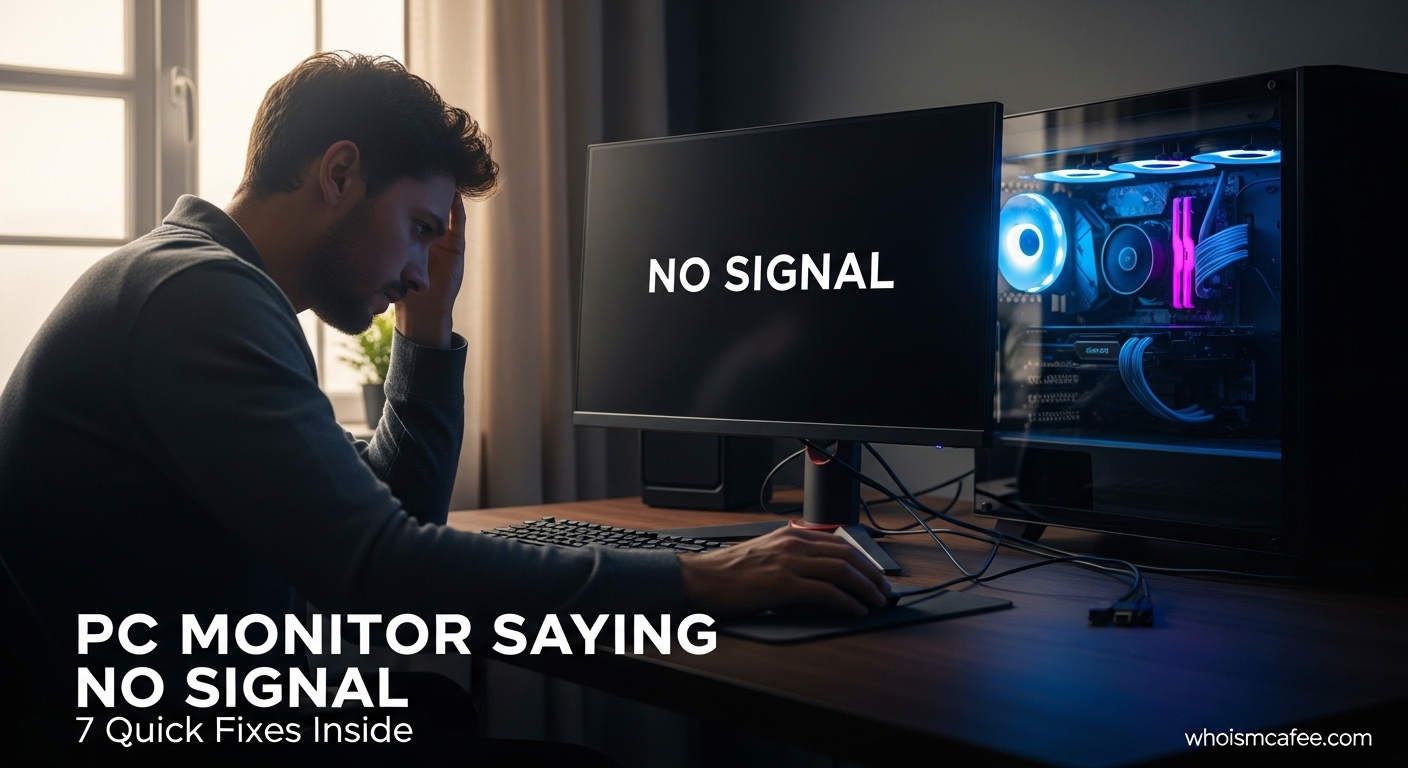
Modern monitors are pretty clever and often have multiple ports where you can plug in different devices (like your computer, a game console, or a work laptop). This is super handy, but it also means your monitor might be looking for a signal on the wrong input channel.
Think of it like trying to watch Netflix on your TV, but your TV is set to HDMI 1 when your streaming stick is actually plugged into HDMI 2. Your TV isn't broken; it's just looking in the wrong place! On your monitor, look for buttons labeled "Input," "Source," or a little icon that looks like a box with an arrow pointing into it. Press this button to cycle through the available inputs (HDMI 1, HDMI 2, DisplayPort, DVI, etc.) until you find the one your computer is connected to. Eureka! This often brings your desktop back to life in a flash.
4. The Swap Shop: Test Your Gear
If you've checked all the above and your screen is still stubbornly blank, it's time to play detective with your equipment. This step helps you figure out if the problem is with your cable, your monitor, or your computer.
Try a Different Cable: If you have a spare video cable (HDMI, DisplayPort, etc.) lying around, swap it out. Cables do go bad sometimes, just like an old shoelace. A quick swap can confirm if your original cable was the issue.
Try a Different Monitor: If you have another monitor, or even a TV with an HDMI input, try connecting your computer to that instead. If your computer displays perfectly on the second screen, then congratulations, you've narrowed it down: your original monitor is likely the problem. If it still doesn't display, then the issue is more likely with your computer (specifically, its graphics card).
This "swapping" method is a bit like troubleshooting a leaky tap – you change one part at a time until you find the culprit. It makes the whole process less daunting!
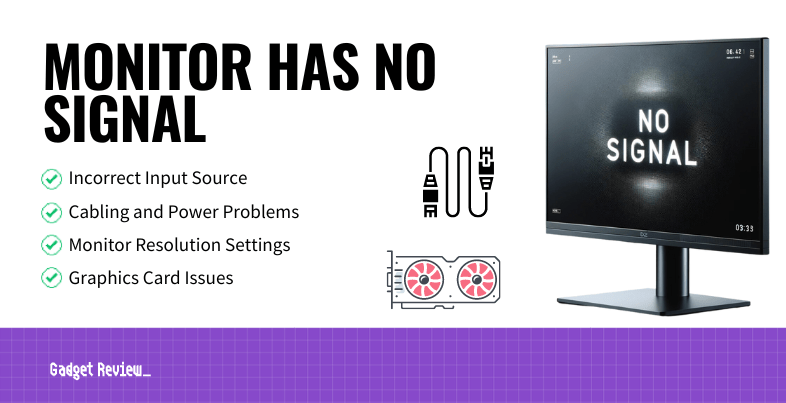
5. A Peek Under the Hood (For Desktops Only, and if You're Feeling Brave!)
If you have a desktop computer and none of the above has worked, and you’re feeling a bit adventurous, here’s one more advanced step. CRUCIAL SAFETY NOTE: Always turn off your computer and unplug it from the wall before opening the case!
Inside your desktop, there's a component called a graphics card (sometimes integrated into the motherboard). This card is what your monitor usually plugs into. Sometimes, these cards can become slightly unseated over time, especially if the computer has been moved or bumped. Open your computer case, locate the graphics card (it’s usually a large board with fans on it, plugged into a slot on the motherboard, and where your monitor cable connects). Gently, but firmly, press down on it to ensure it’s fully seated in its slot. Sometimes, a gentle nudge is all it takes to bring it back to life. Think of it like making sure a jigsaw puzzle piece is really, truly in place.
Most of the time, a "No Signal" message is not a cry for help from a dying computer, but rather a little hiccup that can be easily resolved with one of these straightforward steps. It’s like discovering your remote control isn't broken, it just needs new batteries, or you were pointing it at the wrong device! So next time your monitor gives you the cold shoulder, remember these tips, channel your inner tech detective, and give yourself a high-five for solving the mystery.
You got this!