
Logiteck G900 Works For A Second Then Stops Working
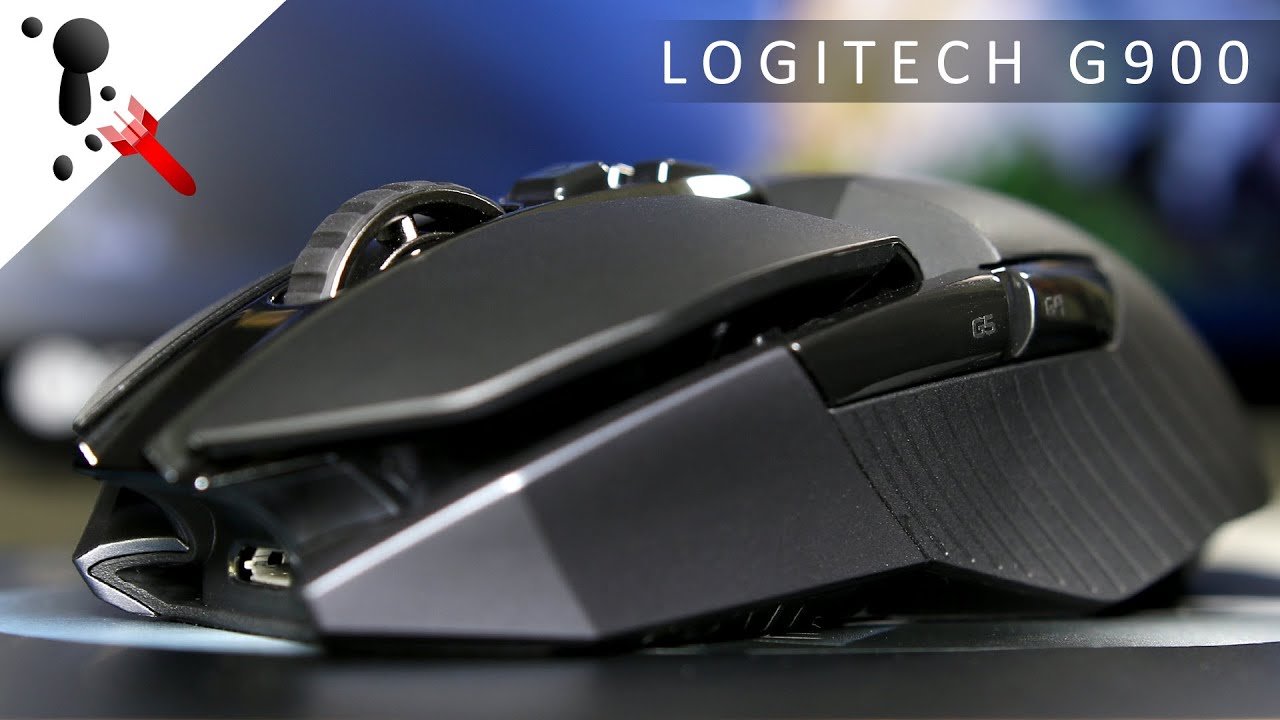
Okay, picture this: you're in the middle of an intense Overwatch match. Widowmaker is peeking, your team is relying on you, and you're just about to land that sweet, sweet headshot... and then BAM. Your mouse freezes. Not like a polite "I'm just taking a break" freeze. More like a "I've decided to abandon you in your moment of need" freeze. Yeah, you know the one. And that, my friends, is the story of my ongoing saga with the Logitech G900 Chaos Spectrum.
Specifically, the issue at hand (and the reason you're probably here, let's be honest) is the frustratingly common problem where the G900 works perfectly… for about a second. Then? Dead. Silent. A brick. And then, after some magical (read: incredibly annoying) combination of unplugging, replugging, praying to the RGB gods, it might work again for another second. Rinse and repeat until you're questioning your sanity and your life choices.
The Dreaded Disconnect
So, what's going on? Why is this amazing, albeit pricey, mouse deciding to stage a silent protest mid-game? Well, the internet is awash with theories. Everything from driver issues to faulty USB ports to… well, let's just say some of the suggestions are a little out there. (Aluminum foil as an antenna booster? I'm looking at you, Reddit.) But let's break down some of the more plausible culprits.
Must Read
First, the obvious: drivers. Yeah, yeah, I know, you've probably already reinstalled them a dozen times. But humor me. Make absolutely sure you're using the latest drivers directly from Logitech's website, not just whatever Windows Update decides to throw at you. And while you're at it, completely uninstall the old ones first. Use a driver removal tool if you have to. Think of it as digital spring cleaning for your mouse.
Speaking of uninstalling things, have you tried uninstalling Logitech G Hub? Yeah, I know, blasphemy! But G Hub, bless its feature-rich heart, can sometimes be a bit… temperamental. It's been known to cause conflicts with other software and generally wreak havoc on Logitech peripherals. Try running the mouse without G Hub for a while and see if the problem persists. You might be surprised. (I was.)
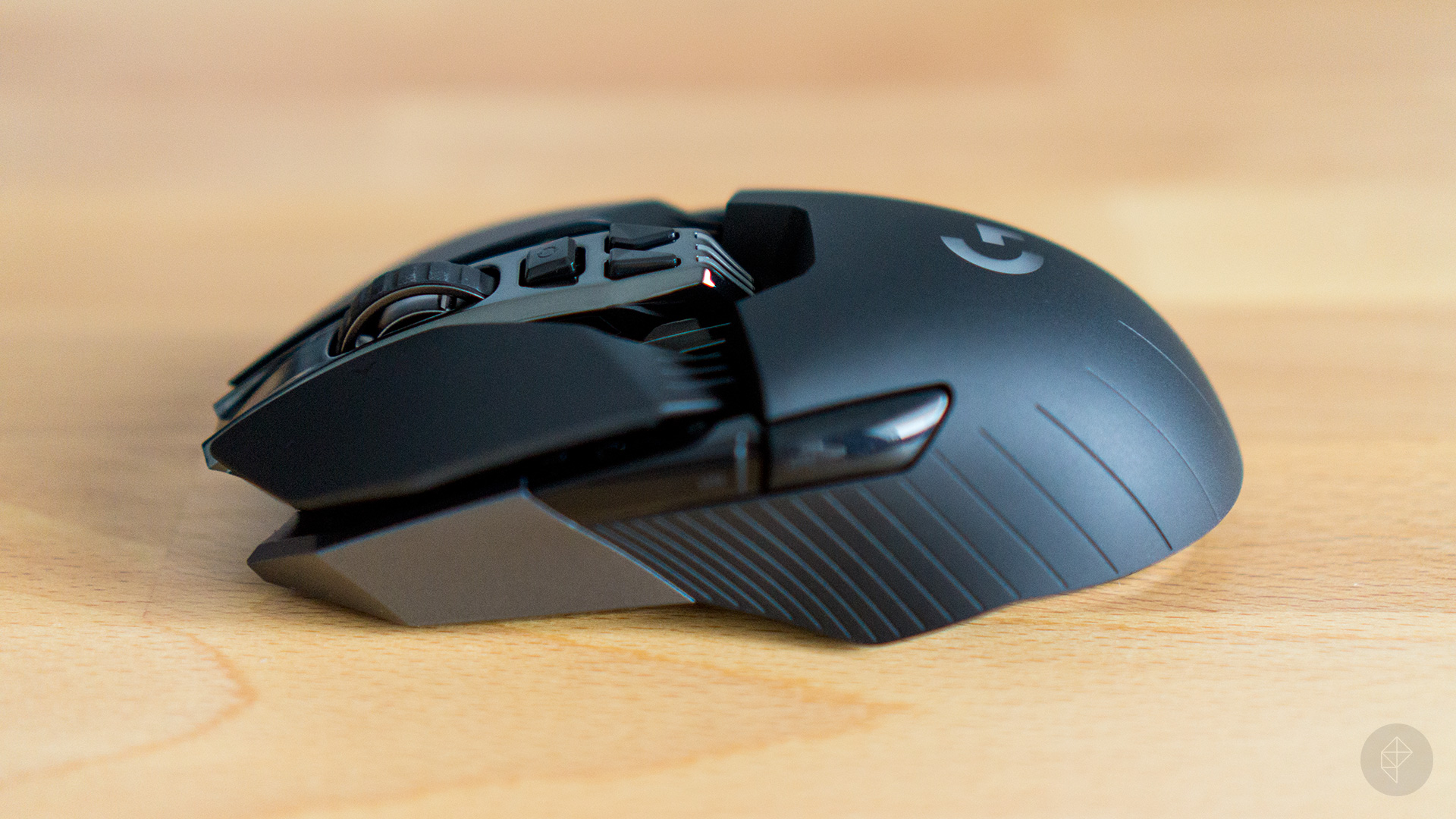
Next up: USB ports. I know, it sounds simple, but it's often overlooked. Try plugging the G900 into different USB ports, preferably USB 2.0 ports to rule out any USB 3.0 compatibility issues. And for the love of all that is holy, make sure the port isn't damaged or loose. Give it a wiggle test! If it feels wobbly, that could be your problem right there. Also, and this is important, make sure that particular USB port isn't also acting like a power hub for 15 different devices all trying to draw power at once. That can cause some serious instability.
Firmware is another potential suspect. Logitech occasionally releases firmware updates for its devices, and an outdated or corrupted firmware could definitely be causing your disconnection woes. Head over to the Logitech website (again, I know, you've been there a million times) and see if there's a firmware update available for your G900. If there is, carefully follow the instructions to update it. A botched firmware update can brick your mouse, so proceed with caution!

Now, for the slightly more concerning possibilities. It could be a hardware issue. Sadly, electronics don't live forever, and sometimes components fail. It could be a faulty sensor, a loose connection inside the mouse, or even a problem with the battery (if you're using it wirelessly). If you've tried all the software fixes and nothing seems to work, this might be the unfortunate truth. If your mouse is still under warranty, contact Logitech support. They might be able to offer a replacement or repair.
The Wireless Question
Are you using the G900 wirelessly? If so, that opens up a whole new can of worms. Interference from other devices (routers, Bluetooth devices, etc.) can definitely cause connection problems. Try moving your router further away from your computer, or temporarily disabling other wireless devices to see if that makes a difference. The G900 should be pretty resilient to interference, but it's worth ruling out.
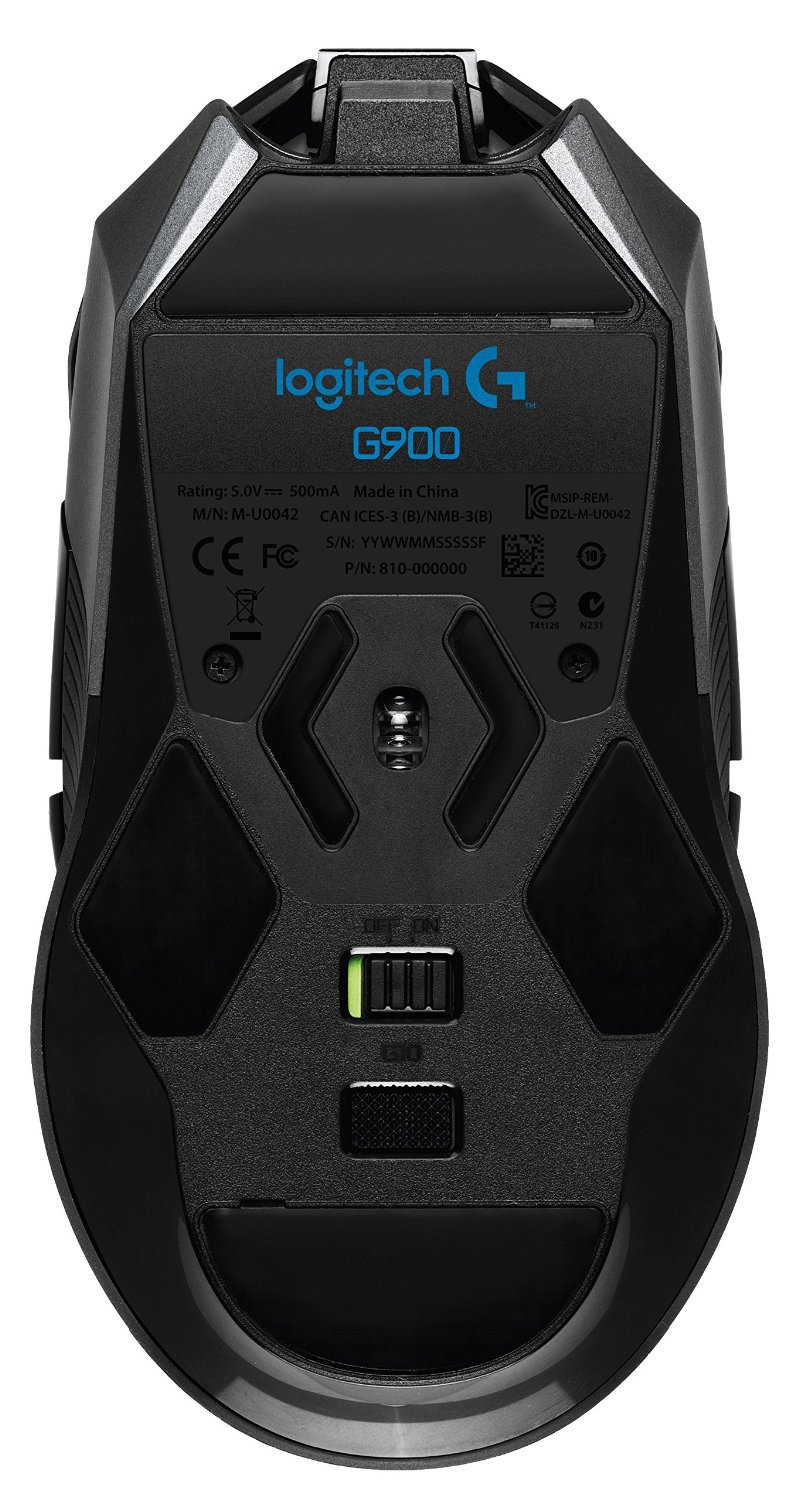
Also, make sure the USB receiver is plugged directly into your computer, not into a USB hub. USB hubs can sometimes introduce latency and connection issues, especially with high-performance devices like gaming mice. And for goodness sake, make sure the receiver is close enough to the mouse! That tiny dongle is important.
Finally, and this is a long shot, check your computer's power management settings. Windows sometimes has a habit of putting USB ports to sleep to save power, which can obviously cause your mouse to disconnect. Go to Device Manager, find your USB ports, and make sure the "Allow the computer to turn off this device to save power" option is unchecked. It's a small thing, but it could make a big difference.
In conclusion, the Logitech G900 disconnection issue is a frustratingly common problem with a frustratingly diverse range of potential causes. Hopefully, one of the solutions outlined above will help you get your mouse back up and running. And if all else fails? Well, there's always the aluminum foil antenna booster. (Just kidding! …mostly.) Good luck, and may your headshots be ever in your favor.
