
How To View All Ip Addresses On A Network
Hey there, tech adventurer! Ever wondered what lurks beneath the surface of your home network? Like, who's really hogging all the bandwidth? (Probably your neighbor leeching off your Wi-Fi... just kidding! Maybe.) I’m talking about finding out all the IP addresses on your network. It's easier than you think, and kinda fun, in a geeky sort of way.
Why Bother? (Besides Satisfying Your Inner Spy)
Okay, so why even bother digging around for these IP addresses? Good question! Knowing your network's inhabitants can be useful for a few reasons. Maybe you're setting up a new printer (and it's being a pain, as printers usually are). Or perhaps you're trying to troubleshoot a connection issue. Identifying devices by their IP address is like giving them a name tag – it makes everything easier to manage. Plus, it’s just cool to know!
The Easiest Way: Your Router is Your Friend
Your router is the gatekeeper of your network, the all-seeing eye. It knows everything. And lucky for us, it usually keeps a record of all connected devices and their IP addresses. Think of it as the router's guest list. Finding this list is usually pretty straightforward.
Must Read
Here's the drill:
- Find your router's IP address. This is usually something like
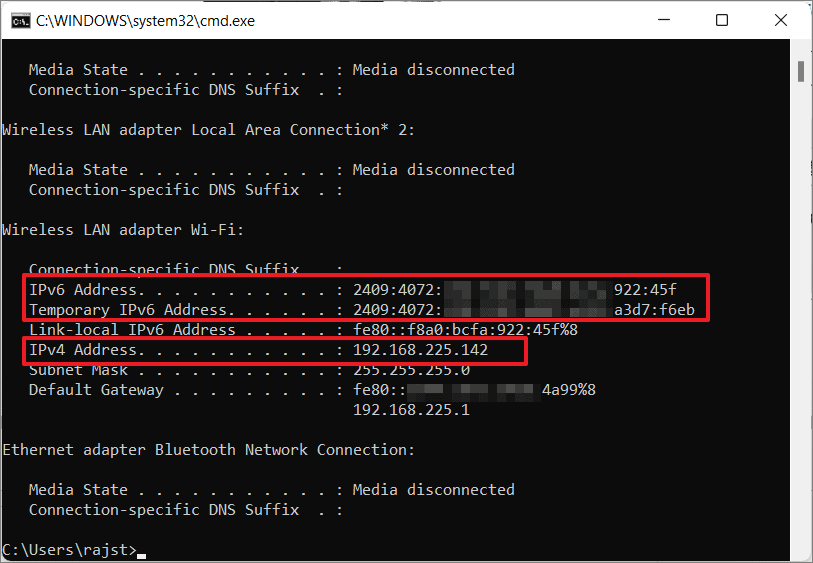
192.168.1.1or192.168.0.1. Not sure? Try typingipconfig(on Windows) orifconfig(on macOS/Linux) in your command prompt/terminal. Look for "Default Gateway". That's your ticket. - Open a web browser. Yes, the same one you use to watch cat videos. Paste your router's IP address into the address bar and hit enter.
- Login. This is where it gets tricky. You'll need your router's username and password. If you haven't changed it (tsk tsk), it's probably the default one – usually something like "admin" for both username and password. Google your router model to find the default credentials if you're stuck. Don't leave the default password if you want some security, please!
- Look for the "DHCP Client List" or "Attached Devices" section. The exact wording varies depending on your router's make and model. But it's usually something along those lines. This is where the magic happens! You should see a list of all connected devices, their IP addresses, their MAC addresses (another unique identifier), and sometimes even their device names. Boom! You’re in!
Command Line Kung Fu (For the More Adventurous)
Feeling a bit more...technical? You can also use command-line tools to discover IP addresses on your network. It's like being a digital detective! These methods are slightly more advanced, but don’t worry, I'll walk you through it.

On Windows:
Open the Command Prompt (search for "cmd"). Type in the following command and press Enter:
arp -a

This command displays the Address Resolution Protocol (ARP) table, which maps IP addresses to MAC addresses on your local network. It might look a little cryptic, but you'll see a list of IP addresses and their corresponding physical addresses (MAC). Is this what you are looking for?
On macOS/Linux:
Open the Terminal. Type in the following command and press Enter:
arp -a
Yup, the same command as Windows! You'll see similar output. Different operating systems, same basic tool.

Network Scanners: The Nuclear Option (Almost)
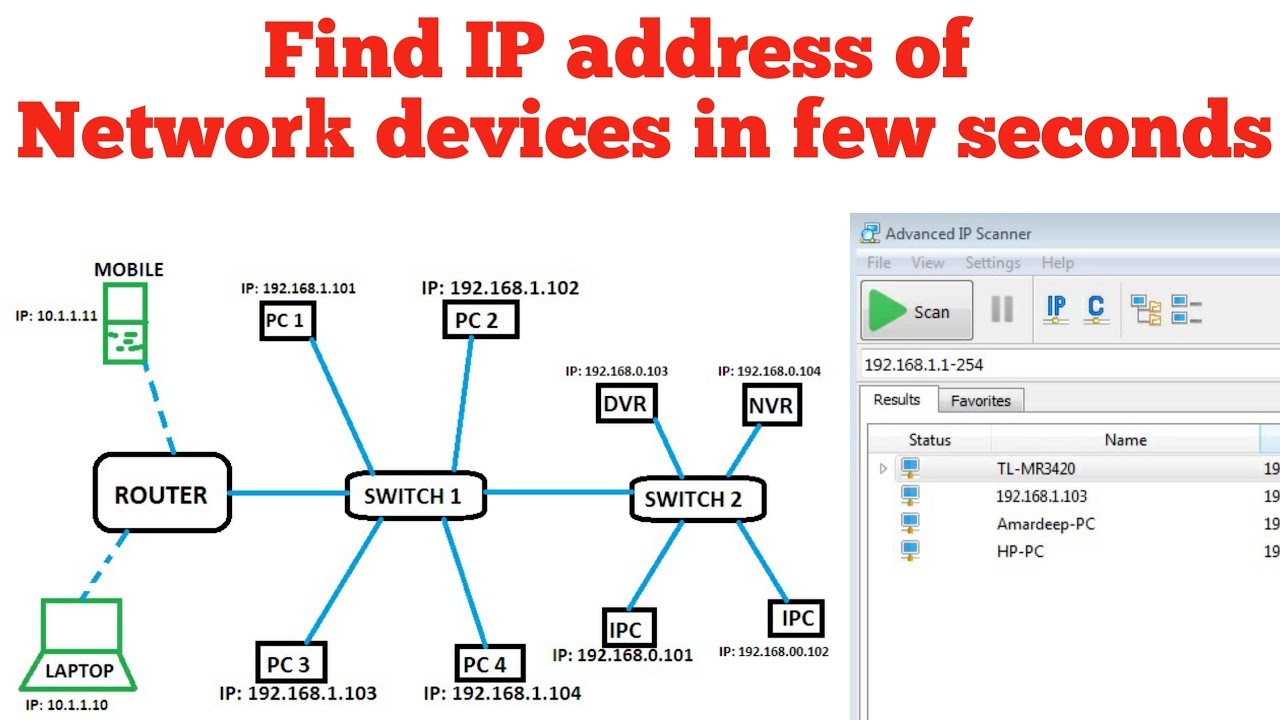
If you want a more visual and user-friendly way to scan your network, you can use a network scanner tool. There are tons of free ones available online, like Angry IP Scanner or Advanced IP Scanner. Just download, install (carefully!), and run the scan. These tools will automatically scan your network and display a list of all connected devices, their IP addresses, hostnames, and other information. It's like having a superpower!
A Word of Caution (Because Lawyers)
Just a quick reminder: While it's fun to explore your own network, don't go scanning networks you don't own or have permission to access. That's generally frowned upon (and potentially illegal). Stick to your own turf, and happy hunting!
So, there you have it! A few different ways to uncover the secret IP addresses lurking on your network. Go forth and explore! And remember, with great power comes great responsibility... or, at least, the ability to finally figure out which device is slowing down your Netflix binge.